

Keep reading
Rather we just did it for you?
Let's get your business seen.
Social media, websites, SEO and ads from a team you can actually meet.
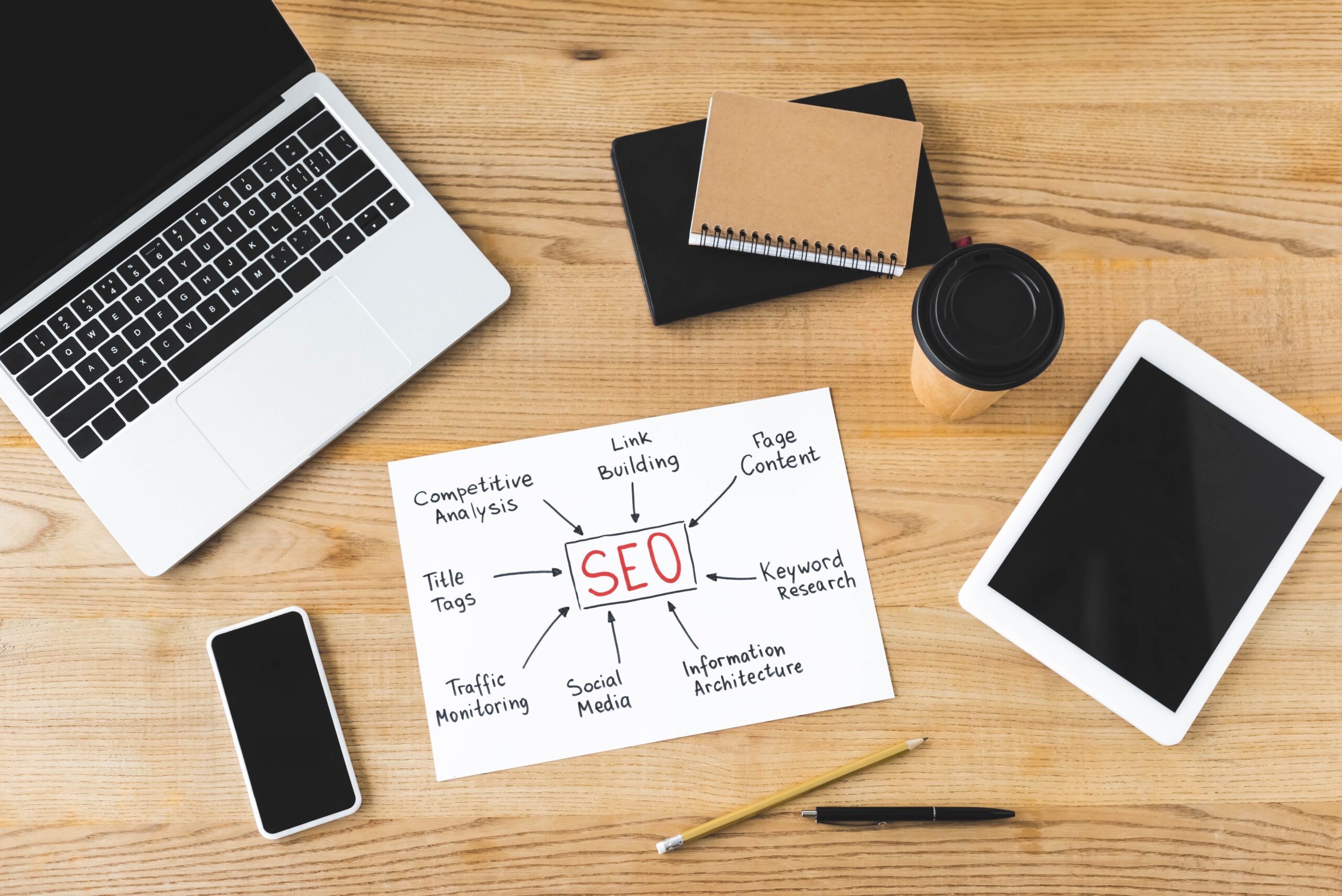
When you need quick answers about a page, Chrome is often the fastest place to get them. The right seo tool chrome setup can help you spot on page issues, check technical basics, and validate changes without waiting for a crawl or a report.
This guide covers what to look for in an extension, how to use Chrome DevTools for SEO, and a simple workflow you can repeat on any site. It is written for UK marketers, content editors, and developers who want clear checks that lead to better decisions.
Why Chrome is useful for SEO work
Chrome is where your pages actually load, render, and run scripts. That makes it ideal for fast diagnosis. With a few extensions and built in tools you can:
- Review titles, meta descriptions, headings, canonicals, and indexability signals.
- Confirm what Google can see after JavaScript runs.
- Check internal links, redirects, and status codes.
- Inspect performance and Core Web Vitals signals at a page level.
- Spot basic accessibility and UX problems that often overlap with SEO.
In other words, seo for chrome is not just about installing an extension. It is about building a repeatable way to check pages as you plan, publish, and improve content.

What makes a good seo tool chrome extension
There are dozens of options in the Chrome Web Store. Some are excellent. Some are noisy, inaccurate, or heavy. Use these criteria to choose an seo tool for chrome that fits your workflow.
1) Accuracy and transparency
Prefer tools that show the source of the data. For example, if it reports a canonical URL, it should show the exact tag it read. If it flags a noindex, it should show where it found it, such as a meta robots tag or an X Robots Tag header.
2) Lightweight and safe
Extensions can slow your browser and introduce risk. Install only what you need. Check permissions before installing and avoid tools that request access to all sites unless that is essential. Keep your extension list short and review it every few months.
3) Clear outputs you can act on
Good tools do not just dump data. They help you answer practical questions such as:
- Is this page indexable and canonicalised correctly?
- Do headings match the page intent?
- Are internal links descriptive and consistent?
- Is structured data present and valid?
4) Works with your stack
If you work on ecommerce, you may need checks for pagination, faceted navigation, and product schema. If you publish editorial content, you may care more about headings, internal links, and article schema. Choose tools that match your site type.
Recommended types of Chrome SEO tools and what they are for
Rather than naming a single best extension for everyone, it is more useful to think in categories. Most teams do well with one tool from each group.
On page and metadata inspectors
These show titles, meta descriptions, headings, canonicals, robots directives, hreflang, and open graph tags. They are ideal for quick audits of templates and newly published pages.
- Use for: content QA, template checks, spotting missing or duplicated tags.
- Watch out for: tools that only read the initial HTML and miss rendered tags on JavaScript heavy sites.
Link and redirect checkers
These help you review internal links, external links, and status codes. Some highlight nofollow, sponsored, and UGC attributes.
- Use for: finding broken links, checking redirect chains, validating new internal linking.
- Watch out for: cached results or tools that do not follow redirects properly.
Structured data testers
Schema can be the difference between a plain result and a rich result. A good structured data tool will detect schema types, show errors, and help you validate changes quickly.
- Use for: product, organisation, local business, FAQ, and article schema checks.
- Watch out for: tools that only validate syntax and not whether the markup matches visible content.
Performance and Core Web Vitals helpers
Some extensions surface performance metrics and hints. They are useful for triage, but you should still confirm with Chrome DevTools and field data where possible.
- Use for: quick identification of heavy pages, large images, and render blocking resources.
- Watch out for: treating lab results as the full story.
Accessibility and UX checkers
Accessibility overlaps with SEO more than people expect. Clear headings, descriptive links, and good contrast help users and often improve engagement signals.
- Use for: spotting missing alt text, poor heading structure, and form issues.
- Watch out for: automated checks that miss context. Always review manually.
How to use Chrome DevTools for SEO checks
Extensions are convenient, but Chrome DevTools is the most reliable place to confirm what is happening. It is built into Chrome and gives you direct evidence.
Check 1: Confirm indexability signals
Open DevTools, then view the page source and also inspect the rendered DOM. Look for:
- Meta robots directives such as noindex or nofollow.
- Canonical tag and whether it points to the correct URL.
- Hreflang tags if you run multiple locales.
If your site uses JavaScript to inject tags, the rendered DOM matters. Some SEO issues happen because the initial HTML is missing key tags or because scripts overwrite them.
Check 2: Validate status codes and redirects
In the Network tab, reload the page and click the main document request. Confirm:
- The status code is 200 for indexable pages.
- Redirects use 301 when appropriate and do not chain unnecessarily.
- Canonical targets return 200 and are not blocked.
Check 3: Review page speed issues you can actually fix
Use the Performance and Network tabs to identify:
- Large images that should be compressed or served in modern formats.
- Excessive JavaScript that delays rendering.
- Third party scripts that add weight without clear value.
For SEO, focus on changes that improve user experience. Faster pages tend to reduce bounce and increase engagement, which supports organic performance.
Check 4: Inspect internal linking and anchor text
Right click a link and inspect it. Confirm:
- It points to the intended URL, including trailing slashes and parameters.
- It uses descriptive anchor text that matches the destination topic.
- It is not blocked by JavaScript events that prevent crawling.
A repeatable workflow: use an SEO tool for Chrome in 15 minutes
This is a simple routine you can run on any important page, whether it is a product page, service page, or blog post.
Step 1: Start with the search intent
Before you check tags, confirm what the page is trying to rank for and what the user wants. Look at the top results and note the common format. Are they guides, category pages, product pages, or comparison lists?
Step 2: Run a quick on page scan
Use your chosen extension to review:
- Title and meta description for clarity and relevance.
- H1 and H2 structure for a logical hierarchy.
- Word count and content depth compared to competitors.
- Image alt text where it adds meaning.
Do not chase perfect character counts. Aim for clear, accurate summaries that encourage the right click.
Step 3: Confirm technical basics in DevTools
- Status code is correct.
- Canonical is correct.
- No accidental noindex.
- Page loads key content without errors.
Step 4: Check internal links in and out
Use a link checker extension or inspect links manually. Ask:
- Does the page link to relevant supporting pages?
- Does it receive links from related pages, especially hubs and navigation?
- Are there broken links or outdated references?
Step 5: Validate structured data where relevant
If the page is eligible for rich results, confirm schema exists and matches visible content. For example, product pages should have consistent price and availability. Articles should have correct author and date information.
Step 6: Note actions and owners
The point of checks is change. Write down what you found and who will fix it. Keep it simple: issue, impact, fix, owner, deadline.
Common mistakes people make with Chrome SEO extensions
Chrome tools are powerful, but they can mislead if you rely on them blindly.
Installing too many extensions
More tools usually means more noise. It can also slow Chrome and create conflicting results. Keep one primary extension for on page checks and add specialist tools only when needed.
Trusting a single metric
Some tools show scores for SEO, speed, or authority. Scores can be useful for prioritising, but they are not a strategy. Focus on specific issues that affect crawling, indexing, relevance, and user experience.
Ignoring JavaScript rendering
Many issues only appear after scripts run. Always verify key tags and content in the rendered DOM, not just the page source.
Forgetting about templates
If you find the same problem on several pages, it is often a template issue. Fixing the template can improve hundreds of URLs at once.
Practical tips to get more value from your Chrome SEO setup
- Create a clean Chrome profile for SEO work with only essential extensions installed.
- Use bookmarks for key checks such as robots.txt, sitemap.xml, and important category pages.
- Keep a simple audit checklist so you do not miss basics during busy releases.
- Pair Chrome checks with Search Console to confirm what Google reports for coverage, enhancements, and performance.
- Document your findings with screenshots from DevTools when raising tickets for developers.
FAQ
What is the best seo tool chrome extension for beginners?
Start with a lightweight on page inspector that clearly shows titles, meta descriptions, headings, canonicals, and robots directives. Beginners get the most value from tools that explain what they are showing and let you copy values easily for audits.
Can I do seo for chrome without paid tools?
Yes. Chrome DevTools is free and powerful for technical checks. Many free extensions also cover on page elements, link checks, and basic structured data review. Paid tools tend to add convenience, deeper reporting, and team features, but they are not required to spot common issues.
How do I know if an seo tool for chrome is reading rendered content?
Test a page where content or tags are injected by JavaScript. Compare what the extension reports with what you see in the Elements panel in DevTools. If the extension misses tags that are present in the rendered DOM, it may only be reading the initial HTML.
Do Chrome extensions affect page speed or SEO performance?
Extensions can slow your browser and sometimes interfere with page behaviour during testing, but they do not affect how Google crawls your live site. To avoid confusion, disable non essential extensions when running performance tests or debugging.
What should I check first when a page is not ranking?
Start with indexability and intent. Confirm the page is indexable, returns a 200 status, has the correct canonical, and is not blocked by robots directives. Then review whether the content matches the search intent and whether the page has strong internal links from relevant sections of the site.
Is Chrome DevTools enough for technical SEO audits?
DevTools is excellent for investigating individual pages and confirming issues. For full site audits you will usually need crawling software and log file analysis to find patterns at scale. Use DevTools to validate and understand the issues your other tools surface.
Conclusion: build a simple Chrome based SEO routine
A good seo tool chrome setup combines one or two reliable extensions with Chrome DevTools for proof. Keep your checks focused on decisions that move the needle: indexability, clear on page signals, internal linking, structured data, and performance basics. If you make this a habit during publishing and releases, you will catch problems early and improve pages faster.