

Keep reading
Rather we just did it for you?
Let's get your business seen.
Social media, websites, SEO and ads from a team you can actually meet.
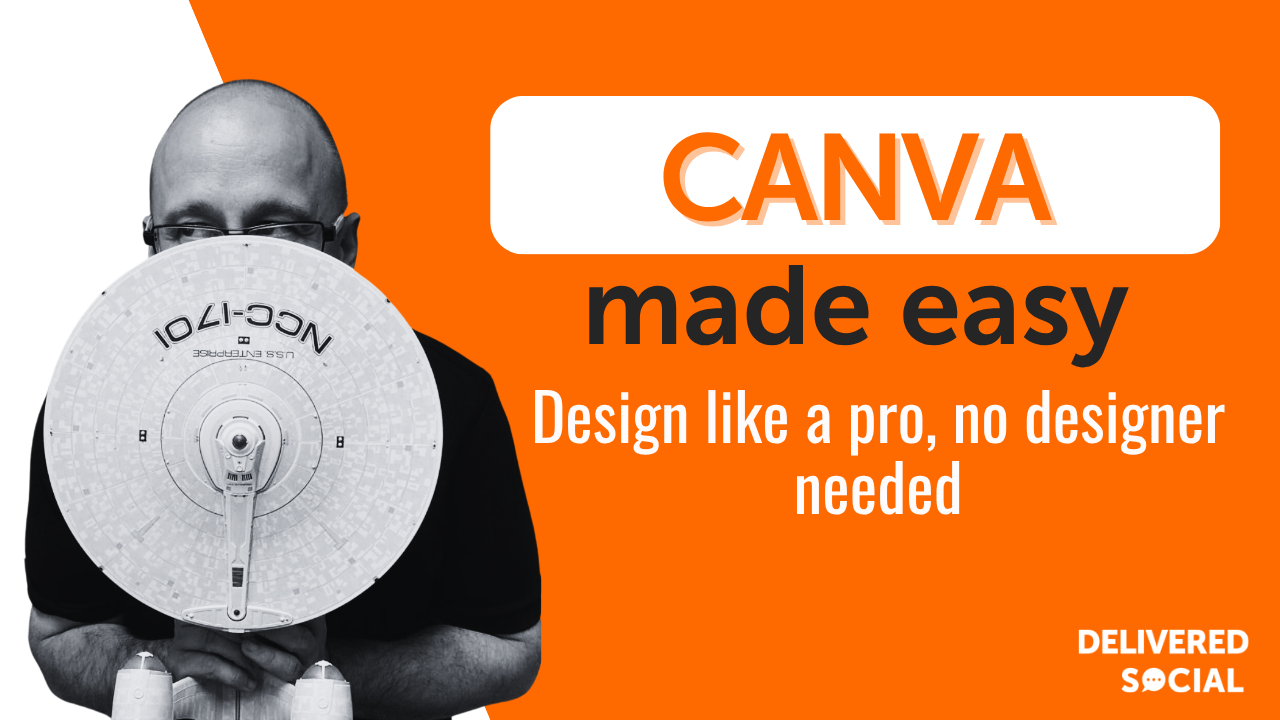
Not so long ago, if a small business wanted a smart-looking social post, a tidy flyer or a professional banner, it meant either wrestling with complicated software or paying a designer for every little thing. Then along came a tool that quietly changed the game for busy owners everywhere. Learning to use Canva for small business marketing is one of those skills that pays for itself within a week, because suddenly you can create polished, on-brand graphics yourself, in minutes, without any design training at all. We say this to clients all the time: you do not need to become a designer, you just need a tool that makes design feel easy, and this is that tool.
What Canva is and why small businesses love it
Canva is an online design tool built for people who are not designers. Instead of a blank, intimidating canvas, it hands you thousands of ready-made templates for everything from Instagram posts and Facebook covers to menus, flyers, business cards and presentations. You pick a template that is close to what you want, swap in your own words, colours and images, and you are done.
The magic is in the drag-and-drop simplicity. There is no steep learning curve and no need to understand layers or professional jargon. If you can move things around a screen and type, you can make something that looks genuinely professional. There is a generous free version that covers most small business needs, and a paid tier that unlocks extra templates, brand tools and handy features.
For a small business, that combination of low cost and low fuss is exactly why Canva has become such a staple; it takes a job that used to feel out of reach and makes it part of an ordinary afternoon.

Why Canva is worth your time as a small business
The honest appeal is that it saves you two things you never have enough of: time and money. Rather than briefing a designer and waiting days for a simple social graphic, you can knock one out between customers. And rather than paying per design, you cover most of your needs for little or nothing.
The benefits go further than that:
- A consistent, professional look: using the same fonts, colours and logo across everything makes even a one-person business look established and trustworthy.
- Speed when it matters: when a last-minute offer or event pops up, you can create and post a graphic within minutes rather than missing the moment.
- Freedom to experiment: because it costs nothing to try, you can test different styles and see what your audience responds to without any risk.
- Everything in one place: from social posts to printed flyers, you can handle most of your visual marketing without juggling several tools.
Put simply, it puts a design department in your pocket, and for a small business that is a quietly powerful thing.
How to use Canva for your marketing, step by step
Getting started is refreshingly straightforward, and a little setup at the beginning saves you heaps of time later.
Set up your brand first
Before you design anything, gather your logo, your two or three brand colours and your chosen fonts in one place. If you are on the paid tier you can save these as a Brand Kit, but even on the free version, keeping them noted means every design you make will feel like it belongs to the same business.
Start from a template, not a blank page
Search for the type of thing you want to make, such as an Instagram post or a poster, and browse the templates. Pick one whose layout you like, even if the colours and words are wrong; the layout is the hard part, and that is already done for you.
Swap in your own content
Replace the placeholder text with your own message, drop in your brand colours and fonts, and upload your own photos or logo. Keep your wording short and clear, because a clean graphic with one strong message beats a cluttered one every time.
Size it for the right place
Use the correct dimensions for wherever the design is going, since a square works for a feed post while a tall shape suits a story. Canva labels most templates by platform, which takes the guesswork out of it.
Download and use it
Export your finished design in the right format, usually a PNG or JPG for screens and a PDF for anything you plan to print, then upload or share it wherever it needs to go.
Save it as a template for next time
Once you have a design you love, keep a copy and reuse it. Next week you simply change the words, which turns a twenty-minute job into a two-minute one.
Free versus paid Canva: what you actually get
People often ask whether the paid version is worth it. Here is how the two compare for a typical small business:
- Templates: the free version offers a huge library; the paid version adds a large set of premium designs and photos.
- Brand tools: the free version lets you set colours manually; the paid version stores your Brand Kit so everything stays consistent automatically.
- Background removal: the free version keeps backgrounds; the paid version can cut them out in one click, which is brilliant for product photos.
- Resizing: the free version means recreating a design per size; the paid version resizes a design to any format instantly.
- Storage and folders: the free version is a little tighter; the paid version gives more room and better organisation.
Many small businesses happily run on the free version for a long time, then upgrade once design becomes a regular part of their week.
Best practices we always recommend
A few simple habits make your Canva designs look far more professional. Stick to your brand colours and one or two fonts rather than reaching for something new each time, because consistency is what makes a business look established. Keep each design focused on a single message; a poster trying to say five things says nothing clearly. Leave plenty of empty space, since crowded designs feel amateur while breathing room feels premium. Use high-quality images rather than blurry snaps, and lean on Canva’s own library when your own photos will not do. And always check how a design looks on a phone, because that is where most people will see it. A little restraint goes a long way; the tidiest designs are usually the most effective.
Common Canva mistakes to avoid
The slips that make designs look homemade are easy to fix once you know them. Using too many fonts is the classic; stick to a couple and the whole thing instantly looks calmer and more professional. Cramming in too much text turns a graphic into a wall, so trim your words ruthlessly. Ignoring your brand colours and grabbing whatever looks nice that day slowly erodes any sense of a recognisable identity. Stretching images until they distort is another giveaway, as is leaving a design at the wrong size for its platform so it ends up cropped awkwardly. And relying only on the flashiest templates without adapting them means your posts look like everyone else’s. Personalise, simplify, and keep it on-brand, and your work will stand out for the right reasons.
What to actually make in Canva for your business
One of the reasons people stall is not knowing where to point all this new-found design power, so it helps to have a short list of things that genuinely move the needle for a small business. Social media posts are the obvious starting point: a steady stream of tidy, on-brand graphics keeps your feed looking active and cared-for, which quietly reassures anyone checking you out before they buy.
Beyond the feed, there is plenty more worth making. Simple offer or promotion graphics help you jump on a busy weekend or a seasonal moment. Quote and tip cards give you easy, shareable content on days when you have nothing new to announce. Menus, price lists and service one-pagers make you look organised and save you answering the same questions over and over. Event posters and flyers work both online and pinned up locally. And a smart set of profile pictures and cover images ties your whole online presence together so every platform feels like the same, coherent business.
The trick is not to make everything at once, but to build a small, reusable set of designs you can refresh in minutes. We often tell clients to create five or six templates they love and simply rotate through them; it keeps the look consistent and turns marketing from a chore into a quick, almost enjoyable habit.
Where tools like Canva are heading next
The direction of travel is towards even less effort and even more polish. Built-in artificial intelligence now helps generate images, rewrite text and suggest layouts, which means a rough idea can become a finished design faster than ever. Templates are becoming smarter and more tailored to specific industries, so a cafe or a tradesperson can find designs that already speak their language. Video and animation are getting just as easy as static graphics, opening the door to reels and short clips without specialist skills. And as more of business happens on phones, mobile-friendly design tools are becoming the norm. For a small business, all of this means the gap between you and a big brand’s marketing keeps shrinking, as long as you keep experimenting.
Is Canva really free for small businesses?
Yes, the free version is genuinely usable and covers most everyday needs, from social posts to simple flyers. Many small businesses never need to upgrade. The paid tier is there if and when you want time-saving extras like a saved Brand Kit and one-click resizing.
Do I need any design experience to use Canva?
None at all. If you can type and drag items around a screen, you can make something that looks professional. Starting from a template does the difficult design thinking for you, so you can focus on your message.
Can I use Canva designs for print as well as online?
Absolutely. Export your design as a PDF for the best print quality, and use the print-ready templates for things like flyers, menus and business cards. For screens, a PNG or JPG is usually the right choice.
How do I keep my Canva designs looking consistent?
Decide on your colours and fonts once and use them every time. Save a favourite design and reuse it for future posts, simply changing the words. That repetition is exactly what makes a small business look polished and recognisable.
Your Canva quick-start checklist
- Brand basics ready: logo, two or three colours and your chosen fonts noted down.
- Start from a template: pick a layout you like and adapt it to your message.
- One clear message: keep each design focused and free of clutter.
- Correct sizing: match the dimensions to the platform you are posting on.
- On-brand every time: reuse your colours, fonts and saved designs.
- Checked on mobile: confirm it looks great on a phone before you post.
Want your marketing to look the part without the stress?
Getting comfortable with Canva for small business marketing is one of the simplest ways to make your business look bigger, tidier and more trustworthy, all without hiring anyone or learning complicated software. That said, knowing the tool and knowing what to say with it are two different things, and that is where a friendly team can help. If you would like a hand shaping a consistent look and a plan for what to post, get in touch with the team at Delivered Social. Contact us today and let us help your marketing look every bit as good as your business.