



Keep reading
Rather we just did it for you?
Let's get your business seen.
Social media, websites, SEO and ads from a team you can actually meet.
If you want to know how to add admin to Facebook Page settings, here it is: switch into your Page, open Settings and privacy, go to Settings, then Page setup, then Page access, click Add new, search for the person by name or email, turn on full control, and confirm with your password. They will get an invitation and have to accept it before they can do anything. You need full control yourself to do it.
That is the short answer, but Facebook has changed the wording and the menus several times, and there is one big change you need to know about: the old “Page roles” with names like Admin, Editor and Moderator have been replaced by “Page access”, with full control, partial control and task access. This guide walks through the current steps on desktop, on your phone and in Meta Business Suite, explains which level to choose, and covers what to do when it doesn’t work.
What is current in 2026 (and what has changed)
If you’ve followed older instructions, you may have been looking for a “Page roles” screen. Guides published after the change, including a 2026 walkthrough from Social Champ (updated in June 2026), report that Page roles were replaced by Page access. That matches what we see when we set up client Pages.
There are two ways to give someone access, and which one you use depends on how your Page is set up:
- Directly on the Page. Used for most small businesses. You add people under Page access, in the Page’s own settings.
- Through a Meta business portfolio, managed in Meta Business Suite. Used when the Page belongs to a business portfolio (formerly Business Manager). Access is assigned in the portfolio’s settings, and agencies can be given partner access.
A note on sources. Meta’s own help pages block automated reading, so we could not open them while writing this. The steps below come from recent, detailed guides we did read in full and from our experience setting up client Pages. Screens vary by account and change often, so treat the labels as a guide and check Meta’s current help for “Give, edit or remove Facebook Page access” if something looks different on your screen.
Facebook Page roles in 2026: which access level should you pick?
Before you add anyone, decide what they really need. The old roles were Admin, Editor, Moderator, Advertiser and Analyst. The current system is simpler:
- Full control (Facebook access with full control). This is the closest thing to the old Admin. The person can switch into the Page, post, manage settings, give access to others, remove people (including you) and delete the Page.
- Partial control (Facebook access, partial). The person can switch into the Page and handle content, messages, comments, ads and insights, but cannot delete the Page or manage who has access.
- Task access. The person can work on specific jobs, such as creating content, replying to messages or managing ads, through tools like Meta Business Suite or Ads Manager. They can’t switch into the Page itself.
Our rule of thumb is to give the lowest level that does the job:
- Business owner and one trusted deputy: full control. Always have at least two people with it.
- Social media manager or agency: partial control or task access, depending on how they work.
- Freelance designer or someone who only schedules posts: task access, limited to content.
- Someone who only needs to see reports: task access for insights only.
Full control is a lot of power. A person with it can remove you from your own Page. Hand it over only to people you would trust with the business bank account.
How to add admin to Facebook Page settings on desktop
These steps are for a Page that is not in a business portfolio. You must be signed in as someone who already has full control.
- Click your profile picture at the top right of Facebook. Choose your Page from the list (or “See all profiles”) to switch into it.
- Click your Page’s profile picture again, then choose Settings and privacy, then Settings.
- Look for Page setup, then Page access. Some accounts will show this under “New Pages Experience” first.
- Under People with Facebook access, click Add new. (For the task-based option, use the People with task access section instead.)
- Type the person’s name or the email address they use for Facebook, select them and click Next.
- Choose their level. Facebook access defaults to partial control. Switch on “Allow this person to have full control” if they need admin-level access.
- Click Give access, enter your Facebook password when prompted, and confirm.
The person will see an invitation and the Page will show it as pending until they accept. Detailed screenshots of these steps are in Leadsie’s guide to giving Facebook Page access. Here is how to add admin to Facebook page settings safely, without ever sharing your password.
How to add an admin on the Facebook app
On iPhone or Android, the route is nearly identical:
- Open the Facebook app and switch into your Page from your profile menu.
- Open the menu, then Settings and privacy, then Settings.
- Choose Page setup, then Page access.
- Tap Add new, search for the person, and select them.
- Choose the access level and switch on full control only if needed.
- Tap Give access and enter your password.
If you can’t find the option, update the app and check that you are really inside the Page and not on your personal profile. This is the most common reason people get lost. The Page settings do not appear while you are using your personal account.
How to give access through Meta Business Suite
If your Page lives in a Meta business portfolio, the process is slightly different, and it’s the better route for agencies and larger teams, because everything is in one place.
- Open Meta Business Suite and select the business portfolio that owns the Page.
- Go to Settings, then under Accounts click Pages and choose the Page.
- Click Assign people to give access to an individual, or Assign partner to give access to an agency using its Business ID.
- People must already be in your portfolio under Users, then People. If they aren’t, invite them there first.
- Choose the access level. The options are partial access to business tools only, partial access to business tools and Facebook, or full access.
- Review and click Assign. The access stays inactive until the person accepts the invitation.
For agencies, partner access is safer than adding individual staff. If a staff member leaves the agency, you do not have to chase them. You manage one relationship with the agency and can remove it in one step. If a Page already belongs to another portfolio, the current owner has to release it before it can move.
What the person you’re adding needs to do
After you send the invitation, the other person should:
- Check their Facebook notifications and the email linked to their Facebook account.
- Open the invitation and accept it. Invitations sent from a standalone Page can expire after about 30 days, according to the guides we read, so ask them to act quickly.
- Switch into the Page (if they have Facebook access) or open Meta Business Suite (if they have task access).
It helps to tell them in advance to expect it. Invitations buried in notifications are the top reason a new admin “never got access”. If you only need to know how to add admin to Facebook page roles for a freelancer, choose the lowest level that lets them do the job.
Troubleshooting: when you can’t add an admin
The person doesn’t appear in search
Search for their personal Facebook profile or their exact email address, not their business name. Common names, privacy settings and blocked or restricted accounts can stop people showing up. Only personal profiles can be added, not other Pages.
The invitation doesn’t show up
Ask them to check notifications and spam. If nothing appears, remove the pending invitation and send it again, using the email linked to their account.
They accepted, but still can’t access the Page
Ask them to refresh, log out and back in, and confirm the entry shows as active under Page access. If your Page is also in a business portfolio, conflicting access in two places can cause confusion. Check both, remove duplicates and assign the access from one place.
You can’t see Add new or the full control switch
You probably don’t have full control yourself. Ask the Page owner to upgrade your access, or to add the person for you. You do not need to be Facebook friends with the person you are adding. Search for the name or email address linked to their personal Facebook account, and remember that Pages and business accounts will not appear in the search.
The Page has no admin at all
If the original admin has left and nobody has access, you will need to go through Meta’s access recovery or request-access process, which is a separate task. That is why we always recommend two people with full control.
Keep your Page secure when you give access
Adding an admin is easy. Doing it safely takes a few extra minutes.
- Never share your personal password. Add people properly instead, so you can see who did what and remove them later.
- Insist on two-step verification for everyone with access. The National Cyber Security Centre explains the options, including authenticator apps, in its guide to 2-step verification.
- Review access every quarter. Remove anyone who has left, finished a project or changed role.
- Watch for scams. Messages claiming your Page will be shut down unless you add a “support admin” are a common trick. Be wary of any message that asks you to add a stranger as an admin.
- Keep a record of who has which level and why. Our social media audit template has a tab for exactly this.
Account security applies beyond Facebook. If you’re thinking about shortcuts such as sharing or buying accounts, read our guide on why you shouldn’t buy Gmail accounts first, because the risks are the same, and the access you give to your email affects everything else.
How to remove or change someone’s access
Go back to Settings and privacy, then Settings, then Page setup, then Page access. Click the options beside the person’s name and choose Edit access or Remove access. Some guides report that you may have to remove someone and add them again to change a task-based level, so be prepared to do that.
For a portfolio Page, go to Settings, Accounts, Pages, select the Page, find the person or partner and choose Manage or Remove access.
Before you remove someone, check that at least two other people keep full control. It’s a very easy way to lock yourself out. Once you know how to add admin to Facebook page access, you should also know how to remove it.
Frequently asked questions
Can I add a Page as an admin of another Page?
No. Access goes to personal Facebook accounts. Agencies and businesses receive access through a portfolio and their Business ID.
How many admins should a Page have?
At least two people with full control, so one person leaving or losing their account doesn’t strand the Page. Everyone else should have the lowest level that does the job.
Can an admin remove me?
Yes, if they have full control. This is why you should only give it to people you trust.
Does my agency need full control?
Usually not. Partial control or task access covers posting, messaging, ads and insights. Keep full control for you and a trusted colleague.
Where did Facebook Page roles go?
They were replaced by Page access. The names Admin, Editor and Moderator have been replaced by full control, partial control and task access.
Get the free Page Roles and Access Checklist
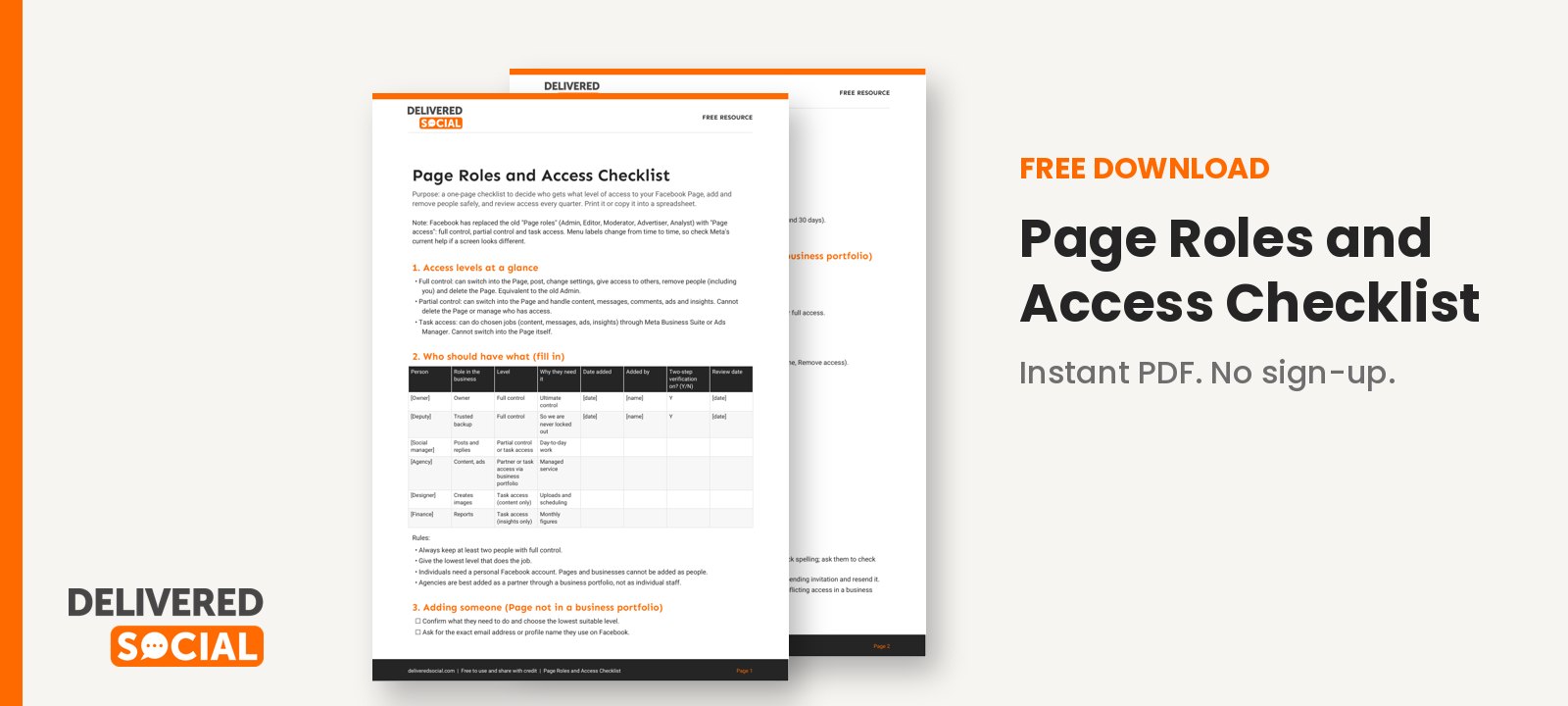
To keep your Page safe as people come and go, we have put together a one-page checklist covering who should have which level, what to do when someone joins or leaves, and a quarterly access review. Download the free Page Roles and Access Checklist, print it and keep it with your passwords record.
If you’d rather not manage all this yourself, Delivered Social can help with social media management and set up your accounts safely from the start, and you’re welcome to get in touch.
































