



Keep reading
Rather we just did it for you?
Let's get your business seen.
Social media, websites, SEO and ads from a team you can actually meet.
If you run Facebook or Instagram for a business, sooner or later someone will ask you to “add them to Business Manager”. It’s the place where your pages, ad accounts, people and permissions all live. The trouble is that Meta keeps renaming it, so it’s now usually called Meta Business Suite, and the account behind it is called a business portfolio. This guide explains what Facebook Business Manager is today, how to set it up, how to add pages, ad accounts and people safely, and the mistakes that cause businesses to lose access to their own accounts.
What is Facebook Business Manager?
Facebook Business Manager was Meta’s free tool for businesses to manage their Facebook pages, Instagram accounts, ad accounts and the people who work on them, all in one place, separate from anyone’s personal profile. Over the last few years Meta has folded it into Meta Business Suite (business.facebook.com) and renamed the underlying account a business portfolio. Many people still call the whole thing Business Manager, and the old links still work.
| Old name | Current name | What it is |
|---|---|---|
| Business Manager | Business portfolio | The container that owns your business assets |
| Business Manager dashboard | Meta Business Suite | Where you post, reply, view insights and manage settings |
| Business Settings | Settings in Meta Business Suite | Where you add people, pages, ad accounts and partners |
| Ads Manager | Ads Manager | Where you build and run adverts (unchanged) |
Why your business needs one
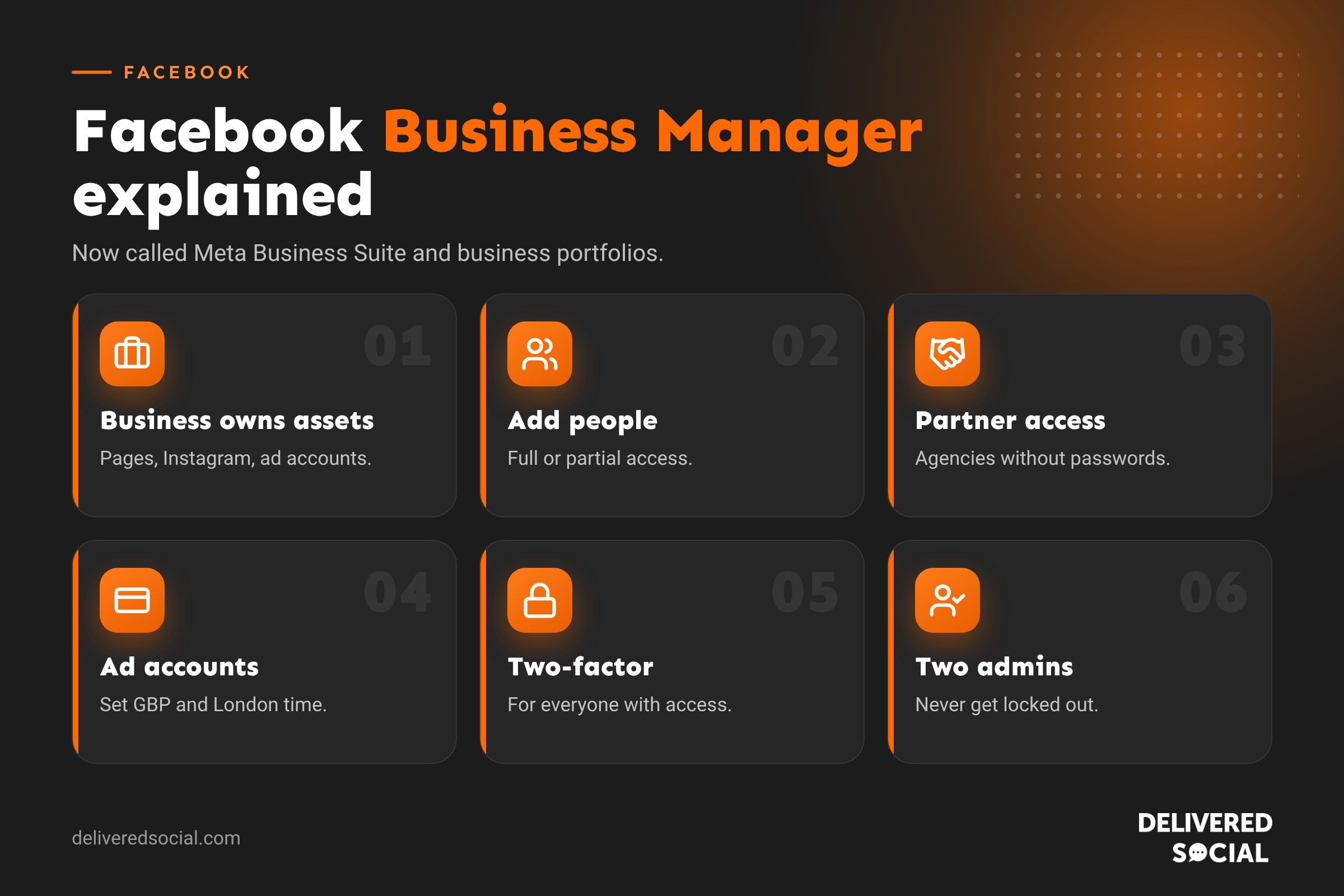
- Your business owns its assets. Pages and ad accounts belong to the business portfolio, not to one person’s profile. If someone leaves, you don’t lose your page.
- Safer access. You give people access to exactly what they need, and remove it in seconds.
- Agency access without passwords. Your agency requests access as a partner. You never share logins.
- Everything in one place. Facebook and Instagram posting, messages, comments, insights and ads.
- Pixel and data. Your Meta Pixel and conversion tracking sit under the business, ready for ads.
What you can manage in a business portfolio
- Facebook pages
- Instagram professional accounts
- Ad accounts
- WhatsApp Business accounts
- Meta Pixels and datasets
- Product catalogues for shops
- People (your team) and partners (agencies and freelancers)
- Domains you’ve verified
How to set up Facebook Business Manager (a business portfolio)
- Go to business.facebook.com and log in with your personal Facebook account. Your personal profile is only used to log in; nothing is posted from it and staff can’t see it.
- Click Create an account or Create a business portfolio.
- Enter your business name, your name and a business email address.
- Confirm your email address from the message Meta sends.
- Add your business details, such as address, website and phone number, in Settings.
Use your registered business name, and a business email you’ll always have access to, not a personal or employee’s address.
How to add your Facebook page
- In Meta Business Suite, open Settings, then Accounts, then Pages.
- Click Add.
- Choose Add a page if you own it, Request access if it belongs to another business (for example, if you’re an agency), or Create a new page.
- Type the page name or URL and confirm.
If the page is already owned by another business portfolio, you’ll need the owner to release it or give you partner access.
How to connect Instagram
- Make sure your Instagram account is a professional account (business or creator).
- In Settings, go to Accounts, then Instagram accounts.
- Click Add and log in to Instagram when asked.
- Link it to your Facebook page so you can manage both together.
How to create or add an ad account
- Go to Settings, then Accounts, then Ad accounts.
- Click Add and choose to add an existing ad account, request access, or create a new one.
- For a new account, set the name, time zone and currency carefully. Time zone and currency can’t be changed later. For UK businesses, choose London time and GBP.
- Add a payment method and assign yourself access.
How to add people and set permissions
- Go to Settings, then People.
- Click Invite people and enter their email address.
- Choose their access level: full control (admin) or partial access (employee).
- Select which pages, ad accounts and other assets they can use, and what they can do with each.
- Send the invite. They’ll accept it from their email.
| Access | Who should have it |
|---|---|
| Full control (admin) | The owner and one trusted backup person |
| Partial access | Staff who post content, reply to messages or run ads |
| Partner access | Agencies and freelancers, through their own business portfolio |
How to give an agency access
Never share your Facebook password with an agency. Instead:
- Ask the agency for their business portfolio ID.
- Go to Settings, then Users, then Partners.
- Click Add, then Give a partner access to your assets.
- Enter their ID and choose which pages, Instagram accounts and ad accounts they can use.
If you ever stop working with them, remove the partner and their access goes with it. Your page and ad history stay with you.
What you can do in Meta Business Suite
- Create and schedule posts and Stories for Facebook and Instagram.
- Reply to messages and comments from both platforms in one inbox.
- View insights on reach, engagement and followers.
- Set up automated replies and frequently asked questions in messages.
- Boost posts and jump into Ads Manager for full campaigns.
- Manage your shop and product catalogue if you sell online.
Security: protect your business portfolio
Hacked Facebook accounts are one of the most common problems we see, and they can take weeks to recover. Protect yourself:
- Turn on two-factor authentication for everyone with access. You can make it mandatory in Security Centre.
- Have at least two admins, so you’re never locked out if one account is compromised.
- Verify your business in Security Centre, which can unlock extra features and support.
- Verify your domain so nobody else can edit links to your website in ads.
- Remove old staff and agencies as soon as they no longer need access.
- Beware of phishing. Meta won’t message you threatening to delete your page unless you click a link. Those messages are scams.
Common mistakes
- The page is owned by a former employee or agency. Always make sure your own business portfolio owns your page and ad account.
- Only one admin. If that person loses access, the business can be locked out.
- Wrong ad account currency or time zone. You’ll have to create a new ad account to fix it.
- Too many portfolios. People sometimes create several by accident. Keep one per business where you can.
- Giving full control to everyone. Give the least access people need.
Business Manager troubleshooting
- “This page is already owned by another business”: ask the current owner to remove it from their portfolio, or request partner access.
- Can’t log in: recover your personal Facebook account first, because it’s your key to the portfolio. If another admin can still get in, they can help.
- Ad account disabled: check Account Quality in Meta Business Suite and request a review if you think it’s a mistake.
- Invite not arriving: check spam, or ask the person to log in at business.facebook.com and look for pending invitations.
Key takeaways
- Facebook Business Manager is now Meta Business Suite, and the account is called a business portfolio.
- Your business, not a person, should own your page, Instagram and ad account.
- Give agencies partner access instead of passwords.
- Use two-factor authentication and at least two admins.
- Set ad account currency and time zone carefully, as they can’t be changed.
Quick glossary
- Business portfolio: the account that owns your business assets, previously called Business Manager.
- Asset: anything the portfolio owns, such as a page, ad account or Pixel.
- Partner: another business, such as an agency, given access to your assets.
- Security Centre: where you set two-factor rules and verify your business.
Meta renames menus and moves settings regularly, so if a button isn’t where we describe, search Settings for the feature by name.
Frequently asked questions
Is Facebook Business Manager free?
Yes. Meta Business Suite and business portfolios are free. You only pay for adverts you choose to run.
Is Business Manager the same as Meta Business Suite?
Essentially, yes. Meta has merged Business Manager into Meta Business Suite, and calls the account a business portfolio.
Do I need a personal Facebook account to use Business Manager?
Yes, you log in with a personal profile, but nothing from it is shared with your business or staff.
Can I have more than one business portfolio?
Yes, though most businesses only need one. Agencies often have their own, linked to clients as partners.
How do I remove someone from Business Manager?
Go to Settings, then People, select them and remove them. Their access to all assets ends straight away.
Want help with Facebook and Instagram?
We set up and manage Meta Business Suite, pages and ad accounts for businesses across Surrey, Hampshire and the UK. Read our Facebook statistics guide, see our social media management services or call us on 01483 608 303.































