



Keep reading
Rather we just did it for you?
Let's get your business seen.
Social media, websites, SEO and ads from a team you can actually meet.
Your WordPress theme controls how your website looks and, often, how it works. Installing a new theme takes minutes, but choosing the wrong one, or switching carelessly, can break layouts, slow your site down or lose settings. This guide explains how to install a WordPress theme three ways, how to choose a good one, what to check before switching, how child themes work, and how to avoid the most common mistakes.
What is a WordPress theme?
A theme is a set of files that controls your site’s design: layouts, fonts, colours, headers, footers and how posts and pages are displayed. Some themes are simple and lightweight; others include page builders, demo content and lots of extra features. Your content, such as pages, posts and images, stays in WordPress when you change theme, but its appearance and some settings can change significantly.
Free vs premium themes
| Free themes | Premium themes | |
|---|---|---|
| Cost | Free | One-off or yearly licence |
| Where to get them | WordPress.org theme directory | Theme developers and marketplaces |
| Features | Usually simpler | More layouts, options and demos |
| Support | Community forums | Direct support and updates |
| Quality checks | Reviewed before listing | Varies by seller |
Never use “nulled” or pirated premium themes. They often contain hidden malware. See is WordPress safe?
Method 1: Install a theme from the dashboard
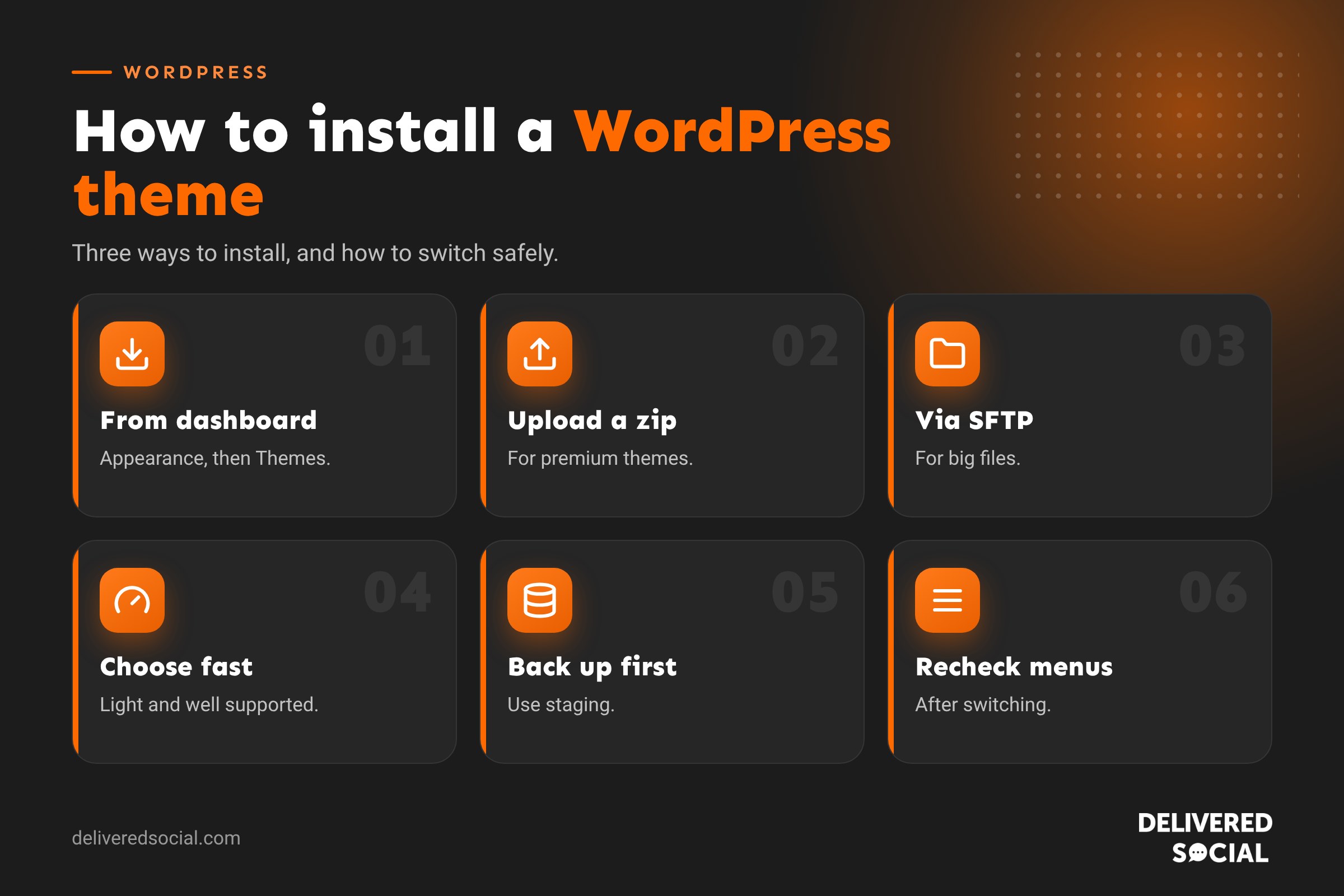
- Log in to WordPress and go to Appearance, then Themes.
- Click Add New Theme.
- Browse or search the free theme directory.
- Hover over a theme and click Preview to see it with sample content.
- Click Install, then Activate when you’re ready.
Method 2: Upload a theme zip file
Premium themes are usually downloaded as a zip file.
- Download the theme zip from the developer. Check whether the download contains the installable theme zip inside a larger package.
- Go to Appearance, then Themes, then Add New Theme.
- Click Upload Theme.
- Choose the zip file and click Install Now.
- Click Activate, or preview first.
- Enter your licence key in the theme settings to receive updates.
If you see an error about the file size, ask your host to increase the upload limit or use method 3.
Method 3: Install via SFTP or file manager
- Unzip the theme on your computer.
- Connect to your site with SFTP or open your host’s file manager.
- Upload the theme folder to
wp-content/themes/. - Go to Appearance, then Themes, and activate it.
How to choose a good theme
- Speed: lightweight themes load faster. Test the demo with a speed tool.
- Mobile friendly: check the demo on your phone.
- Recent updates: a theme updated in the last few months is actively maintained.
- Ratings and reviews: look for consistently good feedback.
- Compatibility: works with the plugins you need, such as WooCommerce or your page builder.
- Accessibility: look for themes built with accessibility in mind.
- Support: clear documentation and responsive support.
- Not overloaded: avoid themes that bundle dozens of plugins you’ll never use.
Before switching themes on a live site
- Take a full backup. See how to back up a WordPress site.
- Use a staging site if you can, so visitors don’t see a half-finished design.
- Note your current settings: menus, widgets, logo, custom CSS and any tracking code added in theme settings.
- Check shortcodes: some themes add their own, which stop working when you switch.
- Test speed before and after.
After activating a new theme
- Set your logo, site icon and colours.
- Reassign menus under Appearance, then Menus or the Site Editor.
- Re-add widgets or footer content.
- Check your home page and blog settings in Settings, then Reading. See how to change your WordPress home page.
- Check every key page on mobile and desktop.
- Re-add analytics or tracking code if it was in the old theme.
- Clear caches.
Should you import demo content?
Many premium themes offer one-click demo imports that recreate their sample site. This is handy on a brand-new site, but on an existing site it can add lots of unwanted pages, images and settings. Import demos on a fresh install or staging site, then replace the content with your own.
What is a child theme?
A child theme sits on top of a parent theme and holds your customisations. When the parent theme updates, your changes are safe. If you or a developer plan to edit theme files or add custom code, use a child theme. If you only change settings in the customiser or a page builder, you usually don’t need one.
Block themes vs classic themes
Block themes use WordPress’s Site Editor, letting you edit headers, footers and templates with blocks. Classic themes use the Customiser and widgets. Both work well; block themes are the newer approach and are often lighter, while many classic themes pair with page builders.
Common theme problems
| Problem | Cause | Fix |
|---|---|---|
| “The package could not be installed” | Wrong zip file uploaded | Upload the theme zip, not the full download package |
| “Upload file exceeds maximum size” | Server upload limit | Increase the limit or use SFTP |
| Site breaks after activation | Plugin or PHP conflict | Reactivate the old theme or restore a backup |
| Menus disappear | New theme uses different menu locations | Reassign menus |
| Layouts look wrong | Old theme’s shortcodes or builder | Rebuild affected pages |
Keep your theme updated
Theme updates fix bugs, close security holes and keep compatibility with new WordPress versions. Update regularly, after taking a backup, and delete themes you don’t use, keeping one default theme as a fallback.
Theme vs custom design
Ready-made themes are a great starting point, but many look similar. A professionally customised or custom-built theme gives your business a distinct look, better speed and only the features you need. If your website is a key source of enquiries, it’s worth considering.
Questions to ask before buying a premium theme
- When was it last updated, and how often is it updated?
- Does it work with the latest version of WordPress and your page builder?
- How fast is the demo on mobile?
- Does it rely on lots of bundled plugins?
- What happens to your design if you stop paying for updates?
- Is the support helpful and responsive?
Switching themes on an established site
Changing theme on a site that’s been running for years is closer to a redesign than a quick swap. Old shortcodes, widgets and theme-specific settings can leave pages looking broken. Make a list of every page template and feature you use, test the new theme thoroughly on a staging copy, and fix any issues before going live. Check your search rankings and enquiries for a few weeks afterwards, in case anything important was missed.
Deleting old themes
Inactive themes still sit on your server and can be a security risk if they’re not updated. Once you’re happy with your new theme, delete old ones you no longer need, keeping just one up-to-date default theme as a fallback.
Quick glossary
- Theme: the files that control your site’s design.
- Child theme: a theme that safely holds customisations to a parent theme.
- Block theme: a theme edited with WordPress’s Site Editor.
- Demo import: loading a theme’s sample content and settings.
- SFTP: a secure way to upload files to your server.
Testing a theme properly
Before committing, build one real page with the theme on a staging site: your home page or a key service page. Check how easy it is to edit, how fast it loads on mobile and how it looks with your own photos and text rather than the polished demo content.
Key takeaways
- Install themes from the dashboard, by uploading a zip or via SFTP.
- Choose fast, well-supported, regularly updated themes from trusted sources.
- Back up and use staging before switching themes on a live site.
- Recheck menus, widgets, home page settings and tracking after switching.
- Use a child theme for code changes and keep themes updated.
Frequently asked questions
How do I install a WordPress theme?
Go to Appearance, then Themes, then Add New Theme, and install from the directory or upload a zip file.
Will changing my theme delete my content?
No, your pages and posts stay, but layouts, menus and some settings may need redoing.
Can I preview a theme before activating it?
Yes, use the Live Preview option, or test on a staging site.
Do I need a child theme?
Only if you or a developer will edit the theme’s code.
Are free WordPress themes safe?
Themes from the official WordPress directory are reviewed and generally safe.
How many themes can I have installed?
As many as you like, but delete unused ones and keep one default theme as a fallback.
Can I switch back to my old theme?
Yes, reactivate it under Appearance, then Themes, though some settings may need redoing.
Do themes affect site speed?
Yes. Lightweight themes load faster than feature-heavy ones.
Can I use a page builder with any theme?
Most page builders work with most themes, but check compatibility first.
Want a WordPress theme that fits your business?
We design and build WordPress websites for businesses across Surrey, Hampshire and the UK. Call us on 01483 608 303.































