



Keep reading
Rather we just did it for you?
Let's get your business seen.
Social media, websites, SEO and ads from a team you can actually meet.
Sometimes you don’t want the whole world seeing your website, at least not yet. You might be building a new site, running a members-only area, sharing documents with clients or creating an internal staff hub. WordPress gives you several ways to keep content private, from hiding a single page to locking down an entire site. This guide explains how to make a WordPress site private, the pros and cons of each method, how to keep private content out of Google, and the mistakes that accidentally expose information.
Why make a WordPress site or page private?
- Working on a new website before launch.
- Sharing drafts with colleagues or clients for approval.
- Creating a staff intranet or internal resources hub.
- Offering members-only content, courses or downloads.
- Giving clients a private area for documents or project updates.
- Hiding seasonal or old pages without deleting them.
Your options at a glance
| Method | Best for | Who can see it |
|---|---|---|
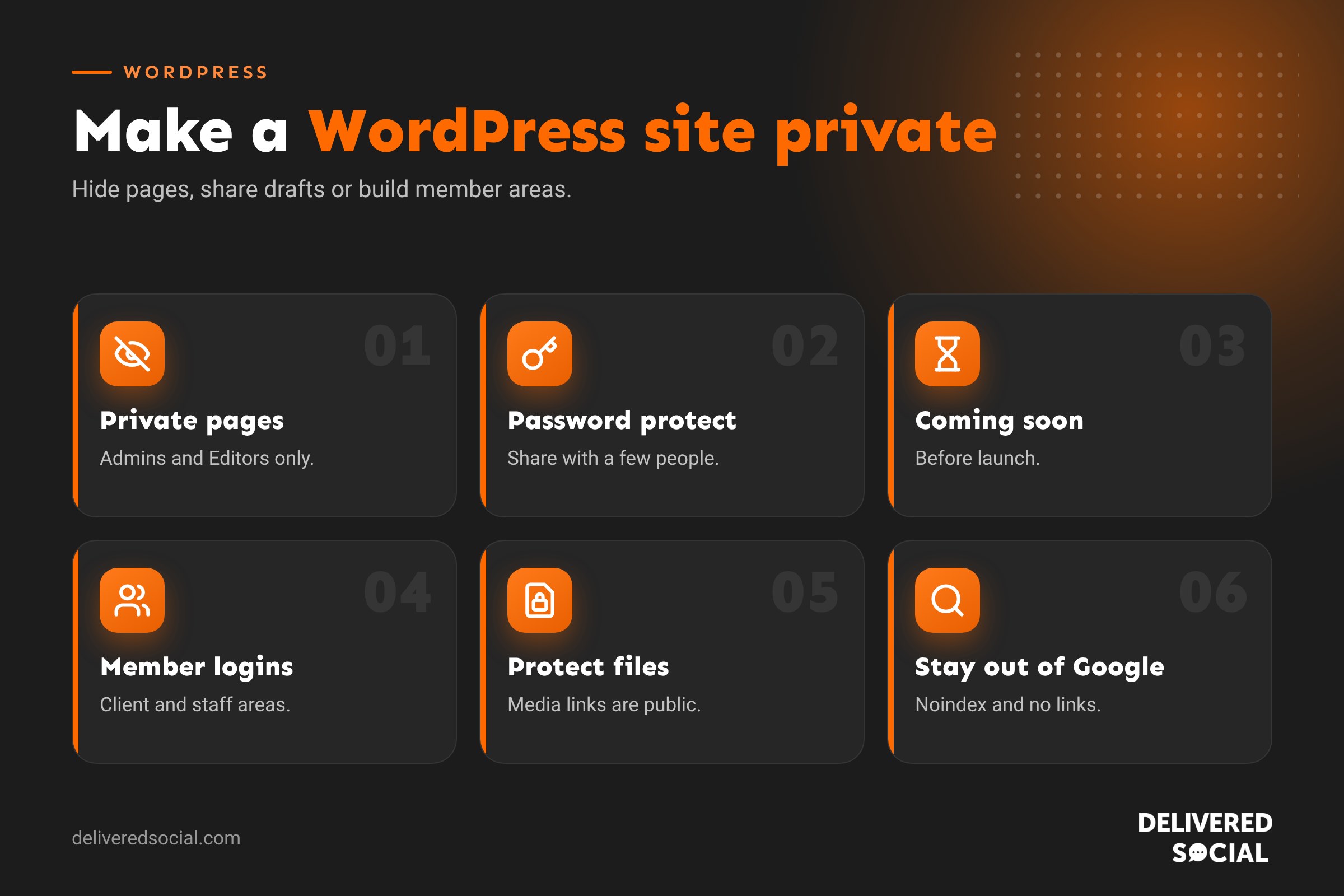
| Private page or post | Hiding individual content | Logged-in Editors and Administrators |
| Password-protected page | Sharing with specific people | Anyone with the password |
| Draft or scheduled post | Content not ready yet | Logged-in team members |
| Coming soon or maintenance mode | Hiding a whole site before launch | Logged-in users |
| Members or login-only plugin | Member areas and intranets | Approved users who log in |
| Server-level password | Staging and development sites | Anyone with the server login |
How to make a single page or post private
- Open the page or post in the editor.
- In the settings sidebar, find Status or Visibility.
- Choose Private.
- Click Update or Publish.
Private content is only visible to logged-in users with Editor or Administrator roles. Visitors see a “page not found” message, and private pages don’t appear in menus, search or sitemaps.
How to password protect a page
- Open the page in the editor.
- Under Visibility or Status, choose Password protected.
- Enter a password and update the page.
- Share the link and password with the people who need it.
This is ideal for client proposals, event information or press packs. Keep in mind that one password is shared by everyone, so it’s not suitable for sensitive personal data. Password-protected pages hide the content, but the page title may still be visible.
How to make the whole site private before launch
- Coming soon mode: use a plugin or your page builder to show a holding page to visitors while logged-in users see the real site. Good for new sites.
- Discourage search engines: in Settings, then Reading, tick “Discourage search engines from indexing this site”. This asks search engines not to index it, but doesn’t stop people visiting.
- Server password: your host may let you password protect the whole site, which blocks everyone without the login. Ideal for staging sites.
Remember to switch these off at launch. Our WordPress website launch checklist covers this.
Creating a members-only area
For content that only certain people should see, such as clients, members, staff or students, use a membership or access control plugin. These let you:
- Require users to log in to view certain pages.
- Create different access levels for different groups.
- Approve new registrations manually.
- Restrict downloads to logged-in users.
- Charge for access, if you’re selling memberships or courses.
Choose a well-reviewed, regularly updated plugin, and keep user roles as limited as possible.
Building a private staff intranet
WordPress can make a simple intranet for policies, forms, news and training. Lock the whole site behind a login, give staff Subscriber accounts so they can view but not edit, and use clear menus and search. Combine it with two-factor login and regular backups to keep it secure.
Keeping private content out of Google
- Private posts and pages aren’t indexed by default.
- Password-protected pages may be indexed by title but not content. Add a noindex setting in your SEO plugin if you don’t want them found at all.
- Don’t link to private pages from public pages or menus.
- Check your sitemap doesn’t include private content.
- Remember that “Discourage search engines” is a request, not a lock. Use logins for anything sensitive.
Protecting private files and downloads
Files uploaded to the WordPress media library are usually publicly accessible if someone has the direct link, even if the page they sit on is private. For sensitive documents:
- Use a plugin that protects downloads behind a login.
- Store sensitive files in a secure document system rather than the media library.
- Avoid uploading personal data to your website where possible.
Private content and data protection
If your private area holds personal information, UK data protection law requires you to keep it secure. Use strong passwords, two-factor authentication, secure hosting with SSL, limited access and regular reviews of who can log in. Explain how you use personal data in your privacy policy.
Common mistakes
| Mistake | Risk | Fix |
|---|---|---|
| Relying on “Discourage search engines” for privacy | Anyone with the link can see the site | Use logins or coming soon mode |
| Sharing one password with many people | No control over who has access | Use individual user accounts |
| Private files in the media library | Direct links work for anyone | Protect downloads properly |
| Forgetting to remove access | Ex-staff or clients still log in | Review users regularly |
| Leaving coming soon mode on at launch | Visitors can’t see the site | Use a launch checklist |
Managing user accounts
For private sites with many users, keep things tidy: give each person their own account, assign the lowest role they need, remove people when they leave, and turn on two-factor authentication. Our guide to accessing WordPress admin covers user roles in more detail.
Which method should you use?
- One page for a client: password protection.
- Internal draft content: private status or draft.
- Whole site before launch: coming soon mode or server password.
- Staff intranet: login-only site with user accounts.
- Paid or member content: a membership plugin.
Client portals on WordPress
Many service businesses use WordPress to give clients a private area for proposals, project updates, files and invoices. A well-planned client portal can save hours of email back and forth. Key ingredients are individual logins, clear navigation, protected downloads and a simple way for clients to ask questions. Keep the design consistent with your main site so it feels professional and trustworthy.
Sharing drafts for approval
If you just need someone to review a page before it goes live, you don’t always need to make the whole page private. Options include creating them a temporary Editor or Contributor account, using a plugin that generates a shareable preview link for drafts, or password protecting the page. Remove temporary access once the review is done.
Testing your privacy settings
- Log out completely, or open a private browser window.
- Visit the private page’s address directly.
- Search Google for the page title.
- Try downloading any protected files by their direct link.
- Check menus, search results and sitemaps don’t reveal private content.
Quick glossary
- Private status: visible only to logged-in Editors and Administrators.
- Password protection: content hidden behind a shared password.
- Noindex: an instruction asking search engines not to list a page.
- Intranet: a private website for staff.
- User role: the permission level of each account.
Reviewing access regularly
Private areas only stay private if access is managed. Every few months, review who has accounts, remove anyone who no longer needs access, update shared passwords and check that protected files are still protected.
A quick quarterly check like this keeps private areas genuinely private and protects your clients’ trust.
Key takeaways
- Use private status for hidden pages and password protection for sharing.
- Use coming soon mode or a server password to hide a whole site before launch.
- Membership plugins handle member and client areas properly.
- “Discourage search engines” isn’t real privacy; use logins for sensitive content.
- Protect files, review users and keep everything secure.
Frequently asked questions
How do I make my WordPress site private?
Use coming soon mode, a login-only plugin or a server-level password to hide the whole site.
Who can see a private page in WordPress?
Logged-in users with Editor or Administrator roles.
Can I password protect a WordPress page?
Yes. Choose “Password protected” under Visibility and set a password.
Do private pages show up in Google?
No, private pages aren’t indexed. Password-protected pages may show their title unless set to noindex.
Are files on private pages private too?
Not always. Media files can be accessed by direct link unless protected separately.
Can I make just part of a page private?
Yes, with membership or access control plugins that hide specific blocks or sections.
Is password protection secure enough for client documents?
For low-risk content, yes. For sensitive data, use individual logins and protected files.
How do I make my site public again?
Switch off coming soon mode, remove passwords and uncheck Discourage search engines.
Can search engines see password-protected content?
No, only the page title may be visible unless the page is set to noindex.
Need a private area on your website?
We build client portals, member areas and staff intranets on WordPress for businesses across Surrey, Hampshire and the UK. Call us on 01483 608 303.































