



Keep reading
Rather we just did it for you?
Let's get your business seen.
Social media, websites, SEO and ads from a team you can actually meet.
Before you spend money on Google Ads or write a page you hope will rank, you need to know what people are actually searching for, how often, and how competitive those searches are. Google’s own Keyword Planner is one of the most useful free tools for this. It can feel confusing at first, especially the set-up and the ranges it shows, but once you know how it works it’s quick to use. This guide explains how to use Google Ads Keyword Planner: setting it up without spending money, finding keyword ideas, reading the numbers, building ad groups and using the data for SEO too.
What is Google Keyword Planner?
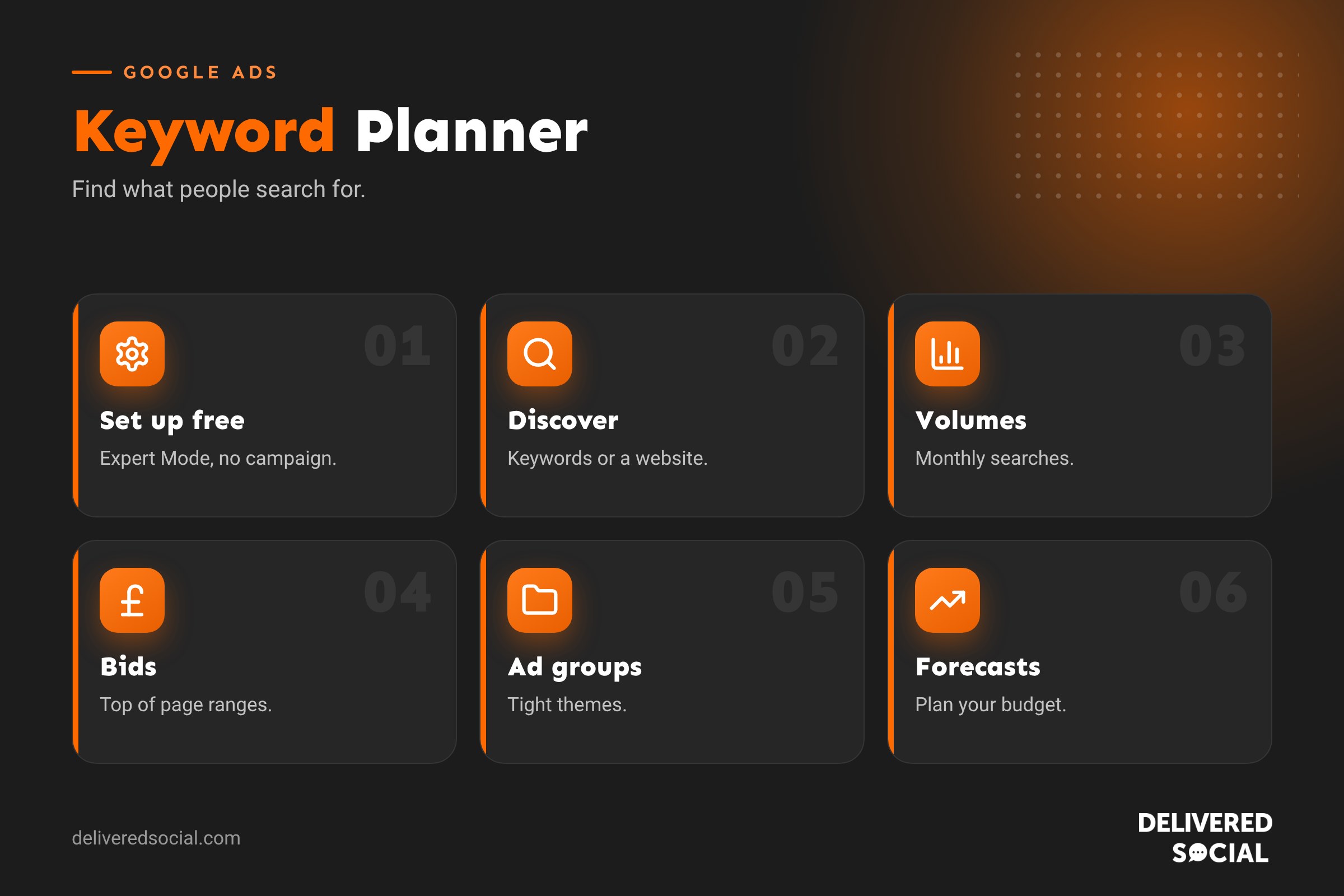
Keyword Planner is a free tool inside Google Ads. It helps you:
- Discover new keyword ideas based on words, phrases or a website.
- See estimated monthly searches for keywords.
- Check how competitive keywords are for advertisers.
- See estimated top-of-page bid ranges.
- Forecast clicks, impressions and costs for a set of keywords.
It’s designed for advertisers, but it’s also widely used for SEO and content planning.
Is Keyword Planner free?
Yes. You need a Google Ads account, but you don’t have to run ads to use it. Accounts without active campaigns usually see search volumes as ranges (such as 1K to 10K) rather than exact figures. Running even a small active campaign typically unlocks more precise numbers.
How to set up Keyword Planner without spending money
- Go to Google Ads and sign in with a Google account.
- When prompted to create a campaign, look for the option to switch to Expert Mode.
- Choose to create an account without a campaign.
- Confirm your country, time zone and currency (set these carefully, as they can’t easily be changed later).
- Once in the account, go to Tools, then Planning, then Keyword Planner.
Google’s interface changes from time to time, so menu names may move slightly. Our Google Ads for beginners guide covers account set-up in more detail.
The two main tools
| Tool | Use it to |
|---|---|
| Discover new keywords | Find ideas from seed keywords or a website URL |
| Get search volume and forecasts | Check data for a list of keywords you already have |
How to discover new keywords
- Click Discover new keywords.
- Choose Start with keywords and enter up to ten words or phrases that describe your products or services, such as “emergency plumber” or “boiler repair”.
- Or choose Start with a website and enter your site, a competitor’s site or a specific page.
- Set the location (for example United Kingdom, or a specific county or town) and language.
- Click Get results.
You’ll see a list of keyword ideas with average monthly searches, three-month and year-on-year change, competition and bid estimates.
Reading the results
| Column | What it means |
|---|---|
| Avg. monthly searches | Estimated searches per month, averaged over the past year |
| Three-month change | Recent trend in searches |
| YoY change | Change compared with the same period last year |
| Competition | How many advertisers bid on the keyword (low, medium, high), not how hard it is to rank organically |
| Top of page bid (low range) | Lower estimate of cost per click to appear at the top |
| Top of page bid (high range) | Higher estimate of cost per click |
Refining your keyword ideas
- Refine keywords: group ideas by theme, such as brand or service type, and remove irrelevant ones.
- Exclude brand names of competitors if you don’t want them.
- Filter by search volume, competition or bid to focus your list.
- Change the date range to spot seasonal patterns.
- Adjust location to see local demand.
Understanding search intent
Numbers alone aren’t enough. Ask what the searcher wants:
- Commercial or transactional: “emergency plumber near me”, “buy oak dining table”. Great for ads and service pages.
- Informational: “how to bleed a radiator”. Better for blog content than ads.
- Navigational: searching for a specific brand.
Prioritise keywords that match what you sell and show buying intent for ads.
Building ad groups from Keyword Planner
- Select related keywords using the tick boxes.
- Add them to a plan.
- Organise them into tight ad groups by theme, such as “boiler repair” and “boiler installation”.
- Choose match types: broad, phrase or exact.
- Add negative keywords for searches you don’t want, such as “jobs”, “free” or “DIY”.
Tight ad groups let you write more relevant ads and send people to matching landing pages, which improves results and lowers costs.
Using forecasts
The Forecast tab estimates clicks, impressions, cost, click-through rate and average cost per click for your plan, based on budget and bids. Use it to set realistic expectations and budgets before launching. Forecasts are estimates, so treat them as a starting point and adjust once real data comes in.
Using Keyword Planner for SEO
Keyword Planner is also useful for organic search:
- Find topics people search for, for blog posts and service pages.
- Choose the main keyword for each page.
- Spot seasonal trends to time content.
- Find local variations, such as service plus town.
Remember “competition” refers to advertisers, not SEO difficulty. Combine it with Google Search Console and other SEO tools for a full picture. Our keyword mapping guide helps you assign keywords to pages.
Tips for small and local businesses
- Set the location to your actual service area.
- Low volume isn’t bad: a keyword with 50 searches a month can be very valuable if it’s exactly what you sell.
- Look for long-tail phrases with clear intent, such as “wedding photographer Surrey barn”.
- Check bid estimates to see which keywords are affordable for ads.
- Don’t forget variations people use in speech, such as “near me”.
Limitations to be aware of
- Volumes are rounded and grouped, especially without active spend.
- Similar keywords may be combined into one figure.
- Bid estimates change and depend on quality and competition.
- It doesn’t show organic ranking difficulty.
- Very new or niche terms may show little or no data.
Common mistakes
- Choosing keywords only by search volume.
- Ignoring search intent.
- Setting the wrong location.
- Putting too many unrelated keywords in one ad group.
- Forgetting negative keywords.
- Treating forecasts as guarantees.
Example: a local plumber’s keyword plan
Imagine a plumber covering Guildford and the surrounding villages. They enter seed keywords like “emergency plumber”, “boiler repair” and “blocked drain”, set the location to Surrey, and get hundreds of ideas. They remove anything unrelated, such as plumbing jobs and DIY tutorials, and group the rest into three ad groups: emergency call-outs, boiler repairs and drainage. Each ad group gets its own ad and landing page. They add negative keywords like “course”, “salary” and “B&Q”, set a modest daily budget using the forecast, and review real search terms weekly to add more negatives and spot new opportunities.
Keyword Planner and AI search
Search behaviour is changing as people ask longer, conversational questions in Google’s AI features and chat tools. Keyword Planner still shows the core demand behind those questions, so it remains useful. Pair the volumes with real questions customers ask you, and write pages that answer them clearly and fully, which helps both traditional and AI-driven search results.
How often should you revisit your keywords?
Check Keyword Planner every few months, and before seasonal campaigns. Search trends shift, new phrases appear and competition changes. In live campaigns, the search terms report shows what people actually typed before clicking your ads; that’s the most valuable keyword data you’ll ever get, so review it regularly.
Quick glossary
- Seed keyword: a starting word or phrase used to find ideas.
- Match type: controls how closely searches must match your keyword.
- Negative keyword: a term that stops your ads showing for unwanted searches.
- Cost per click: what you pay when someone clicks your ad.
- Long-tail keyword: a longer, more specific search phrase.
Key takeaways
- Keyword Planner is free with a Google Ads account, no campaign required.
- Use it to discover keywords, check volumes, bids and trends.
- Competition shows advertiser interest, not SEO difficulty.
- Focus on intent and relevance, not just volume.
- Use the data for both ads and SEO content planning.
Frequently asked questions
Is Google Keyword Planner free?
Yes, with a Google Ads account. You don’t need to run ads.
Why does Keyword Planner show ranges?
Accounts without active spend usually see grouped ranges instead of exact numbers.
How do I use Keyword Planner without ads?
Create an account in Expert Mode without a campaign, then open Keyword Planner from Tools.
Is Keyword Planner good for SEO?
Yes for ideas and volumes, though competition refers to ads, not organic difficulty.
What is a good search volume?
It depends on your business. Small, highly relevant volumes can be very valuable.
Can I see competitors’ keywords?
You can enter a competitor’s website to get keyword ideas related to it.
How accurate are the bid estimates?
They’re a guide. Actual costs depend on competition and ad quality.
Can I target a specific town?
Yes, set the location to a town, county or radius.
Want Google Ads managed for you?
We plan and manage Google Ads campaigns for businesses across Surrey, Hampshire and the UK. Call us on 01483 608 303.































