



Keep reading
Rather we just did it for you?
Let's get your business seen.
Social media, websites, SEO and ads from a team you can actually meet.
Rebranding, merging businesses, switching from a .com to a .co.uk, or finally moving off a temporary address: there are plenty of reasons to change your website’s domain. On WordPress, the change itself only takes a few steps, but getting it wrong can break your site, lose your email and wipe out years of search rankings. This guide explains how to change your WordPress domain safely, how to update your site URL settings, how to set up redirects, and how to keep your SEO intact.
Before you start
- Register the new domain and make sure you control its DNS.
- Keep the old domain. Never let it expire: you’ll need it for redirects for years.
- Take a full backup of files and database. See how to back up a WordPress site.
- Plan your email. If email addresses use the old domain, decide whether to move them, forward them or keep both.
- List your important URLs and current rankings so you can check them afterwards.
- Pick a quiet time to make the switch.
Changing domain vs changing URL
There are a few slightly different jobs people mean by “changing the WordPress URL”:
| Change | Example | Main tasks |
|---|---|---|
| New domain | oldname.co.uk to newname.co.uk | DNS, site URL, search and replace, redirects, Search Console |
| HTTP to HTTPS | http:// to https:// | SSL certificate, site URL, redirects |
| www or non-www | www.site.co.uk to site.co.uk | Site URL and a redirect |
| Subfolder to root | site.co.uk/blog to site.co.uk | Move files, site URL, redirects |
| Single page slug | /services-old/ to /services/ | Edit the page slug, add a redirect |
Step 1: point the new domain at your hosting
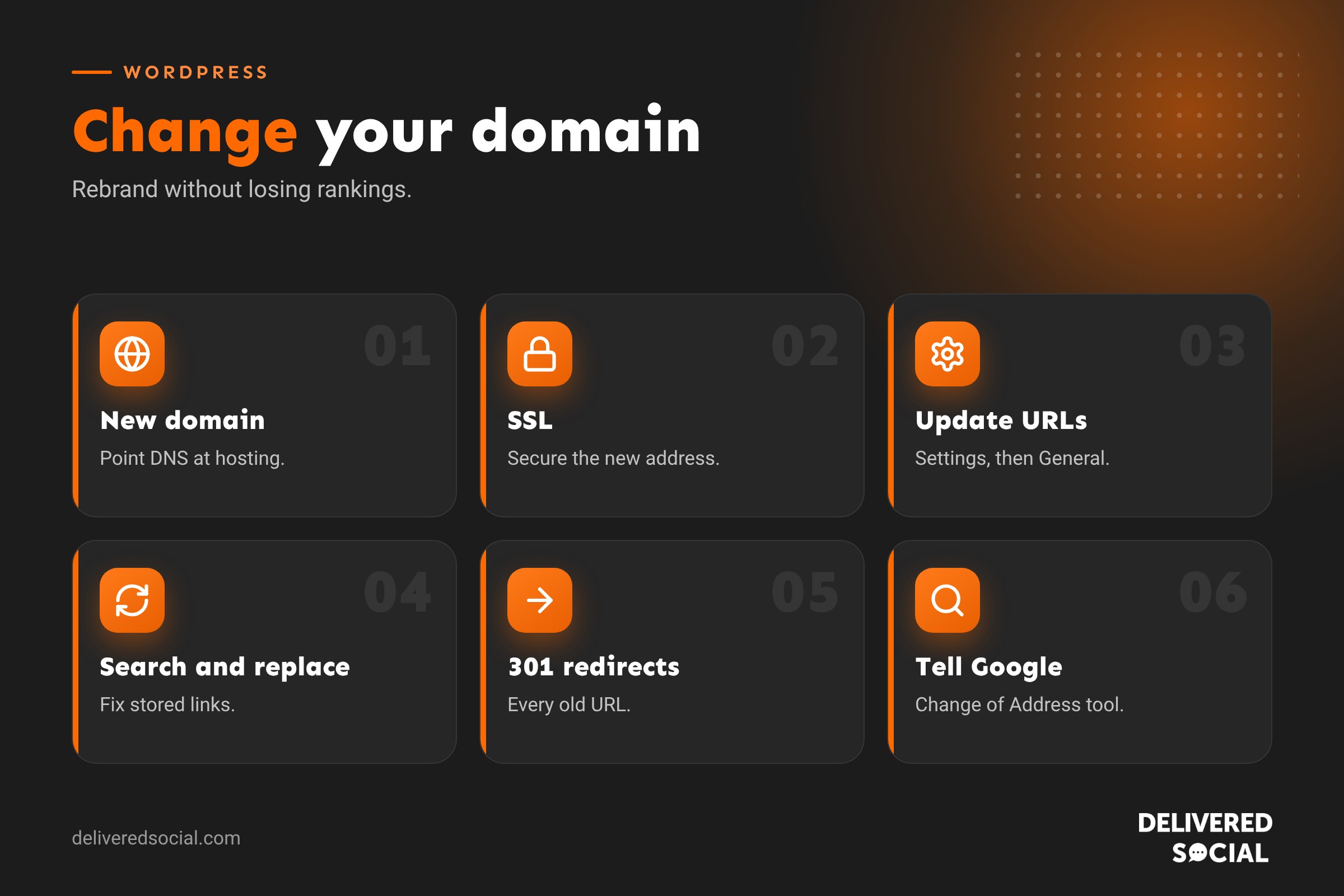
Add the new domain to your hosting account, then update the domain’s DNS so it points to your server, usually with an A record or by changing nameservers. If you’re also changing host, see our guide on how to migrate a WordPress site first.
Step 2: set up SSL for the new domain
Install an SSL certificate for the new domain (and its www version) so it loads securely over HTTPS. Most hosts issue free certificates once DNS points to the server. Do this before changing WordPress settings, or you may see security warnings.
Step 3: update the WordPress Address and Site Address
- Log in to WordPress and go to Settings, then General.
- Change WordPress Address (URL) and Site Address (URL) to the new domain, including https://.
- Click Save Changes. You’ll be logged out.
- Log back in at the new domain followed by /wp-admin.
If these fields are greyed out, they’re set in wp-config.php using WP_HOME and WP_SITEURL, so update them there instead.
If you get locked out
A typo in the site address can lock you out. You can fix it by adding the correct values to wp-config.php, or by editing the siteurl and home rows in the options table of the database. If you’re not comfortable doing that, ask your host or agency, and don’t keep trying random fixes.
Step 4: update old URLs throughout the site
Changing the settings doesn’t update links already stored in your content, menus, widgets, page builder layouts and settings. Use a reputable search and replace plugin or tool that handles serialised data to replace the old domain with the new one throughout the database. Always run a dry run first and back up before replacing.
Check page builder content and custom fields carefully, as some store URLs in their own formats.
Step 5: set up 301 redirects from the old domain
This is the most important step for SEO and for visitors with old links. Every old URL should permanently redirect to the same page on the new domain, for example oldname.co.uk/services/ to newname.co.uk/services/.
- Keep the old domain pointing at your server or a redirect service.
- Use server-level redirects that preserve the path, rather than sending everything to the home page.
- Test a range of old URLs, including blog posts and images.
- Avoid redirect chains, where one redirect leads to another.
Keep redirects in place permanently, or at least for several years.
Step 6: tell Google
- Add and verify the new domain in Google Search Console.
- Use the Change of Address tool in the old domain’s property to point to the new one.
- Submit your new XML sitemap.
- Monitor coverage, errors and rankings for both properties over the following weeks.
It’s normal to see some fluctuation for a few weeks. Good redirects mean most rankings should transfer.
Step 7: update everything else
- Google Business Profile website link.
- Social media profiles and bio links.
- Google Analytics and tag settings.
- Advertising accounts and ad destination URLs.
- Email signatures and templates.
- Directory listings and citations.
- Payment gateways and integrations with webhook or callback URLs.
- Printed materials and vehicle signage as they’re reprinted.
- Important backlinks: ask key partners to update their links.
Step 8: test thoroughly
| Test | What to check |
|---|---|
| Home and key pages | Load on the new domain with a padlock |
| Old URLs | Redirect to the matching new pages |
| Images | Load from the new domain |
| Forms | Submit and arrive correctly |
| Shop and payments | Checkout and order emails work |
| Logins | Admin and customer logins work |
| Sending and receiving work on the chosen domain | |
| Mixed content | No insecure HTTP resources |
Clear your caches after the change. See how to clear WordPress cache.
Changing to HTTPS only
If you’re just moving from HTTP to HTTPS, install SSL, update both URLs in Settings, then General, to https://, run a search and replace for http:// links to your own domain, and set up a sitewide redirect from HTTP to HTTPS. Fix any mixed content warnings that remain.
Changing a single page URL
To change one page’s address, edit the page, update its slug (the URL ending) in the settings panel, and save. Then add a 301 redirect from the old address to the new one, and update internal links. Avoid changing slugs of well-ranking pages without a good reason.
Common problems
- Redirect loops: usually conflicting SSL or site URL settings.
- Broken images: old URLs still in the database.
- Login problems: cookies from the old domain; clear them or use a private window.
- Lost rankings: missing or incorrect redirects, or the old domain expiring.
- Email bouncing: MX records not set up for the new domain.
Rebrand tips
If the domain change is part of a rebrand, tell your customers before and after the switch. A short email, social posts and a banner on the site help people trust the new address and avoid confusion with scam sites. Keep the old name visible for a while, for example “formerly known as”, so existing customers recognise you. Our guide to choosing a domain name helps if you haven’t picked the new one yet.
How long does a domain change take?
For a small site, the technical work often takes an hour or two, plus time for DNS to update and SSL to be issued. Testing, updating profiles and monitoring Google take longer, so plan for a few weeks of light follow-up. Avoid changing your domain just before a busy season or a big campaign, when any short-term dip in visibility would hurt most.
Quick glossary
- Site Address: the URL visitors use to reach your site.
- WordPress Address: where WordPress’s core files live, usually the same as the site address.
- 301 redirect: a permanent redirect that passes most ranking value.
- Serialised data: a storage format that breaks if edited with a simple find and replace.
- Change of Address tool: a Search Console feature for domain moves.
Key takeaways
- Back up first, keep the old domain and plan your email.
- Set up DNS and SSL for the new domain, then update WordPress URLs.
- Replace old URLs throughout the database with a safe search and replace tool.
- Set up path-preserving 301 redirects from every old URL.
- Tell Google with Search Console and update profiles, ads and integrations.
Frequently asked questions
How do I change my domain name in WordPress?
Point the new domain at your hosting, set up SSL, update the URLs in Settings, then General, replace old URLs in the database and add redirects.
Will changing my domain affect SEO?
There may be short-term fluctuation, but good 301 redirects and Search Console’s Change of Address tool keep most rankings.
How long should I keep redirects?
Ideally permanently, and at least for several years.
Can I change the domain without losing content?
Yes. Your content stays in the database; only the address changes.
What if I can’t log in after changing the URL?
Fix the site URL in wp-config.php or the database, or ask your host for help.
Do I need a new SSL certificate?
Yes, the new domain needs its own certificate. Most hosts provide one free.
Will my emails change?
Only if you move them. Email is separate from your website and needs its own plan.
Can I change the domain on WordPress.com?
Yes, through your WordPress.com domain settings, though paid plans are needed for custom domains.
Want your domain change handled for you?
We manage domains, hosting, migrations and SEO for WordPress websites across Surrey, Hampshire and the UK. Call us on 01483 608 303 and we’ll move you safely.































