



Keep reading
Rather we just did it for you?
Let's get your business seen.
Social media, websites, SEO and ads from a team you can actually meet.
Few things put visitors off faster than a browser warning saying your website is “Not secure” or “Your connection is not private”. It looks alarming, it stops people filling in forms, and it can hurt your search visibility. The good news is that on a WordPress site the cause is usually simple, and most fixes take minutes rather than days. This guide explains why your WordPress site says “not secure”, how to install SSL, how to fix mixed content and redirect problems, and how to stop the warning coming back.
What does “not secure” mean?
Browsers show “Not secure” when a page loads over HTTP rather than HTTPS, or when something about the secure connection isn’t right. HTTPS encrypts information between the visitor and your website, protecting form entries, logins and payments. It relies on an SSL certificate (technically now TLS) installed on your server.
Different warnings point to different problems:
| Warning | Likely cause |
|---|---|
| “Not secure” next to the address | The page loads over HTTP, or there’s no valid certificate |
| Padlock with a warning or “parts of this page are not secure” | Mixed content: some images or scripts load over HTTP |
| “Your connection is not private” full-page warning | Certificate expired, missing, or doesn’t match the domain |
| “Too many redirects” | Conflicting HTTPS redirect settings |
Why HTTPS matters
- Trust: visitors expect the padlock, especially on forms and checkouts.
- Security: it protects logins, enquiries and payment details.
- SEO: Google uses HTTPS as a ranking signal and Chrome highlights insecure pages.
- Features: many modern browser features and payment tools require HTTPS.
- Data protection: it helps you meet your obligations when handling personal data.
Step 1: check whether you have an SSL certificate
Visit your site with https:// at the start. If it loads with a padlock, you have a certificate. If you get an error, you probably don’t, or it isn’t set up correctly. You can also check in your hosting control panel, usually in an SSL or security section, or use an online SSL checker.
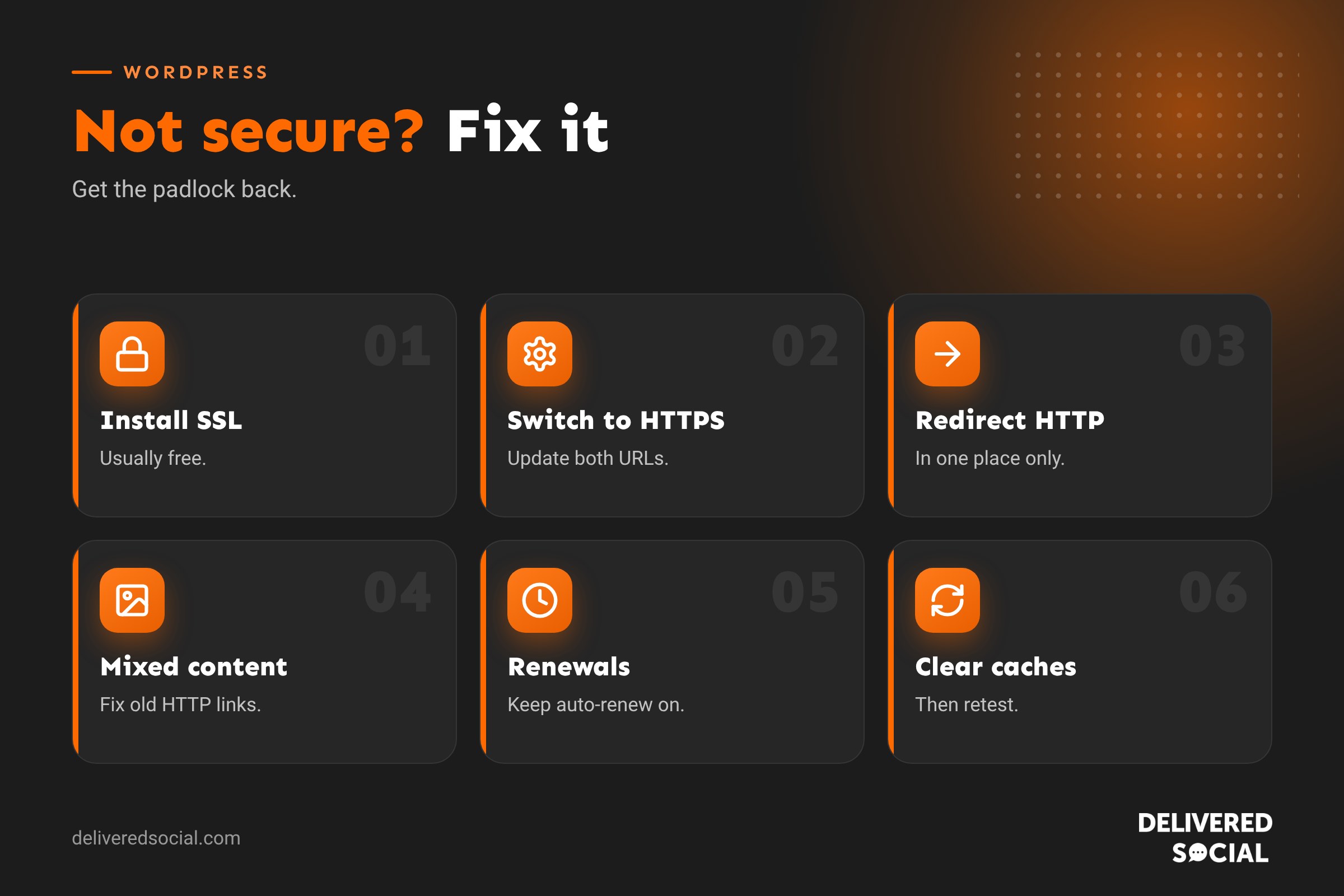
Step 2: install an SSL certificate
Most UK hosts include free SSL certificates that renew automatically. In your hosting control panel:
- Find the SSL or security section.
- Choose your domain and issue a free certificate (covering both the www and non-www versions).
- Wait a few minutes for it to activate.
- Visit your site with https:// to check the padlock appears.
If your host doesn’t offer free SSL, that’s a sign it may be time to switch. See the best WordPress hosting in the UK.
Step 3: tell WordPress to use HTTPS
- Go to Settings, then General.
- Change both WordPress Address (URL) and Site Address (URL) from http:// to https://.
- Save. You’ll be logged out; log back in using the https:// address.
Back up your site first. If you get locked out, the URLs can be corrected in wp-config.php or by your host.
Step 4: redirect HTTP to HTTPS
Visitors and old links may still use http://. Set up a sitewide 301 redirect so every HTTP request goes to the HTTPS version. Many hosts have a “force HTTPS” switch; otherwise it can be done with server rules or a reputable plugin. Make sure you only redirect once, in one place, to avoid redirect loops.
Step 5: fix mixed content
Mixed content happens when an HTTPS page loads some files (images, scripts, fonts, videos) over HTTP. The page may show a broken padlock or block those files entirely.
- Find it: open your browser’s developer tools console, which lists insecure resources, or use an online mixed content scanner.
- Fix links in content: use a safe search and replace tool to change http://yourdomain to https://yourdomain in the database. Back up first.
- Check theme and page builder settings: logos, backgrounds and custom CSS often contain hard-coded HTTP links.
- Check external resources: embeds, widgets and scripts from other sites should use HTTPS versions.
- Clear caches afterwards. See how to clear WordPress cache.
Fixing “Your connection is not private”
This full-page warning usually means one of these:
- Expired certificate: renew it in your hosting panel and check auto-renewal is on. See our guide to SSL certificate renewal.
- Wrong domain: the certificate covers www but not non-www (or the other way round), or an old domain. Reissue it to cover all versions.
- Recent DNS change: after moving host, the certificate may not be issued yet. Wait, then issue it once DNS has updated.
- Incomplete certificate chain: a configuration problem your host can fix.
- Visitor’s device clock wrong: rarely, the problem is on the visitor’s computer.
Fixing “too many redirects”
A redirect loop often happens when HTTPS is forced in more than one place: the host, a plugin, a CDN and WordPress settings all trying to redirect. Remove duplicate rules so only one place handles the redirect, check your CDN’s SSL mode is set correctly, and clear your browser cookies and cache before retesting.
Only some pages say “not secure”
If most pages are fine but one isn’t, it’s usually mixed content on that page: an old image, an embedded form, a video or a script with an HTTP link. Check that page’s console for the specific file and update it.
The admin area isn’t secure
If the front of the site is secure but wp-admin isn’t, check both URL settings use https://, and that no security or redirect plugin is excluding the admin area. Logging in over HTTP exposes your password, so fix this promptly.
Could it be a hack?
Occasionally, security warnings appear because a site has been compromised and is loading malicious scripts, or Google has flagged it as dangerous. That’s a different warning, usually a red screen saying the site may harm your computer. If you see that, follow our guide on how to fix a hacked WordPress site.
Prevent the warning coming back
- Use hosting with free, auto-renewing SSL.
- Monitor certificate expiry with an uptime or SSL monitoring tool.
- Always paste HTTPS links when adding images, videos and embeds.
- Check new plugins and widgets load securely.
- Re-test after migrations and domain changes.
- Keep WordPress, themes and plugins updated. See is WordPress safe?
Updating Google after switching to HTTPS
If you’ve just moved from HTTP to HTTPS, add the HTTPS version to Google Search Console (a domain property covers both), submit your sitemap, and update links in your Google Business Profile, social profiles and ads. With proper 301 redirects, rankings should carry over smoothly.
Quick fix checklist
- Install or renew a free SSL certificate.
- Update WordPress and Site Address to https://.
- Redirect HTTP to HTTPS in one place only.
- Fix mixed content with a safe search and replace.
- Check theme, builder and widget settings for HTTP links.
- Clear all caches and test in a private window.
Which SSL certificate do you need?
For most business websites, a free domain-validated certificate is all you need. It encrypts the connection and shows the padlock in exactly the same way as a paid certificate. Paid certificates with extra organisation checks are mainly used by larger companies with specific compliance needs; browsers no longer show special green company names, so they don’t look any different to visitors. A wildcard certificate covers all subdomains, which is useful if you run several, such as shop.yourdomain.co.uk and blog.yourdomain.co.uk.
Quick glossary
- SSL/TLS: the technology that encrypts website connections.
- HTTPS: the secure version of HTTP, shown with a padlock.
- Mixed content: insecure files loaded on a secure page.
- Certificate authority: the organisation that issues SSL certificates.
- Redirect loop: pages redirecting endlessly between versions.
Key takeaways
- “Not secure” usually means no SSL, an expired certificate or mixed content.
- Most hosts provide free SSL that renews automatically.
- Update WordPress URLs to HTTPS and redirect HTTP traffic.
- Fix mixed content in the database, theme and page builder settings.
- Monitor certificates so the warning doesn’t return.
Frequently asked questions
Why does my WordPress site say not secure?
Usually because it’s loading over HTTP, the SSL certificate is missing or expired, or there’s mixed content.
How do I make my WordPress site secure?
Install SSL, switch your site URLs to HTTPS, redirect HTTP and fix mixed content.
Is SSL free?
Yes, most hosts include free certificates that renew automatically.
Will HTTPS affect my SEO?
Positively. Google prefers secure sites, and redirects carry rankings across.
Do I need a plugin for SSL?
Not always. Many hosts handle it, but a plugin can help with redirects and mixed content.
Why does my padlock disappear on some pages?
Those pages are loading at least one file over HTTP.
How long does it take to fix?
Often under an hour for a small site.
Does a “not secure” warning mean I’ve been hacked?
Usually not. It’s normally a certificate or link issue, but check if you see other signs.
Why does my site say not secure on my phone but not my computer?
Your phone may have an older cached version, or be visiting the HTTP address. Clear the browser cache and try the HTTPS address.
Can a plugin cause a not secure warning?
Yes, if it loads images, fonts or scripts over HTTP. Check the browser console to find it.
Want your website secure and looked after?
We host, secure and maintain WordPress websites for businesses across Surrey, Hampshire and the UK. Call us on 01483 608 303 for a quick security check.































