



Keep reading
Rather we just did it for you?
Let's get your business seen.
Social media, websites, SEO and ads from a team you can actually meet.
Perhaps your WordPress dashboard is showing American spellings and dates when you want British English, a plugin has switched your admin to another language, or you need your whole website available in Welsh, French or Spanish. Changing languages in WordPress can mean three quite different things: the language of the admin area, the language of your site’s built-in text, and translating your actual content. This guide explains how to change the WordPress language for each, how to set British English properly, how to give each user their own admin language, and how to run a multilingual website.
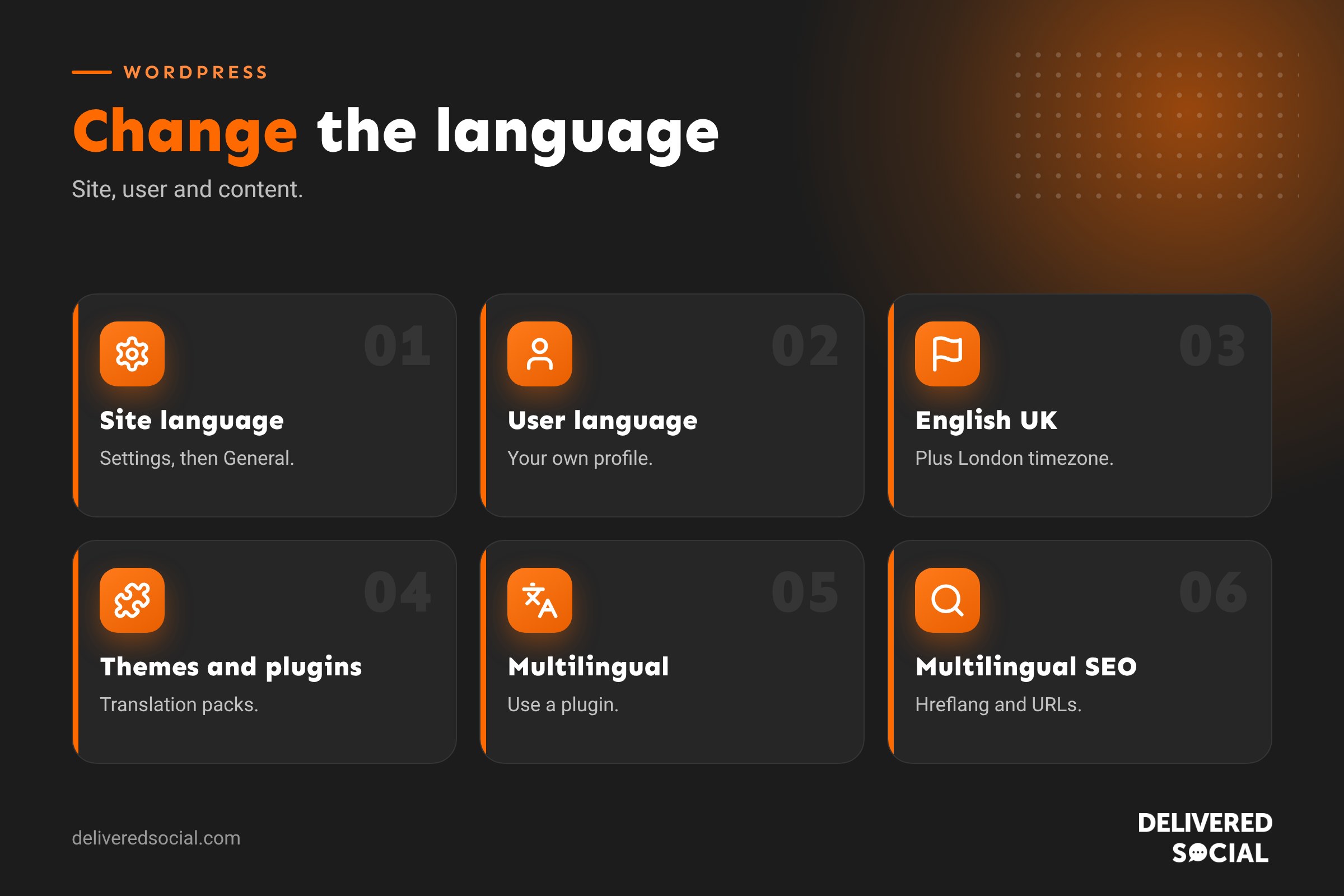
Three types of “language” in WordPress
| Type | What it changes | Where to set it |
|---|---|---|
| Site language | Built-in text from WordPress, themes and plugins, and the default admin language | Settings, then General |
| User language | The admin area for an individual user | Users, then Profile |
| Content language | Your pages, posts and products | You write or translate it, or use a multilingual plugin |
How to change the site language
- Log in to WordPress. See how to access WordPress admin.
- Go to Settings, then General.
- Find Site Language.
- Choose your language from the drop-down, such as English (UK).
- Click Save Changes.
WordPress downloads the language pack automatically. Text such as “Read more”, dates, comment forms and admin menus switch to the new language where translations exist.
Setting British English properly
Many UK sites are accidentally left on the default English (United States). Switching to English (UK) changes spellings like “Customize” to “Customise” in the admin and on parts of your site, and updates some date formats. While you’re in Settings, then General, also check:
- Timezone: set to London, so scheduled posts and timestamps are right.
- Date format: for example 22 November 2026 or 22/11/2026.
- Time format: 24-hour or 12-hour.
- Week starts on: usually Monday in the UK.
Your own content isn’t changed automatically, so check spellings in your pages and posts too.
How to change your own admin language
Each user can choose their own admin language without affecting the website or other users. This is useful for teams in different countries.
- Go to Users, then Profile.
- Find Language.
- Choose a language, or “Site Default” to match the site setting.
- Click Update Profile.
You can also choose a language on the login screen if more than one is installed.
What if the language I need isn’t listed?
If a language isn’t in the list, your hosting might block automatic downloads, or file permissions might prevent WordPress installing language packs. Check with your host. Language packs can also be installed manually by uploading translation files to the wp-content/languages folder.
Theme and plugin translations
When you change language, WordPress also tries to download translations for your theme and plugins. Whether they’re available depends on whether the developer and community have translated them. Some text may stay in English if no translation exists.
- Go to Dashboard, then Updates, to install any waiting translation updates.
- Premium themes and plugins sometimes include their own translation files.
- Translation plugins let you edit or create translations for theme and plugin text.
Changing specific words on your site
Sometimes you don’t need a full language change, just different wording, such as “Basket” instead of “Cart” in a shop. Options include:
- Check theme or plugin settings, which often let you change labels.
- Use the English (UK) language pack, which already uses some British terms.
- Use a string translation plugin to replace specific phrases.
- Ask a developer to add a small code snippet.
Making your website multilingual
To offer content in several languages, you need more than the site language setting. Options include:
| Approach | How it works | Best for |
|---|---|---|
| Multilingual plugin | Create translated versions of each page, with a language switcher | Most business sites |
| Automatic translation plugin | Machine-translates content, often with paid plans | Fast set-up, less critical content |
| Separate sites (multisite) | A separate WordPress site for each language or country | Larger organisations with different teams |
Multilingual SEO tips
- Use separate URLs for each language, such as /fr/ or a subdomain.
- Make sure hreflang tags tell Google which page is for which language.
- Translate SEO titles, meta descriptions and image alt text, not just body content.
- Have important pages checked by a native speaker; machine translation can be clumsy.
- Avoid automatically redirecting visitors by location, which can confuse users and search engines.
Welsh and other UK languages
Organisations in Wales may need bilingual websites. WordPress has a Welsh (Cymraeg) language pack, and multilingual plugins handle English and Welsh versions of pages. Public bodies may have specific obligations, so check the requirements that apply to you.
Changing the language of WooCommerce
WooCommerce follows your site language. Emails to customers, checkout text and product labels translate when language packs are available. Check order emails after changing language, and review any custom text you’ve added in settings.
Troubleshooting
- Language didn’t change: clear your cache and check your user profile language isn’t overriding the site setting.
- Some text still in English: the theme or plugin may not have a translation.
- Admin suddenly in another language: check your user profile language and Settings, then General; a plugin may have changed it.
- Can’t install languages: ask your host about file permissions or blocked connections.
See how to clear WordPress cache if changes don’t appear.
Before you change the language
Changing the site language is low risk, but take a backup first if your site is complex or uses lots of custom text. Some themes store labels in their settings that won’t change automatically. See how to back up a WordPress site.
A quick UK set-up checklist
- Site Language: English (UK).
- Timezone: London.
- Date format: day, month, year.
- Week starts on: Monday.
- WooCommerce currency: pound sterling, if you run a shop.
- Check spellings in key pages: colour, organise, centre.
Example: switching a UK business site to British English
A Surrey accountancy firm’s website was built on a theme set to American English. Their contact form said “Please enter a valid ZIP code”, dates showed month first and the blog said “Categories” with “Color” options in the customiser. Switching the site language to English (UK), setting the timezone to London and changing the date format took five minutes. A string translation tweak changed the leftover form label to “Postcode”, and a quick content review fixed a handful of American spellings in older blog posts. The site instantly felt more local and professional.
Right-to-left languages
If you need Arabic, Hebrew or another right-to-left language, WordPress supports this, but your theme must too. Most modern themes include right-to-left styles, flipping layouts so menus, text and sidebars read correctly. Test carefully, especially forms, sliders and page builder layouts, and have a native speaker review the result before launch.
Language and accessibility
The site language setting also adds a language attribute to your pages’ code, which tells screen readers how to pronounce your content. Getting it right is a small but meaningful accessibility improvement. On multilingual sites, each translated page should declare its own language so assistive technology reads it correctly.
Quick glossary
- Language pack: translation files for WordPress, themes or plugins.
- Locale: a language and region combination, such as en_GB.
- String: a piece of text in a theme or plugin that can be translated.
- Hreflang: a tag telling search engines which language a page is in.
- Multisite: a network of WordPress sites from one installation.
Key takeaways
- Change the site language under Settings, then General.
- Each user can choose their own admin language in their profile.
- Set English (UK), London timezone and UK date formats for British sites.
- Theme and plugin translations depend on availability.
- Use a multilingual plugin to translate your actual content.
Frequently asked questions
How do I change WordPress to British English?
Go to Settings, then General, and set Site Language to English (UK).
How do I change the admin language only for me?
Go to Users, then Profile, and choose your language.
Will changing the language translate my content?
No. It changes built-in text; your content needs translating separately.
Why is some text still in English?
The theme or plugin may not have a translation available.
How do I make a bilingual WordPress site?
Use a multilingual plugin to create translated versions of each page.
Does language affect SEO?
Yes. Translated pages need their own URLs, metadata and hreflang tags.
Can I change “Cart” to “Basket”?
Yes, through settings, the UK language pack or a string translation plugin.
Is changing the language safe?
Generally yes, but take a backup on complex sites first.
Can different users see different admin languages?
Yes. Each user’s profile language overrides the site default for their admin area only.
Will changing language affect my plugins?
Plugins switch language where translations exist; their settings stay the same.
Do I need a plugin to change the language?
No. The site and user language settings are built into WordPress. You only need a plugin to translate your content into several languages.
How do I change the language on the login page?
If more than one language is installed, WordPress shows a language picker below the login form.
Need help with your WordPress website?
We build and support WordPress websites, including multilingual sites, for businesses across Surrey, Hampshire and the UK. Call us on 01483 608 303.































