

Keep reading
Rather we just did it for you?
Let's get your business seen.
Social media, websites, SEO and ads from a team you can actually meet.
You spent an hour filming and editing a Reel, hit share, and then nothing. It is not on your profile grid, it will not post, it is stuck processing, or your followers say they cannot see it. Instagram Reels problems are frustrating, especially when you are posting for your business. This guide explains why your Instagram Reels are not showing or posting, and the fixes that work, step by step.
First, work out which problem you have
| Problem | Most likely cause |
|---|---|
| Reel will not upload or is stuck processing | Connection, app glitch, file size or format |
| Reel posted but not on your profile grid | “Also share to feed” turned off, or grid hidden |
| Reel not showing to followers or getting low views | Reach, recommendations or content issues |
| No Reels tab or Reels option | Out of date app or account issue |
| Reel has no sound or music muted | Music rights or business account library |
| Reel removed or hidden | Community Guidelines or copyright |
Fix 1: Check your connection
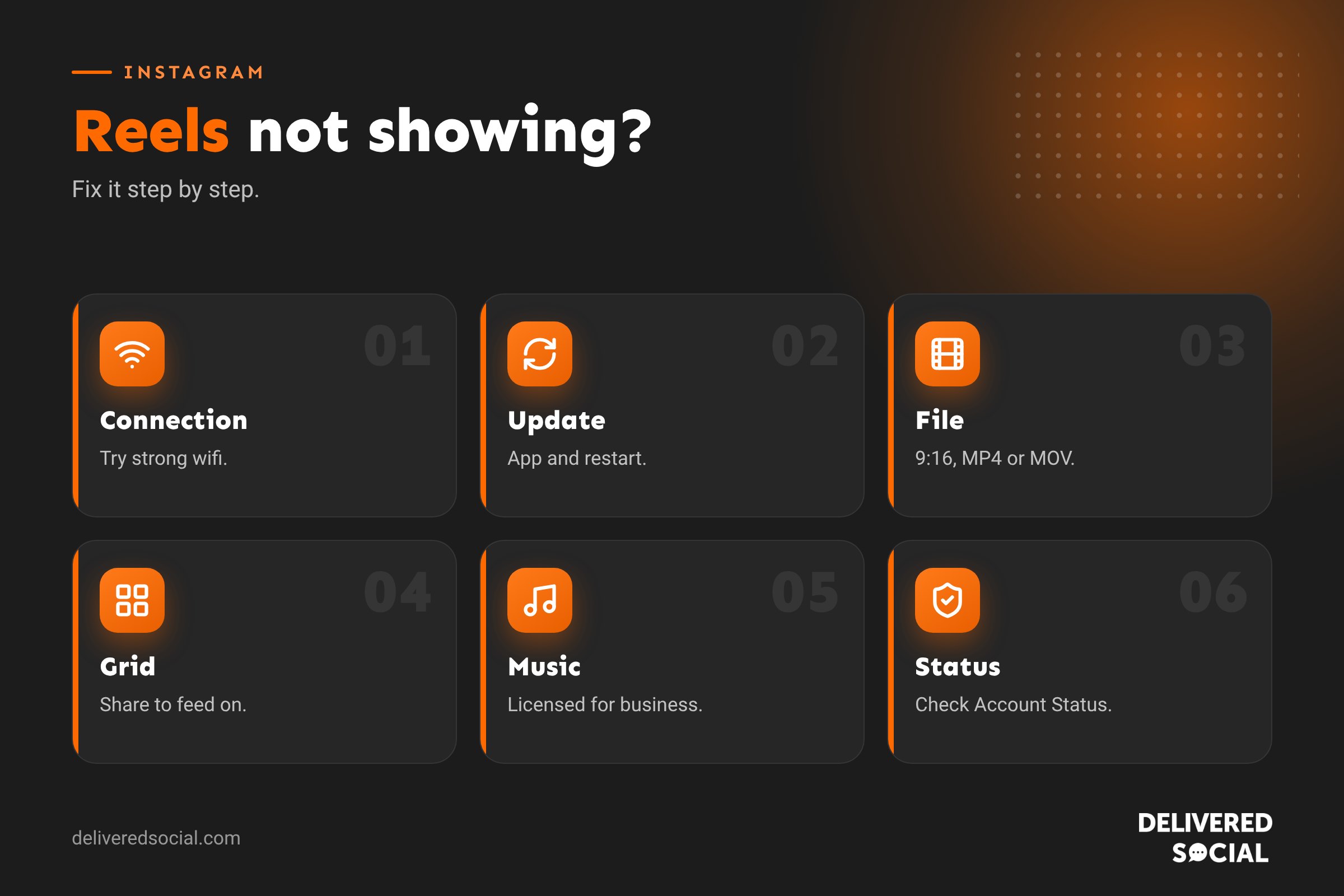
Reels are large files. Switch from mobile data to strong wifi, or the other way round, and try again. Turn off data saver in Instagram settings, which can reduce upload quality and cause failures.
Fix 2: Update and restart the app
- Update Instagram from the App Store or Google Play.
- Close the app completely and reopen it.
- Restart your phone.
- Check your phone has plenty of free storage.
Fix 3: Clear the cache or reinstall
On Android, go to Settings, Apps, Instagram, Storage, then Clear cache. On iPhone, delete and reinstall the app. Your account and posts are safe; just make sure you know your login details first.
Fix 4: Check the video file
- Use a vertical 9:16 video, ideally 1080 x 1920 pixels.
- Use MP4 or MOV format.
- Keep within Instagram’s current length limits; see our guide to Instagram Reels length.
- If a video edited in another app will not upload, export it again at a standard setting and try once more.
Fix 5: Reel not on your profile grid
When you share a Reel, there is an option to also share it to your main feed. If that was off, the Reel will only appear in your Reels tab. You can usually change this afterwards from the Reel’s menu. Also check you have not hidden it from your profile grid or archived it by mistake.
Fix 6: Reel not showing to followers or getting few views
If the Reel posted but nobody seems to see it, the cause is usually reach rather than a bug:
- Recommendation eligibility. Instagram limits recommending content that is low quality, watermarked from other apps, mostly text, or borderline against its guidelines. Check Account Status in your settings to see if your content is eligible to be recommended.
- Weak hook. If people swipe away in the first seconds, Instagram shows it to fewer people.
- Recycled content. Reels with TikTok watermarks or that have been posted before are less likely to be shown widely.
- Timing and consistency. Post when your audience is active and keep a regular rhythm.
Our guide on why your Instagram engagement dropped covers reach problems in more depth.
Fix 7: No sound or muted music
Business accounts often have access only to music licensed for commercial use. If you added a popular track in another app, Instagram may mute it. Use tracks from Instagram’s own library, original audio or royalty free music. If a track is muted after posting, you can usually swap the audio or repost with a different track.
Fix 8: Reel removed or restricted
If Instagram removed your Reel, you should get a notification explaining why. Common reasons are copyrighted music or video, or content that breaks Community Guidelines. You can usually request a review if you think it was a mistake. Check Account Status for any warnings.
Fix 9: Scheduled Reels not posting
If you use a scheduling tool and Reels fail to publish, check:
- Your Instagram account is a professional account linked to a Facebook page.
- The connection to your scheduling tool has not expired; reconnect it if needed.
- The video meets the tool’s size and length limits.
- Any music has been added in a way the tool supports.
Our guide to scheduling Instagram posts covers popular tools.
Fix 10: Check if Instagram is down
Sometimes the problem is Instagram itself. If several features are failing, check outage tracking websites or social media for reports, and wait a little before trying again.
Still not working?
- Log out and back in.
- Try posting from a different device.
- Try a different, short test video to see if the issue is the file.
- Report the problem in the app: shake your phone or go to Settings, Help, Report a problem.
Preventing problems next time
- Keep the app updated.
- Edit in a reliable app and export at standard settings.
- Use Instagram’s music library for business accounts.
- Remove watermarks from other platforms.
- Save a copy of every Reel before you post.
Getting more views once your Reels are posting
Once technical problems are solved, focus on the things that help Reels travel further:
- Hook in the first two seconds. Start with the result, a bold statement or a question.
- Add on screen text and captions. Many people watch with the sound off.
- Keep it tight. Cut pauses and get to the point.
- Use original ideas. Trends work best when you add your own twist.
- Write a searchable caption with natural keywords and a clear call to action.
- Choose a strong cover so the Reel looks good on your grid.
- Reply to comments quickly to keep the conversation going.
For more ideas, see our guide to Instagram Reels for small business.
Reels problems on Facebook
If you share Reels to Facebook as well as Instagram, you may find they show on one platform but not the other. Check that sharing to Facebook is switched on in your Reel settings and that your accounts are linked in Accounts Centre. Facebook Reels may also be affected by music that is licensed on Instagram but not on Facebook, or by different recommendation rules. If a Reel will not appear on your Facebook page, try posting it natively from the Facebook app.
Reels missing from hashtag or audio pages
Sometimes a Reel posts fine but does not appear when you tap the hashtag or the audio it uses. This can happen when content is not eligible for recommendations, when a hashtag is restricted, or simply because there are so many Reels using the same audio that yours is not shown near the top. Use specific, relevant hashtags rather than huge generic ones, and focus on making the Reel itself engaging.
When it is your account, not your Reel
If every Reel suddenly performs badly, check Account Status for restrictions, make sure you are not using automation tools that break Instagram’s rules, and review recent posts for anything that could have been flagged. Avoid buying followers or engagement, which can damage reach for months. If everything looks fine, give it a couple of weeks of consistent, original posting before drawing conclusions.
Quick reference
If you only have two minutes, run through this list: check wifi, update the app, restart your phone, confirm “share to feed” is on, use commercially licensed music, and check Account Status. These six steps solve the large majority of Reels problems we see.
Key takeaways
- Identify whether it is an upload, grid, reach or music problem.
- Update, restart and check your connection first.
- Use 9:16 MP4 or MOV files at standard settings.
- Check “share to feed” and Account Status.
- Business accounts should use commercially licensed music.
Frequently asked questions
Why are my Reels not showing on my profile?
Usually “also share to feed” was turned off, or the Reel was hidden from the grid.
Why is my Reel stuck processing?
Often a weak connection, a large file or an app glitch.
Why are my Reels getting no views?
Low recommendation eligibility, weak hooks or recycled content are common causes.
Why is the music on my Reel muted?
The track may not be licensed for business use.
How do I check Account Status?
Go to Settings, then Account Status, to see restrictions or warnings.
Can I edit a Reel after posting?
You can edit the caption, cover and some settings, but not the video itself.
Why can’t I see the Reels option?
Update the app; if it is still missing, report the problem to Instagram.
Does deleting and reposting help?
Sometimes, but do not do it repeatedly.
Do watermarks affect Reels?
Yes. Content with other platforms’ watermarks is less likely to be recommended.
Why won’t my scheduled Reels post?
Check your account type, Facebook link and the tool’s connection.
Why can’t I add music to my Reel?
Your account type, location or the track’s licence may limit music options.
Why is my Reel blurry after uploading?
Turn off data saver and enable high quality uploads in settings.
Want your Instagram managed for you?
We plan, film, edit and post Reels for businesses across Surrey, Hampshire and the UK. Call us on 01483 608 303.