



Keep reading
Rather we just did it for you?
Let's get your business seen.
Social media, websites, SEO and ads from a team you can actually meet.
Blocked someone on Facebook in the heat of the moment and now want to undo it? Or wondering whether you’ve been blocked yourself? This guide explains how to unblock someone on Facebook on the app and on a computer, what happens when you unblock them, the 48-hour rule before you can block them again, how to unblock people on Messenger and from a business page, and how to tell if someone has blocked you.
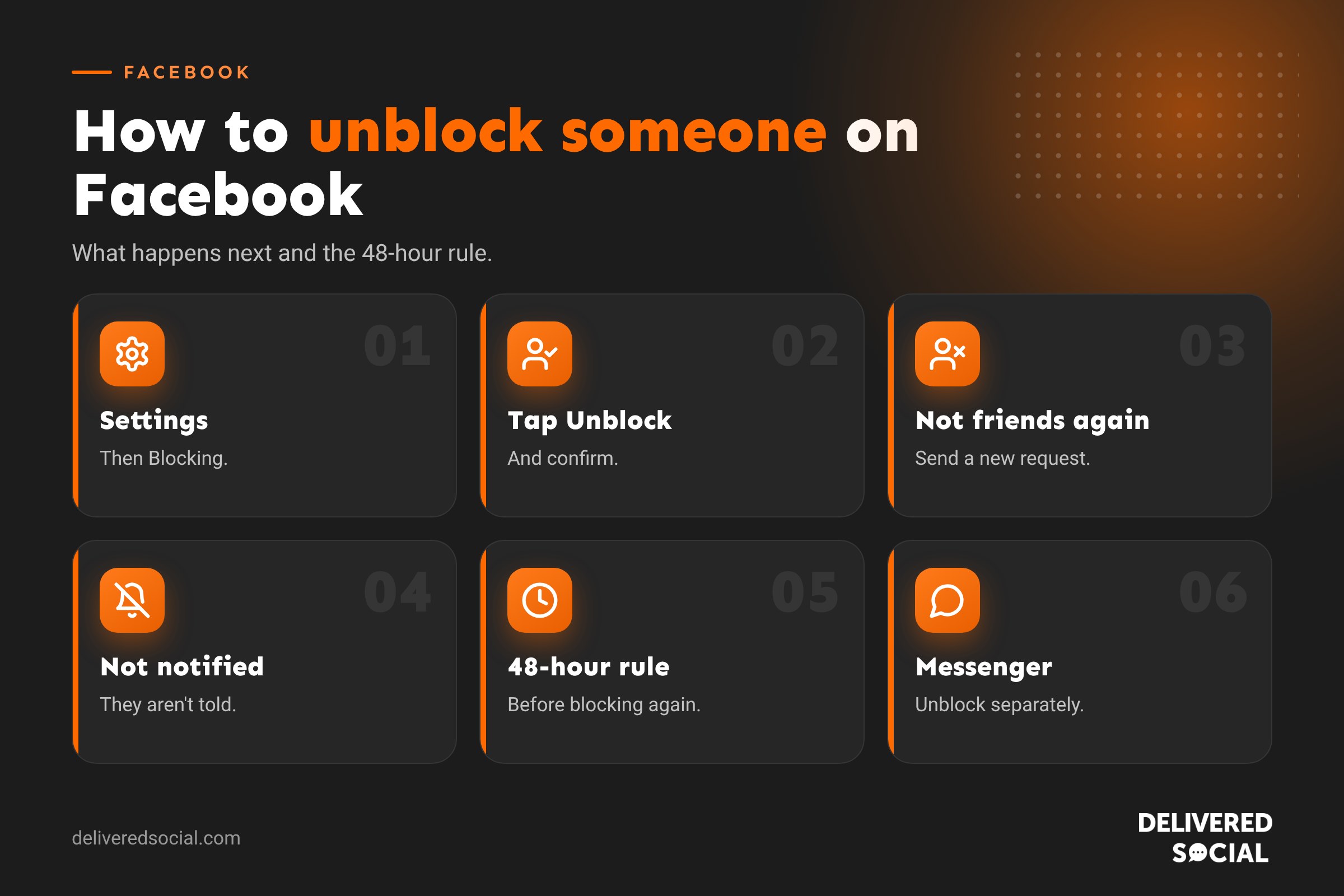
How to unblock someone on Facebook (app)
- Open the Facebook app and tap the menu (your profile picture or three lines).
- Tap Settings and privacy, then Settings.
- Under Audience and visibility, tap Blocking.
- Find the person in your blocked list and tap Unblock.
- Confirm by tapping Unblock again.
How to unblock someone on Facebook (computer)
- Go to facebook.com and click your profile picture in the top right.
- Click Settings and privacy, then Settings.
- Click Blocking in the left-hand menu.
- Next to Block users, click Edit or See your blocked list.
- Click Unblock next to the person’s name and confirm.
Facebook moves menus around from time to time. If you can’t find Blocking, type “blocking” into the search bar in Settings.
What happens when you unblock someone on Facebook?
| What | After unblocking |
|---|---|
| Friendship | You are not friends again. You’ll need to send a new friend request. |
| Notification | They aren’t told you’ve unblocked them. |
| Your profile | They can see your public posts and profile again. |
| Messages | They can message you again, though it may land in message requests. |
| Tags | Old tags removed when you blocked them won’t come back automatically. |
| Blocking again | You have to wait 48 hours before you can block them again. |
The 48-hour rule
Once you unblock someone, Facebook makes you wait 48 hours before you can block them again. This stops people blocking and unblocking repeatedly. So think before you unblock, especially if the person was harassing you.
How to unblock someone on Messenger
Blocking on Messenger can be separate from blocking on Facebook. You might have blocked someone’s messages without blocking their profile.
- Open Messenger and tap your profile picture or the menu.
- Tap Privacy and safety, then Blocked accounts.
- Tap the person and choose Unblock messages and calls.
If you blocked them fully on Facebook, unblock them on Facebook first.
How to unblock someone from a Facebook business page
Page admins can ban people from commenting or messaging a business page. To lift a ban:
- Switch to your page, or open it in Meta Business Suite.
- Go to Settings, then look for People and other pages or Blocking, depending on your page version.
- Find the banned person and choose Unban or Unblock.
In Meta Business Suite, you can also manage blocked people from the inbox and comment moderation settings.
How to tell if someone has blocked you on Facebook
Facebook doesn’t tell you when you’ve been blocked. Signs include:
- You can’t find their profile by searching, but friends can.
- Their profile link shows “This content isn’t available right now”.
- Old messages show their name without a profile picture, and you can’t reply.
- You can’t tag them in posts or comments.
- Mutual friends can see them, but you can’t.
They may also have deactivated their account, which looks similar. If nobody can find them, it’s probably a deactivation.
Block vs unfriend vs unfollow vs restrict
| Option | What it does | Best for |
|---|---|---|
| Unfollow | Stops their posts showing in your feed; you stay friends | Too many posts you’re not interested in |
| Snooze | Hides their posts for 30 days | A short break |
| Restricted list | They only see your public posts, but stay friends | Work contacts or distant relatives |
| Unfriend | Removes them as a friend | People you don’t want to connect with |
| Block | Stops them seeing your profile or contacting you | Harassment, scams or safety concerns |
If you’re unblocking someone but still want some distance, adding them to your Restricted list or unfollowing them might be a good middle ground.
When should you unblock someone?
- You blocked them by mistake.
- A disagreement has been resolved.
- You need to work with them again, for example a former colleague or supplier.
- You want to see a mutual friend’s tagged photos or events they’re in.
Don’t unblock someone who was threatening, abusive or trying to scam you. If you feel unsafe, keep them blocked and report them to Facebook.
Blocking and unblocking for businesses
For business pages, blocking should be a last resort. Before banning someone:
- Reply politely to genuine complaints and offer to help privately.
- Hide offensive comments instead of deleting them. The person and their friends still see the comment, but nobody else does.
- Use moderation filters to automatically hide comments with certain words.
- Ban people who post spam, abuse or threats.
Review your banned list occasionally. A customer who was banned after a bad day may be worth welcoming back, and it’s a good look for your business to give people a second chance.
Common problems
- I can’t find the person in my blocked list: they may have changed their name or deactivated their account.
- I unblocked them but can’t find their profile: they may have blocked you too, or deactivated.
- I can’t block them again: wait 48 hours after unblocking.
- Messages still don’t come through: check Messenger’s blocked list separately.
Privacy tips after unblocking
If you unblock someone, check what they can now see. Review who can see your future posts, your friends list and your profile information in Settings, then Audience and visibility. You can also use the View as option on your profile to see what the public sees.
Staying safe online
If you blocked someone because they made you feel unsafe, it’s okay to keep them blocked. You can also report their profile to Facebook, keep screenshots of any threatening messages, and contact the police if you feel at risk. Check your privacy settings regularly, limit who can see your posts and friends list, and be careful about sharing your location publicly.
Quick glossary
- Blocked list: everyone you’ve blocked on Facebook.
- Restricted list: friends who only see your public posts.
- Ban: blocking someone from interacting with a business page.
- Hide comment: making a comment invisible to everyone except the writer and their friends.
Managing a blocked list for a business
If several people manage your Facebook page, agree a simple policy on when to hide, delete, ban and unban. For example, hide offensive language, delete spam links, ban anyone who threatens staff or posts repeated spam, and review bans every six months. Keep a short note of why someone was banned, so any team member can make a fair decision if they ask to be unbanned later. Consistent rules protect your page and make sure customers are treated fairly.
Unblocking on other platforms
The process is similar on Instagram, WhatsApp and Messenger, but each keeps its own blocked list. If you’ve linked accounts through Meta’s Accounts Centre, blocking someone on Facebook may also block them on Instagram, so check both if you’re unblocking someone across platforms. Our guide to muting someone on Instagram explains gentler options on Instagram.
Key takeaways
- Unblock people in Settings, then Blocking, on the app or a computer.
- Unblocking doesn’t make you friends again or notify them.
- You must wait 48 hours before blocking the same person again.
- Messenger and business page blocks are managed separately.
- Keep anyone abusive or unsafe blocked and report them.
What the other person sees
When you unblock someone, nothing appears in their notifications or on their profile. They’ll simply be able to find you in search again and see whatever your privacy settings allow. If you were friends before, they won’t see you in their friends list until a new request is accepted. If you’d like to reconnect, sending a short, friendly message with your friend request can help clear the air.
Facebook updates its menus and privacy tools regularly, so if a setting has moved, search for it by name in Settings. The options themselves rarely disappear.
When in doubt, choose safety first.
Frequently asked questions
Does someone know if you unblock them on Facebook?
No. Facebook doesn’t notify them, though they may notice they can see your profile again.
Are you still friends after unblocking on Facebook?
No. You’ll need to send a new friend request.
Why can’t I block someone again after unblocking them?
Facebook makes you wait 48 hours before blocking the same person again.
How do I unblock someone on Messenger?
In Messenger, go to Privacy and safety, then Blocked accounts, and unblock them.
How do I unban someone from my Facebook page?
Go to your page settings or Meta Business Suite, find the blocked person and choose Unban.
Need help managing your Facebook page?
We manage Facebook pages and community moderation for businesses across Surrey, Hampshire and the UK. Read our guide to Facebook Business Manager, see our social media management services or call us on 01483 608 303.































