



Keep reading
Rather we just did it for you?
Let's get your business seen.
Social media, websites, SEO and ads from a team you can actually meet.
Video is the fastest way to grow on Instagram, but the app gives you several ways to post it: Reels, Stories, carousels, Lives and collaborative posts. Which should you use, and how do you upload a video so it looks sharp rather than blurry or cropped? This guide explains how to post a video on Instagram step by step, the right sizes and lengths, how to post from a computer, how to fix common upload problems and how businesses can get more views.
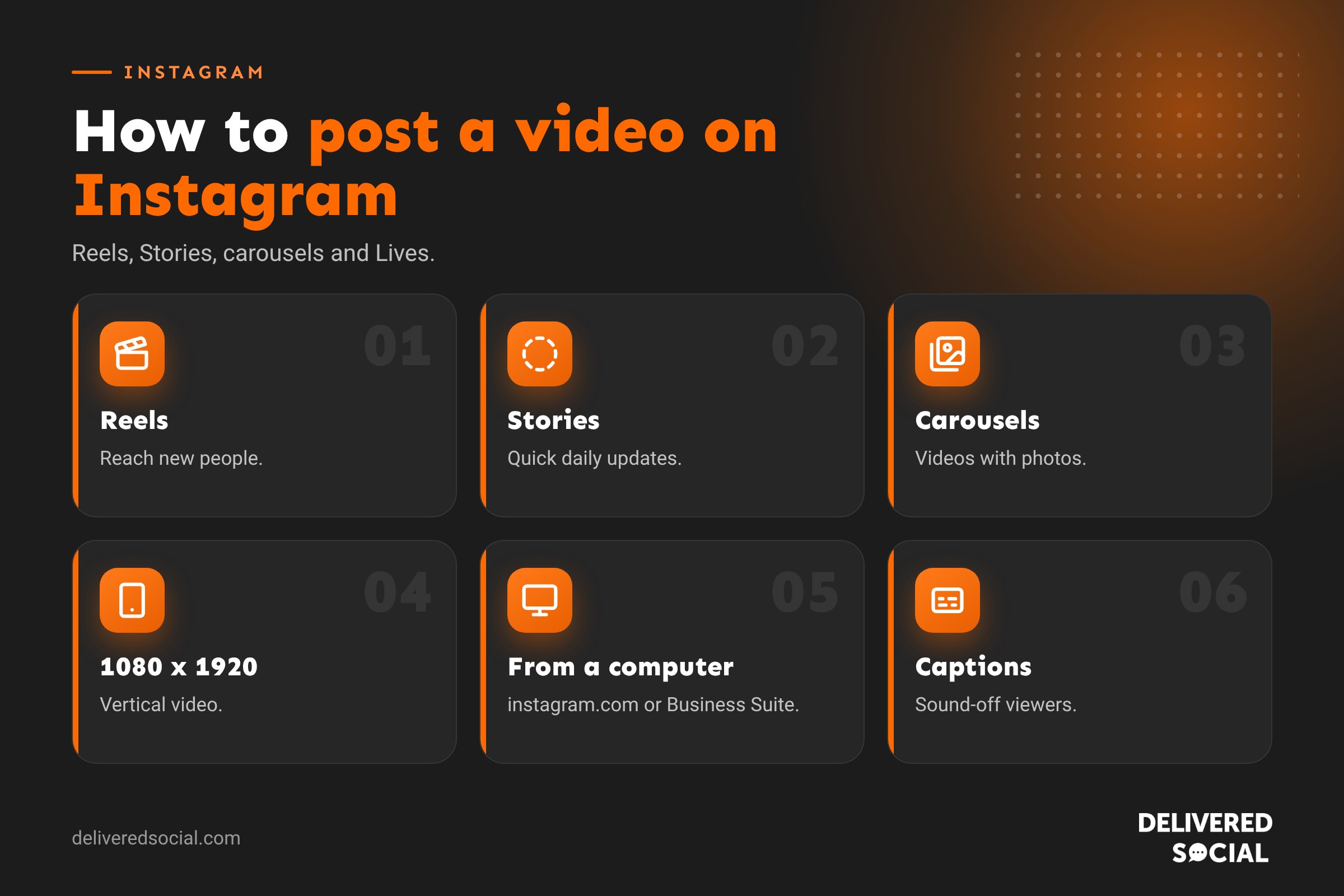
Ways to post a video on Instagram
| Format | What it is | Best for |
|---|---|---|
| Reels | Vertical videos shown in the Reels feed, Explore and your profile | Reaching new people |
| Stories | Full-screen videos that disappear after 24 hours | Quick updates for followers |
| Carousel videos | Videos mixed with photos in a swipeable post | Step-by-step content and product ranges |
| Live | Real-time broadcasts | Q and As, launches and events |
| Collab posts | A Reel or post shared on two accounts at once | Partnerships with other businesses |
Instagram now treats most single videos posted to your feed as Reels.
Instagram video sizes and lengths
| Format | Size | Length |
|---|---|---|
| Reels | 1080 x 1920 (9:16) | Up to 3 minutes in the app (longer uploads may be possible for some accounts) |
| Stories | 1080 x 1920 (9:16) | Up to 60 seconds per Story card |
| Carousel video | 1080 x 1350 (4:5) or 1080 x 1080 (1:1) | Up to 60 seconds per slide |
Limits change from time to time, so check the app if a video won’t upload. Keep text and key details in the centre of the frame, away from the top and bottom, where usernames, captions and buttons appear.
How to post a Reel
- Tap + and choose Reel.
- Record a new video or tap the gallery to choose one.
- Trim the clip, add music, text, stickers or voiceover.
- Tap Next.
- Write a caption with keywords, add hashtags, tag people and a location.
- Choose a cover image that looks good on your grid.
- Check Advanced settings, such as captions and sharing to Facebook.
- Tap Share, or schedule it for later.
How to post a video to your Story
- Tap + and choose Story, or swipe right from your feed.
- Record or choose a video from your gallery.
- Add text, stickers, polls, links or music.
- Tap Your story or Close friends.
Longer videos are split into several Story cards automatically.
How to post a video in a carousel
- Tap + and choose Post.
- Tap the select multiple icon.
- Choose your videos and photos in order.
- Edit each one, then add your caption and share.
How to post a video on Instagram from a computer
- Go to instagram.com and log in.
- Click Create (the + icon) in the left menu.
- Drag your video in or select it from your computer.
- Crop, trim and choose a cover.
- Write a caption and click Share.
You can also upload and schedule videos from a computer using Meta Business Suite. Our guide on scheduling Instagram posts explains how.
How to keep Instagram videos high quality
- Film in good light, ideally daylight.
- Shoot in 1080p or 4K vertically.
- Turn on high-quality uploads in Settings, then Data usage and media quality.
- Upload over Wi-Fi rather than weak mobile data.
- Avoid repeated exporting and re-uploading, which reduces quality.
- Don’t upload videos with other apps’ watermarks.
Why won’t my Instagram video upload?
- Too long for the format you’ve chosen. Trim it or choose Reels.
- Unsupported file type. Use MP4 or MOV.
- Poor connection. Switch to Wi-Fi.
- App needs updating.
- Not enough storage on your phone.
- Copyrighted music may mute or block videos, especially on business accounts.
Tips for videos that get views
- Hook in the first second. Start with movement, a result or a bold line.
- Add on-screen text and captions for sound-off viewers.
- Keep it short unless the content needs time.
- Use keyword-rich captions so people can find your video in Instagram search.
- Use music from Instagram’s library that’s available for business accounts.
- Post consistently, a few Reels a week if you can.
- Reply to comments quickly to boost engagement.
- Share Reels to your Story for a second chance with followers.
Video ideas for businesses
- Behind the scenes of your work.
- Before and after transformations.
- Quick tips and how-tos.
- Product demos and unboxings.
- Answers to customer questions.
- Team introductions and a day in the life.
- Customer testimonials, with permission.
Measuring Instagram video performance
Tap View insights under any Reel to see views, accounts reached, watch time, skip rate, likes, comments, shares and saves. Compare videos against your own average, and make more of the formats and topics that perform best. Our guide to Instagram Insights explains each metric.
Captions and accessibility
Instagram can generate automatic captions for Reels, which you can turn on in Advanced settings before posting and edit if words are wrong. Adding captions makes videos accessible to people who are deaf or hard of hearing and to anyone watching without sound. Also consider adding alt text to cover images and describing important visual details in your caption. Accessible videos reach more people and often hold attention for longer.
Choosing music for business videos
Business accounts can only use music cleared for commercial use, so you may see fewer songs than on a personal account. Use Instagram’s licensed library, royalty-free music, or original audio such as voiceovers. Avoid adding copyrighted songs in another editing app before uploading, as Instagram may mute your video or limit its reach. Trending original audio from other creators can also work well when it fits your content.
Collab posts for more reach
Collab posts let you share a Reel or post with another account, so it appears on both profiles and both audiences see it. They’re ideal for working with local businesses, suppliers, customers or creators. When creating a post, tap Tag people, then Invite collaborator, and choose the account. Once they accept, likes, comments and views are shared between both accounts.
Repurposing your videos
A good Instagram video can work on TikTok, YouTube Shorts and Facebook too. Save the original file without watermarks, adjust captions and hashtags for each platform, and post at the right time for each audience. It’s one of the easiest ways to get more value from every video you make.
Quick glossary
- Reel: a vertical video shown in Instagram’s Reels feed.
- Cover image: the thumbnail shown on your profile grid.
- Collab post: a post shared on two accounts at once.
- Skip rate: the share of viewers who swipe away early.
Choosing a cover image
Your cover image is the first thing people see on your profile grid, so choose it carefully. Pick a clear frame or upload a custom cover with a short title, keep important text in the centre so it isn’t cropped on the grid, and use consistent styling so your profile looks tidy. A good cover can be the difference between someone tapping your Reel or scrolling past.
Key takeaways
- Reels are the main way to post video and reach new people on Instagram.
- Use 1080 x 1920 vertical video and keep key details in the centre.
- You can post from a phone, a computer or Meta Business Suite.
- Turn on high-quality uploads and use Wi-Fi for sharper videos.
- Strong hooks, captions and consistency get more views.
Posting a Live video
To go live, tap +, then Live, add a title and tap the button to start. You can invite guests, pin comments and answer questions in real time. When you finish, you can share the replay to your profile as a Reel so people who missed it can watch later. Lives work well for launches, Q and As, demonstrations and behind-the-scenes tours, and they help followers feel connected to the people behind your business.
Instagram updates its video tools often, so keep the app updated and look out for new editing features.
Start with one Reel a week, learn what your audience enjoys, and build up from there. Small, steady improvements in hooks, captions and editing add up quickly.
Every video teaches you something about your audience, so keep testing and learning.
Keep going, and your skills and results will grow together.
Frequently asked questions
How do I post a video on Instagram?
Tap +, choose Reel, Story or Post, select your video, edit it, add a caption and share.
How long can an Instagram video be?
Reels can be up to three minutes in the app; Story cards up to 60 seconds each.
Can I post a video on Instagram from my computer?
Yes, on instagram.com or through Meta Business Suite.
Why is my Instagram video blurry?
Turn on high-quality uploads, use Wi-Fi and avoid re-exporting the video several times.
What size should Instagram videos be?
1080 x 1920 pixels for Reels and Stories; 1080 x 1350 for carousel videos.
Want Instagram videos that bring in customers?
We film and edit Reels for businesses across Surrey, Hampshire and the UK. See our social media management services or call us on 01483 608 303.































