



Keep reading
Rather we just did it for you?
Let's get your business seen.
Social media, websites, SEO and ads from a team you can actually meet.
Moving a WordPress website to a new host, a new domain or a new server sounds daunting, and done carelessly it can lead to broken pages, lost emails and a drop in Google rankings. Done properly, visitors won’t even notice. This guide explains how to migrate a WordPress site step by step, the three main methods (plugin, host-assisted and manual), what to check before and after the move, and how to protect your SEO along the way.
Why migrate a WordPress site?
- Moving to better hosting for speed, support or security.
- Changing domain after a rebrand.
- Moving from a staging site to live after a redesign.
- Consolidating several sites onto one server or agency.
- Moving from WordPress.com to self-hosted WordPress.
- Leaving an old developer or agency and taking control of your site.
What a WordPress migration involves
A WordPress site has two main parts that both need moving:
- Files: WordPress itself, your theme, plugins and the uploads folder with your images and documents.
- Database: your pages, posts, settings, users, comments, orders and form entries.
After copying both, you point your domain at the new server using DNS, and make sure everything works.
Before you start: a pre-migration checklist
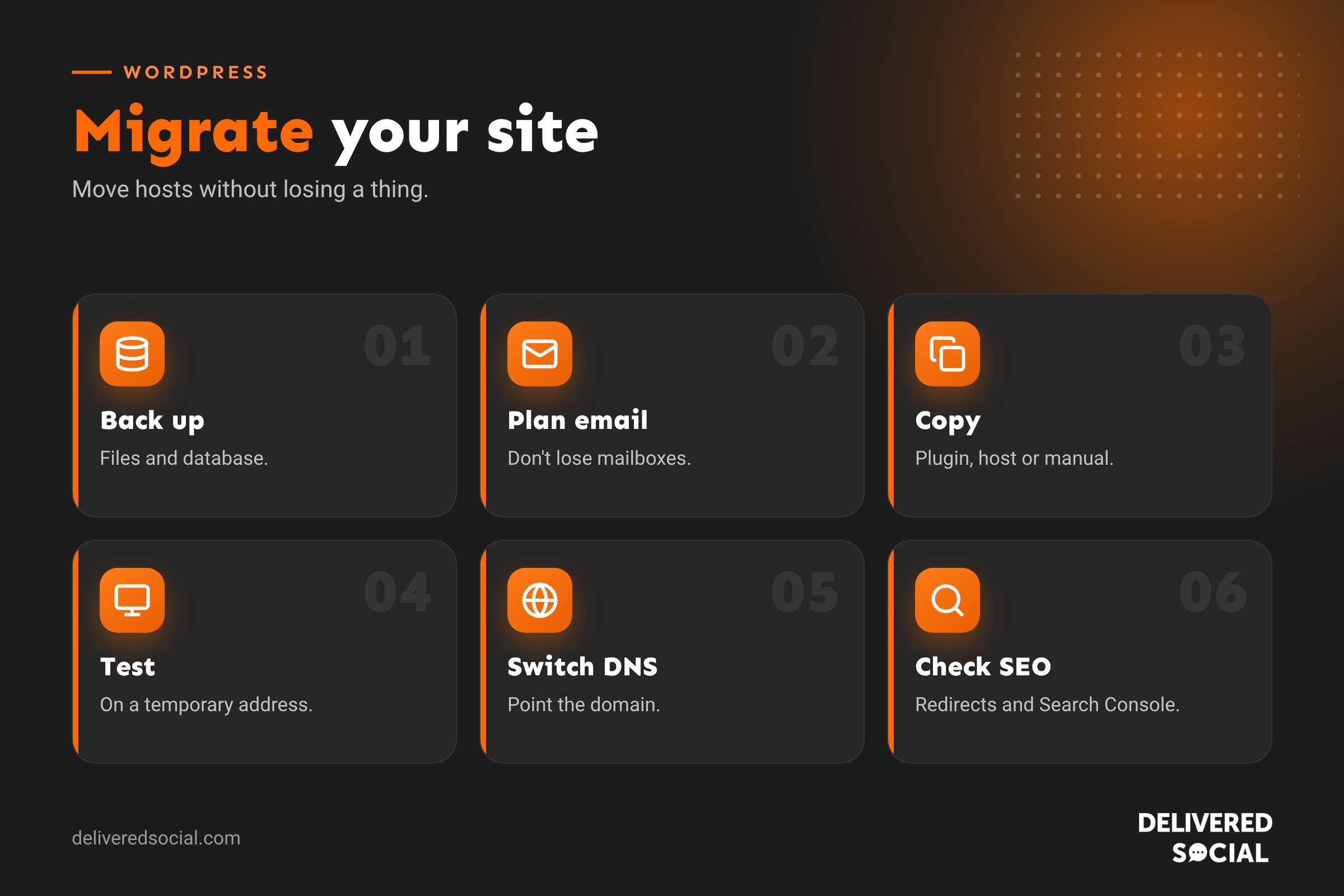
- Take a full backup of files and database, stored somewhere off the server. See how to back up a WordPress site.
- Check access to your old host, new host, domain registrar and DNS.
- Note your email set-up. If email runs through your old host, plan how it will move, or you could lose messages.
- Record key settings: PHP version, SSL, redirects, cron jobs and any custom server rules.
- Crawl your current site to list all URLs, so you can check nothing is missing afterwards.
- Lower the DNS TTL a day or two before, so the switch spreads faster.
- Pick a quiet time, especially for shops, and pause content updates during the move.
Method 1: use a migration plugin
Migration plugins package your files and database and restore them on the new server. This suits most small and medium sites.
- Install a fresh copy of WordPress on the new host, or use the host’s temporary URL.
- Install the same migration plugin on both the old and new sites.
- Export or connect the old site, following the plugin’s instructions.
- Import onto the new site. The plugin replaces the database and files.
- Log in on the new site with your old site’s username and password.
- Resave your permalinks under Settings, then Permalinks.
- Test the site on the temporary address before switching DNS.
Free versions often have file size limits, so large sites may need a premium version or a different method.
Method 2: let your new host do it
Many WordPress hosts offer free migrations, either through their own tool or by doing it for you. This is often the safest option if you’re not technical. Give them the access they ask for, confirm the date, and test thoroughly before switching DNS.
Method 3: manual migration
A manual migration gives you full control and works for large or complex sites, but needs technical confidence.
- Download all files from the old server using SFTP or the host’s file manager.
- Export the database using phpMyAdmin or a command-line tool.
- Create a new database and database user on the new host.
- Upload the files to the new server.
- Import the database into the new database.
- Update wp-config.php with the new database name, user, password and host.
- If the domain is changing, run a careful search and replace on the database to update old URLs, using a tool that handles serialised data.
- Test using a hosts file change or temporary URL before switching DNS.
Switching DNS
Once the new site is tested, update your domain’s DNS so it points to the new server, usually by changing the A record, or the nameservers if your new host manages DNS. Changes can take from a few minutes to a day or two to spread worldwide. During that time some visitors may see the old site, so avoid making content changes on either server until it settles.
Check that email records (MX, SPF, DKIM and DMARC) are copied across if DNS moves, or email may stop working.
Set up SSL
Make sure an SSL certificate is installed on the new server so your site loads over HTTPS without warnings. Most hosts provide free certificates, which can be issued once DNS points to the new server. Our guide to fixing a WordPress “not secure” warning helps if anything goes wrong.
Post-migration checklist
| Check | What to look for |
|---|---|
| Pages and posts | All content present and links working |
| Images and media | No missing images or broken downloads |
| Forms | Submissions arrive in the right inbox |
| Shop | Baskets, checkout, payments and order emails work |
| Logins | Admin and customer accounts work |
| SSL | Padlock shows on every page |
| Speed | Pages load as fast as or faster than before |
| Caching | Caching set up for the new server |
| Backups | New backups running on the new host |
| Search visibility | “Discourage search engines” is switched off |
| Sending and receiving work | |
| Scheduled tasks | Cron jobs, scheduled posts and automations run |
Protecting your SEO during a migration
If the domain and URLs stay the same, a host move shouldn’t affect rankings as long as the site works and stays fast. If URLs or the domain change, SEO needs more care:
- Set up 301 redirects from every old URL to its new equivalent.
- Keep page content and titles the same where possible.
- Update internal links to the new URLs.
- Submit a new sitemap in Google Search Console.
- Use the Change of Address tool in Search Console for domain changes.
- Monitor rankings and errors for several weeks afterwards.
Our guide to changing your WordPress domain covers domain moves in more depth.
Common migration problems and fixes
- “Error establishing a database connection”: check the database details in wp-config.php.
- Pages showing 404 errors: resave permalinks, and check the server’s rewrite rules.
- Missing images: make sure the uploads folder copied fully and URLs were updated.
- White screen: often a PHP version or plugin incompatibility. Check error logs.
- Mixed content warnings: update old HTTP links to HTTPS.
- Redirect loops: check site URL settings and SSL configuration.
- Emails not sending: set up SMTP or check the new host’s mail settings.
Migrating a WooCommerce shop
Shops need extra care because orders keep coming in. Plan a short maintenance window, put the shop into maintenance mode during the final copy, and move the latest database just before switching DNS so no orders are lost. Test payments carefully afterwards, including any webhooks from payment providers.
How long does a migration take?
A small brochure site can often be moved in an hour or two, plus DNS time. Larger sites, shops and domain changes can take a day or more including testing. The planning and checking matter more than the copying itself.
Should you do it yourself?
If your site is small, you have good backups and you’re comfortable with WordPress, a plugin or host migration is very achievable. If the site is business-critical, has a shop, uses custom code, or involves a domain change, it’s worth getting professional help. A failed migration can cost far more in lost enquiries and rankings than doing it properly in the first place.
Quick glossary
- DNS: the system that connects your domain name to your server.
- TTL: how long DNS records are cached before checking for changes.
- wp-config.php: the WordPress file containing database settings.
- 301 redirect: a permanent redirect from an old URL to a new one.
- Search and replace: updating old URLs throughout the database.
Key takeaways
- Back up everything before you start, and keep the old site until the new one is confirmed.
- Use a migration plugin, your host’s service or a manual method depending on your site and skills.
- Test on a temporary address before switching DNS.
- Don’t forget email, SSL, caching and backups on the new server.
- Use 301 redirects and Search Console if URLs or the domain change.
Frequently asked questions
Will migrating my WordPress site affect SEO?
Not if URLs stay the same and the site works well. Domain or URL changes need redirects.
Can I migrate WordPress for free?
Yes, with a free plugin for smaller sites or a host’s free migration service.
How long does DNS take to update?
Usually a few hours, but it can take up to a day or two.
Will my emails be affected?
They can be if email is hosted with your old provider. Plan email separately.
Should I cancel my old hosting straight away?
No. Keep it for a couple of weeks until you’re sure everything has moved.
Can I migrate from WordPress.com to self-hosted WordPress?
Yes, using WordPress’s export and import tools or a migration service.
What’s the easiest way to migrate WordPress?
Ask your new host to migrate it for you, or use a reputable migration plugin.
Do I need to reinstall plugins after migrating?
No. Plugins move with your files, though some may need reconnecting or relicensing.
Want your WordPress site moved safely?
We migrate, host and maintain WordPress websites for businesses across Surrey, Hampshire and the UK. Call us on 01483 608 303 to plan your move.































