



Keep reading
Rather we just did it for you?
Let's get your business seen.
Social media, websites, SEO and ads from a team you can actually meet.
When you’re redesigning pages, updating a shop or fixing a problem, you don’t want visitors seeing a half-finished website. That’s what maintenance mode is for. It shows a friendly holding page to visitors while you work behind the scenes. But maintenance mode can also go wrong, most famously when WordPress gets stuck showing “Briefly unavailable for scheduled maintenance”. This guide explains WordPress maintenance mode: how to turn it on and off, the best ways to set it up, how to fix a site stuck in maintenance mode, and how to avoid hurting your SEO while it’s active.
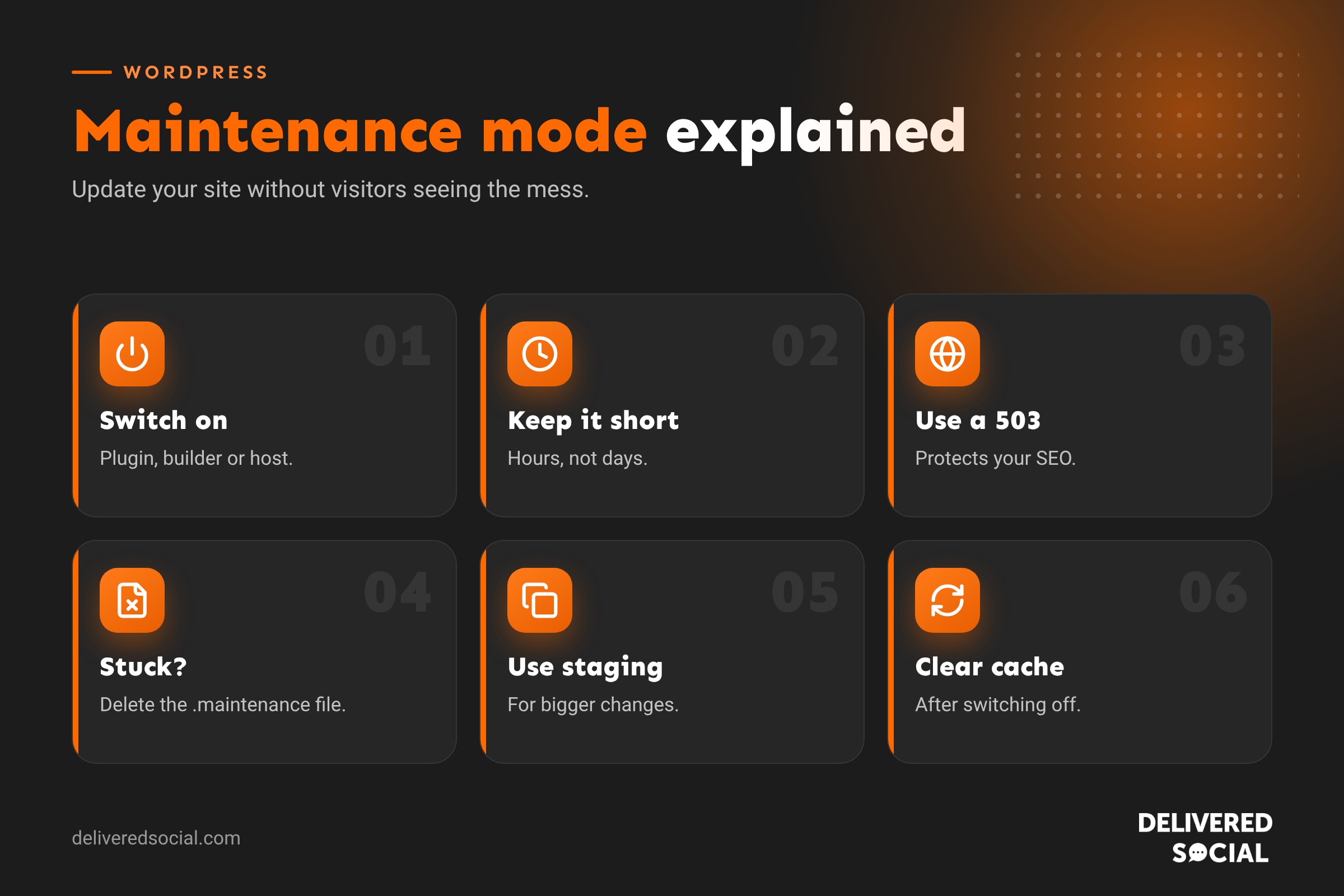
What is maintenance mode?
Maintenance mode temporarily replaces your website with a simple page telling visitors the site is being updated and will be back soon. Logged-in administrators can still see and work on the real site. It’s useful for:
- Big design changes or rebuilds.
- Major plugin, theme or WordPress updates.
- Shop updates, such as changing prices or products in bulk.
- Fixing errors or security problems.
- Moving hosts or changing domains.
Maintenance mode vs coming soon mode
| Maintenance mode | Coming soon mode | |
|---|---|---|
| Used for | Existing sites being updated | New sites not launched yet |
| Duration | Minutes to hours | Days to weeks |
| Status code | 503 (temporarily unavailable) | 200 (normal page) |
| Search engines | Told to come back later | Can index the holding page |
| Typical content | “Back shortly” message and contact details | Launch teaser and email sign-up |
WordPress’s built-in maintenance mode
WordPress turns on a basic maintenance mode automatically while it installs updates. It creates a temporary file called .maintenance in your site’s main folder and shows the message “Briefly unavailable for scheduled maintenance. Check back in a minute.” When the update finishes, the file is deleted and your site returns. Usually this takes seconds.
How to turn on maintenance mode
Option 1: Use a maintenance mode plugin
- Go to Plugins, then Add New, and search for “maintenance mode”.
- Choose a well-reviewed, regularly updated plugin and activate it.
- Open the plugin’s settings.
- Choose maintenance mode (not coming soon) for an existing site.
- Add your logo, a short message, an expected return time and contact details.
- Switch it on and check the site in a private browser window.
Option 2: Use your page builder or theme
Many page builders and themes include a built-in maintenance mode setting, so you don’t need an extra plugin. Look in the builder’s settings or tools menu.
Option 3: Use your host
Some managed WordPress hosts offer a maintenance or “staging” switch in their control panel. Using a staging site is often better than maintenance mode for big changes, because your live site stays online while you work on a copy.
How to turn maintenance mode off
- Plugin: switch it off in the plugin settings or deactivate the plugin.
- Page builder: disable it in the builder’s maintenance setting.
- Host: toggle it off in your hosting dashboard.
Always check the site in a private window afterwards and clear your cache, because cached copies of the maintenance page can linger. Our guide on clearing WordPress cache explains how.
Fixing “Briefly unavailable for scheduled maintenance”
If an update was interrupted, for example by closing the browser, a timeout or a server hiccup, WordPress can get stuck showing this message. To fix it:
- Log in to your hosting file manager or connect with SFTP.
- Open your site’s main folder (where the wp-config.php file is).
- Find the file called
.maintenance. You may need to show hidden files. - Delete that file.
- Reload your website.
- Log in and check which update failed, then run it again.
If the site shows errors after removing the file, a plugin or theme update may be incomplete. Reinstall it, or restore a backup taken before the update. See how to back up a WordPress site.
Maintenance mode and SEO
Short maintenance periods won’t harm your rankings if they’re handled properly:
- Use a 503 status code. This tells search engines the site is temporarily unavailable and to come back later. Good maintenance plugins do this automatically.
- Keep it short. Hours are fine; days or weeks can cause pages to drop out of search results.
- Add a Retry-After header if your plugin supports it, so crawlers know when to return.
- Avoid coming soon mode on live sites, because it can replace your pages in Google with a holding page.
What to put on your maintenance page
- Your logo and brand colours, so visitors know they’re in the right place.
- A short, friendly message, for example “We’re making a few improvements. We’ll be back by 2pm.”
- An expected return time, if you know it.
- Your phone number and email address, so customers can still reach you.
- Links to your social media profiles.
Keep it simple. It’s a temporary page, not a full website.
Maintenance mode for online shops
For WooCommerce shops, maintenance mode stops sales completely, so plan it carefully:
- Schedule it for your quietest time, such as late evening.
- Tell customers in advance on social media or by email if it will take a while.
- Consider using a staging site so the live shop keeps trading.
- Check orders, payments and stock after switching back.
Better alternatives for big changes
For major redesigns, maintenance mode can mean hours or days offline. A better approach is a staging site: a private copy of your website where you make and test changes, then push them live in one go. Many hosts include one-click staging. Your visitors never see a maintenance page at all.
Common maintenance mode problems
| Problem | Cause | Fix |
|---|---|---|
| Stuck on “Briefly unavailable” | Interrupted update | Delete the .maintenance file |
| Visitors still see the maintenance page | Cached copy | Clear site, host and CDN cache |
| You can’t see the site either | Logged out or role not allowed | Log in as admin or adjust plugin settings |
| Pages dropped from Google | Long maintenance or wrong status code | Keep it short and use a 503 status |
| Site broken after maintenance | Failed update | Reinstall the update or restore a backup |
A simple routine for planned maintenance
- Take a full backup.
- Choose a quiet time.
- Switch on maintenance mode, or better, work on staging.
- Make and test your changes.
- Switch maintenance mode off.
- Clear caches and test key pages and forms.
- Check Search Console over the next few days.
Leave it to the professionals
Regular updates, backups and fixes are easier when someone does them for you, outside your busiest hours. A website maintenance plan keeps your WordPress site updated and online with minimal disruption.
Maintenance mode for bigger events
Some jobs, such as moving to a new host or changing your domain name, can take longer than a quick update. Plan these carefully: tell regular customers in advance, choose an evening or weekend slot, prepare everything on staging first, and have a backup ready. Keeping downtime to an hour or two protects both sales and search rankings.
Testing after maintenance
- Check the home page and key service pages load correctly.
- Submit your contact forms.
- Test checkout if you run a shop.
- Look at the site on a phone.
- Check Search Console for errors over the next few days.
Quick glossary
- 503 status: a message to browsers and search engines that the site is temporarily unavailable.
- .maintenance file: the temporary file WordPress creates during updates.
- Staging site: a private copy for testing changes.
- SFTP: a secure way to access your website files.
Handled well, maintenance mode is a minor blip that customers barely notice.
Plan it, keep it short, test afterwards and your visitors will hardly know it happened.
Key takeaways
- Maintenance mode hides your site briefly while you make changes.
- Use a plugin, page builder or host setting to turn it on and off.
- If stuck, delete the .maintenance file in your site’s main folder.
- Keep maintenance short and use a 503 status to protect SEO.
- For big projects, use a staging site instead.
Frequently asked questions
How do I put my WordPress site in maintenance mode?
Use a maintenance mode plugin, your page builder’s setting or your host’s control panel.
How do I get my WordPress site out of maintenance mode?
Turn it off in the plugin or, if stuck, delete the .maintenance file from your site’s main folder.
Does maintenance mode affect SEO?
Not if it’s brief and uses a 503 status code.
Can I see my site while it’s in maintenance mode?
Yes, logged-in administrators can usually see the normal site.
Is a staging site better than maintenance mode?
For big changes, yes, because your live site stays online while you work.
How long should maintenance mode last?
Ideally minutes or a few hours. For longer projects, use a staging site instead.
Can customers still contact me during maintenance?
Yes, if your maintenance page shows your phone number, email address and social links.
Do I need a plugin for maintenance mode?
Not always. Many page builders and hosts include a maintenance setting.
Want hassle-free WordPress maintenance?
We update, back up and look after WordPress websites for businesses across Surrey, Hampshire and the UK. Call us on 01483 608 303.































