



Keep reading
Rather we just did it for you?
Let's get your business seen.
Social media, websites, SEO and ads from a team you can actually meet.
One of the best things about WordPress is that you can update your own website without calling a developer for every change. But if someone else built your site, the dashboard can feel daunting at first. This beginner-friendly guide explains how to edit a WordPress site: editing pages and posts, changing text and images, updating menus, headers and footers, working with page builders, and how to make changes safely without breaking anything.
Before you start editing
- Log in at yoursite.co.uk/wp-admin. See how to access WordPress admin.
- Check you have the right role. Editors and Administrators can edit pages; Authors can only edit their own posts.
- Make sure backups are running, especially before bigger changes.
- Know which editor your site uses: the WordPress block editor or a page builder.
Pages vs posts
| Pages | Posts | |
|---|---|---|
| Used for | Permanent content like Home, About, Services, Contact | Blog articles, news and updates |
| Organised by | Menus and parent pages | Date, categories and tags |
| Where to find them | Pages in the dashboard menu | Posts in the dashboard menu |
How to edit a page with the block editor
- Go to Pages and hover over the page you want, then click Edit.
- Click on any text to edit it, just like a word processor.
- To add something new, click the + button and choose a block, such as a paragraph, heading, image, button or columns.
- Use the toolbar above each block for bold, links and alignment.
- Use the settings sidebar on the right for colours, sizes and spacing.
- Click Preview to check, then Update to save.
How to edit with a page builder
Many business sites use a page builder for more design control. You’ll usually see a button such as “Edit with” followed by the builder’s name at the top of the editor.
- Open the page and click the page builder’s edit button.
- Click any element on the page to edit text, images or buttons.
- Use the builder’s panel to change content and style.
- Drag elements to rearrange them.
- Click Update or Publish to save.
Some page builders keep their own revision history, so you can roll back if needed.
How to change images
- Click the image in the editor.
- Choose Replace in the toolbar.
- Upload a new image or pick one from the Media Library.
- Add or update the alt text describing the image.
- Update the page.
Resize and compress photos before uploading to keep your site fast. See why is my WordPress site slow?
How to add or edit a blog post
- Go to Posts, then Add New, or edit an existing post.
- Add a clear title and write your content using headings and short paragraphs.
- Add images, links and a featured image.
- Choose a category.
- Add an SEO title and meta description in your SEO plugin.
- Publish now or schedule for later.
How to edit menus
Classic themes: go to Appearance, then Menus. Add pages, custom links or categories, drag to reorder, drag right to create dropdowns, and save.
Block themes: go to Appearance, then Editor, then Navigation, and edit the menu block.
Always check the menu on mobile after changes.
How to edit the header and footer
Where you edit these depends on your theme:
- Block themes: Appearance, then Editor, then Patterns or Template Parts, then Header or Footer.
- Classic themes: Appearance, then Customise, often with Header and Footer sections, or Widgets for footer content.
- Page builders: many have a Theme Builder or Templates area for headers and footers.
Common changes include updating your phone number, logo, opening hours, social links and copyright year.
How to change your logo and site title
Look in Appearance, then Customise, then Site Identity, or in the Site Editor’s header. Upload your logo, set the site title and tagline, and add a site icon (favicon) for browser tabs.
How to edit your home page
Find the page marked “Front Page” in the Pages list and edit it like any other page. To change which page is your home page, see how to change your WordPress home page.
Undoing mistakes
- Undo: press Ctrl and Z (or Cmd and Z on Mac) while editing.
- Revisions: in the editor sidebar, open Revisions to compare and restore earlier versions.
- Trash: deleted pages go to the Trash and can be restored.
- Backups: for bigger problems, restore a backup. See how to back up a WordPress site.
What not to edit unless you’re confident
- Theme files under Appearance, then Theme File Editor.
- Plugin settings you don’t understand, especially caching, security and SEO.
- Permalink settings, which can break links across your site.
- Site address settings under Settings, then General.
- Custom code snippets added by your developer.
If in doubt, ask your web agency first.
Why aren’t my changes showing?
Usually it’s caching: your site, host or browser is showing an older copy. Clear your caches and check in a private window. See how to clear WordPress cache.
Editing tips for better results
- Write short paragraphs with clear headings.
- Use one main heading (H1) per page and logical subheadings.
- Make buttons action-focused, such as “Book a call”.
- Check spelling and phone numbers carefully.
- Preview on mobile before updating.
- Keep the style consistent with the rest of your site.
Editing from your phone
You can edit simple text and posts from your phone’s browser or the WordPress app. Bigger layout changes are much easier on a computer, where you can see the full page and editing tools.
When to call in help
Editing content yourself saves time and money, but some jobs are worth handing over: new page layouts, design changes, forms, integrations, speed problems and anything involving code. A good web agency can also give you a short training session so you feel confident editing day-to-day content.
A safe editing routine
- Check a recent backup exists before big edits.
- Make changes in the editor and use Preview, rather than updating straight away.
- Check the preview on mobile as well as desktop.
- Update the page, then view it in a private window.
- If something looks wrong, use Revisions to go back.
Keeping your content fresh
Websites work best when they’re kept up to date. Set a reminder to review key pages every few months: update prices, team photos, opening hours, case studies and reviews. Add a blog post or news item regularly. Fresh, accurate content builds trust with visitors and gives search engines reasons to revisit your site.
Editing for accessibility
Small editing habits make your site easier for everyone to use. Use real headings rather than bold text, write descriptive link text instead of “click here”, add alt text to images, keep good colour contrast and avoid putting important information only inside images.
Quick glossary
- Block: a piece of content in the block editor, like a paragraph or image.
- Page builder: a drag-and-drop editing tool.
- Revision: a saved earlier version of a page or post.
- Template part: a reusable section such as a header or footer.
- Alt text: a description of an image for accessibility and SEO.
Getting comfortable
The first few edits always feel nervy, but WordPress is forgiving. With revisions and backups in place, almost any mistake can be undone. Start with small text changes, build up to images and new sections, and you’ll quickly feel at home in the editor.
If you get stuck, take a screenshot of the problem and send it to your web agency; it makes support much quicker.
Key takeaways
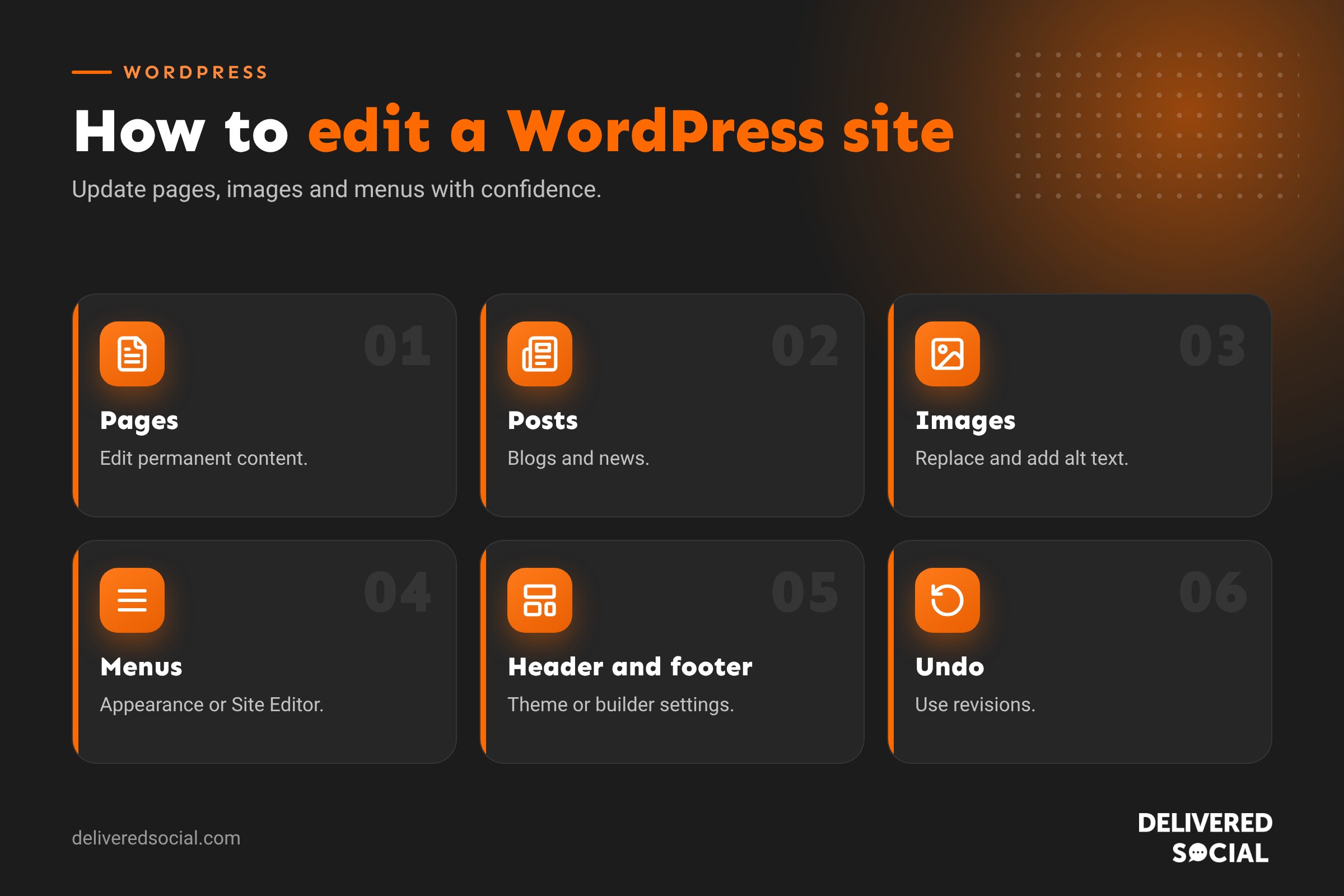
- Edit pages under Pages and blog posts under Posts.
- Use the block editor or your page builder to change text and images.
- Menus, headers and footers live in Appearance or the Site Editor.
- Use undo, revisions and backups to fix mistakes.
- Leave code and technical settings to your developer.
Frequently asked questions
How do I edit my WordPress website?
Log in, go to Pages or Posts, click Edit on the content you want, make changes and click Update.
How do I edit the header in WordPress?
Use Appearance, then Editor for block themes, or Appearance, then Customise for classic themes.
Can I undo changes in WordPress?
Yes, use undo while editing or restore an earlier version from Revisions.
Why can’t I edit a page?
Your user role may not allow it, or the page may use a page builder with its own edit button.
Can I edit WordPress on my phone?
Yes, for simple changes, though a computer is easier for layout work.
Will editing a page change it straight away?
Yes, once you click Update. Use Preview first to check your changes.
Can several people edit the site?
Yes. Give each person their own account with the right role.
How do I add a new page to the menu?
Go to Appearance, then Menus or the Site Editor, add the page and save.
Do I need a page builder?
No. The block editor handles most content; page builders add more design control.
Want training or help with your website?
We build, support and train teams on WordPress websites across Surrey, Hampshire and the UK. Call us on 01483 608 303.































