



Keep reading
Rather we just did it for you?
Let's get your business seen.
Social media, websites, SEO and ads from a team you can actually meet.
A slow website costs you customers. Visitors leave if a page takes more than a few seconds to load, especially on mobile, and Google notices too. If your WordPress site feels sluggish, the good news is that the cause is usually one of a handful of common problems, and most can be fixed without a full rebuild. This guide explains why your WordPress site is slow, how to test its speed properly, and the practical fixes that make the biggest difference, from hosting and images to plugins, caching and themes.
Why website speed matters
- Visitors leave slow sites. Every extra second of loading increases the chance someone gives up.
- Speed affects conversions. Faster pages generally bring more enquiries and sales.
- Google measures it. Page experience, including Core Web Vitals, is part of how Google evaluates sites.
- Mobile visitors are less patient, often on slower connections.
- Ads cost more when landing pages are slow, because users bounce.
Read more about why website loading speed matters.
How to test your WordPress site speed
- Use Google PageSpeed Insights to see Core Web Vitals and specific suggestions for mobile and desktop.
- Try a waterfall tool such as GTmetrix or WebPageTest to see what loads, in what order and how long each item takes.
- Test several pages, not just the home page: a service page, a blog post and, for shops, a product page.
- Test logged out or in a private window, because logged-in users often bypass caching.
- Repeat tests a few times, as results vary.
Core Web Vitals in plain English
| Metric | What it measures | Good score |
|---|---|---|
| Largest Contentful Paint (LCP) | How quickly the main content appears | Under 2.5 seconds |
| Interaction to Next Paint (INP) | How quickly the page responds to taps and clicks | Under 200 milliseconds |
| Cumulative Layout Shift (CLS) | How much the layout jumps around while loading | Under 0.1 |
The most common causes of a slow WordPress site
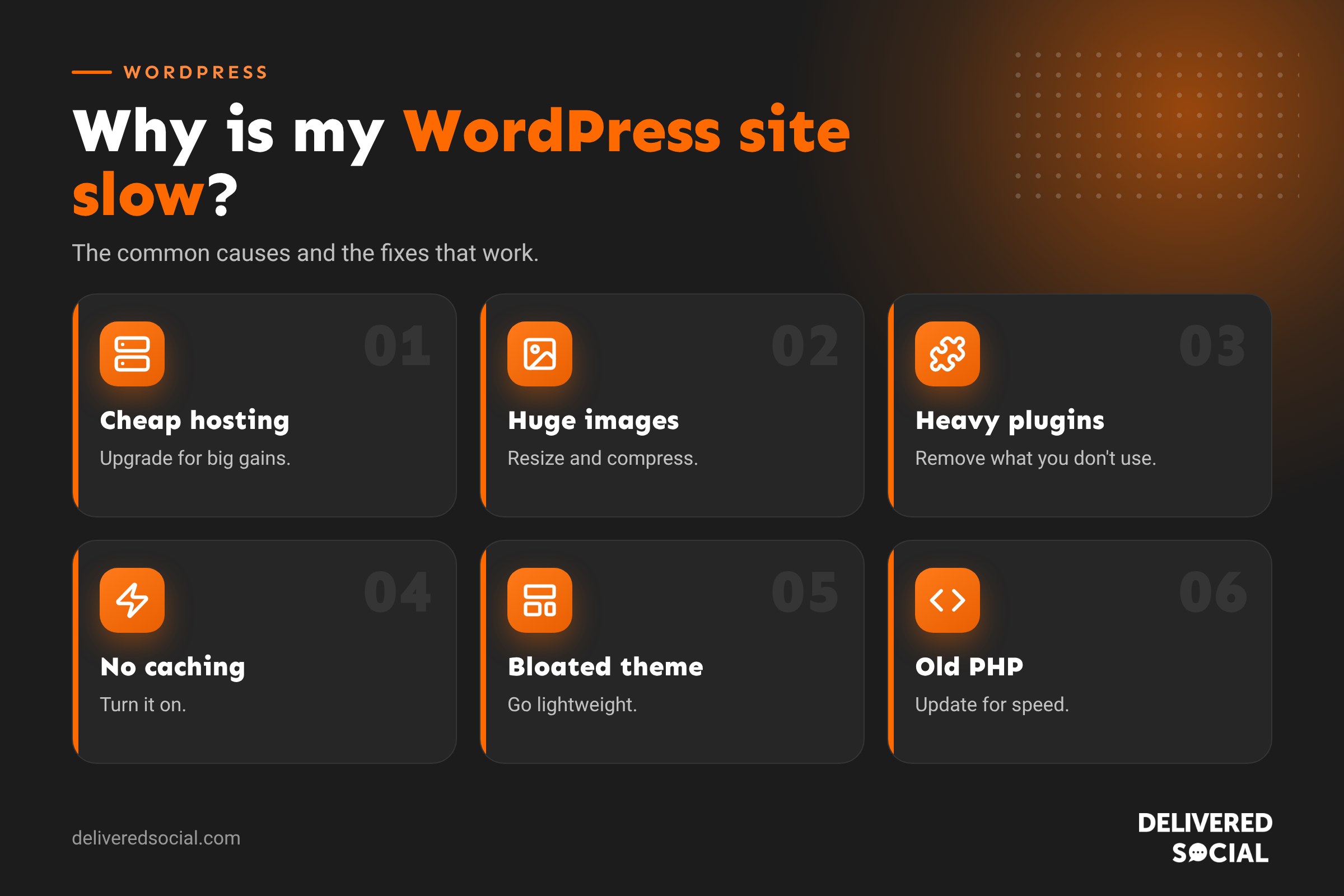
1. Cheap or overloaded hosting
Your hosting is the foundation. Budget shared hosting can put hundreds of sites on one server, so your site slows down whenever neighbours are busy. Signs include a slow “time to first byte” and the admin area feeling sluggish. Moving to quality WordPress hosting with modern servers, plenty of resources and server-level caching often brings the biggest single improvement. See our guide to the best WordPress hosting in the UK.
2. Huge, unoptimised images
Uploading photos straight from a phone or camera can mean images several megabytes in size, displayed at a fraction of that. Fixes:
- Resize images to the largest size they’ll actually be shown.
- Compress them before or after uploading.
- Use modern formats like WebP or AVIF.
- Turn on lazy loading so images further down the page load only when needed.
3. Too many plugins, or heavy ones
It’s not just the number of plugins, but what they do. Some load scripts and styles on every page even when they’re only needed on one. Review your plugins, remove anything you don’t use, and replace heavy plugins with lighter alternatives where possible. Our list of the best WordPress plugins highlights well-built options.
4. No caching
Without caching, WordPress rebuilds every page for every visitor. Page caching serves ready-made copies instantly. Use your host’s caching or a reputable caching plugin, and set up browser caching too. If changes stop showing after you turn it on, see our guide on clearing WordPress cache.
5. A bloated theme or page builder
Multipurpose themes packed with sliders, animations and dozens of features can load far more code than your site needs. Some page builders add a lot of extra code too. A lightweight, well-coded theme can make a dramatic difference.
6. Too many external scripts
Chat widgets, social feeds, tracking pixels, embedded videos, fonts and review widgets all load from other servers. Each one adds requests and delays. Keep only what earns its place, load scripts after the main content where possible and use lightweight video embeds that load the player only when clicked.
7. An outdated PHP version
PHP is the language WordPress runs on. Newer versions are significantly faster and more secure. Check your PHP version in your hosting control panel or under Tools, then Site Health, and upgrade after making sure your theme and plugins are compatible.
8. A cluttered database
Over time, the database fills with post revisions, spam comments, expired temporary data and leftovers from deleted plugins. Cleaning it up and limiting revisions can help, especially on older or busy sites. Always take a backup first.
9. Web fonts
Loading several font families and weights slows pages down. Use one or two fonts, only the weights you need, and host them locally or preload them.
10. No CDN for visitors further away
A content delivery network serves files from servers closer to each visitor. For mainly UK audiences on good hosting, it’s less critical, but it can still speed up image-heavy sites and those with international visitors.
Quick wins checklist
| Fix | Effort | Typical impact |
|---|---|---|
| Compress and resize images | Low | High |
| Turn on caching | Low | High |
| Remove unused plugins | Low | Medium |
| Update PHP version | Low to medium | Medium |
| Upgrade hosting | Medium | High |
| Reduce external scripts | Medium | Medium |
| Switch to a lighter theme | High | High |
Why is the WordPress admin slow?
If the dashboard itself is slow, common causes are underpowered hosting, plugins running heavy tasks in the background, a large database, or the WordPress Heartbeat feature checking in too often. Caching doesn’t usually apply to the admin area, so hosting and plugin quality matter even more.
Why is my WooCommerce shop slow?
Shops have extra work to do: baskets, stock checks, product filters and checkout can’t be fully cached. Good hosting, object caching, optimised product images, fewer plugins and a lean theme all help. Basket fragments and product filters are common culprits worth investigating.
Speed fixes to be careful with
- Aggressive minification and combining of CSS and JavaScript can break layouts or functionality. Test after every change.
- Delaying scripts can stop forms, menus or tracking working properly.
- Running several optimisation plugins at once often causes conflicts.
- Chasing a perfect score isn’t the goal. Real-world speed and a working site matter more than 100 out of 100.
A step-by-step plan
- Back up the site.
- Test speed on key pages and note the scores.
- Fix images and turn on caching.
- Remove unused plugins and review heavy ones.
- Update PHP, WordPress, themes and plugins.
- Trim external scripts and fonts.
- Retest and compare.
- If it’s still slow, consider better hosting or a lighter theme.
When to get professional help
If you’ve tried the quick wins and the site is still slow, or if changes keep breaking things, a developer can profile the site, find the real bottleneck and fix it safely. Speed work often pays for itself quickly through better rankings, lower ad costs and more enquiries. A website maintenance plan keeps speed in check over time.
Keeping your site fast
Speed slips gradually as new plugins, images and scripts are added. Get into the habit of compressing images before upload, questioning every new plugin, and testing speed every few months. A fast site isn’t a one-off project; it’s part of good housekeeping.
Speed and conversions: a quick example
Imagine a local trades business whose service pages take six seconds to load on mobile. After moving to better hosting, compressing images and removing three heavy plugins, the same pages load in under two seconds. Visitors stay longer, more of them tap the call button, and paid ads become cheaper because Google rates the landing pages more highly. Speed work rarely feels exciting, but its effects show up in enquiries.
Quick glossary
- TTFB: time to first byte, how quickly the server starts responding.
- Caching: storing ready-made pages for faster delivery.
- Lazy loading: loading images only when they’re about to be seen.
- CDN: a network of servers that delivers files from locations near visitors.
- PHP: the programming language WordPress runs on.
Key takeaways
- Most slow WordPress sites suffer from poor hosting, big images, heavy plugins or no caching.
- Test several pages with PageSpeed Insights and a waterfall tool.
- Start with quick wins: images, caching and removing unused plugins.
- Upgrade PHP and consider better hosting or a lighter theme.
- Test after every change and keep speed under review.
Frequently asked questions
Why is my WordPress website so slow?
Usually because of cheap hosting, large images, too many or heavy plugins, no caching or a bloated theme.
How fast should a WordPress site load?
Aim for the main content to appear in under 2.5 seconds on mobile.
Do plugins slow down WordPress?
Some do, especially those loading scripts on every page. Quality matters more than quantity.
Will better hosting speed up my site?
Often significantly, especially if you’re on budget shared hosting.
Does site speed affect SEO?
Yes. Page experience is part of Google’s assessment, and slow sites lose visitors.
Want a faster WordPress website?
We speed up, host and maintain WordPress websites for businesses across Surrey, Hampshire and the UK. Call us on 01483 608 303 for a speed check.































