



Keep reading
Rather we just did it for you?
Let's get your business seen.
Social media, websites, SEO and ads from a team you can actually meet.
WordPress powers a huge share of the web, so learning it is a useful skill whether you run a small business, manage a charity’s website, work in marketing or want to build sites for clients. The good news is you don’t need to be a programmer. This guide explains how to learn WordPress step by step, from the absolute basics to more advanced skills, with free ways to practise, a realistic learning timeline and the mistakes beginners make most often.
Why learn WordPress?
- Update your own website without waiting for a developer.
- Save money on small changes and content updates.
- Boost your career in marketing, content or digital roles.
- Start freelancing building or maintaining sites.
- Understand your website well enough to brief agencies clearly.
WordPress.com vs WordPress.org
| WordPress.com | WordPress.org | |
|---|---|---|
| What it is | A hosted service | Free software you install on your own hosting |
| Set-up | Sign up and start | Needs hosting and a domain |
| Flexibility | Limited on cheaper plans | Full control, any themes and plugins |
| Used by most businesses? | Some | Yes |
Most business websites use self-hosted WordPress.org, so it’s the best version to learn.
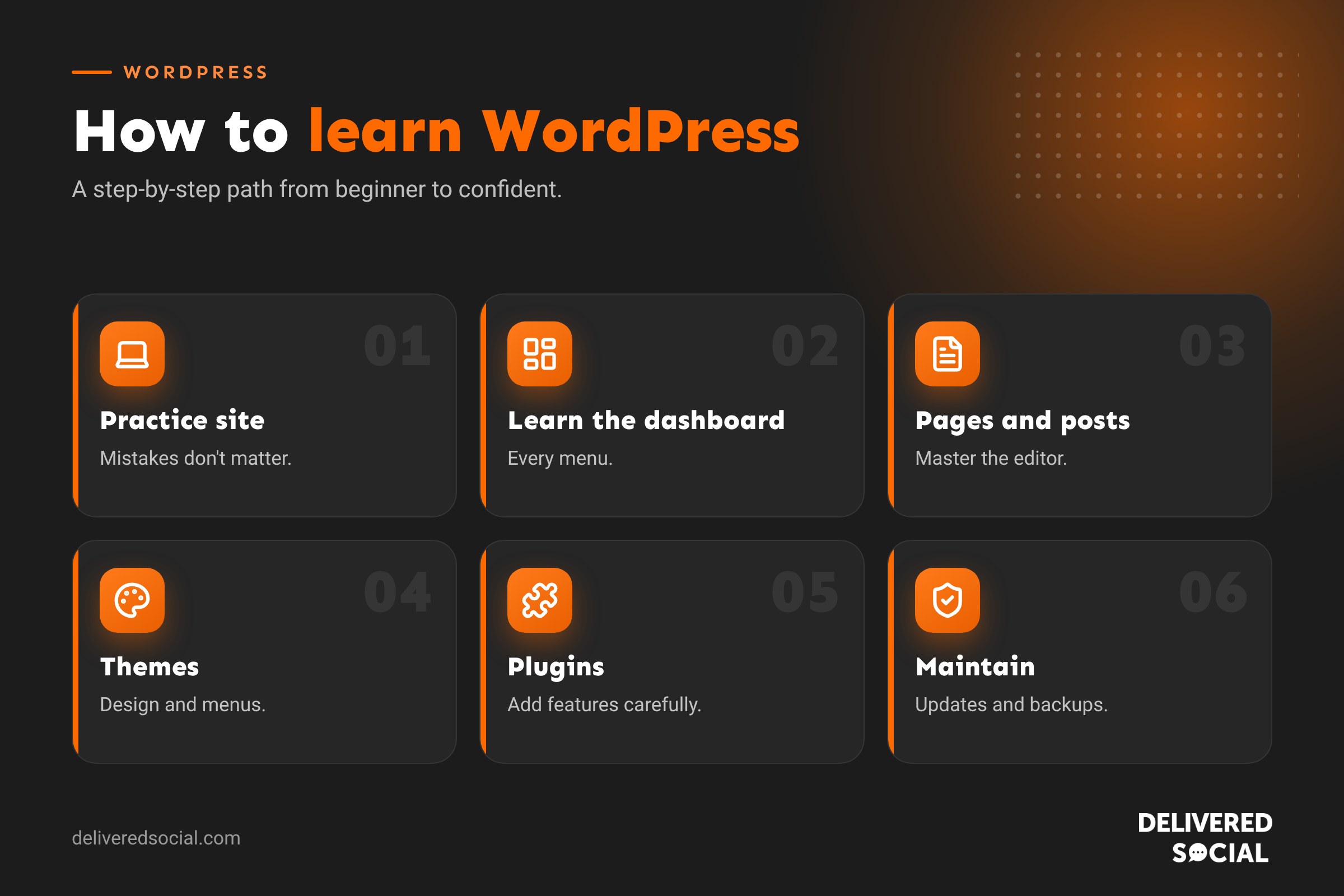
Step 1: Set up a practice site
The fastest way to learn is by doing, on a site where mistakes don’t matter.
- Local install: free tools let you run WordPress on your own computer.
- Online playground: WordPress offers a browser-based playground for experimenting.
- Cheap hosting: a low-cost plan with one-click WordPress install gives you a real online site.
- Staging site: if you already have a business site, ask your host or agency for a staging copy to practise on.
Step 2: Learn the dashboard
Spend an hour clicking through every menu: Posts, Media, Pages, Comments, Appearance, Plugins, Users, Tools and Settings. Understand what each section does before changing anything. Our guide on accessing WordPress admin explains the main areas.
Step 3: Create pages and posts
- Create an About page and a Contact page.
- Write a short blog post with headings, a list, an image and a link.
- Learn the block editor: adding, moving and styling blocks.
- Try columns, buttons and image galleries.
- Use revisions to restore an earlier version.
See our guide on how to edit a WordPress site.
Step 4: Learn themes and design
- Install and preview a few free themes.
- Change your logo, colours and fonts.
- Edit headers, footers and menus.
- Set a static home page and a blog page.
Useful guides: how to install a WordPress theme and how to change your WordPress home page.
Step 5: Learn plugins
Plugins add features. Practise installing, configuring and removing a few essentials: a contact form, an SEO plugin, a caching plugin and a backup plugin. Learn to judge plugin quality by update history, reviews and active installs. Our list of the best WordPress plugins is a helpful starting point.
Step 6: Learn SEO basics
- Write clear page titles and meta descriptions.
- Use headings properly.
- Add alt text to images.
- Create clean URLs.
- Link related pages together.
- Connect Google Search Console.
Our WordPress SEO checklist covers the essentials.
Step 7: Learn maintenance and security
- Update WordPress, themes and plugins safely.
- Set up and test backups.
- Manage user roles.
- Use strong passwords and two-factor authentication.
- Understand caching and how to clear it.
These skills separate confident WordPress users from beginners. See is WordPress safe?
Step 8: Go further (optional)
- Page builders for advanced layouts.
- WooCommerce for online shops.
- Basic HTML and CSS for small design tweaks.
- Child themes and custom code for developers.
- Performance optimisation for faster sites.
- Accessibility for inclusive websites.
A realistic learning timeline
| Stage | What you can do | Typical time |
|---|---|---|
| Beginner | Edit text, images, pages and posts | A few hours to a week |
| Confident user | Menus, themes, plugins, basic SEO | 2 to 4 weeks of regular practice |
| Site builder | Build a full site with a page builder | 1 to 3 months |
| Developer | Custom themes, plugins and code | Several months to years |
Free ways to learn WordPress
- Learn WordPress: the official free learning site with courses and workshops.
- WordPress documentation: help guides for every feature.
- YouTube tutorials: great for visual learners, but check they’re recent.
- Theme and plugin documentation: especially for page builders.
- Local WordPress meetups: community events with talks and help.
- Blogs and guides like ours, for practical how-tos.
A practice project to try
Build a simple five-page website for a pretend local business: Home, About, Services, Blog and Contact. Add a menu, a contact form, three blog posts, an SEO title for each page and a backup schedule. Then test it on your phone. Completing this one project teaches most of what everyday WordPress users need.
Common beginner mistakes
- Installing lots of plugins “just in case”.
- Editing theme files directly without a child theme.
- Skipping backups before updates.
- Using pirated themes or plugins.
- Uploading huge images that slow the site down.
- Leaving “Discourage search engines” switched on after launch.
- Following outdated tutorials for old versions of WordPress.
Learning WordPress for your business
If your goal is simply to keep your own site up to date, focus on steps 1 to 3, plus menus, images and SEO basics. Leave hosting, security, speed and design changes to a professional. Many agencies offer short training sessions tailored to your website, which is often the quickest way to become confident.
Learning WordPress for a career
For marketing and content roles, aim for confident user level plus strong SEO and content skills. For freelance web design, add page builders, WooCommerce, speed, security and client communication. Build a portfolio of real or practice sites to show your work.
Learning by doing: a four-week plan
Week 1: set up a practice site, explore the dashboard and create pages and posts. Week 2: install themes, set up menus, a home page and a blog page, and customise colours and fonts. Week 3: add plugins for forms, SEO, caching and backups, and learn basic SEO settings. Week 4: practise updates, restore a backup, manage users and test your site’s speed. By the end of the month, you’ll be comfortable with the tasks most business owners need day to day.
Tips for learning faster
- Learn one thing at a time and practise it straight away.
- Keep notes of steps you’ll need again.
- Break things on purpose on your practice site, then fix them.
- Look at well-built WordPress sites and work out how they’re structured.
- Ask questions in WordPress community forums.
Learning WordPress with AI tools
AI assistants can be handy study partners: ask them to explain a setting, suggest how to structure a page or troubleshoot an error message. Always double-check their advice against official documentation, test changes on a practice site first, and never paste passwords or private data into AI tools.
Quick glossary
- Dashboard: the admin area where you manage WordPress.
- Block editor: WordPress’s visual content editor.
- Theme: controls your site’s design.
- Plugin: adds features to your site.
- Staging site: a copy for practising and testing.
Staying up to date
WordPress changes regularly, with new editor features and settings arriving several times a year. Follow the official WordPress news, read release notes for major updates and revisit tutorials when menus move. A little ongoing learning keeps your skills current and helps you take advantage of new features as they arrive, rather than relying on outdated habits from older versions.
Above all, be patient with yourself and celebrate small wins along the way. Every confident WordPress user started by clicking around nervously, so keep practising.
Key takeaways
- Learn self-hosted WordPress.org, as most businesses use it.
- Practise on a local, playground or staging site.
- Master pages, posts, menus, themes and plugins first.
- Add SEO, maintenance and security skills next.
- Use free official resources and learn by building a real project.
Frequently asked questions
Is WordPress easy to learn?
The basics are easy and can be learned in a few hours. Advanced skills take longer.
Can I learn WordPress for free?
Yes, using the official Learn WordPress site, documentation and free practice sites.
Do I need to know coding to use WordPress?
No. Coding helps for customisation but isn’t needed for everyday use.
How long does it take to learn WordPress?
A week for basics, a few weeks for confidence and a few months to build full sites.
What’s the best way to practise WordPress?
Build a small practice site from start to finish.
Is WordPress worth learning in 2026?
Yes. It still powers a huge share of websites and the skills transfer well.
Should I learn a page builder or the block editor?
Start with the block editor, then learn the page builder your site or clients use.
Can I learn WordPress on my phone?
You can practise basics, but a computer is far better for learning properly.
Do I need to learn PHP?
Only if you want to develop custom themes or plugins.
What should I build first?
A simple five-page business website with a blog and contact form.
Want WordPress training for your team?
We build WordPress websites and train business teams to manage them confidently across Surrey, Hampshire and the UK. Call us on 01483 608 303.































