



Keep reading
Rather we just did it for you?
Let's get your business seen.
Social media, websites, SEO and ads from a team you can actually meet.
Sometimes a website has simply come to the end of its life: a business has closed, a project has finished, you’re starting again from scratch, or an old test site is cluttering your hosting. Deleting a WordPress site properly is about more than pressing a button. You need to keep a copy, protect your domain and email, avoid leaving security holes behind, and handle search engines sensibly. This guide explains how to delete a WordPress site safely, whether it’s self-hosted or on WordPress.com, how to start over without deleting everything, and what to do about Google.
First: are you sure you need to delete it?
Deleting is permanent. Before you go ahead, consider whether one of these would work better:
- Start again on the same site: remove content, themes and plugins but keep WordPress installed.
- Make it private: hide the site while you decide. See how to make a WordPress site private.
- Use maintenance mode: show a holding page during a rebuild. See WordPress maintenance mode.
- Redirect it: send visitors to another website you own, keeping some of its search value.
- Archive it: keep a backup and take the site offline without deleting the data.
Before you delete: a safety checklist
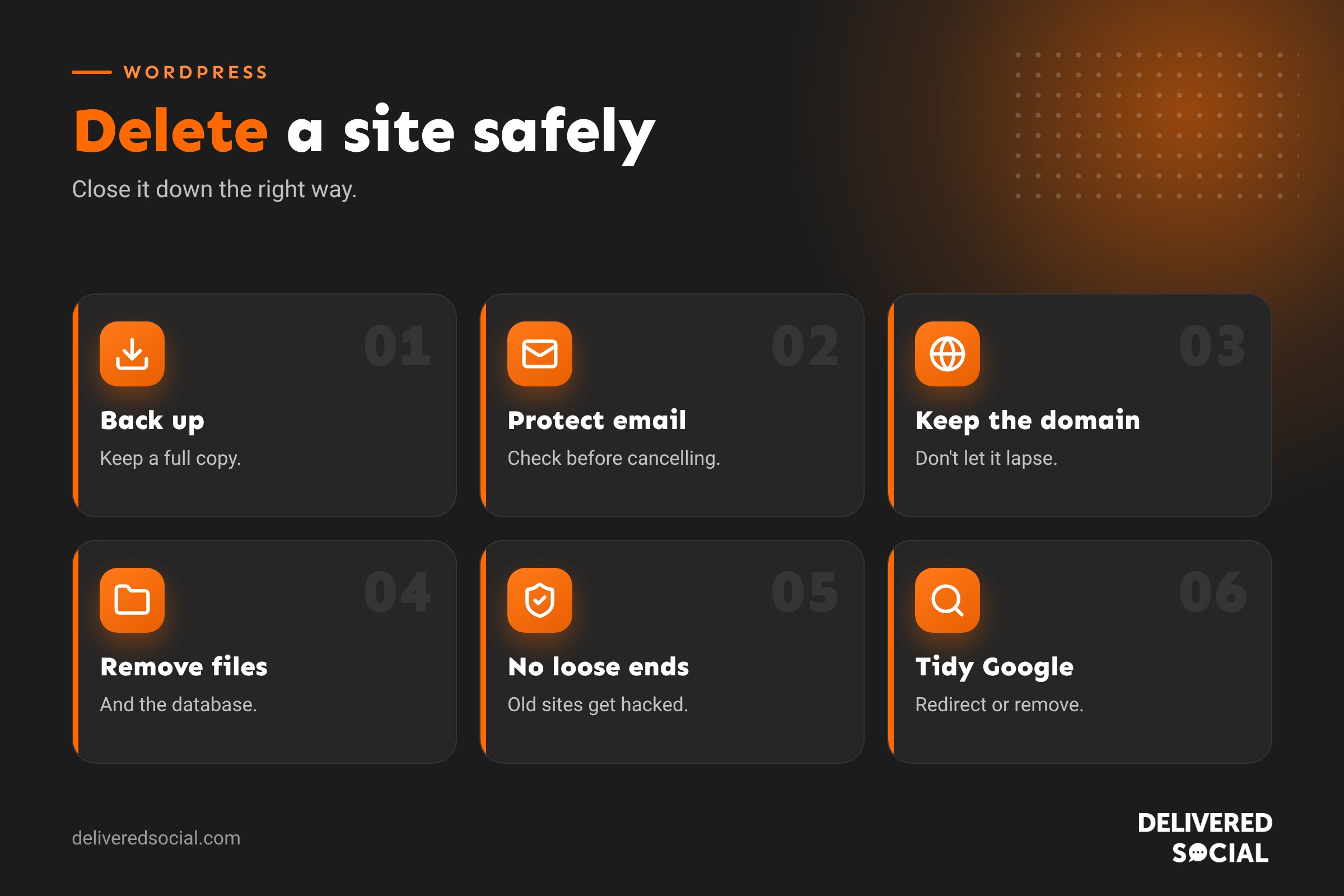
- Take a full backup of files and database and store it somewhere safe, away from the hosting account. See how to back up a WordPress site.
- Export content you may want using Tools, then Export, which creates an XML file of posts and pages.
- Download your media library (the uploads folder).
- Export form entries, orders and customer data you’re legally required to keep, such as invoices for tax records.
- Check email. If email runs through the same hosting, deleting the hosting account can delete your mailboxes too.
- Decide what happens to the domain. Keep it, redirect it, or let it expire knowingly.
- Cancel connected services such as premium plugin licences, payment gateways and email platforms if no longer needed.
How to delete a self-hosted WordPress site
A self-hosted WordPress site has two parts on your server: files and a database. Deleting the site means removing both.
Option 1: use your host’s control panel
- Log in to your hosting control panel.
- Look for the WordPress tools or one-click installer area, which often has an uninstall or delete option for each site.
- Choose the site and confirm deletion. This usually removes the files and the database together.
- Check the file manager and database list to make sure nothing is left behind.
Option 2: delete manually
- Delete the files: using the file manager or SFTP, remove the WordPress folder (often public_html or a subfolder). Be careful not to remove other sites sharing the same account.
- Delete the database: find the database name in wp-config.php before deleting the files, then remove that database and its user in your hosting’s database tools.
- Remove scheduled tasks (cron jobs) linked to the site.
- Remove the domain or subdomain from the hosting account if it’s no longer needed.
Option 3: close the hosting account
If the site was the only thing on the account, you can cancel the hosting altogether. Download your backup first, check email isn’t hosted there, and note the date the account and data will be removed.
How to delete a WordPress.com site
- Log in to WordPress.com and open the site.
- Go to Settings, then General (or Site Settings, depending on your dashboard view).
- Scroll to the bottom and find Delete your site permanently.
- Export your content first when prompted.
- Cancel any paid plan or domain subscriptions if they don’t cancel automatically.
- Type the site address to confirm and delete.
Deleting the site doesn’t necessarily delete your WordPress.com account, which is separate.
How to start over without deleting WordPress
If you want a fresh start on the same domain, you don’t need to delete everything:
- Delete content: move unwanted posts and pages to the Bin, then empty it.
- Remove unused themes and plugins: deactivate and delete them.
- Clear the media library of images you won’t reuse.
- Use a reset plugin: some tools reset WordPress to a fresh install while keeping your login. Always back up first, as resets are irreversible.
- Reinstall on the same hosting: delete the old install and create a clean one with your host’s installer.
What happens to Google after deletion?
When a site is deleted, its pages start returning errors and Google gradually drops them from search results. To handle this properly:
| Situation | Best approach |
|---|---|
| Moving content to another site you own | 301 redirect old URLs to the matching new pages |
| Business closed, domain kept | A simple holding page explaining the closure, or a redirect to a related site |
| Content removed for good | Return a 410 “gone” or 404 status so Google drops pages |
| Need pages gone from search fast | Use the Removals tool in Google Search Console as a temporary measure |
Removing old pages from search results can take weeks. Cached copies and third-party archives may remain for longer.
What about the domain?
Think carefully before letting a domain expire. Once it lapses, anyone can buy it, including people who use old domains to send spam or set up lookalike sites that trade on your past reputation. If the domain has been used for business email or has links pointing to it, it’s often worth renewing it for a few years and redirecting it somewhere sensible.
Security: don’t leave a forgotten site behind
An old, unmaintained WordPress install left online is a common route for hackers. Outdated plugins and themes can be exploited to infect other sites on the same hosting account. If you’re not using a site, delete it properly rather than leaving it to decay. See how to fix a hacked WordPress site for what can go wrong.
Data protection and records
If the site collected personal data, such as customer accounts, form entries or orders, you have obligations under UK data protection law. Keep only what you need, for as long as you need it (for example, financial records for tax), store backups securely, and delete the rest. Make sure any backups you keep are protected.
Deleting a single page or post instead
To delete just one page or post, hover over it in the Pages or Posts list and click Bin. It stays in the Bin for 30 days by default before being permanently removed. If the page had traffic or links, add a 301 redirect to a relevant page so visitors don’t hit an error.
Common mistakes
- Deleting without a backup.
- Cancelling hosting and losing email mailboxes.
- Deleting the wrong folder on a shared account.
- Letting a valuable domain expire.
- Leaving the database behind after deleting files.
- Forgetting to cancel paid licences and subscriptions.
Closing a business website: a gentle approach
If a business is closing, a short holding page can be kinder than an error. Thank customers, explain what has happened, and point them to where they can get help, such as a new owner, a sister company or a contact email for warranty or account questions. Keep it online for a few months, then decide whether to keep or release the domain.
Deleting a staging or test site
Staging sites created by your host or developer are copies of your live site, often on a subdomain. Delete them through the same staging tool that created them, so the database and files are removed together, and make sure you’re deleting the staging copy rather than the live site. Double-check the address before confirming.
Quick glossary
- Database: where WordPress stores content, settings and users.
- wp-config.php: the file that tells WordPress which database to use.
- XML export: a file of your posts and pages that can be imported elsewhere.
- 410 status: tells search engines a page has gone permanently.
- Reset plugin: a tool that returns WordPress to a fresh state.
Key takeaways
- Back up and export everything before deleting.
- Self-hosted sites need both files and database removed.
- WordPress.com sites are deleted from Settings, with plans cancelled separately.
- Protect email and think carefully before letting a domain expire.
- Redirect or properly remove old URLs so search results stay tidy.
Frequently asked questions
How do I permanently delete my WordPress site?
Self-hosted: delete the files and database through your host. WordPress.com: use Delete your site permanently in Settings.
Can I recover a deleted WordPress site?
Only from a backup. That’s why backing up first is essential.
Will deleting my site delete my domain?
Not necessarily. Domains are usually renewed separately and should be managed deliberately.
Will deleting my hosting delete my email?
If email is hosted on the same account, yes. Check before you cancel.
How do I delete a WordPress site and start over?
Back up, then reinstall WordPress through your host or use a reset plugin.
How long until my site disappears from Google?
Usually a few weeks, faster with the Search Console Removals tool.
Should I delete old test sites?
Yes, or keep them private and updated, as forgotten installs are a security risk.
Can I delete my WordPress.com account too?
Yes, separately, in your account settings, once your sites are removed.
Need help closing or rebuilding a website?
We help businesses across Surrey, Hampshire and the UK archive, redirect, rebuild and host WordPress websites. Call us on 01483 608 303 and we’ll talk you through the safest option.































