



Keep reading
Rather we just did it for you?
Let's get your business seen.
Social media, websites, SEO and ads from a team you can actually meet.
Building a new service page that looks just like an existing one? Creating a landing page for a new campaign? Making a safe copy before you redesign? Duplicating a page saves hours of rebuilding layouts from scratch. WordPress doesn’t include a simple “duplicate” button for pages out of the box, but there are several easy ways to do it. This guide explains how to duplicate a page in WordPress using the block editor, a plugin, page builders and templates, plus the SEO mistakes to avoid when you copy content.
Why duplicate a page?
- Consistent design: new service or location pages match existing ones.
- Speed: reuse complex layouts rather than rebuilding them.
- Safe editing: work on a draft copy while the live page stays untouched.
- Campaign landing pages: spin up variations quickly.
- Testing: compare two versions of a page.
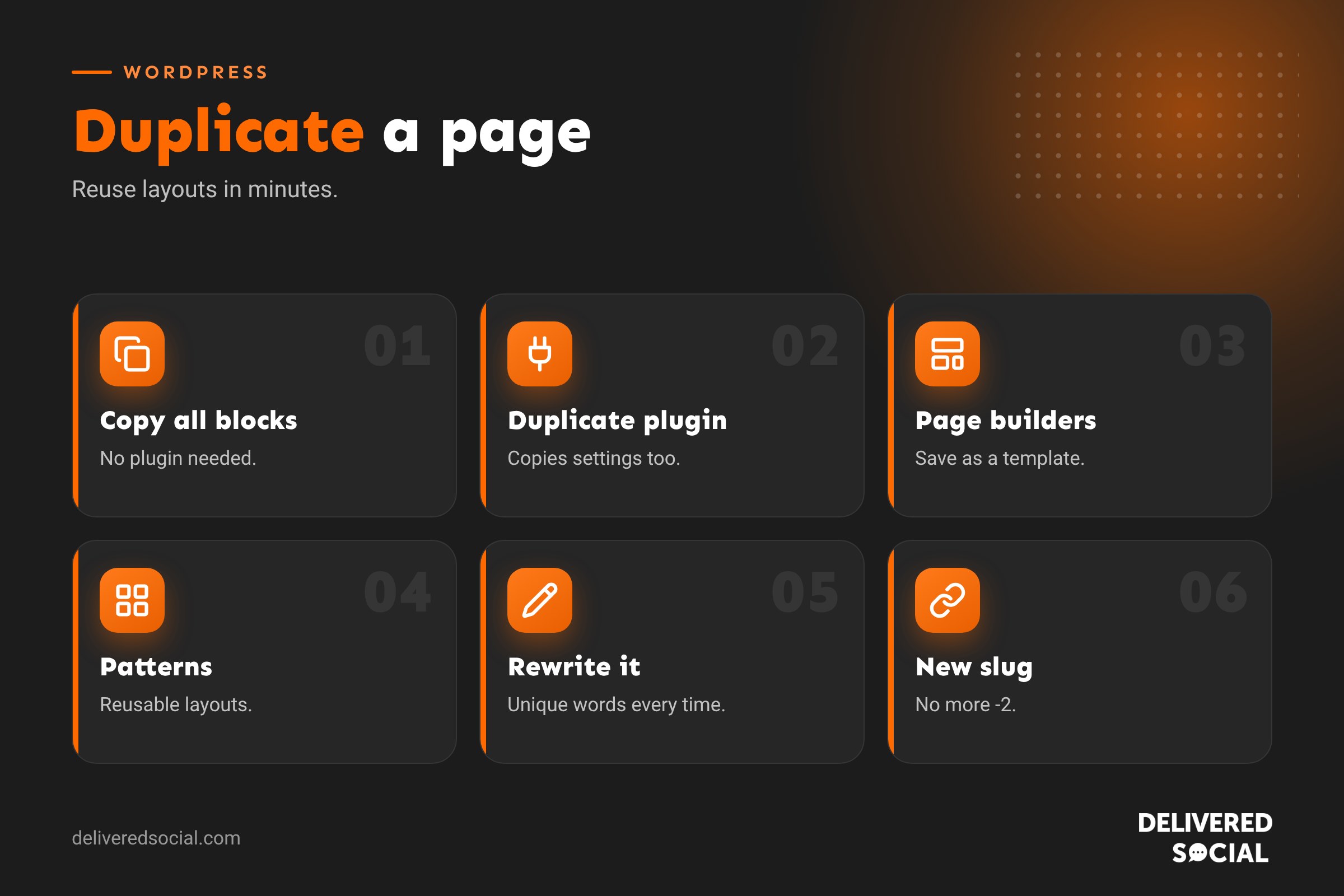
Method 1: copy all blocks in the block editor (no plugin)
This works for pages built with the standard WordPress block editor.
- Open the page you want to copy in the editor.
- Click the three dots menu (Options) in the top right corner.
- Choose Copy all blocks.
- Go to Pages, then Add New.
- Click into the content area and paste (Ctrl and V, or Cmd and V on Mac).
- Add a new title, then save as a draft.
This copies the content and layout, but not the page settings. You’ll need to set the featured image, template, parent page, SEO title and description yourself.
Method 2: use a duplicate page plugin
Duplicate plugins add a “Duplicate”, “Clone” or “Copy” link under each page in your Pages list. They usually copy content, featured image, template, categories, custom fields and SEO settings in one click.
- Go to Plugins, then Add New, and search for a well-reviewed duplicate post or page plugin.
- Install and activate it.
- Go to Pages and hover over the page you want to copy.
- Click the Duplicate or Clone link.
- A new draft appears, usually with the same title. Open it and edit.
Choose a plugin that’s actively maintained, check its settings so it creates drafts rather than published pages, and limit who can use it if you have several editors. If you only need to duplicate pages occasionally, you can deactivate it in between.
Method 3: duplicate with a page builder
Many business websites use a page builder. Most offer their own ways to copy pages:
- Save as template: save the page layout as a template, then insert it into a new page.
- Duplicate from the Pages list: some builders add their own duplicate link.
- Copy and paste sections: right-click a section or container and copy it to another page.
- Import and export: export a layout file and import it into another site.
Check your builder’s documentation for the exact steps, as menus differ between tools and versions.
Method 4: use patterns and templates for repeated layouts
If you’ll create many similar pages, such as location or service pages, it’s often better to build a reusable pattern in the block editor, or a page template in a block theme’s Site Editor. Patterns let you insert the same layout into any page, and synced patterns update everywhere at once when you change them. This keeps pages consistent without endless copying.
Method 5: duplicate a post
The same methods work for blog posts. Plugins usually add the duplicate link to Posts too. Remember to change the category, featured image, excerpt and publish date on the copy.
What gets copied with each method?
| Element | Copy all blocks | Duplicate plugin | Page builder template |
|---|---|---|---|
| Content and layout | Yes | Yes | Yes |
| Featured image | No | Usually | No |
| Page template | No | Usually | Sometimes |
| SEO title and description | No | Often | No |
| Custom fields | No | Usually | Varies |
| Parent page | No | Usually | No |
After duplicating: a checklist
- Change the title so you can tell the pages apart.
- Change the URL slug so it doesn’t end in “-2”.
- Rewrite the content for the new page’s purpose.
- Update the SEO title and meta description.
- Swap images and update their alt text.
- Check links and buttons point to the right places.
- Update forms so enquiries are labelled or routed correctly.
- Set the parent page and menu position if needed.
- Preview on mobile before publishing.
The SEO risk: duplicate content
Copying a page’s layout is fine. Copying its words is not. If two pages on your site have the same or nearly the same text, search engines struggle to know which to show, and both can perform worse. This is a common problem with location pages that just swap the town name.
- Write unique content for each page, with genuinely different details.
- Give each page its own focus keyword and search intent.
- Don’t publish test copies; keep them as drafts or private pages.
- If you must keep two very similar pages, consider a canonical tag pointing to the main one.
- Delete or redirect old copies you no longer need.
Our guide to meta titles helps you write unique titles for each page.
Using duplication to edit a live page safely
To redesign an important page without breaking it, duplicate it as a draft, make your changes on the copy, preview it, then either copy the new content back into the original page or swap them over. Copying back into the original keeps its URL, history and rankings, which is usually best. Some duplicate plugins offer a “rewrite and republish” feature that does this for you.
Alternatively, use a staging site for bigger redesigns. See how to edit a WordPress site.
Duplicating a WooCommerce product
WooCommerce includes a built-in Duplicate link for products. It copies the product as a draft with all its settings. Change the name, SKU, price, images, description and stock before publishing, and make sure product descriptions are unique.
Common problems
- Copied page looks different: the original used a different page template or custom CSS class. Check page settings.
- Page builder content missing: use the builder’s own copy tools rather than copy all blocks.
- Slug ends in -2: edit the URL slug in page settings.
- Duplicate shows in search: it was published by mistake. Unpublish, redirect or rewrite it.
Building location and service pages the right way
Duplicating is a popular shortcut for creating pages for each town you serve or each service you offer. Used well, it gives every page the same professional structure. Used badly, it creates a cluster of near-identical pages that Google treats as thin content. For each copied page, add details that are genuinely specific: local projects or case studies, photos from that area or service, relevant reviews, specific pricing or process information, and answers to questions customers in that situation actually ask. If you can’t think of anything unique to say about a location, it may be better covered on a single “areas we serve” page.
Keeping duplicates tidy
Old drafts and copies build up quickly. Name copies clearly while you work, such as “Services (draft redesign)”, delete them once you’re done, and empty the Bin. Fewer stray pages make your site easier to manage and reduce the chance of publishing the wrong version by mistake.
Quick glossary
- Slug: the part of the URL after your domain.
- Pattern: a reusable group of blocks in the block editor.
- Synced pattern: a pattern that updates everywhere it’s used.
- Canonical tag: tells search engines which version of similar pages is the main one.
- Custom fields: extra data stored with a page or post.
Key takeaways
- Use Copy all blocks for a quick, plugin-free copy of the content.
- Use a duplicate plugin to copy settings, images and SEO data too.
- Page builders have their own templates and copy tools.
- Use patterns or templates for layouts you repeat often.
- Always rewrite copied content to avoid duplicate content issues.
Frequently asked questions
Can I duplicate a page in WordPress without a plugin?
Yes. Use the three dots menu and Copy all blocks, then paste into a new page.
Does duplicating a page affect SEO?
Only if you publish duplicate text. Rewrite the content and SEO details for each page.
Which plugin should I use to duplicate pages?
Choose a well-reviewed, actively maintained duplicate post or page plugin.
Can I duplicate a page built with a page builder?
Yes, using the builder’s template, copy or duplicate features.
Will the duplicate be published automatically?
Most methods create a draft. Check your plugin settings.
Can I duplicate a page to another website?
Yes, by exporting a template or layout and importing it on the other site.
How do I duplicate a WooCommerce product?
Hover over the product in the Products list and click Duplicate.
Can I duplicate a blog post?
Yes, with the same methods used for pages.
Can I duplicate a page in WordPress.com?
Yes. WordPress.com includes a copy option on many plans, and Copy all blocks works on every plan.
Does duplicating a page copy its comments?
Usually not. Most duplicate tools copy content and settings, not comments or revisions.
Want help building consistent, high-ranking pages?
We design, build and support WordPress websites for businesses across Surrey, Hampshire and the UK. Call us on 01483 608 303.































