



Keep reading
Rather we just did it for you?
Let's get your business seen.
Social media, websites, SEO and ads from a team you can actually meet.
You go to upload a logo, a brochure or a short video to your website, and WordPress refuses: “Sorry, you are not allowed to upload this file type.” Or the upload works but the image looks blurry, loads slowly or won’t display on some devices. Knowing which files WordPress accepts, and which formats work best, saves time and keeps your site fast. This guide explains which file types WordPress supports, including whether WordPress supports SVG, WebP, AVIF and HEIC, plus upload size limits and how to choose the right format for each job.
File types WordPress supports by default
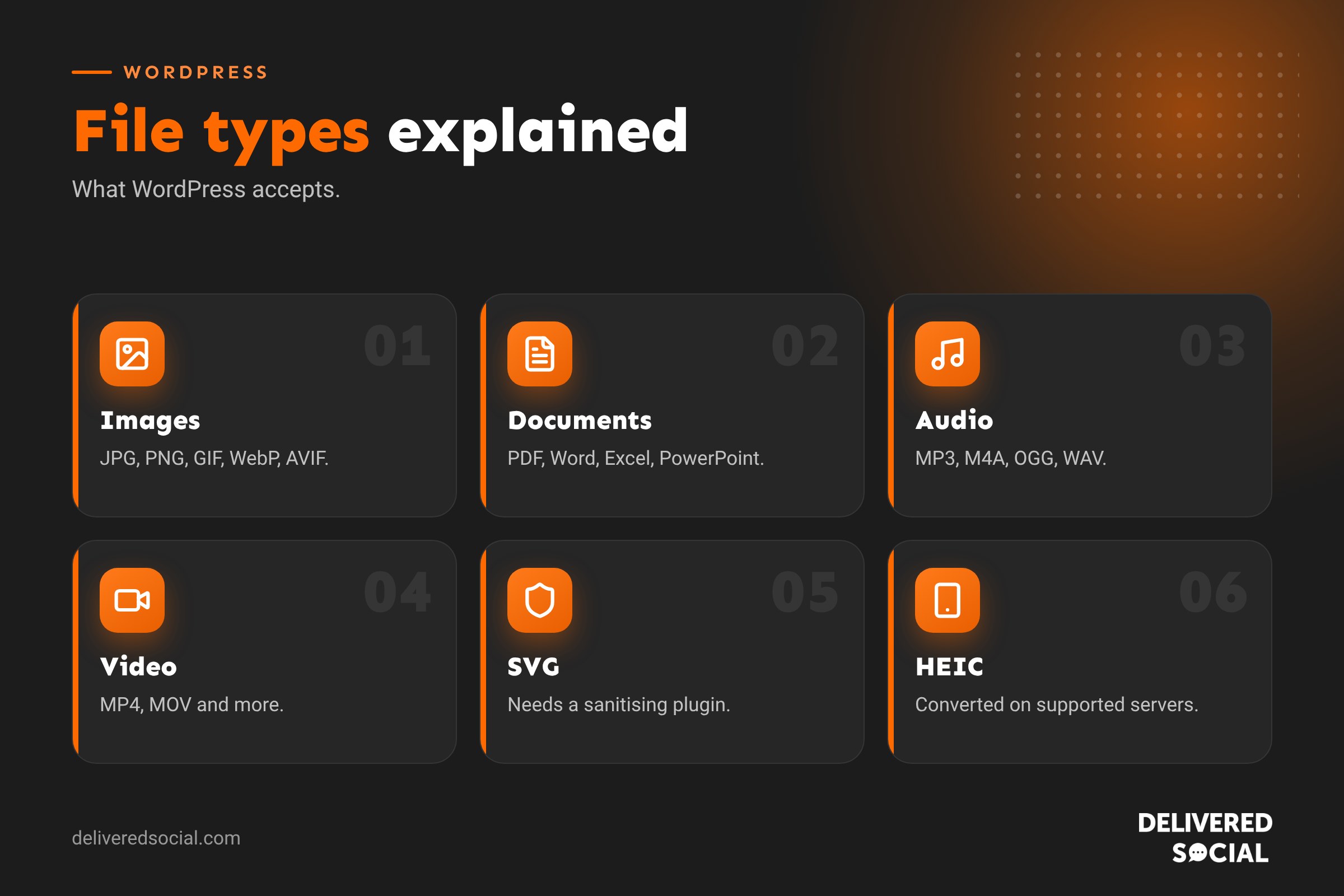
Self-hosted WordPress allows these common file types for most users with upload permissions. Exact lists can vary slightly by version and server set-up.
| Category | Common supported formats |
|---|---|
| Images | JPG/JPEG, PNG, GIF, WebP, AVIF, ICO, and HEIC on supported servers |
| Documents | PDF, DOC, DOCX, ODT, PPT, PPTX, PPS, PPSX, XLS, XLSX, PSD, KEY |
| Audio | MP3, M4A, OGG, WAV |
| Video | MP4, M4V, MOV, WMV, AVI, MPG, OGV, 3GP, 3G2 |
WordPress.com sites have their own lists, and some file types (such as video and audio) are only available on certain paid plans.
Does WordPress support SVG?
Not by default. SVG files are vector images, ideal for logos and icons because they stay sharp at any size and are tiny in file size. But SVGs are written in code and can contain scripts, so a malicious SVG could be used to attack your site or visitors. That’s why WordPress blocks SVG uploads out of the box.
If you need SVGs:
- Use a reputable plugin that sanitises SVG files, removing unsafe code on upload.
- Only allow trusted users, such as administrators, to upload them.
- Only upload SVGs from trusted sources, such as your own designer.
- Avoid simply adding SVG to the allowed file types with code and no sanitising.
Many themes and page builders let you paste or upload a logo as SVG in their own settings with safety checks built in.
Does WordPress support WebP?
Yes. WordPress has supported WebP uploads since version 5.8. WebP images are usually much smaller than JPEGs or PNGs at similar quality, which helps pages load faster. All modern browsers display WebP. Your server needs image libraries that support WebP to create the different image sizes WordPress generates, which most good hosts provide.
Does WordPress support AVIF?
Yes. AVIF support arrived in WordPress 6.5. AVIF can be even smaller than WebP for the same quality, and modern browsers support it. As with WebP, your server needs to support AVIF processing; if it doesn’t, the upload may fail or thumbnails may not be created. You can check under Tools, then Site Health, then Info, in the media handling section.
Does WordPress support HEIC?
HEIC is the default photo format on iPhones. Browsers don’t display HEIC images widely, so they’re not ideal for the web. Recent versions of WordPress (from 6.7) can accept HEIC uploads and automatically create JPEG versions for display, as long as the server’s image library supports HEIC. If your server doesn’t, convert photos to JPEG or WebP before uploading, or change your iPhone camera setting to “Most Compatible”.
Which image format should you use?
| Use | Best format | Why |
|---|---|---|
| Photos | WebP or AVIF (JPEG as fallback) | Small files, good quality |
| Logos and icons | SVG (sanitised) or PNG | Sharp edges, transparency |
| Screenshots and graphics with text | PNG or WebP | Crisp text and lines |
| Simple animations | Short MP4 video or WebP | Far smaller than GIFs |
| Favicons | PNG (via the Site Icon setting) | WordPress creates the sizes needed |
Our guide to image file types explains the formats in more depth.
Does WordPress support GIFs?
Yes, GIFs upload and display normally. However, animated GIFs are often very large files. A short MP4 video set to autoplay, loop and mute usually looks the same and loads much faster. Note that WordPress may not keep the animation in resized thumbnails, so insert animated GIFs at full size.
Video: upload or embed?
WordPress can host MP4 and other video files, but large videos use storage and bandwidth and can slow your site. For most business websites, it’s better to upload videos to YouTube or Vimeo and embed them. Short background videos or small clips can be self-hosted if they’re compressed well. Use lightweight embeds that only load the player when clicked to protect page speed. See why is my WordPress site slow?
Documents and downloads
PDFs are the most common downloadable format on business websites: brochures, menus, price lists and forms. Keep them compressed, give them descriptive file names, and consider whether the content would be better as a normal web page, which is easier to read on mobile and better for SEO. Word and Excel files are supported, but PDFs display more consistently for visitors.
File types WordPress blocks
WordPress blocks files that could be dangerous or aren’t intended for websites, such as executable files, scripts and some archive or code formats. You might also see blocks on:
- SVG files, unless a sanitising plugin is used.
- ZIP files, for some user roles or set-ups.
- JSON, CSV or font files, depending on the site.
Developers can allow extra file types with code, but only do this when necessary and safe, and never for untrusted users.
“Sorry, you are not allowed to upload this file type”
- The format isn’t allowed: convert it (for example HEIC to JPEG) or use a plugin to allow it safely.
- Your user role is restricted: some roles can’t upload certain types.
- The file extension doesn’t match its content: WordPress checks the file’s real type; re-save it properly.
- A security plugin is blocking it: check its settings.
Upload size limits
WordPress shows the maximum upload size on the Media, then Add New page. This limit is set by your hosting, not WordPress itself. If a file is too large, you can:
- Compress or resize it before uploading (usually the best option for images).
- Ask your host to raise the upload limit.
- Upload large files via SFTP and register them with a media tool.
- Use an external service such as YouTube for video.
Very large uploads may also hit memory or time limits, showing an “HTTP error” during upload.
Best practice for uploading files
- Resize images to the largest size they’ll display, typically no more than 2,000 pixels wide for full-width images.
- Compress before or after upload.
- Use descriptive file names, such as guildford-office-reception.jpg rather than IMG_4821.jpg.
- Add alt text describing each image for accessibility and SEO.
- Avoid uploading duplicates; reuse files from the Media Library.
- Delete unused files occasionally to keep backups lean.
Other “does WordPress support” questions
- HTML: yes, through the Custom HTML block, though some code may be restricted for non-admin users.
- JavaScript: yes, via themes, plugins or code snippet tools; avoid pasting scripts into content.
- iframes: yes, for embeds like maps and forms, usually by administrators.
- Multiple languages: yes, with a multilingual plugin.
- Google AdSense: yes, by adding the code to your site or using a plugin.
- Variable fonts: yes, through themes and the font library in block themes.
Organising your Media Library
As your site grows, the Media Library can fill with thousands of files. Consistent file names, alt text and regular tidy-ups make it much easier to find what you need. Some media plugins add folders or tags, which helps on larger sites. Be careful when deleting files, as an image may be used on a page you’ve forgotten about; check before removing anything important.
Quick glossary
- SVG: a vector image format made of code.
- WebP: a modern, compressed image format from Google.
- AVIF: a newer image format with very efficient compression.
- HEIC: Apple’s default photo format.
- Sanitise: remove potentially harmful code from a file.
Key takeaways
- WordPress supports common images, documents, audio and video by default.
- WebP and AVIF are supported and great for page speed.
- SVG isn’t supported by default; use a sanitising plugin if you need it.
- HEIC can be converted automatically on supported servers; otherwise convert it first.
- Upload limits are set by your host, so compress large files.
Frequently asked questions
Can I upload SVG files to WordPress?
Not by default. Use a plugin that sanitises SVGs and restrict uploads to trusted users.
Does WordPress support WebP images?
Yes, since WordPress 5.8.
Does WordPress support AVIF?
Yes, since WordPress 6.5, if your server supports it.
Can I upload iPhone photos to WordPress?
Yes. HEIC may be converted automatically on supported servers; otherwise convert to JPEG first.
What’s the best image format for WordPress?
WebP or AVIF for photos, PNG or sanitised SVG for logos.
How do I increase the WordPress upload limit?
Ask your host, or change server settings if you manage your own hosting.
Can WordPress host videos?
Yes, but embedding from YouTube or Vimeo is usually better for speed.
Why does WordPress say a file type isn’t allowed?
The format is blocked, your role is restricted, or the file’s real type doesn’t match its extension.
Want a fast, well-built WordPress website?
We build, optimise and maintain WordPress websites for businesses across Surrey, Hampshire and the UK. Call us on 01483 608 303.































