



Keep reading
Rather we just did it for you?
Let's get your business seen.
Social media, websites, SEO and ads from a team you can actually meet.
Web design can look like a mysterious mix of art and code, but the basics are learnable by anyone. Whether you want to design your own business website, understand what your agency is talking about, or start a new career, a solid grasp of the fundamentals will make everything easier. This guide covers web design for beginners: what web design actually is, the core principles of layout, colour and typography, the tools you can use, how to plan a website, and how to keep learning, all in plain English.
What is web design?
Web design is the planning and creation of how a website looks, feels and works for the people using it. It includes the layout of pages, colours, fonts, images, navigation and how users move through the site to complete a task, such as making an enquiry or buying something.
It overlaps with, but is different from, web development, which is building the site with code so it actually works. Many people do both, especially on small websites built with tools like WordPress.
Web design vs UI vs UX
| Term | Focus |
|---|---|
| Web design | The overall look, layout and experience of a website |
| UI (user interface) design | The visual details: buttons, forms, icons, colours, spacing |
| UX (user experience) design | How easy and pleasant the site is to use, from structure to journeys |
| Web development | Turning designs into working code and functionality |
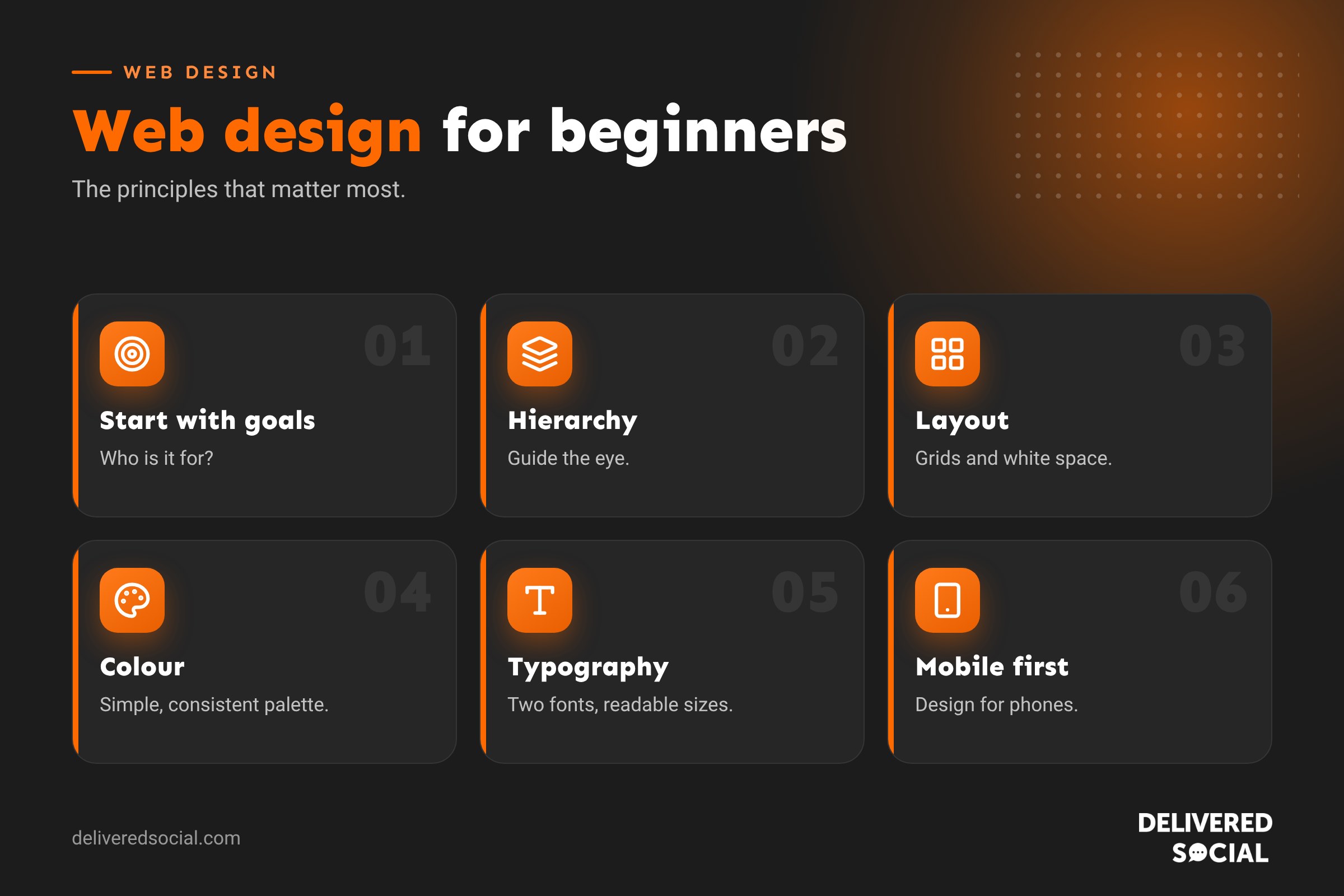
Principle 1: Start with the user and the goal
Good web design starts with two questions: who is this website for, and what do we want them to do? A plumber’s website should make it easy to call for help. An online shop should make it easy to find and buy products. Every design decision should support that goal.
Principle 2: Visual hierarchy
Visual hierarchy is how you guide the eye to the most important things first. You create it with:
- Size: bigger elements get noticed first.
- Colour and contrast: bold colours stand out against neutral backgrounds.
- Position: people usually look at the top and left first.
- Spacing: space around an element makes it stand out.
Your main headline and call to action should be the most obvious things on the page.
Principle 3: Layout and grids
Most websites are built on a grid: invisible columns that keep elements aligned and tidy. Consistent alignment makes a site feel professional. Common page patterns include a hero section at the top, followed by alternating blocks of text and images, then social proof and a final call to action.
Principle 4: White space
White space (or negative space) is the empty space around content. Beginners often try to fill every gap, but space makes pages easier to read and helps important content stand out. When in doubt, add more space.
Principle 5: Colour
- Choose one primary brand colour, one or two secondary colours, and neutrals for backgrounds and text.
- Use your strongest colour sparingly for buttons and highlights.
- Check contrast so text is easy to read for everyone.
- Be consistent: the same colour should mean the same thing throughout.
A simple rule many designers use is 60% neutral, 30% secondary and 10% accent colour.
Principle 6: Typography
- Use no more than two font families: one for headings, one for body text.
- Keep body text large enough to read comfortably, typically 16 pixels or more.
- Keep lines a comfortable length, roughly 50 to 75 characters.
- Use clear heading sizes to structure content.
- Choose readable fonts over decorative ones for body text.
Principle 7: Images and media
Real photos of your team, premises and work build far more trust than generic stock images. Keep images high quality but compressed, so pages load quickly. Use video thoughtfully, and always add descriptive alt text. Our guide to image optimisation for websites explains how.
Principle 8: Navigation
Visitors should always know where they are and how to get where they want to go. Keep main menus short, use clear labels like “Services” rather than clever names, and make your contact details easy to find. On mobile, test that the menu opens and works easily with a thumb.
Principle 9: Mobile-first design
Most website visits now happen on phones. Design for small screens first, then expand for desktop. That means stacking content in a single column, using large tap targets, keeping forms short and making sure buttons are easy to reach.
Principle 10: Accessibility
Accessible design means everyone can use your site, including people with visual, hearing, motor or cognitive impairments. The basics are good colour contrast, readable fonts, alt text for images, descriptive link text, proper headings, and making sure the site works with a keyboard. Accessible sites are usually better for everyone, and better for SEO too.
Planning a website step by step
- Define goals and your target audience.
- Research competitors and sites you like.
- Plan your sitemap: the list of pages and how they connect.
- Write content first or at least key messages, so design fits real words.
- Sketch wireframes: simple boxes showing layout without colour.
- Create a visual design with colours, fonts and images.
- Build the site with your chosen tool.
- Test on different devices and browsers.
- Launch, then measure and improve. Use our website launch checklist.
Tools for beginner web designers
| Tool type | What it’s for |
|---|---|
| Design tools (such as Figma or Canva) | Wireframes, mockups and graphics |
| Website builders (Wix, Squarespace) | Drag-and-drop sites with hosting included |
| WordPress with a page builder or block theme | Flexible, scalable business websites |
| Colour palette generators | Building balanced colour schemes |
| Font libraries | Finding and pairing web fonts |
| Browser developer tools | Inspecting and testing designs |
See our Wix vs Squarespace vs WordPress comparison for help choosing a platform.
Do you need to learn code?
Not to get started. Modern tools let you design and build without code. But basic HTML and CSS help a lot: they explain how websites are structured and styled, and let you make small tweaks yourself. If you want a career in web design, learning the basics of HTML, CSS and a little JavaScript is well worth it.
Using AI in web design
AI tools can now suggest layouts, generate images, write draft copy and even build simple pages. They’re useful for ideas and speed, but they don’t replace understanding your audience, brand and goals. Treat AI output as a first draft, then refine it with real content, real photos and proper testing.
Common beginner mistakes
- Too many fonts and colours.
- Cluttered pages with no clear focus.
- Tiny text and low contrast.
- Designing for desktop only.
- Huge images that slow pages down.
- No clear call to action.
- Copying another site’s design instead of building your own identity.
How to keep learning
- Study websites you like and note why they work.
- Redesign an existing page as practice.
- Follow free courses and tutorials on design basics, HTML and CSS.
- Ask for feedback from real users, not just friends.
- Build a small portfolio of practice projects.
- Keep an eye on web design trends, but prioritise timeless principles.
A simple first project
Try designing a one-page website for a fictional local café: a hero section with a photo and “Book a table” button, a short about section, a menu highlights section, reviews, opening times and a map, and a footer with contact details. Keep to two fonts and three colours, design for mobile first, then test it on your phone. This one project practises hierarchy, layout, colour, typography and calls to action.
Quick glossary
- Wireframe: a basic layout sketch without styling.
- Mockup: a detailed visual design of a page.
- Hero section: the large opening section at the top of a page.
- Call to action: a button or link prompting the next step.
- Responsive design: layouts that adapt to different screen sizes.
Key takeaways
- Web design is about how a site looks, feels and helps users reach a goal.
- Master hierarchy, layout, white space, colour and typography first.
- Design for mobile and accessibility from the start.
- Plan content and structure before visual design.
- Code isn’t essential to start, but basic HTML and CSS help.
Frequently asked questions
Can I learn web design on my own?
Yes. Many designers are self-taught using free courses, tutorials and practice projects.
How long does it take to learn web design?
The basics can be learned in weeks; becoming confident takes months of practice.
What software do beginners use?
Design tools like Figma or Canva, plus a website builder or WordPress.
Is web design hard?
The principles are simple; skill comes from practice and feedback.
What’s the difference between web design and web development?
Design focuses on look and experience; development builds the working site.
Do I need a degree?
No. A strong portfolio matters more than qualifications.
Which language should I learn first?
HTML, then CSS, then some JavaScript.
Can AI design a website for me?
It can help with drafts and ideas, but human judgement still matters for results.
Want a professionally designed website?
We design and build websites for businesses across Surrey, Hampshire and the UK. Call us on 01483 608 303 to talk about your project.































