

Keep reading
Rather we just did it for you?
Let's get your business seen.
Social media, websites, SEO and ads from a team you can actually meet.
Knowing which version of WordPress your website runs is more useful than it sounds. It tells you whether you’re getting the latest security fixes, whether a new plugin or theme will work, and what to tell your developer or host when something goes wrong. Luckily, it only takes a few seconds to find. This guide explains how to check your WordPress version in several ways, how to check theme, plugin and PHP versions too, what to do if you’re out of date, and how to update safely.
Why your WordPress version matters
- Security: updates fix vulnerabilities that hackers target on older versions.
- Compatibility: plugins and themes list which versions they’ve been tested with.
- Features: newer versions add editor features, performance improvements and accessibility fixes.
- Support: hosts and developers will usually ask which version you’re on.
- Troubleshooting: some problems only affect particular versions.
Method 1: the dashboard home screen
- Log in to WordPress. See how to access WordPress admin.
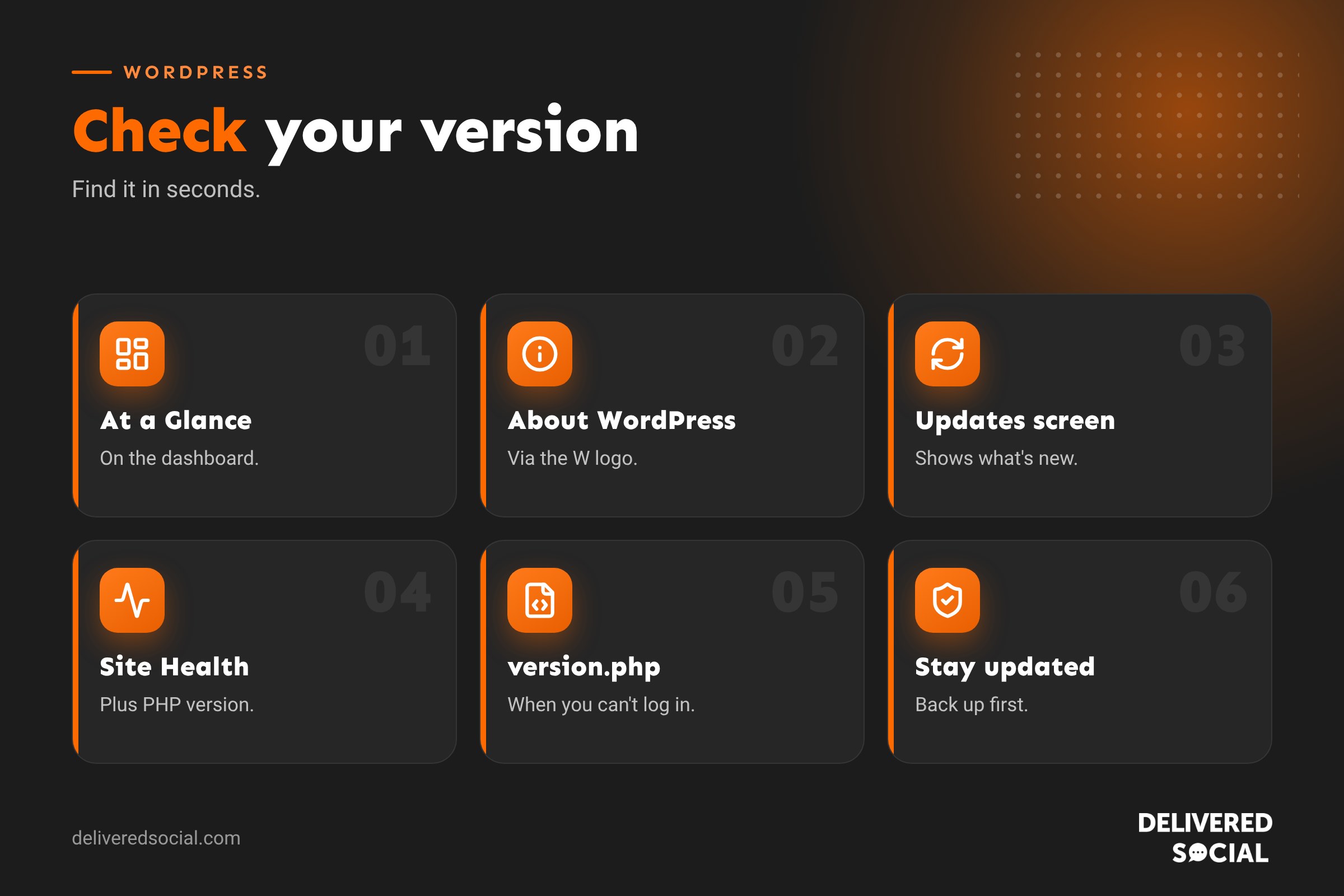
- On the Dashboard home screen, find the At a Glance box.
- Near the bottom it says something like “WordPress 6.x running [theme name] theme”.
If you can’t see the box, click Screen Options at the top of the dashboard and tick At a Glance.
Method 2: the admin footer
Scroll to the very bottom of most admin screens. On the right you’ll often see “Version 6.x”. Some themes or admin plugins hide this, so it’s not always present.
Method 3: About WordPress
Hover over the WordPress logo in the top-left corner of the admin bar and click About WordPress. The page shows the version number and highlights what’s new in that release.
Method 4: Updates screen
Go to Dashboard, then Updates. It tells you which version you have and whether a newer one is available. It also lists plugin and theme updates waiting to be installed.
Method 5: Site Health
Go to Tools, then Site Health, then the Info tab. Open the WordPress section to see the version, plus lots of other useful details: PHP version, database version, server software, active theme and plugins. You can copy this information to send to your developer.
Method 6: without logging in
If you can’t log in, there are a few ways to check, though many are hidden on well-secured sites:
- Page source: view the page source in your browser and search for “generator”. Some sites show a meta tag with the WordPress version.
- Script and style links: version numbers sometimes appear at the end of file links, like “?ver=6.x”, though these can belong to plugins.
- Readme file: some sites still have a readme.html file in the root folder.
- RSS feed: the feed may include a generator tag.
Security plugins often remove these clues on purpose, so attackers can’t easily see which version you run.
Method 7: the version.php file
If you have file access through your host’s file manager or SFTP, open wp-includes/version.php. Look for the line starting $wp_version =. This is the definitive version number, even if the admin area won’t load.
How to check theme and plugin versions
- Plugins: go to Plugins, then Installed Plugins. Each plugin shows its version under its name.
- Themes: go to Appearance, then Themes, and click your active theme for details including the version.
- Site Health Info lists versions of all active plugins and themes in one place.
How to check your PHP version
PHP is the programming language WordPress runs on, and it has its own versions. Find it under Tools, then Site Health, then Info, then Server. Site Health will warn you if your PHP version is outdated. You change PHP versions in your hosting control panel, not in WordPress. Newer PHP versions are usually faster and more secure, but check your theme and plugins are compatible first.
Am I on the latest version?
The Updates screen tells you if a new version is available. WordPress releases major versions a few times a year and smaller maintenance and security releases in between. By default, WordPress installs minor security releases automatically, but major updates often need you to click update or enable automatic updates.
Version numbers explained
| Example | Type | What it usually means |
|---|---|---|
| 6.7 to 6.8 | Major release | New features and improvements |
| 6.8 to 6.8.1 | Minor release | Bug and security fixes |
How to update WordPress safely
- Back up first: files and database. See how to back up a WordPress site.
- Check compatibility: make sure your theme and key plugins support the new version.
- Test on staging if you have one, especially for major updates or busy shops.
- Update plugins and themes before or after core, following your developer’s advice.
- Update WordPress from Dashboard, then Updates.
- Check the site: key pages, forms, checkout and the editor.
- Clear caches. See how to clear WordPress cache.
If WordPress gets stuck saying it’s briefly unavailable, see our guide to WordPress maintenance mode.
What if I’m several versions behind?
Very old sites can break when updated in one jump, especially if they use outdated themes or abandoned plugins. Take a full backup, update on a staging copy first, update PHP carefully, and replace plugins that are no longer maintained. If the site is business-critical, get professional help. An old, unpatched WordPress site is a common target for hackers; see is WordPress safe?
Should I hide my WordPress version?
Hiding the version number is a small extra layer of protection, as it makes automated attacks slightly harder. Many security plugins do it for you. But it’s no substitute for staying updated: the best defence is simply running the latest version.
Should I turn on automatic updates?
Automatic minor updates are switched on by default and are very safe. Automatic major updates and plugin updates save time, but can occasionally cause conflicts. Many businesses turn them on for trusted plugins while keeping good backups and uptime monitoring, or leave updates to a maintenance plan so someone checks each one. Our website maintenance service covers this.
Checking versions across several sites
If you manage several WordPress websites, logging in to each one to check versions quickly becomes tedious. Management dashboards let you see WordPress, theme and plugin versions for all your sites in one place, update them in bulk and get alerts about security issues. Agencies use these tools to keep client sites current without missing anything.
What to do with the information
Once you know your versions, compare them with the latest releases. If WordPress is up to date but several plugins aren’t, update those next. If PHP is old, plan an upgrade with your host. If a plugin hasn’t been updated by its developer for a long time, look for a maintained alternative, because abandoned plugins are a common security risk. Make a note of versions before any big change, so you know what to roll back to if something goes wrong.
Example: a quick monthly check
A simple routine for a small business site: once a month, open Dashboard, then Updates, take a backup, apply updates, check the home page, contact form and any shop checkout, and glance at Site Health for warnings. Ten minutes a month keeps most sites secure and avoids the risky big-bang updates that happen when sites are left for a year.
Quick glossary
- Core: the main WordPress software, separate from themes and plugins.
- Major release: a version with new features, such as 6.8.
- Minor release: a maintenance or security update, such as 6.8.1.
- PHP: the programming language WordPress runs on.
- Staging site: a private copy used to test changes.
Key takeaways
- Check your version in At a Glance, About WordPress, Updates or Site Health.
- If you can’t log in, check wp-includes/version.php.
- Site Health also shows PHP, theme and plugin versions.
- Back up and test before updating, especially major versions.
- Staying up to date is one of the best ways to keep your site secure.
Frequently asked questions
How do I find my WordPress version?
Look in the At a Glance box on your dashboard, or under Dashboard, then Updates.
How do I check my WordPress version without logging in?
Check wp-includes/version.php via your host, or look for a generator tag in the page source.
Where do I find my PHP version?
Tools, then Site Health, then Info, then Server.
Does WordPress update itself?
Minor security releases update automatically by default; major updates may need your action.
Is it safe to update WordPress?
Yes, with a backup in place and compatible themes and plugins.
Why can’t I see the At a Glance box?
It may be hidden. Turn it on in Screen Options.
Can I go back to an older version?
It’s possible but rarely recommended. Restoring a backup is safer.
How often is WordPress updated?
Major releases come a few times a year, with smaller fixes in between.
What version of WordPress should I be on?
The latest stable release, which the Updates screen will offer you.
Want your WordPress updates looked after?
We update, back up and maintain WordPress websites for businesses across Surrey, Hampshire and the UK. Call us on 01483 608 303.