

Keep reading
Rather we just did it for you?
Let's get your business seen.
Social media, websites, SEO and ads from a team you can actually meet.
Your website won’t load, a customer has messaged to say it’s broken, or you’re staring at an error you’ve never seen before. The first question is simple: is it down for everyone, or just you? And if it’s down, why, and how do you get it back? This guide explains how to tell if your WordPress site is down, what the common error messages mean, the most likely causes, step-by-step fixes, and how to set up monitoring so you hear about problems before your customers do.
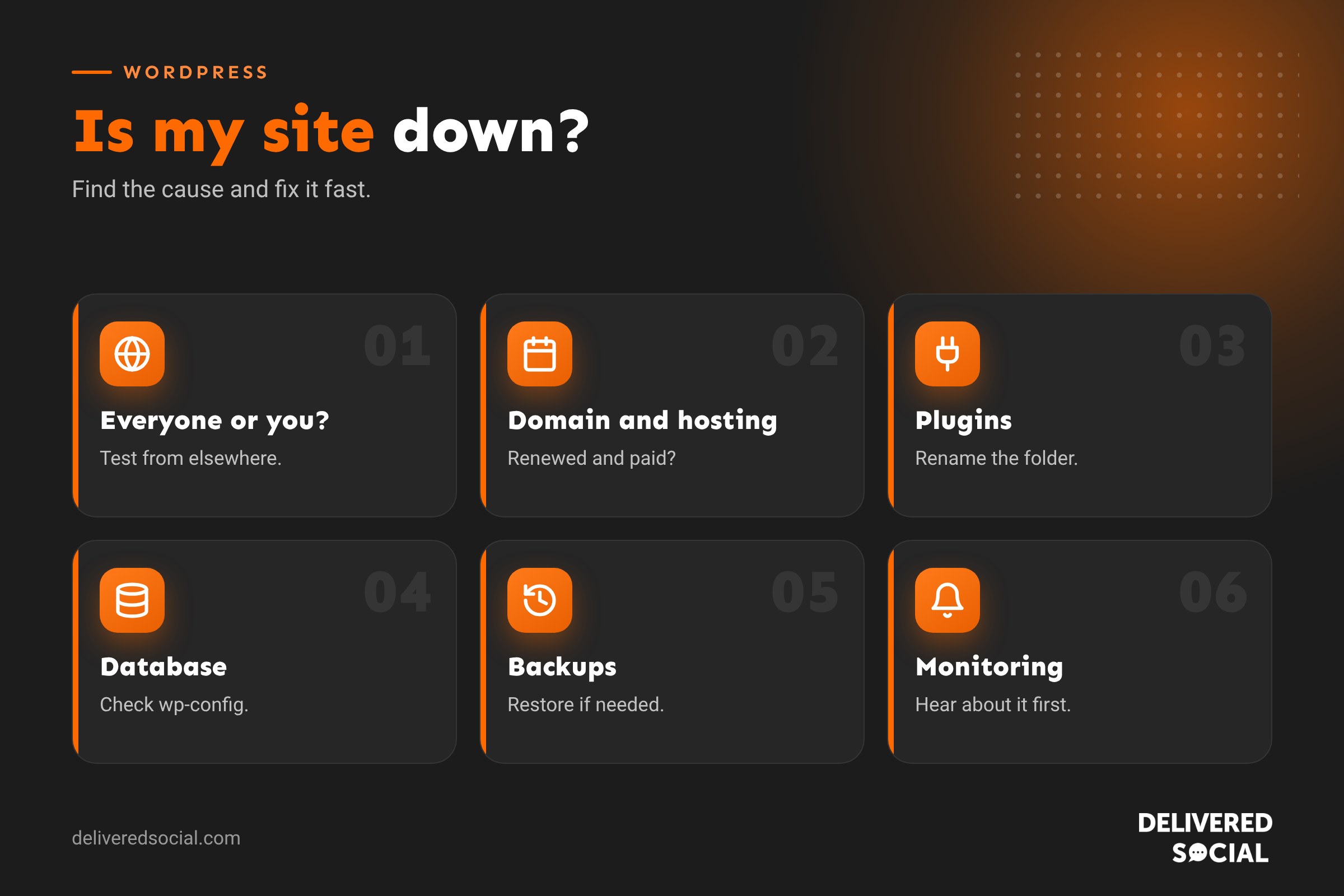
Step 1: Is it down for everyone or just you?
- Try another device on a different network, such as your phone with Wi-Fi turned off.
- Use an online “down for everyone” checker that tests your site from its own servers.
- Try a private browsing window to rule out your browser cache and cookies.
- Ask a colleague elsewhere to try.
If it works for others but not you, the problem is likely your connection, browser, DNS cache or a security block on your IP address.
Is WordPress itself down?
Self-hosted WordPress isn’t one central service that goes down for everyone. Your site runs on your own hosting, so outages are almost always about your host, domain or site. WordPress.com sites are hosted centrally, and WordPress.com has a status page you can check. Plugins or services you rely on, such as payment providers or a CDN, may also have their own status pages.
Common errors and what they mean
| What you see | Likely cause |
|---|---|
| “This site can’t be reached” or DNS error | Domain expired, DNS problem or wrong DNS settings |
| Error establishing a database connection | Database server down or wrong database details |
| 500 Internal Server Error | Plugin, theme or server configuration problem |
| “There has been a critical error on this website” | A PHP error, often after a plugin, theme or PHP update |
| White screen with no message | PHP error with error display switched off |
| 502 Bad Gateway or 504 Gateway Timeout | Server overloaded or slow, or a CDN can’t reach your host |
| 503 Service Unavailable | Server overloaded, maintenance or resource limits reached |
| “Briefly unavailable for scheduled maintenance” | An update didn’t finish |
| Your connection is not private | SSL certificate expired or misconfigured |
| Account suspended page | Hosting suspended, often for unpaid bills or resource abuse |
| Strange content or redirects to other sites | Possible hack |
Step 2: Check the obvious things first
- Has the domain expired? Check your domain registrar account and renewal emails.
- Has hosting been paid? Check for suspension or billing emails.
- Is your host having problems? Check their status page or social media.
- Did anything change recently? Updates, a new plugin, DNS changes or a PHP upgrade are common triggers.
Fixing a critical error or white screen
WordPress often emails the site administrator with details of the error and a recovery mode link. Use the link to log in, find the faulty plugin or theme and deactivate it.
No email? With file access through your host or SFTP:
- Rename the wp-content/plugins folder to something like plugins-off. This deactivates all plugins.
- If the site comes back, rename it back and reactivate plugins one at a time to find the culprit.
- If not, try switching to a default theme by renaming your theme’s folder.
- Check your host’s error logs for the exact error and file.
Fixing a database connection error
- Check your host’s status: the database server may be down.
- Check the database name, username, password and host in wp-config.php match your hosting settings.
- Ask your host whether the database has hit a limit or needs repairing.
Fixing 502, 503 and 504 errors
These usually mean the server is overloaded or struggling. A sudden traffic spike, a bot attack, a heavy plugin or a background task can all cause them. Wait a few minutes and retry, check your host’s resource usage, temporarily disable heavy plugins and ask your host for help. Frequent errors are a sign you need better hosting; see our guide to WordPress hosting costs.
Fixing “briefly unavailable for scheduled maintenance”
Delete the .maintenance file in your site’s root folder, then check the update completed. Our WordPress maintenance mode guide explains this in detail.
Fixing SSL errors
Renew or reissue your SSL certificate in your hosting panel. See how to fix a WordPress not secure warning.
If you think you’ve been hacked
Signs include unfamiliar redirects, spam pages, unknown admin users, Google warnings and your host suspending the site for malware. Change passwords, contact your host and follow our guide on how to fix a hacked WordPress site.
When the admin area won’t load but the site does
If visitors can see the site but you can’t log in, the cause might be a security plugin locking you out, a caching issue, a plugin conflict affecting the admin, or a wrong site URL setting. Try a private window, clear cookies, and use the plugin folder rename trick above if needed. See how to access WordPress admin.
Restoring from a backup
If you can’t find the cause quickly and the site is business-critical, restoring the most recent working backup can get you back online fast. Your host may keep automatic backups. Afterwards, find out what went wrong so it doesn’t happen again. See how to back up a WordPress site.
What to tell your host or developer
- The exact error message, ideally with a screenshot.
- When it started and what changed beforehand.
- Whether it affects the whole site, some pages or just the admin.
- What you’ve already tried.
- Your WordPress and PHP versions if you can find them. See how to check your WordPress version.
Set up uptime monitoring
Uptime monitoring services check your site every few minutes and alert you by email or text if it goes down. Many have free plans. Monitoring means you find out first, can act quickly, and have a record of how reliable your host really is.
How to prevent downtime
- Use reliable, well-supported WordPress hosting.
- Auto-renew your domain and keep billing details up to date.
- Keep WordPress, themes, plugins and PHP updated.
- Test major updates on a staging site.
- Run daily off-site backups.
- Remove unused plugins and themes.
- Use a firewall and security monitoring.
- Monitor uptime and SSL expiry.
A website maintenance plan covers all of this for you.
Example: a Monday morning outage
A florist’s website goes down over the weekend after plugins updated automatically. On Monday a customer emails to say the site shows “There has been a critical error”. The owner checks the admin email inbox and finds WordPress’s recovery mode message naming a gallery plugin. Using the link, they log in, deactivate the plugin and the site is back within minutes. They then contact the plugin developer, restore the gallery once a fixed version is released, and set up uptime monitoring so next time they’ll know within minutes, not days.
Communicating during an outage
If your site is down for more than a short time, let customers know another way: post on social media, update your Google Business Profile, and make sure your phone number is visible elsewhere. Online shops may want to email customers with pending orders. Clear, calm communication protects your reputation while you fix the problem.
Quick glossary
- Uptime: the percentage of time a website is available.
- DNS: the system that points your domain to your server.
- Recovery mode: a WordPress feature that lets you log in and fix fatal errors.
- Error log: a server file recording technical errors.
- 5xx errors: server-side errors such as 500, 502, 503 and 504.
Key takeaways
- First check whether the site is down for everyone or just you.
- Most outages come from domain, hosting, plugin, theme or update problems.
- Error messages point to the likely cause.
- Deactivating plugins or restoring a backup often gets you back online fast.
- Uptime monitoring and good maintenance prevent most downtime.
Frequently asked questions
How do I know if my WordPress site is down?
Try it on another network and use an online down checker to test from elsewhere.
Why is my WordPress site down?
Common causes are hosting problems, an expired domain, a faulty plugin or theme, a failed update or a hack.
Is WordPress down right now?
Self-hosted sites depend on your host. WordPress.com has its own status page.
What does “critical error” mean?
A PHP error, usually caused by a plugin, theme or PHP version conflict.
How do I fix a WordPress white screen?
Deactivate plugins by renaming the plugins folder, then check the theme and error logs.
Will my host fix it?
Hosts fix server issues; plugin and theme problems may need your developer.
How quickly should my site come back?
Many issues can be fixed within an hour with backups and good support.
Do I need uptime monitoring?
Yes. It’s often free and alerts you before customers notice.
Can a plugin update take my site down?
Yes, occasionally. That’s why backups and staging tests are worth having.
Want your website watched and supported?
We host, monitor and maintain WordPress websites for businesses across Surrey, Hampshire and the UK. Call us on 01483 608 303.