



Keep reading
Rather we just did it for you?
Let's get your business seen.
Social media, websites, SEO and ads from a team you can actually meet.
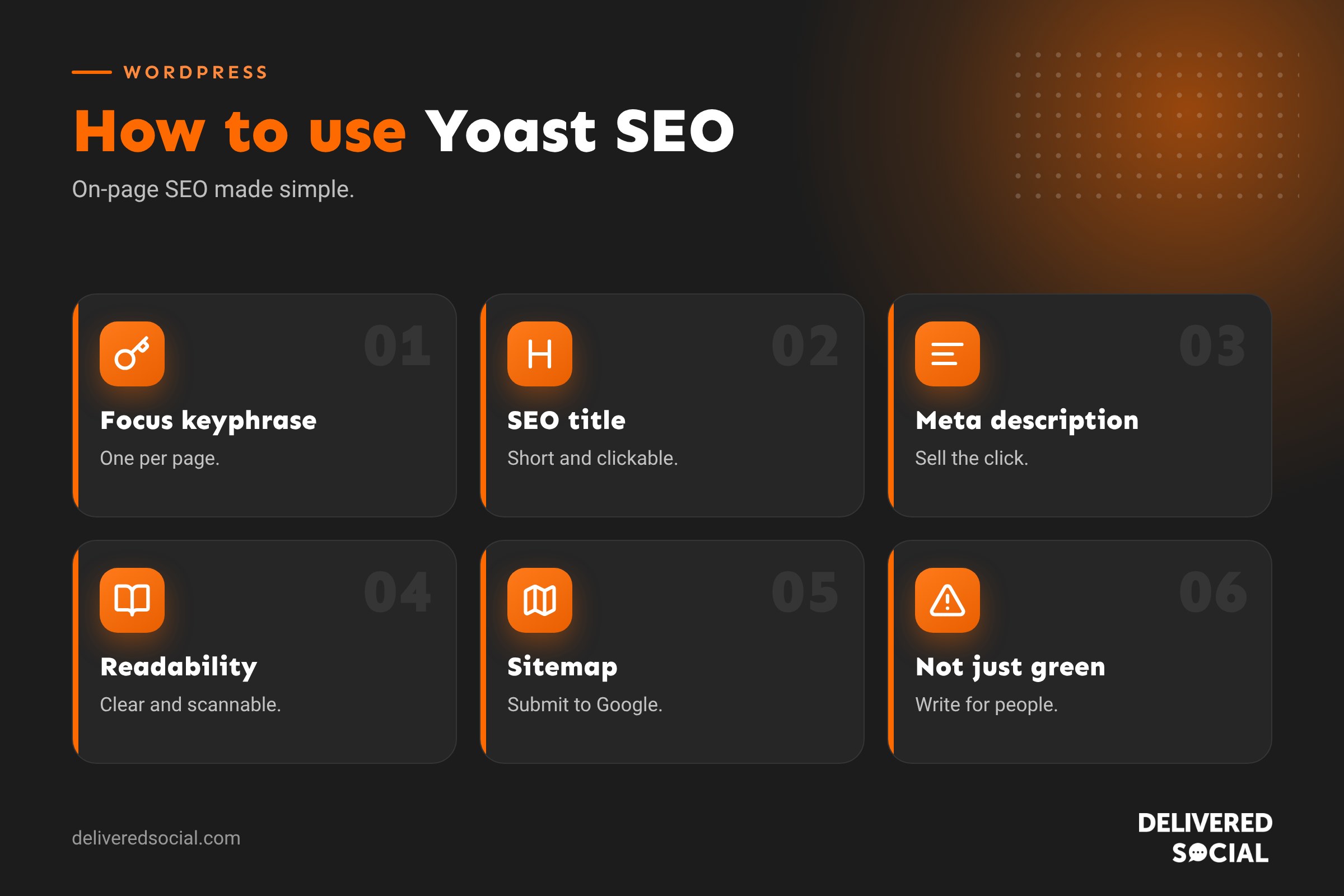
Yoast SEO is one of the most widely installed WordPress plugins, and for many website owners it’s their first introduction to search engine optimisation. It adds a panel to every page and post with traffic-light scores, a snippet preview and a long list of suggestions. Used well, it helps you publish better-optimised content. Used badly, it leads to chasing green lights instead of writing pages people want to read. This guide explains how to use Yoast SEO properly: installation and set-up, focus keyphrases, titles and meta descriptions, readability, sitemaps and the settings that matter, in plain English.
What does Yoast SEO do?
- Lets you set an SEO title and meta description for every page and post.
- Shows a preview of how the page might appear in Google.
- Analyses content against a focus keyphrase.
- Checks readability: sentence length, passive voice, subheadings.
- Creates XML sitemaps automatically.
- Adds structured data (schema) to help search engines understand your site.
- Controls which pages are indexed and how archives behave.
- Adds breadcrumbs and social sharing settings.
Is Yoast SEO free?
Yes, the core plugin is free and covers what most small websites need. A premium version adds features like multiple keyphrases, redirect management, internal linking suggestions and AI tools. Start with the free version and upgrade only if you need specific extras.
How to install Yoast SEO
- In WordPress, go to Plugins, then Add New.
- Search for “Yoast SEO”.
- Click Install Now, then Activate.
- Follow the first-time configuration steps.
Only use one SEO plugin at a time. Running two can create duplicate titles, conflicting sitemaps and other problems.
First-time configuration
- Site representation: choose whether your site represents an organisation or a person, and add your name and logo.
- Social profiles: add links to your business’s social accounts.
- Personal preferences: choose whether to share usage data and receive updates.
Yoast also optimises its data in the background so the plugin runs efficiently on your site.
The Yoast panel on each page
When you edit a page or post, you’ll see the Yoast panel below the editor or in the sidebar. The main parts are:
| Section | What it does |
|---|---|
| Focus keyphrase | The main search term you want the page to be found for |
| Search appearance | Edit the SEO title, slug and meta description, with a preview |
| SEO analysis | Checks content against your keyphrase |
| Readability analysis | Checks how easy content is to read |
| Social | Controls how the page looks when shared on social media |
| Advanced | Indexing, canonical URL and breadcrumb title |
How to choose a focus keyphrase
Pick the main phrase a customer would search for to find this page, such as “wedding photographer Guildford” or “how to bleed a radiator”. Use tools like Google Keyword Planner to check demand; see our guide on how to use Google Ads Keyword Planner. Each page should target a different main phrase, so your pages don’t compete with each other. Our keyword mapping guide helps plan this.
Writing the SEO title
- Include the focus keyphrase, ideally near the start.
- Keep it short enough to display fully, roughly 50 to 60 characters.
- Make it compelling enough to click.
- Add your brand name at the end if there’s room.
Yoast uses variables like %%title%% and %%sitename%% to build titles automatically; you can override them per page. See what is a meta title?
Writing the meta description
The meta description is the short summary that may appear under your title in search results. Aim for around 120 to 155 characters, include the keyphrase naturally, explain the benefit and invite a click. Google sometimes rewrites descriptions, but a good one still improves click-through.
Understanding the SEO analysis
Yoast checks things like:
- Keyphrase in the title, introduction, subheadings and slug.
- Keyphrase density: whether it’s used enough, or too much.
- Content length.
- Internal and outbound links.
- Image alt text.
- Whether you’ve used the keyphrase on another page.
Green means good, orange means could be improved, red means a problem. Treat these as suggestions, not rules.
Understanding the readability analysis
Readability checks include sentence length, paragraph length, subheading distribution, passive voice, transition words and consecutive sentences starting with the same word. These encourage clear, scannable writing, which helps visitors and usually helps SEO too.
Don’t chase green lights
The biggest Yoast mistake is forcing keywords into awkward sentences to turn every light green. Search engines are far better at understanding natural language than they used to be. Write for people first: answer the question fully, use clear headings, and mention the topic naturally. An orange score on a genuinely helpful page is better than a green score on a clumsy one.
XML sitemaps
Yoast creates XML sitemaps automatically, usually at yourdomain.co.uk/sitemap_index.xml. Submit this address in Google Search Console so Google can find your pages. The sitemap updates itself when you publish or change content.
Important settings to check
- Content types: decide which post types appear in search results.
- Categories and tags: consider whether thin tag archives should be indexed.
- Media attachment pages: Yoast redirects these to the file by default, which is usually best.
- Author archives: on single-author sites, consider disabling them to avoid duplicate content.
- Breadcrumbs: enable if your theme supports them, to help users and search engines.
Noindex and canonical settings
In the Advanced tab you can stop a page appearing in search results (noindex), which is useful for thank-you pages or private landing pages. You can also set a canonical URL if a page is a near-duplicate of another. Use these carefully, as the wrong setting can remove important pages from Google.
Social sharing settings
The Social tab lets you set a custom title, description and image for when pages are shared on Facebook, LinkedIn and X. Use an eye-catching image sized for social media, so shares look professional.
Keeping Yoast updated
Yoast releases frequent updates with fixes and improvements. Update it with your other plugins, after taking a backup. If your sitemap seems out of date after changes, re-saving settings or clearing caches usually helps; see how to clear WordPress cache.
Yoast is a tool, not a strategy
An SEO plugin helps with on-page basics, but rankings also depend on helpful content, site speed, mobile experience, technical health, internal links, reviews and links from other websites. Our WordPress SEO checklist covers the bigger picture.
Example: optimising a service page with Yoast
Imagine a garden design company with a page about patio installation in Farnham. The focus keyphrase is “patio installation Farnham”. The SEO title becomes “Patio Installation in Farnham | [Company Name]”, and the meta description explains the service, mentions free design visits and invites people to get a quote. The page’s first paragraph mentions patio installation in Farnham naturally, subheadings cover materials, process, prices and FAQs, images have descriptive alt text and the page links to related services like driveways. A few readability suggestions are accepted where they genuinely make the page clearer, and the rest are ignored.
Using Yoast for blog posts
For blog posts, choose a keyphrase that matches a real question, such as “how often should you clean a patio”. Answer it early in the post, use clear subheadings for related questions, and link to your relevant service page so readers can take the next step. Set a featured image and check the social preview before publishing.
Reviewing older content
Yoast’s scores make it easy to spot older posts with missing titles or descriptions. Set aside time to review your most important pages first: update outdated information, improve titles, add internal links and check they still match what people search for.
Quick glossary
- Focus keyphrase: the main search term for a page.
- SEO title: the clickable headline shown in search results.
- Meta description: the summary below the title in results.
- XML sitemap: a list of your pages for search engines.
- Noindex: an instruction not to show a page in search results.
Key takeaways
- Yoast SEO helps with titles, descriptions, sitemaps and on-page checks.
- Choose one focus keyphrase per page and avoid overlaps.
- Write titles and descriptions that earn clicks.
- Use the analysis as guidance, not a target to game.
- Submit your sitemap and check key settings like archives and noindex.
Frequently asked questions
Is Yoast SEO free?
Yes, with a paid premium version offering extra features.
How do I add keywords in Yoast?
Enter your main search term in the Focus keyphrase field on each page or post.
Do I need all green lights?
No. Write naturally for readers; the scores are guidance.
Where is my Yoast sitemap?
Usually at yourdomain.co.uk/sitemap_index.xml.
Can I use Yoast with another SEO plugin?
No, use only one SEO plugin to avoid conflicts.
Does Yoast guarantee rankings?
No. It helps with on-page basics, but rankings depend on many factors.
How do I update Yoast?
Update it from the Plugins screen after taking a backup.
Should I buy Yoast Premium?
Only if you need features like redirects, multiple keyphrases or internal linking suggestions.
Want help with your website’s SEO?
We provide SEO, content and WordPress support for businesses across Surrey, Hampshire and the UK. Call us on 01483 608 303.































