

Keep reading
Rather we just did it for you?
Let's get your business seen.
Social media, websites, SEO and ads from a team you can actually meet.
WordPress powers a huge share of the world’s websites, from small business brochure sites to large online shops. It is flexible, affordable and you own it outright. If you want to build one yourself, the process is very manageable once you know the steps. This guide explains how to build a WordPress website step by step, from choosing a domain and hosting to launching, with the decisions that matter along the way.
Before you start: plan your site
Ten minutes of planning saves hours later. Write down:
- Your goal: enquiries, bookings, sales, donations or information.
- Your pages: typically Home, About, Services (one page per service), Contact, plus a blog.
- Your content: text, photos, logo, testimonials and case studies.
- Features you need: contact forms, booking, online shop, newsletter sign up.
Look at three or four competitor sites you like and note what works.
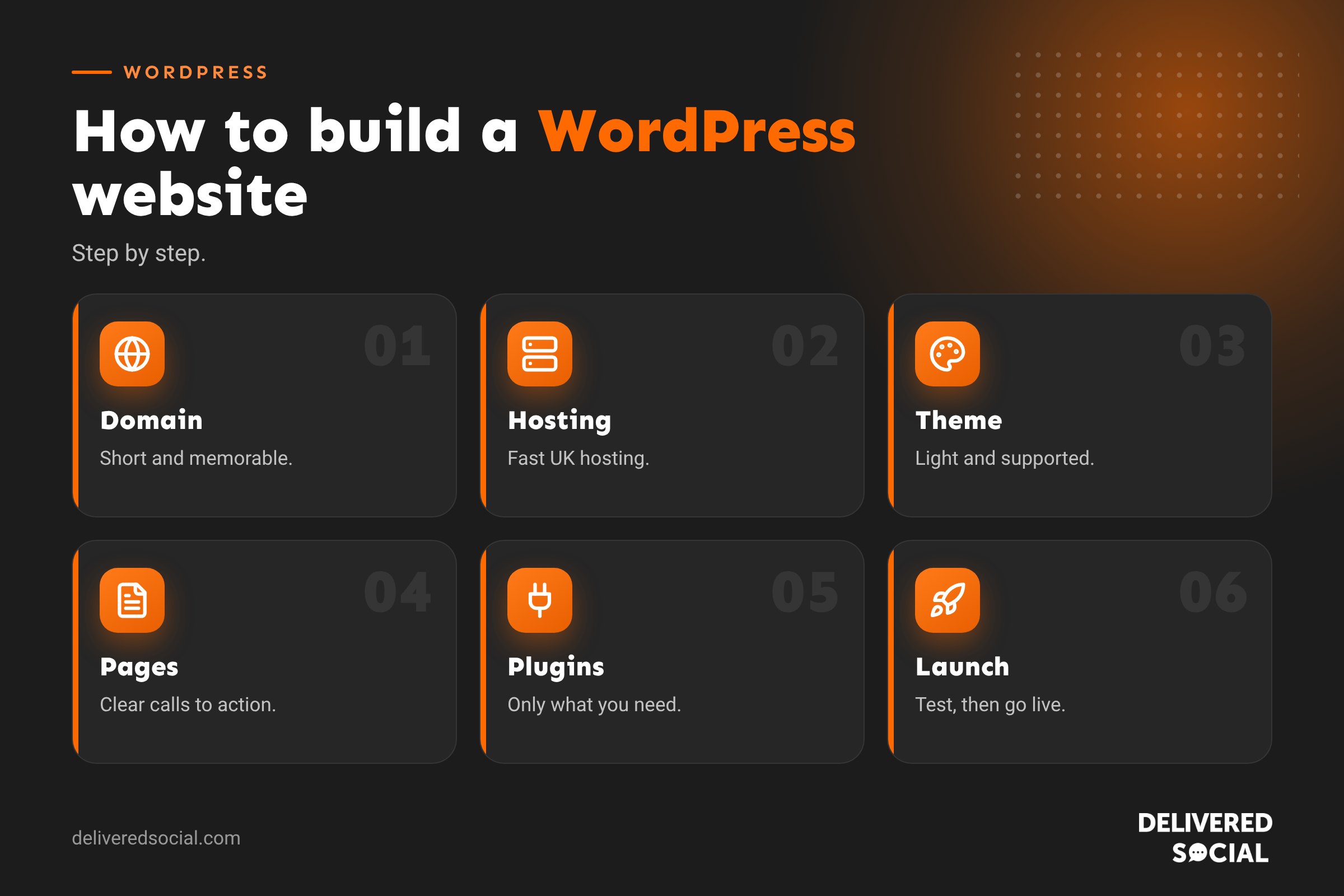
Step 1: Choose a domain name
Pick a short, memorable domain, ideally your business name with .co.uk or .com. Avoid hyphens and numbers. See our guide on how to choose a domain name.
Step 2: Choose WordPress hosting
Make sure you are using WordPress.org (self hosted), not WordPress.com, if you want full control. Good WordPress hosting should include:
- UK or European servers for fast loading.
- Free SSL certificates.
- Daily backups.
- One click WordPress installation.
- Helpful support.
See our guide to the best WordPress hosting in the UK.
Step 3: Install WordPress
Most hosts install WordPress for you, or offer a one click installer. Once installed, log in at yourdomain.co.uk/wp-admin. Then:
- Go to Settings > General and set your site title, tagline, time zone and email.
- Go to Settings > Permalinks and choose “Post name” for clean URLs.
- Delete the sample post, page and unused plugins.
Step 4: Choose a theme
Your theme controls the design. Choose a lightweight, well supported theme that is regularly updated. Popular options include Astra, Kadence, GeneratePress and the default block themes. You can then design pages with the built in block editor or a page builder. Our comparison of Elementor vs Gutenberg explains the choice.
Tips:
- Pick a theme that looks close to what you want, to save customising time.
- Avoid themes stuffed with features you will never use.
- Check reviews, ratings and when it was last updated.
Step 5: Set your brand basics
In the theme customiser or site editor, add your logo, site icon (favicon), brand colours and fonts. Keep it simple: two or three colours and one or two fonts.
Step 6: Create your key pages
| Page | What to include |
|---|---|
| Home | What you do, who for, where, key services, proof, clear call to action |
| About | Your story, team, values, accreditations |
| Services | One page per service with details, prices or ranges, FAQs |
| Contact | Form, phone, email, address, map, opening hours |
| Blog | Helpful articles that answer customer questions |
| Legal | Privacy policy, cookie policy, terms |
Write for your customers, in plain English, and make the next step obvious on every page.
Step 7: Set up menus
Go to Appearance > Menus or the site editor’s navigation block. Keep the main menu short: Home, Services, About, Blog, Contact. Add a footer menu for legal pages and useful links.
Step 8: Install essential plugins
Plugins add features. Keep them to what you need:
- SEO plugin for titles, descriptions and sitemaps. See Yoast vs Rank Math.
- Forms for contact and quote forms.
- Security for login protection and firewall.
- Backups if your host does not include them.
- Caching for speed, if your host does not provide it.
- Cookie consent for UK GDPR compliance.
- WooCommerce if you are selling online.
Step 9: Optimise for search
- Write a unique SEO title and meta description for each page.
- Use one clear H1 and logical H2 headings.
- Compress images and add alt text.
- Link related pages together.
- Create a Google Business Profile if you serve local customers.
- Submit your sitemap in Google Search Console.
Our WordPress SEO checklist covers this in detail.
Step 10: Test and launch
- Check every page on mobile, tablet and desktop.
- Test forms send to the right email address.
- Check for broken links and spelling mistakes.
- Test speed with Google PageSpeed Insights.
- Make sure “Discourage search engines” is unticked in Settings > Reading.
- Set up Google Analytics and Search Console.
- Take a full backup.
After launch: keep it healthy
A website is never really finished. Update WordPress, themes and plugins regularly, keep backups running, and add new content. Our WordPress security checklist explains how to keep your site safe.
How long does it take?
A simple brochure site can be built in a weekend if your content is ready. A larger site with lots of services, a shop or custom features takes weeks. Writing content and gathering photos usually takes longest.
How much does it cost?
Doing it yourself, you pay for your domain, hosting and any premium theme or plugins. Hiring an agency costs more but saves time and usually gives better results. See how much a WordPress website costs.
Common mistakes
- Choosing a heavy, slow theme.
- Installing too many plugins.
- Vague homepage copy that does not say what you do.
- Forgetting mobile users.
- Launching without backups or security.
- Leaving search engines blocked after launch.
Writing your website content
Content is where most DIY websites fall down. A beautiful theme cannot rescue vague copy. Follow these rules for every page:
- Lead with what you do. “Electrician in Portsmouth for homes and businesses” beats “Welcome to our website”.
- Write for the customer. Focus on their problem and how you solve it, not on your company history.
- Be specific. Include areas covered, prices or price ranges, timescales and what is included.
- Prove it. Add reviews, case studies, accreditations and photos of real work.
- Make the next step obvious. Every page should end with a clear call to action.
- Keep it scannable. Short paragraphs, headings and bullet points.
Images and media
Use your own photos wherever you can; they build far more trust than stock images. Resize images before uploading so they are no wider than they need to be, around 1,600 to 2,000 pixels for full width images, and compress them with an image optimisation plugin or a free online tool. Give each image a descriptive file name and alt text, such as “kitchen-extension-fareham.jpg”, which helps accessibility and SEO. For video, upload to YouTube or Vimeo and embed it, rather than uploading large files to WordPress.
Making your site accessible
An accessible website works for everyone, including people using screen readers, keyboards or zoom. Use good colour contrast, readable font sizes, descriptive link text instead of “click here”, alt text for images and headings in a logical order. Make sure forms have clear labels. Accessibility is good for users, good for SEO and, for public sector and charity sites, often a requirement.
DIY or agency?
| DIY | Agency | |
|---|---|---|
| Cost | Lower upfront | Higher upfront |
| Time | Your evenings and weekends | Handled for you |
| Design quality | Depends on your skills | Professional and on brand |
| SEO and speed | Learn as you go | Built in from the start |
| Ongoing support | You fix problems | Maintenance plans available |
Staging sites
A staging site is a private copy of your website where you can test changes safely. Many hosts include one click staging. Use it for theme changes, big plugin updates and redesigns, then push changes live once you are happy.
Key takeaways
- Plan your goal, pages and content first.
- Use WordPress.org with good UK hosting.
- Pick a lightweight theme and keep plugins lean.
- Write clear pages with obvious calls to action.
- Test thoroughly, then keep your site updated.
Frequently asked questions
Can I build a WordPress website myself?
Yes. With good hosting and a simple theme, most people can build a basic site.
Is WordPress free?
The software is free; you pay for hosting, a domain and any premium extras.
Do I need to know how to code?
No. The block editor and page builders let you design without code.
What is the best WordPress theme?
A lightweight, well supported theme such as Astra, Kadence or GeneratePress suits most sites.
How many plugins should I use?
Only what you need. Quality matters more than quantity.
Can I sell online with WordPress?
Yes, using WooCommerce.
WordPress.com or WordPress.org?
WordPress.org gives full control and is what most businesses use.
How do I make my WordPress site secure?
Keep everything updated, use strong passwords and two factor login, and run backups.
How do I get my site on Google?
Set up Search Console, submit your sitemap and create useful content.
Should I hire someone instead?
If time is short or you need custom features, an agency is often worth it.
How do I add a contact form?
Install a forms plugin, build the form, then add it to your contact page with a block or shortcode.
Can I change my theme later?
Yes, though layouts may need rebuilding, so test on a staging copy first.
Want a WordPress website built for you?
We design and build WordPress websites for businesses and charities across Surrey, Hampshire and the UK. Call us on 01483 608 303.