



Keep reading
Rather we just did it for you?
Let's get your business seen.
Social media, websites, SEO and ads from a team you can actually meet.
Your Instagram profile picture is the first thing people see, beside every post, comment, Story and message you send. It’s tiny, but it does a big job: telling people who you are in a split second. This guide covers the right Instagram profile picture size, how to change it, how to make it look sharp, and what works best for businesses, creators and personal accounts.
Instagram profile picture size
| Setting | Recommendation |
|---|---|
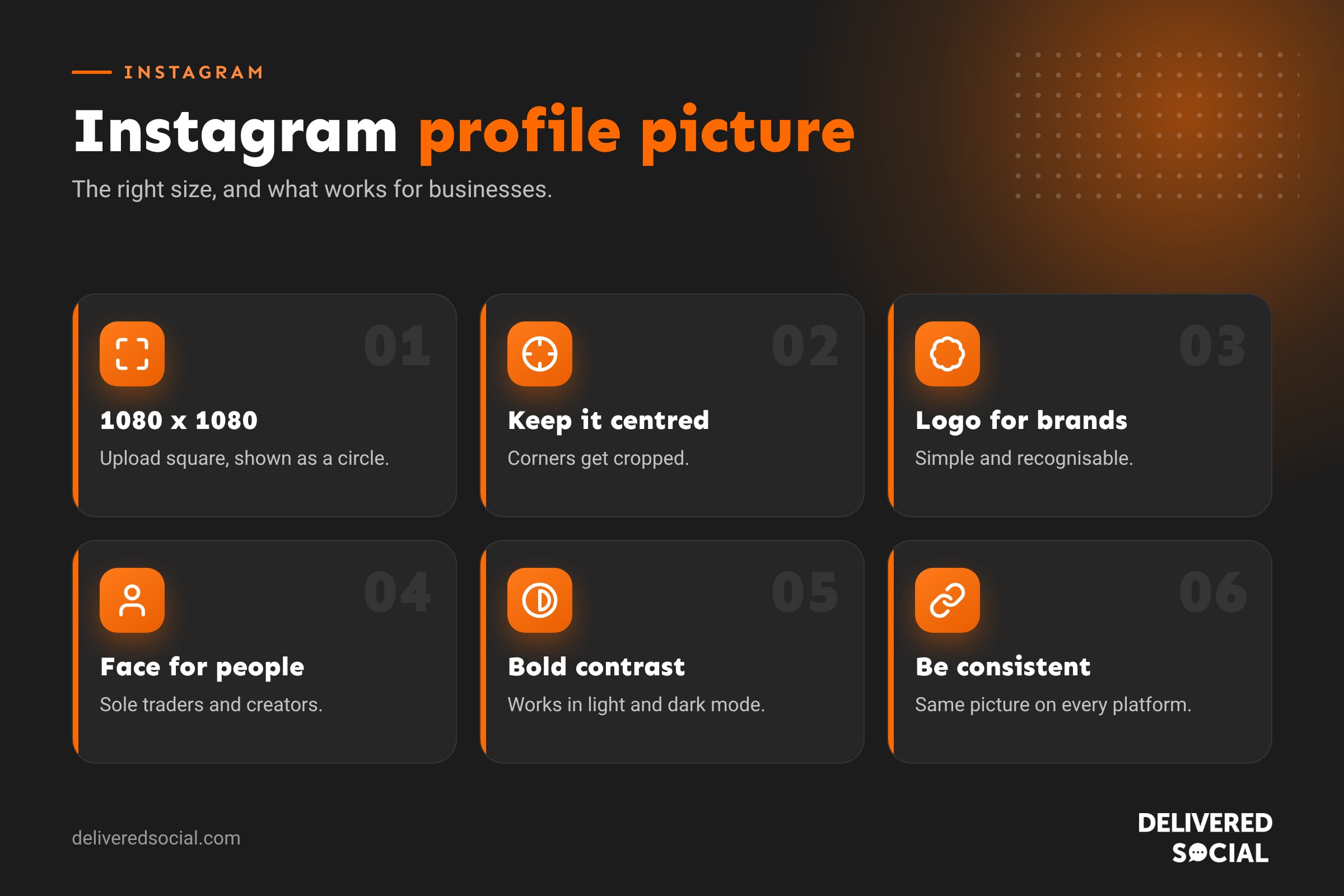
| Upload size | At least 320 x 320 pixels; 1080 x 1080 gives a sharper result |
| Shape | Square image, displayed as a circle |
| Display size on mobile | About 110 x 110 pixels on your profile |
| Display size on desktop | About 150 x 150 pixels |
| File type | JPG or PNG |
Instagram crops your picture into a circle, so anything in the corners will be cut off. Keep the important part, such as your face or the core of your logo, in the centre.
How to change your Instagram profile picture
On the app
- Go to your profile and tap Edit profile.
- Tap Edit picture or avatar.
- Choose New profile picture, take a photo, or import from Facebook.
- Move and zoom the image to fit the circle, then tap Done or the tick.
On a computer
- Go to your profile on instagram.com.
- Click your current profile picture.
- Choose Upload photo and select a file.
If your Instagram is linked to Facebook in Accounts Centre, you may be asked whether you want to use the same picture on both.
Logo or face: which should a business use?
| Account type | Best choice | Why |
|---|---|---|
| Brand or shop | Logo or logo mark | Instantly recognisable and consistent with your signage |
| Sole trader or consultant | Your face | People buy from people they recognise |
| Personal brand or creator | Your face | Builds a personal connection |
| Restaurant or café | Logo, or a signature dish if the brand is less known | Familiar to local customers |
| Trades | Logo, or the owner’s face if you’re the business | Matches your van and uniform |
Tips for a great profile picture
- Keep it simple. At tiny sizes, detailed logos and long names become unreadable.
- Use a simplified logo mark or initials if your full logo is wide or wordy.
- Add contrast. A plain, bold background helps your picture stand out against Instagram’s white and dark modes.
- For faces, get close. Head and shoulders, good light, looking at the camera, with a friendly expression.
- Avoid text. Most text is too small to read in a circle this size.
- Be consistent across Instagram, Facebook, TikTok, LinkedIn and your Google Business Profile, so people know it’s you.
- Check it on your phone in both light and dark mode before you commit.
Making a logo fit a circle
Many logos are rectangular. To make them work in a circular frame:
- Create a square canvas of 1080 x 1080 pixels in Canva or a design app.
- Fill it with your brand colour or white.
- Place your logo mark (not the full wordmark if it’s long) in the middle, leaving generous space around it.
- Check it inside a circular preview so nothing touches the edges.
- Export as PNG or high-quality JPG.
Why your profile picture looks blurry
- The original image is too small. Use at least 320 x 320 pixels, ideally 1080 x 1080.
- The image has been screenshotted or compressed several times.
- You zoomed in a lot when cropping, which enlarges a small area.
- It contains fine text or details that blur at small sizes.
Upload a clean, high-resolution original to fix it.
Can you see someone’s full Instagram profile picture?
Instagram shows profile pictures small, and tapping one usually opens their Story rather than enlarging the picture. You can sometimes see a slightly larger version on the web. Third-party “profile picture viewer” sites exist, but be careful: many are full of adverts and some ask for login details. Never enter your password on them.
Avatars as profile pictures
Instagram lets you create a cartoon avatar in Accounts Centre and use it as an alternative profile view, so people can flip between your photo and your avatar. It’s fun for personal accounts, but most businesses should stick with a logo or real photo for trust and recognition.
Profile pictures and Stories
Your profile picture also appears in the Stories bar at the top of people’s feeds, with a coloured ring when you’ve posted a Story. A clear, recognisable picture helps people spot your Stories quickly. If you change your picture often, regular viewers may not recognise you, so update it only when there’s a good reason, such as a rebrand.
Profile picture checklist
- Square image, at least 320 x 320 pixels (1080 x 1080 recommended).
- Key detail in the centre, nothing important in the corners.
- Simple, bold and easy to recognise when tiny.
- Matches your other social profiles.
- Looks good in light and dark mode.
Profile picture sizes across social platforms
If you want one picture to work everywhere, upload a square image of at least 1080 x 1080 pixels with the key detail centred. Here’s how the main platforms handle profile pictures:
| Platform | Recommended upload | Shape |
|---|---|---|
| 320 x 320 minimum, 1080 x 1080 ideal | Circle | |
| Facebook Page | At least 320 x 320 | Circle |
| TikTok | At least 200 x 200 | Circle |
| 400 x 400 or larger | Circle (profiles) or square (company Pages) | |
| X | 400 x 400 | Circle (square for some verified organisations) |
| YouTube | 800 x 800 | Circle |
Photographing yourself for a profile picture
- Find soft light: face a window or stand in open shade outdoors.
- Choose a simple background: a plain wall, greenery or your premises, slightly out of focus.
- Frame head and shoulders, with your face filling most of the square.
- Hold the camera at eye level or slightly above.
- Wear what you wear for work, so it reflects how customers will meet you.
- Take lots of shots and choose the one where you look relaxed and friendly.
- Use portrait mode on your phone to blur the background.
When to change your profile picture
Consistency builds recognition, so don’t change your picture too often. Good reasons to update it include a rebrand or new logo, a noticeably different look, a seasonal campaign (such as a pink version for an awareness week, changed back afterwards) or an old, low-quality photo that no longer represents you well. When you do change it, update it on all your platforms at the same time.
Profile picture mistakes to avoid
- Group photos where nobody knows which person you are.
- Logos with tiny text or thin lines that disappear when small.
- Busy backgrounds that clash with your subject.
- Sunglasses or hats that hide your face.
- Different pictures on every platform.
- Stock images, which can make people question whether the account is real.
Profile pictures for teams and multiple locations
If your business has several locations or departments with their own Instagram accounts, keep a family look so customers know they’re connected. Use the same logo with a different coloured background or a small location label on the cover, or use the same style of team photo across accounts. Mention the main account in each bio. For personal accounts of team members who represent your business, encourage professional, consistent photos that match your brand, so customers recognise the people behind the business wherever they see them.
Testing your new picture
Before you finalise a new profile picture, look at it at real size in the feed, in comments, in the Stories bar and in DMs, in both light and dark mode. Ask a couple of people who don’t know your business whether they can tell what it shows. If they can’t, simplify it.
Profile pictures and trust
A clear, professional profile picture helps people trust that your account is genuine. Scam and fake accounts often use stolen logos or blurry images, so a crisp, consistent picture, combined with a complete bio, a link to your website and regular posts, reassures customers they’ve found the real you. It’s a small detail that supports every enquiry that comes through Instagram.
Whatever you decide, take a few minutes to review the settings mentioned in this guide every few months. Social platforms change their menus and features regularly, and a quick check keeps your account working the way you want it to.
Frequently asked questions
What size should an Instagram profile picture be?
Upload a square image of at least 320 x 320 pixels. 1080 x 1080 pixels gives the sharpest result.
Can I remove my Instagram profile picture?
Yes. Go to Edit profile, tap Edit picture and choose Remove current picture.
Does Instagram notify people when I change my profile picture?
No. There’s no notification, though people may notice the change.
Why does my profile picture look different on Facebook?
Facebook and Instagram display and crop pictures slightly differently. Check both after uploading.
Want your profile to make a great first impression?
We help small businesses across Surrey, Hampshire and the UK set up and manage Instagram profiles that look professional and bring in enquiries. See our social media services or call us on 01483 608 303.































