

Keep reading
Rather we just did it for you?
Let's get your business seen.
Social media, websites, SEO and ads from a team you can actually meet.
LinkedIn is where buyers, partners and future employees check you out, so blurry banners and awkwardly cropped post images do your brand no favours. The trouble is that LinkedIn uses different sizes for profile photos, personal banners, company page covers, posts, carousels, articles and ads, and the platform crops differently on mobile and desktop. This guide gives you the LinkedIn image sizes you need for every placement, with tips to make sure your images look sharp everywhere.
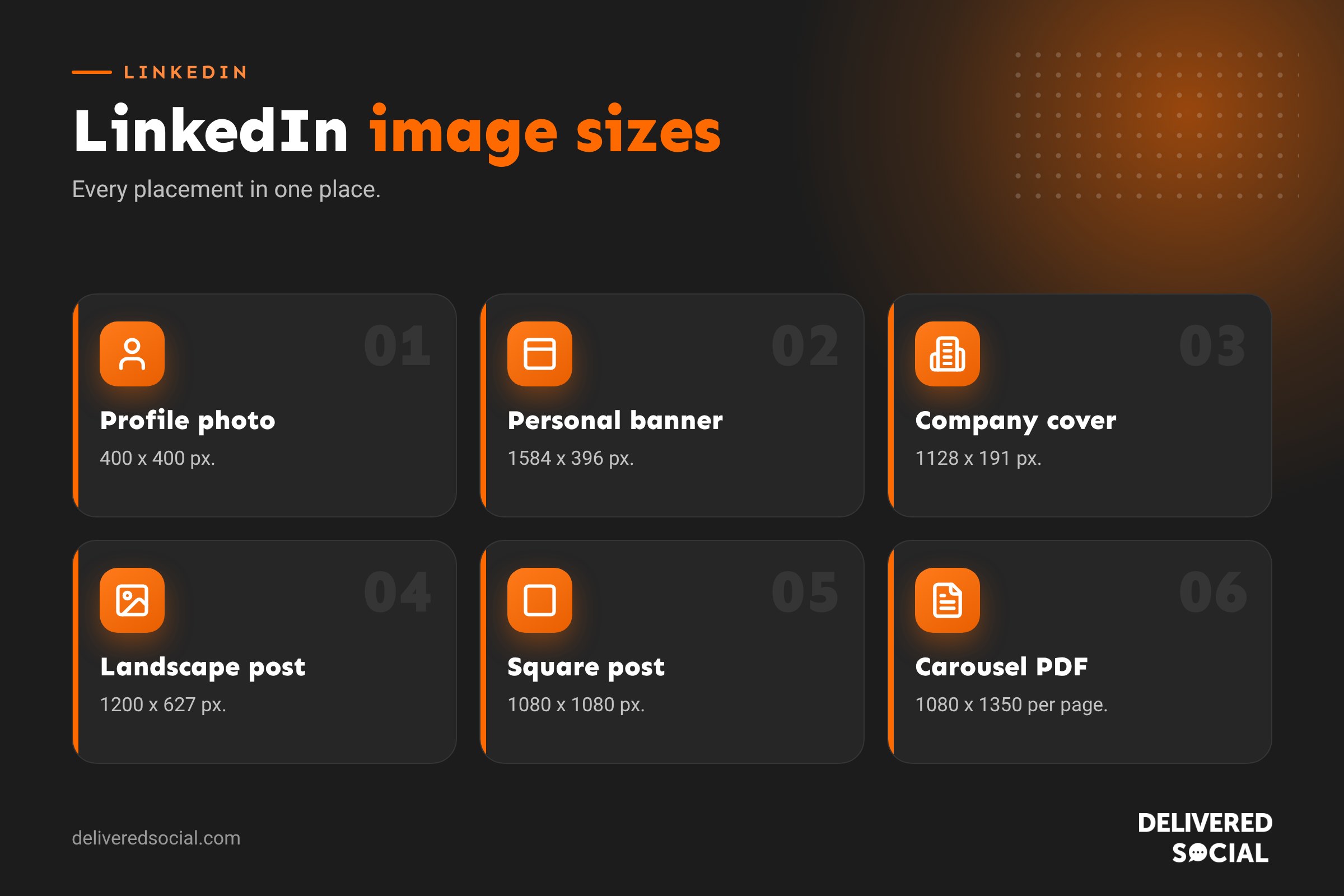
LinkedIn image sizes at a glance
- Personal profile photo: 400 by 400 pixels (square, displayed as a circle).
- Personal background banner: 1584 by 396 pixels (4:1).
- Company page logo: 400 by 400 pixels.
- Company page cover: 1128 by 191 pixels.
- Landscape post image: 1200 by 627 pixels (1.91:1).
- Square post image: 1080 by 1080 pixels (1:1).
- Portrait post image: 1080 by 1350 pixels (4:5).
- Document carousel: 1080 by 1080 or 1080 by 1350 pixels per page, uploaded as a PDF.
- Article cover image: 1200 by 644 pixels or a 1.91:1 ratio.
- Link preview image: 1200 by 627 pixels.
LinkedIn updates its layouts from time to time, so check its help pages if something looks off. The sizes above are safe, widely used starting points.
Profile images
Profile photo
Upload at least 400 by 400 pixels. LinkedIn shows it as a circle, so keep your face centred with some space around it. A clear, friendly, well lit headshot builds trust. Our guide to LinkedIn marketing for small businesses explains why a strong profile matters.
Background banner
Use 1584 by 396 pixels. Your profile photo covers part of the bottom left on desktop and more of it on mobile, so keep important text and logos to the centre and right. Use the banner to say what you do, show your work or promote an event. Our LinkedIn banner size guide has layout tips and templates.
Company page images
Logo
Upload a 400 by 400 pixel square logo with plenty of space around it. Simple marks work best because the logo appears very small in feeds and comments.
Cover image
The company page cover is 1128 by 191 pixels. It is a very wide, short strip, so use a simple image or pattern with a short message centred. Test how it looks on a phone before you publish. Our guide to LinkedIn company pages covers the rest of the set up.
Post image sizes
Landscape: 1200 by 627
The classic LinkedIn image size, ideal for announcements, blog promotions and event graphics. It matches the shape of link previews.
Square: 1080 by 1080
Square images take up more space in the feed, especially on mobile, which can help them stand out. They are great for quotes, tips and photos.
Portrait: 1080 by 1350
Portrait images take up the most room on a mobile screen. They are useful for infographics and attention grabbing visuals. Check that the most important part of the image is visible in the preview.
Multiple images
You can add several images to one post. LinkedIn arranges them in a grid, so use the same size for each image to keep it tidy.
Document carousels
LinkedIn “carousels” are usually PDF documents that people swipe through. Design each page at 1080 by 1080 or 1080 by 1350 pixels, keep text large, and put a strong hook on the first page. Upload the PDF using the document option and give it a clear title. Carousels are among the most engaging formats on LinkedIn. Our guide to Instagram and LinkedIn carousel sizes covers design tips, and our guide to the best LinkedIn post formats compares them with other options.
Article and newsletter images
LinkedIn articles and newsletters use a wide cover image, typically around 1200 by 644 pixels (close to 1.91:1). Keep text minimal and centred, as covers are cropped differently in feeds and on the article page.
Link preview images
When you share a link, LinkedIn pulls the page’s Open Graph image. Make sure your website pages have a 1200 by 627 pixel share image set, otherwise LinkedIn may show something random or nothing at all. If you change the image, LinkedIn’s Post Inspector tool can refresh the preview.
LinkedIn ad image sizes
- Single image ads: 1200 by 627 (landscape), 1080 by 1080 (square) or 1080 by 1350 (vertical).
- Carousel ads: 1080 by 1080 per card.
- Logos in ads: square, at least 300 by 300 pixels.
Square and vertical ads often perform well on mobile, where most LinkedIn browsing happens.
Video sizes
LinkedIn supports landscape, square and vertical video. Square (1:1) and vertical (4:5 or 9:16) work well on mobile. Add captions, as many people watch with the sound off.
File types and quality
- Use JPG for photos and PNG for graphics with text or logos.
- Keep files under LinkedIn’s upload limits; most images are well within them.
- Export at the recommended size rather than much larger, which can lead to heavy compression.
- Use high contrast text so it is readable on small screens.
- Add alt text when posting to make images accessible.
Design tips for LinkedIn images
- Design for mobile first: most people scroll LinkedIn on their phones.
- Keep text short: a headline of a few words beats a paragraph.
- Use your brand colours: consistent visuals make your posts recognisable.
- Show people: real team photos often outperform stock images.
- Leave breathing room: avoid cramming logos and text to the edges.
- Use templates: set up Canva templates at the right sizes to save time.
A quick checklist before you post
Before you hit publish, check the image on your phone as well as your computer, make sure no text sits where the profile photo or buttons will cover it, confirm logos are crisp rather than fuzzy, add alt text and preview any link to see which image LinkedIn has pulled through. Thirty seconds of checking saves the embarrassment of a cropped headline being seen by your whole network, and keeps your brand looking professional every time someone lands on your profile or page.
Common mistakes
- Text in the banner hidden behind the profile photo.
- Company cover images that look fine on desktop but cut off on mobile.
- Low resolution logos that look fuzzy.
- Random link preview images because the website has no share image set.
- Mixing image sizes in one multi image post.
Creating LinkedIn templates in Canva
Set up a small library of templates at the right sizes so your team can create consistent visuals quickly. A good starter set includes a 1584 by 396 personal banner for each team member, a 1128 by 191 company cover, a 1200 by 627 announcement post, a 1080 by 1350 quote or tip post and a 1080 by 1350 carousel template. Lock your logo and brand colours in place so anyone can update the text without breaking the design.
LinkedIn event and newsletter images
LinkedIn Events use a cover image, typically 1776 by 444 pixels (4:1), which appears at the top of the event page and in invitations. Keep the event name and date large and central. Newsletter logos are square, so use a simple icon or your logo at 300 by 300 pixels or larger. As with every LinkedIn image, check how it appears on mobile before you share the event or newsletter widely.
Review your profile and page images every six months so they reflect your current branding and offers.
Key takeaways
- Profile photo 400 by 400; personal banner 1584 by 396; company cover 1128 by 191.
- Post images: 1200 by 627 landscape, 1080 by 1080 square or 1080 by 1350 portrait.
- Carousels are PDFs with 1080 by 1080 or 1080 by 1350 pages.
- Set a 1200 by 627 share image on your web pages for good link previews.
- Design for mobile and keep key content in the centre.
Frequently asked questions
What size is a LinkedIn post image?
1200 by 627 for landscape, 1080 by 1080 for square or 1080 by 1350 for portrait.
What size is a LinkedIn banner?
1584 by 396 pixels for personal profiles; 1128 by 191 for company pages.
What size is a LinkedIn profile picture?
At least 400 by 400 pixels.
What is the best image size for LinkedIn on mobile?
Square or portrait images take up more screen space on mobile.
How do I make a LinkedIn carousel?
Design pages at the same size, export as a PDF and upload it as a document post.
Why does my link preview show the wrong image?
Your page may not have a share image set; add one and refresh it with LinkedIn’s Post Inspector.
Should I use JPG or PNG on LinkedIn?
JPG for photos, PNG for graphics with text or logos.
Can I use the same banner on mobile and desktop?
Yes, but check that nothing important is hidden on either.
Want LinkedIn that looks the part?
We design and manage LinkedIn content for businesses across Surrey, Hampshire and the UK. Find out more about our LinkedIn marketing services. Call us on 01483 608 303.