



Keep reading
Rather we just did it for you?
Let's get your business seen.
Social media, websites, SEO and ads from a team you can actually meet.
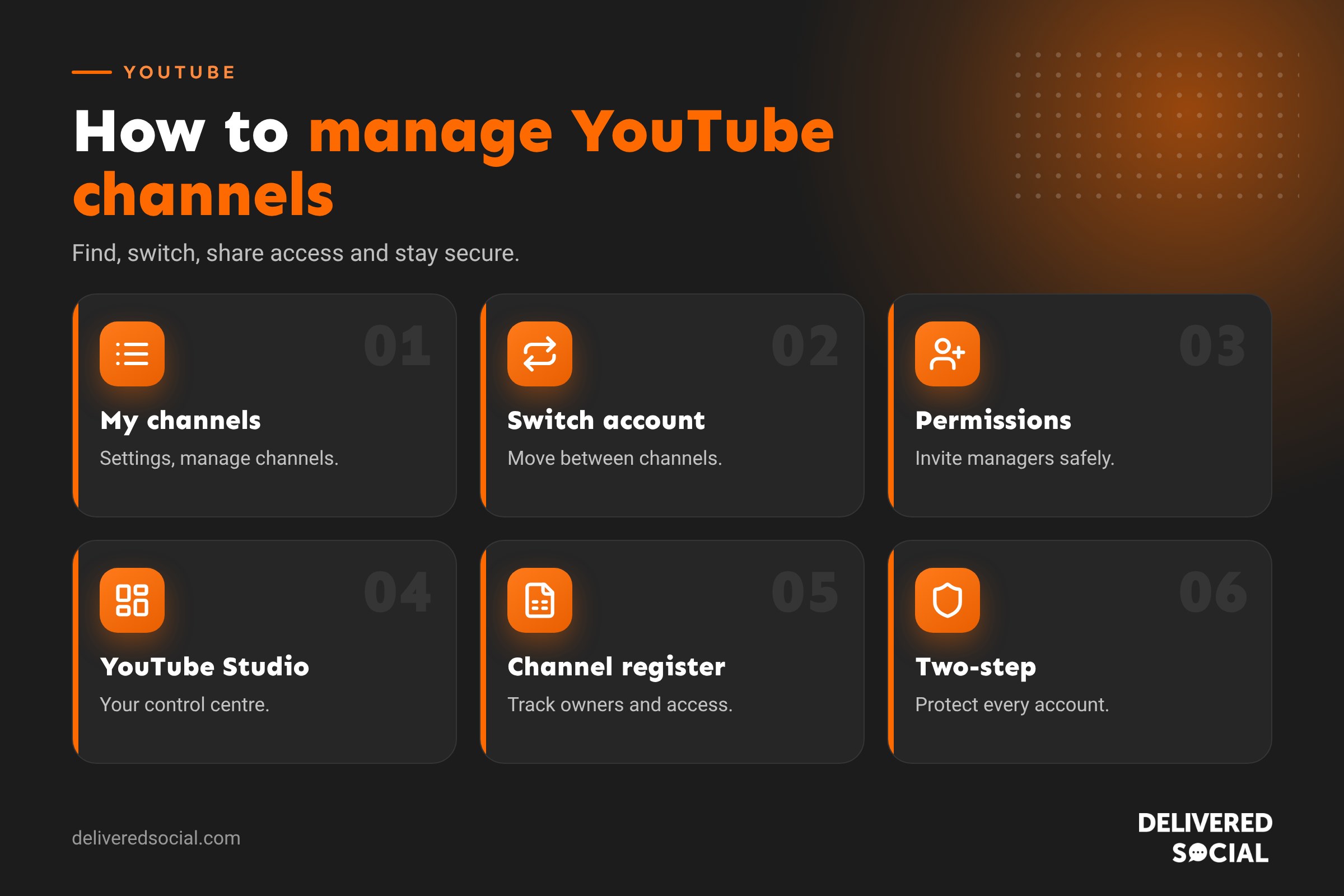
Whether you run one YouTube channel for your business or several for different brands, keeping on top of them can get messy. Which Google account owns which channel? Who has access? How do you switch between them without logging out? This guide explains how to find “my channels” on YouTube, create and switch between channels, add managers safely, use YouTube Studio to manage everything, and set up a simple routine so your channels keep growing without eating your week.
Personal channels vs brand channels
YouTube has two main kinds of channel:
| Personal channel | Brand channel | |
|---|---|---|
| Linked to | Your personal Google account | A Brand Account that can have several managers |
| Name | Usually your own name | Any name, such as your business |
| Access | Only you | Owners, managers and others you invite |
| Best for | Individuals and creators | Businesses and teams |
For businesses, a brand channel is almost always the better choice. It means you can give team members or an agency access without sharing your personal Google password, and you can transfer ownership if needed.
How to find “my channels” on YouTube
- Sign in to YouTube on a computer.
- Click your profile picture in the top right.
- Click Switch account to see all channels linked to your Google account.
- Or go to Settings, then Add or manage your channel(s), to see the full list.
On the app, tap your profile picture, then your channel name, then Switch account.
How to create a new YouTube channel for your business
- Sign in to YouTube with the Google account you want to manage it from.
- Go to Settings, then Add or manage your channel(s).
- Click Create a channel.
- Enter your business name. This creates a brand channel.
- Add a profile picture, banner, description and links.
How to switch between YouTube channels
- Computer: profile picture, then Switch account, then choose the channel.
- App: tap your profile picture, then tap your channel name, then choose a channel.
- YouTube Studio: click your profile picture and choose Switch account.
Always check which channel you’re using before commenting, uploading or replying, so you don’t post as the wrong account.
How to add managers to a YouTube channel
- Open YouTube Studio for the channel.
- Go to Settings, then Permissions.
- Click Invite, enter their email and choose a role.
- They accept the invitation by email.
| Role | What they can do |
|---|---|
| Owner | Everything, including managing permissions and deleting the channel |
| Manager | Edit, upload and manage most settings, and invite others |
| Editor | Edit and upload content, but not manage permissions |
| Editor (limited) | Edit content without seeing revenue data |
| Subtitle editor | Add and edit captions |
| Viewer | View the channel’s data without changing anything |
Give people the lowest role that lets them do their job, and remove access when they leave.
Managing channels in YouTube Studio
YouTube Studio (studio.youtube.com and the Studio app) is your control centre. From there you can:
- Upload and schedule videos and Shorts.
- Edit titles, descriptions, thumbnails, chapters and captions.
- Reply to and moderate comments.
- Check analytics for views, watch time and audience.
- Manage playlists and channel customisation.
- Set up monetisation if you’re eligible.
Running several channels: tips
- Keep a channel register: a simple spreadsheet listing each channel, its owner account, managers, login email and purpose.
- Use a shared business Google account as the primary owner, not a staff member’s personal account.
- Add at least two owners so you’re never locked out.
- Use consistent branding across channels if they belong to the same business.
- Batch your work: film, edit and schedule for each channel in dedicated sessions.
- Use a social media tool such as Metricool if you also manage other platforms, to schedule and report in one place.
Should you have more than one channel?
Usually not. One strong channel with clear playlists often beats several weak ones, because subscribers and watch time are concentrated in one place. Consider a second channel only if you have genuinely different audiences, such as a business channel and a separate training channel, or two distinct brands.
A weekly YouTube routine
- Monday: check analytics and comments from last week.
- Tuesday: plan topics based on customer questions and search ideas.
- Wednesday: film one long video and three Shorts.
- Thursday: edit, add captions, write titles and descriptions.
- Friday: schedule uploads and reply to comments.
Our YouTube Shorts tips can help you make the most of short videos.
Keeping your channels secure
- Turn on two-step verification on every Google account with access.
- Watch out for fake sponsorship emails with attachments or login links; they’re a common way channels get hacked.
- Review permissions every few months.
- Keep recovery email addresses and phone numbers up to date.
How to move or delete a channel
You can transfer a brand channel to a new owner by making them an owner in Permissions, then removing yourself once they’ve accepted. You can hide or delete a channel in YouTube Studio under Settings, then Channel, then Advanced settings. Deleting is permanent, so download any videos you want to keep first, and consider hiding the channel instead if you might need it again.
Optimising your channel page
Your channel page is often the first thing people see after watching a video. Make it work hard:
- Banner: say what you do and how often you post, and keep key text in the centre so it shows on every device.
- Profile picture: a clear logo or face that matches your other social profiles.
- Description: who the channel is for, what they’ll learn and where you’re based, with keywords.
- Links: your website, booking page and main social profiles.
- Featured video: a short introduction for new visitors.
- Playlists: organised by topic, shown as sections on your home tab.
Handling comments across channels
Comments are where your community grows, so don’t let them pile up. In YouTube Studio, the Comments section shows comments across all videos, and you can filter by unanswered. Set a routine, such as ten minutes a day, to reply, heart good comments and remove spam. Use comment moderation settings to hold potentially inappropriate comments for review and add blocked words. If you manage several channels, make sure each has someone responsible for replies.
Quick glossary
- Brand Account: a Google account type that lets several people manage a channel.
- YouTube Studio: the dashboard for managing your channel.
- Permissions: the roles and access levels for people on your channel.
- Switch account: moving between channels you manage.
Using YouTube Studio on your phone
The YouTube Studio app lets you manage your channel on the go. You can check analytics, reply to comments, edit titles and descriptions, change thumbnails, schedule videos and switch between channels you manage. It’s ideal for quick daily check-ins, while bigger tasks like editing and batch uploading are usually easier on a computer.
Organising content across multiple channels
If you do run more than one channel, keep a shared content calendar listing what’s going out on each channel and when. Use consistent naming for video files and thumbnails, store raw footage in a shared cloud folder, and keep brand assets such as logos, fonts and intro clips in one place. Good organisation stops content going to the wrong channel and makes it easy for anyone on the team to pick up where someone else left off.
Key takeaways
- Find all your channels via Switch account or Settings, then Add or manage your channels.
- Businesses should use brand channels with at least two owners.
- Add team members through Permissions in YouTube Studio, never by sharing passwords.
- Keep a register of channels, owners and managers.
- One strong channel usually beats several weak ones.
YouTube updates Studio menus from time to time, so if a setting has moved, search for it in YouTube Studio or the YouTube Help Centre.
A quick monthly channel check
Once a month, review who has access to each channel, check comments have been answered, look at your top videos and traffic sources, update playlists and your featured video, and make sure your banner and links still reflect your current offers. It takes about twenty minutes and keeps every channel in good shape.
Frequently asked questions
How do I see all my YouTube channels?
Click your profile picture and choose Switch account, or go to Settings, then Add or manage your channel(s).
Can I have more than one YouTube channel?
Yes. One Google account can manage several brand channels.
How do I give someone access to my YouTube channel?
In YouTube Studio, go to Settings, then Permissions, and invite them with the right role.
What is a YouTube brand channel?
A channel linked to a Brand Account, which several people can manage.
Can I transfer my YouTube channel to someone else?
Yes, by making them an owner of the brand channel and then removing yourself.
Want help running your YouTube channel?
We create and manage YouTube content for businesses across Surrey, Hampshire and the UK. Read our guide on whether YouTube is social media, see our social media management services or call us on 01483 608 303.































