



Keep reading
Rather we just did it for you?
Let's get your business seen.
Social media, websites, SEO and ads from a team you can actually meet.
You’re watching a Reel and want to read the text on screen, copy down a recipe or look closely at a product, but it keeps playing. Pausing Instagram videos used to mean holding your finger on the screen. Now there are easier ways. This guide explains how to pause Instagram Reels and videos on iPhone, Android and desktop, how to pause without holding, how to rewind and slow down Reels, and tips for creators who want viewers to stop and pay attention.
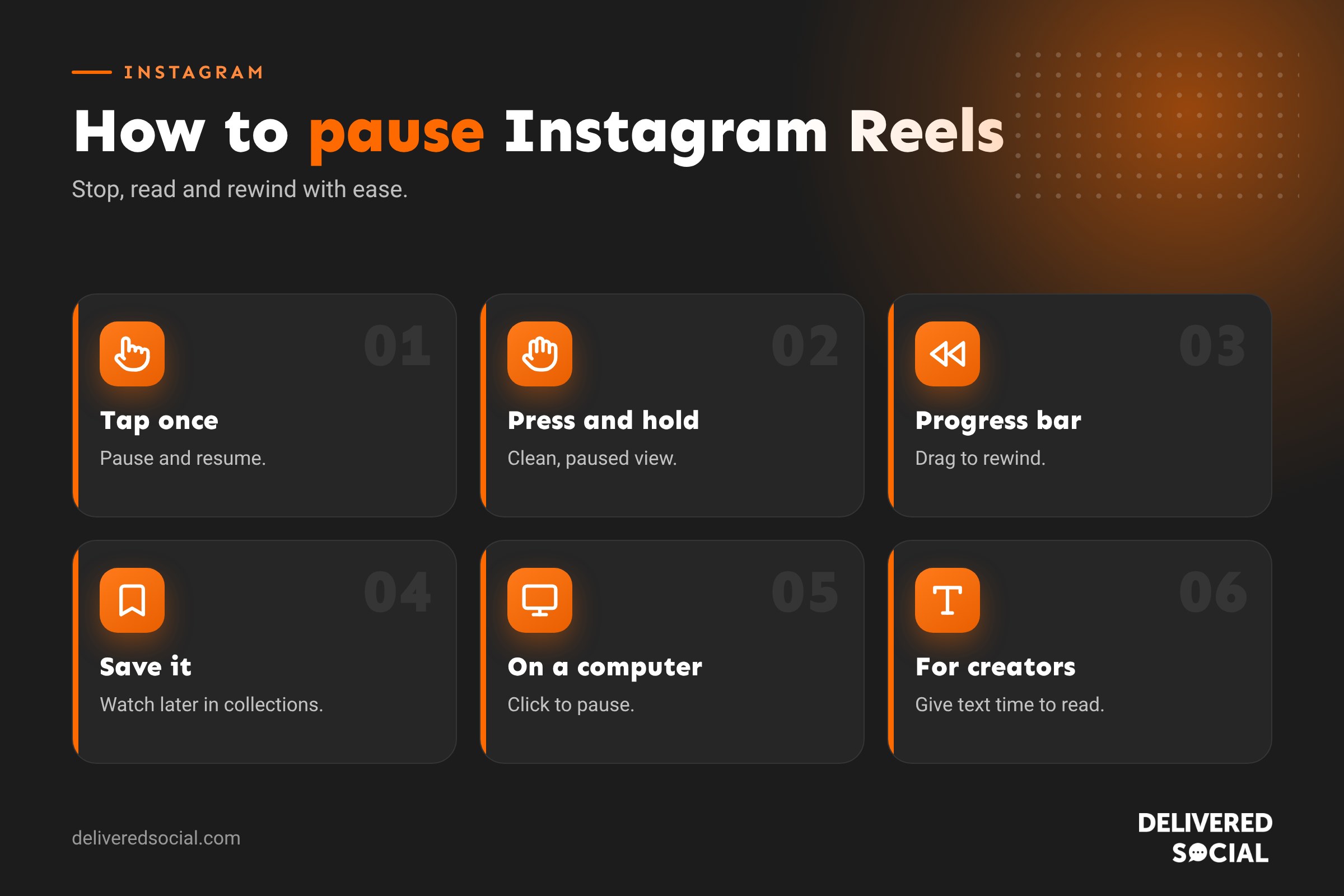
How to pause an Instagram Reel
Tap to pause
In 2026, Instagram introduced a one-tap pause for Reels. To pause:
- Open a Reel.
- Tap once in the middle of the screen. The Reel pauses and a play icon appears.
- Tap again to carry on watching.
If tapping mutes or unmutes the sound instead, your app may be on an older version. Update Instagram from the App Store or Google Play.
Press and hold to pause
The original method still works:
- Press and hold anywhere on the Reel. It pauses and the buttons disappear, so you get a clean view.
- Let go to carry on playing.
This is handy when you want a clean, uncluttered view of the screen, for example to read small text.
How to pause Instagram Reels without holding
If you want the Reel to stay paused while your hands are free:
- Use the one-tap pause described above. It stays paused until you tap again.
- Use the progress bar on longer Reels: drag the bar at the bottom to the moment you want, and the Reel stops there while you scrub.
- Take a screenshot if you need to keep the information, such as a recipe or product name.
- Save the Reel by tapping the bookmark icon, then watch it again later at your own pace.
How to pause videos in your Instagram feed
Videos in your home feed play automatically as you scroll. To pause one:
- Tap the video to open it in full screen as a Reel.
- Tap once to pause, or press and hold.
Scrolling past a video also stops it playing.
How to pause Instagram Stories
- Open a Story.
- Press and hold anywhere on the screen to pause.
- Let go to carry on.
To skip ahead, tap the right side. To go back, tap the left side. To move to the next person’s Stories, swipe left.
How to pause Instagram videos on a computer
- Go to instagram.com and open the Reel or video.
- Click the video to pause. Click again to play.
On a computer you can also use the space bar on some videos, and drag the progress bar to move through longer Reels.
How to rewind or skip through a Reel
Longer Reels show a progress bar at the bottom of the screen. Drag it left to rewind or right to skip ahead. On shorter Reels, the video simply loops, so wait for it to start again.
Can you slow down or speed up Reels?
Instagram has offered playback speed options on Reels for some users, letting you watch at faster or slower speeds. If you have the option, press and hold the Reel or tap the three dots to look for a speed setting. It’s useful for long tutorials, or for slowing down a quick demonstration.
Why won’t my Instagram Reel pause?
- Your app is out of date: update Instagram.
- Tapping changes the sound instead: on some versions, a single tap mutes. Use press and hold.
- A slow connection can make Reels stutter. Try Wi-Fi.
- The app is glitching: close and reopen it, or restart your phone.
- Accessibility settings on your phone, such as touch accommodations, may change how taps work.
How to stop Reels auto-playing
If you’d rather videos didn’t play automatically:
- Turn on Data saver or Use less mobile data in Instagram’s settings, which stops videos preloading.
- Mute videos by default so they don’t play sound in public.
- Use Your activity and Time spent settings to set daily reminders if you find yourself scrolling too long.
Tips for creators: make people stop and watch
If you post Reels for your business, think about why people pause: they want to read something, copy something or look closer. You can use that:
- Keep on-screen text on screen long enough to read, roughly one second per three or four words.
- Put key information in the caption too, such as prices, recipes or steps, so people don’t have to pause.
- Say “pause here” or “screenshot this” when showing a checklist or recipe. It encourages saves.
- Use clear, high-contrast text inside the safe zone, away from the bottom of the screen where buttons sit.
- Add a progress bar or chapter text to longer Reels so viewers know what’s coming.
- Encourage saves with valuable content. Saved Reels are a strong signal that people found your content useful.
Reel ideas people pause and save
- Recipes with ingredients on screen.
- Checklists, such as “five things to check before booking a builder”.
- Price guides or “what you get for your money”.
- Before and afters with a slow reveal.
- Step-by-step tutorials with numbered steps.
- Product close-ups showing detail and quality.
Accessibility and Reels
Pausing matters for accessibility. Some viewers need more time to read text or follow what’s happening. Adding captions, keeping text on screen long enough and avoiding fast flashing effects makes your Reels easier for everyone to enjoy, and tends to improve watch time too.
Pausing Reels on different devices
| Device | How to pause | How to resume |
|---|---|---|
| iPhone | Tap once or press and hold | Tap again or let go |
| Android | Tap once or press and hold | Tap again or let go |
| iPad and Android tablet | Tap once or press and hold | Tap again or let go |
| Computer | Click the video | Click again |
| Apple TV app | Use the play/pause button on the remote | Press again |
Instagram launched a free Apple TV app in October 2026, so you can now watch Reels on the big screen and pause them with your remote like any other video.
Saving Reels to watch later
If you don’t have time to watch something properly, save it:
- Tap the bookmark icon on the Reel, or tap Share and choose Save.
- Find it later on your profile under the menu, then Saved.
- Create collections such as “Recipes”, “Ideas” or “Competitors” to keep things organised.
Business owners often use saved collections to gather content ideas and examples of Reels they’d like to recreate.
Downloading your own Reels
To keep a copy of a Reel you’ve posted, open it, tap the three dots and choose Download or Save to camera roll. You can then watch it offline, edit it or share it on other platforms. Downloading other people’s Reels is only possible where they’ve allowed it, and you should always ask permission and credit them before reposting.
Watching Reels with captions
Many Reels now have automatic captions. Tap the three dots and turn on captions if they’re available, or look for the CC icon. Captions are especially helpful when you’ve paused to read along or you’re watching without sound. If you create Reels, turning on captions makes your content accessible to more people and helps viewers follow along in noisy places.
Watching Reels with less distraction
If you find yourself swiping endlessly, Instagram has tools to help. You can set a daily time limit, turn on reminders to take a break, and use Quiet mode to pause notifications. For businesses, it’s worth scheduling short, focused sessions for research, such as fifteen minutes looking at Reels in your industry, saving the best ideas to a collection, then closing the app and getting on with filming your own.
Key takeaways
- Tap once or press and hold to pause a Reel.
- Drag the progress bar on longer Reels to rewind or skip.
- Save Reels to collections to watch properly later.
- If you create Reels, keep text on screen long enough to read and put key details in the caption.
Social platforms change their menus and features regularly, so it is worth checking the settings mentioned in this guide every few months to make sure everything still works the way you want it to.
Frequently asked questions
How do you pause an Instagram Reel?
Tap once in the middle of the Reel, or press and hold the screen.
How do I pause Instagram Reels without holding?
Use the one-tap pause. Update the app if it isn’t working.
Can you rewind an Instagram Reel?
Yes, on longer Reels drag the progress bar at the bottom of the screen.
How do I pause Instagram videos on a laptop?
Click the video to pause and click again to play.
Why does tapping mute my Reel instead of pausing?
Your app version may use tap to mute. Update the app or press and hold to pause.
Want Reels that make people stop scrolling?
We plan, film and edit Reels for businesses across Surrey, Hampshire and the UK. Read our guide to trending Instagram songs, see our social media management services or call us on 01483 608 303.































