



Keep reading
Rather we just did it for you?
Let's get your business seen.
Social media, websites, SEO and ads from a team you can actually meet.
Pinterest boards are where you save and organise ideas, and for businesses, they’re one of the main ways people discover your Pins. Well-named, well-organised boards help Pinterest understand your content and show it to the right people. This guide explains what Pinterest boards are, how to create and organise them, how to use group boards and sections, and how businesses can use boards to bring traffic to their website.
What is a Pinterest board?
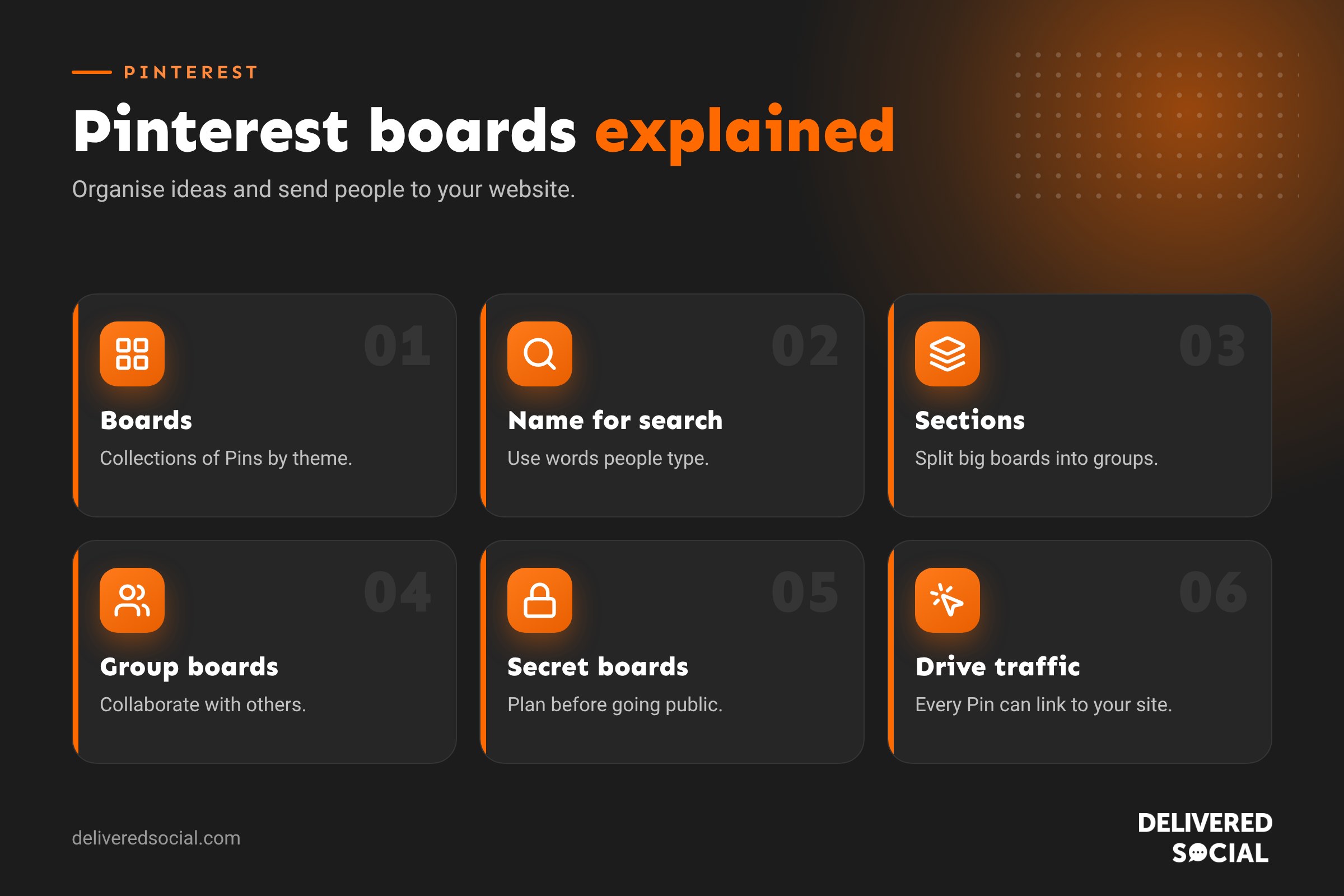
A board is a collection of Pins grouped around a theme, like a digital mood board or scrapbook. You might have boards called “Kitchen ideas”, “Winter recipes” or “Wedding flowers”. Each Pin links to a source, often a website, so boards act as a bridge between Pinterest and your site.
Boards can be public or secret, and you can invite others to collaborate on them.
Why boards matter for businesses
- They help Pinterest understand your content. Board names and descriptions are signals about what your Pins are about.
- They appear in search. People can find and follow boards that match their interests.
- They organise your profile so visitors can browse your products, services or advice by topic.
- They drive website traffic because Pins link back to your pages.
- They last. Pins can keep bringing visits for months or years, far longer than social media posts.
How to create a Pinterest board
On the app
- Tap your profile picture to go to your profile.
- Tap + and choose Board.
- Enter a board name.
- Choose whether to keep it secret, and add collaborators if you like.
- Tap Create.
On a computer
- Go to your profile on pinterest.com.
- Click +, then Board.
- Name it, set the privacy and click Create.
Once created, edit the board to add a description and a cover Pin.
Naming boards for search
Pinterest works like a visual search engine, so name boards the way people search:
| Weak board name | Better board name |
|---|---|
| Stuff I like | Small Kitchen Storage Ideas |
| Cakes!! | Birthday Cake Ideas for Kids |
| Our work | Garden Room Design Ideas |
| Tips | Small Business Marketing Tips |
Start typing ideas into Pinterest search and look at the suggestions to find the words people use. Then write a short board description that explains what the board contains, using those words naturally.
Board sections
Sections let you split a board into smaller groups. A “Wedding Ideas” board might have sections for flowers, cakes, dresses and venues. To add one, open the board, tap + or Add section, name it, and move Pins into it. Sections keep large boards tidy and help visitors find what they want.
Group boards and collaborators
Group (collaborative) boards let several people add Pins. They’re useful for:
- Teams sharing ideas for a project.
- Planning with clients, such as a wedding or a home renovation.
- Partnering with other businesses in your niche.
To invite collaborators, open the board, tap the invite or share option and choose people. Collaborators can add Pins, and you can control what else they’re allowed to do.
Secret boards
Secret boards are visible only to you and any collaborators. Use them for planning seasonal content, saving competitor inspiration, or collecting Pins before you’re ready to share a board publicly. You can make a secret board public at any time.
How many boards should a business have?
Quality matters more than quantity. Start with 5 to 10 boards that match your main products, services and the topics your customers care about. Each board should have plenty of relevant Pins before you make it public. A board with only two Pins looks unfinished.
Board ideas for different businesses
| Business | Board ideas |
|---|---|
| Interior designer | Living Room Ideas, Small Bathroom Design, Colour Schemes |
| Bakery | Celebration Cakes, Christmas Bakes, Afternoon Tea Ideas |
| Florist | Wedding Bouquets, Seasonal Flowers, Funeral Tributes |
| Hair salon | Balayage Ideas, Short Haircuts, Bridal Hair |
| Landscaper | Small Garden Ideas, Patio Designs, Low Maintenance Gardens |
| Marketing agency | Social Media Tips, Website Design Inspiration, Branding Ideas |
Tips for boards that bring in traffic
- Use a business account to get analytics and claim your website.
- Pin your own content regularly, with links to the right pages on your website.
- Mix in helpful Pins from others, so boards are genuinely useful.
- Use vertical images at 1000 x 1500 pixels (2:3), which display best.
- Write keyword-rich Pin titles and descriptions.
- Pin seasonal content early. People search for Christmas ideas from September.
- Organise your profile by moving your most important boards to the top.
Managing and tidying boards
- Rearrange boards on your profile so the most important appear first.
- Archive boards you no longer use; they’re hidden but not deleted.
- Merge boards that overlap, which moves all Pins into one board.
- Delete boards you definitely don’t need, along with their Pins.
How Pinterest is different from other social platforms
Pinterest is often grouped with social media, but people use it very differently. They come to plan: a new kitchen, a wedding, a garden, a birthday party or next week’s meals. That means they’re often earlier in the buying journey, collecting ideas they’ll act on later. For businesses, this is a big advantage. A helpful Pin can be saved, revisited and clicked months after you post it, and people arrive at your website already interested in what you offer.
| Why people visit | To plan and find ideas | To see updates and be entertained |
| Lifespan of content | Months or years | Days |
| Links to websites | Every Pin can link | Mainly bio and Stories |
| Discovery | Search and recommendations | Reels, Explore and follows |
Setting up a Pinterest business account
- Go to pinterest.com/business and sign up, or convert your personal account in settings.
- Add your business name, logo, a short description and your website.
- Claim your website by adding a small code or meta tag. This adds your logo to Pins from your site and unlocks website analytics.
- Install the Pinterest save button or tag on your website if you’d like visitors to save your content.
- Create your first five to ten boards, each with at least 10 to 15 relevant Pins.
Creating Pins for your boards
Every Pin you create should have:
- A tall, eye-catching image or video at 2:3 (1000 x 1500 pixels).
- A clear title using the words people search for.
- A helpful description of one or two sentences.
- A link to the most relevant page on your website.
- Text overlay on the image if it helps explain the idea, such as “5 small garden ideas”.
Fresh Pins, meaning new images even for the same web page, tend to perform better than repinning the same image repeatedly.
Measuring board performance
Pinterest Analytics shows impressions, saves, outbound clicks and engagement for your Pins and boards. Focus on outbound clicks (visits to your website) and saves, which show people want to come back to your idea. Check monthly which boards bring the most traffic and create more Pins for those topics.
Seasonal boards and planning ahead
Pinterest users plan early. People start searching for Christmas ideas in early autumn, summer holiday ideas in spring and wedding inspiration up to a year ahead. Create seasonal boards well in advance, pin to them regularly as the season approaches, then move them lower on your profile or archive them afterwards. Bring them back the following year with fresh Pins. Pinterest’s own trends tool shows what people are searching for and when interest peaks, which helps you time your Pins.
Common board mistakes
- Vague board names that don’t match searches.
- Boards with only a handful of Pins.
- Pins that link to your home page instead of the relevant page.
- Mixing unrelated topics in one board.
- Pinning in bursts, then nothing for months.
Boards and your wider marketing
Pinterest works best alongside your website and blog. Every helpful blog post, product page or project case study can become several Pins, each linking back to your site. In turn, adding a Pinterest save button to your website makes it easy for visitors to pin your images to their own boards, spreading your content further. If you already write a blog, Pinterest is one of the easiest ways to get more value from each post.
Whatever you decide, take a few minutes to review the settings mentioned in this guide every few months. Social platforms change their menus and features regularly, and a quick check keeps your account working the way you want it to.
Frequently asked questions
How many boards can I have on Pinterest?
Pinterest allows a large number of boards per account, far more than most businesses need.
Can people see my secret boards?
No, only you and anyone you invite.
Can I move Pins between boards?
Yes. Open a board, select Pins and move them, or edit an individual Pin and change its board.
Do board names help SEO?
Yes. Clear, descriptive board names and descriptions help Pinterest show your Pins in relevant searches.
Want Pinterest to send you more visitors?
We help small businesses across Surrey, Hampshire and the UK use Pinterest and social media to bring traffic to their websites. See our social media services or call us on 01483 608 303.































