

Keep reading
Rather we just did it for you?
Let's get your business seen.
Social media, websites, SEO and ads from a team you can actually meet.
Whether you’re taking a break, closing an old business account or leaving social media for good, Instagram lets you either deactivate your account for a while or delete it permanently. This guide explains how to delete your Instagram account, how to deactivate it instead, what happens to your photos and messages, and what to do first so you don’t lose anything important.
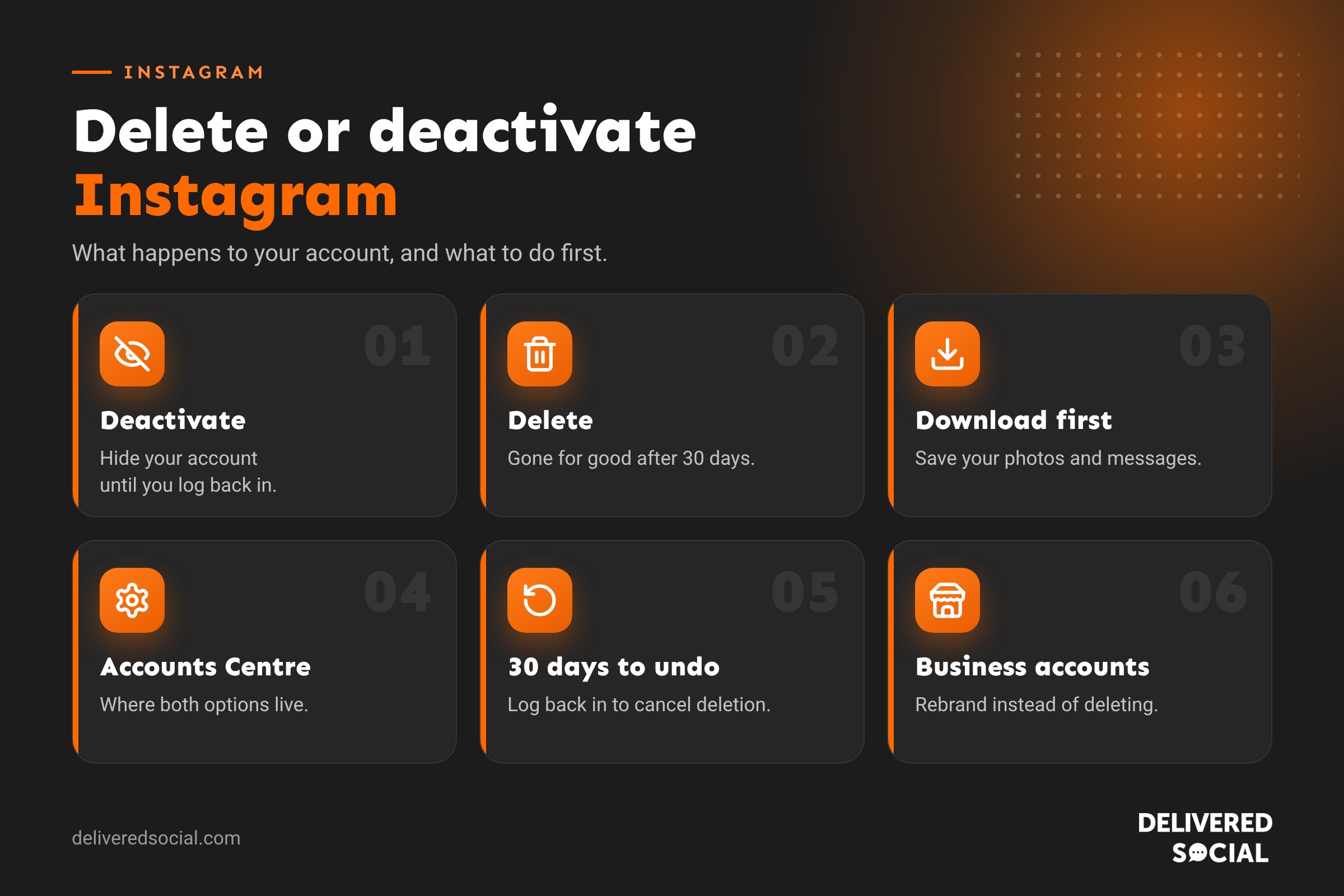
Deactivate or delete: what’s the difference?
| Deactivate | Delete | |
|---|---|---|
| Profile visible? | No, hidden until you log back in | No, removed for good |
| Photos, videos and comments | Kept but hidden | Permanently deleted |
| Followers | Kept | Lost |
| Can you come back? | Yes, just log in | Only within 30 days of requesting deletion |
| Username | Stays yours | May become available to others |
| How often | Limited to about once a week | Once |
If you’re not completely sure, deactivate first. You can always delete later.
Before you delete: download your data
Once your account is deleted, your photos, videos, messages and comments are gone. Download a copy first:
- Go to your profile, tap the three lines at the top right and open Accounts Centre.
- Tap Your information and permissions, then Download your information.
- Choose your Instagram account, then pick everything or just the types of information you want.
- Choose where to send it (your device or a cloud service), the date range and the format. HTML is easiest to browse; JSON suits other apps.
- Instagram will notify you when the download is ready. It can take from a few minutes to a few days.
For a business account, also save your customer messages, any important comments and your Insights data, as these won’t be recoverable.
How to delete your Instagram account on the app
- Open Instagram and go to your profile.
- Tap the three lines at the top right, then Accounts Centre.
- Tap Personal details, then Account ownership and control.
- Tap Deactivation or deletion and choose the account.
- Select Delete account and tap Continue.
- Choose a reason, enter your password and confirm.
How to delete your Instagram account on a computer
- Log in at instagram.com.
- Click More at the bottom left, then Settings, then Accounts Centre.
- Click Personal details, then Account ownership and control.
- Click Deactivation or deletion, choose the account and select Delete account.
- Follow the steps to confirm.
How to deactivate your Instagram account
Follow the same steps as above, but choose Deactivate account instead of Delete. Your profile, photos, comments and likes are hidden until you reactivate by logging back in. You can usually only deactivate once a week, so don’t do it on a whim.
What happens after you delete your account?
- You have 30 days to change your mind. Your account is hidden straight away, but deletion isn’t permanent until 30 days have passed. Log back in within that time and choose to keep your account to cancel the deletion.
- After 30 days, it’s gone. Your profile, photos, videos, comments, likes and followers are permanently removed.
- Full removal takes a little longer. Meta says it can take up to 90 days from the start of deletion to remove everything from its systems, though your content isn’t visible during that time.
- Messages you’ve sent may still appear in other people’s inboxes.
- You can’t reuse the account. If you sign up again later, you’ll start from scratch with no followers.
- Linked accounts: deleting Instagram doesn’t delete your Facebook or Threads accounts, but check how Threads is linked in Accounts Centre before you delete.
Deleting a business Instagram account
If you’re closing a business or rebranding, think before you delete:
- Rebranding? You don’t need a new account. Change your username, name, profile picture and bio, and keep your followers.
- Selling the business? The account may be part of what you’re selling. Transfer access through Meta Business Suite rather than deleting it.
- Closing for good? Post a final message thanking customers and pointing them to any new business, then deactivate or delete.
- Running adverts? Stop any active campaigns and remove the account from Meta Business Suite and ad accounts first.
- Linked to a website or shop? Remove Instagram links and feeds from your website, email signature and Google Business Profile.
Alternatives to deleting Instagram
If you want a break rather than a goodbye, these options might suit you better:
- Set daily time limits in Settings, under Time management.
- Mute notifications or pause them for a few hours or days.
- Make your account private (personal accounts only) so only approved followers see your posts.
- Use Quiet mode to silence notifications and send auto-replies to messages.
- Remove followers or restrict people you don’t want to interact with.
- Delete the app from your phone but keep the account, and check it on a computer now and then.
- Hand it over: for businesses, let a team member or agency run it while you focus elsewhere.
Can’t delete your account?
- Forgotten password: reset it from the login screen first.
- Can’t log in at all: use the recovery steps at instagram.com/hacked if you think someone else has access.
- Account belongs to someone who has died: family members can ask Instagram to memorialise or remove it using the request forms in the Help Centre.
- Someone else has made an account pretending to be you: report it as impersonation through the Help Centre rather than trying to delete it.
Deleting vs deactivating: which should you choose?
Ask yourself three questions. Do you want your photos back one day? Might you want the same username again? Are there followers or customers you’d like to keep in touch with? If the answer to any of these is yes, deactivate rather than delete. Deactivation hides everything without losing anything, and you can come back simply by logging in.
Delete when you’re sure you want a clean break: an old account you no longer use, a business that has closed for good, or an account you want removed for privacy reasons. Even then, download your data first, and remember you have 30 days to change your mind.
A checklist before you delete
- Download your information from Accounts Centre and check the file opens.
- Save important messages, especially from customers or suppliers.
- Tell close followers or customers where else they can find you.
- Remove Instagram links from your website, emails, business cards and Google Business Profile.
- Disconnect the account from Meta Business Suite, scheduling tools and any apps that use your Instagram login.
- Cancel any paid subscriptions or Meta Verified linked to the account.
- Make sure you know your password, as you’ll need it to confirm.
Deleting a Threads profile linked to Instagram
Threads profiles are connected to Instagram accounts. You can deactivate or delete your Threads profile separately from its own settings. If you delete your Instagram account, check Meta’s current guidance in Accounts Centre first, because deleting Instagram may also affect the Threads profile connected to it. If you want to keep posting on Threads, deactivate Instagram instead of deleting it, or check the Threads settings before you go ahead.
Removing an account from your phone without deleting it
If you simply want an account off your phone, for example an old work account, you don’t need to delete it. Go to your profile, tap the three lines, scroll to Log out and choose the account to log out of. To stop it appearing on the login screen, remove its saved login information. The account stays live, and you can log back in whenever you need to.
Taking a break from Instagram for your wellbeing
Lots of people delete Instagram because it takes up too much time or affects how they feel. A break can help, but you might not need to lose your account. Try setting a daily limit, turning off notifications, unfollowing accounts that don’t make you feel good, using Quiet mode in the evenings, or moving the app off your home screen. If you run a business, scheduling your posts in advance means you can stay active without opening the app every day.
Frequently asked questions
How long does it take to delete an Instagram account?
Your account is hidden straight away and permanently deleted after 30 days. Meta can take up to 90 days to remove all your data from its systems.
Can I recover a deleted Instagram account?
Only within the first 30 days. Log in and choose to keep your account. After that, it can’t be recovered.
Can I get my username back after deleting?
Not reliably. Once your account is deleted, the username may be taken by someone else.
Does deleting Instagram delete my Facebook?
No. Your Facebook account stays, even if both are in the same Accounts Centre.
How do I delete one of several accounts?
In Accounts Centre, go to Deactivation or deletion and choose the specific account you want to remove.
Need a hand with your social media?
If you’re thinking of quitting because managing Instagram takes too much time, we can help. We plan and manage social media for small businesses across Surrey, Hampshire and the UK. See our social media services or call us on 01483 608 303.