



Keep reading
Rather we just did it for you?
Let's get your business seen.
Social media, websites, SEO and ads from a team you can actually meet.
Facebook Live lets you broadcast video in real time to your Page, profile, group or event, with viewers commenting and reacting as you go. For local businesses, it’s a simple way to show what you do, answer questions and build a relationship with your community. This guide explains how to go live on Facebook from your phone or computer, how to plan and promote a live video, the equipment you need, and ideas for using Facebook Live in your business.
What is Facebook Live?
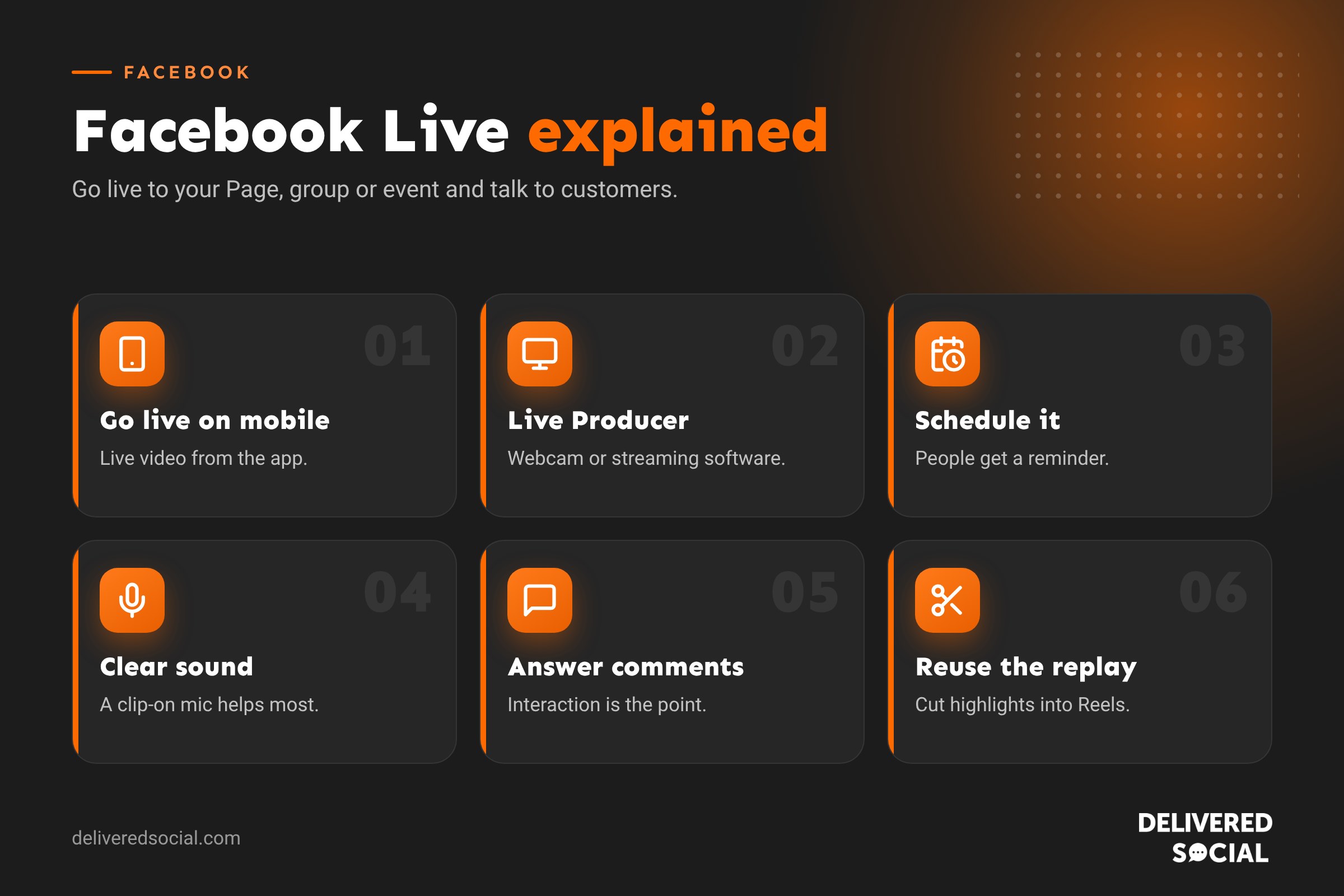
Facebook Live is Facebook’s live streaming feature. You can broadcast from a personal profile, a business Page, a group or an event. Followers may get a notification when you go live, and viewers can comment, react and share while you’re streaming. When you finish, the video is saved to your Page or profile so people can watch the replay.
Live videos can run for up to eight hours, though most business streams work best at 15 to 60 minutes.
Why use Facebook Live for your business?
- Real connection: people see and hear you, which builds trust quickly.
- Instant interaction: answer questions as they come in.
- Notifications: followers may be alerted when you go live.
- Low cost: all you need is a phone and a good connection.
- Reusable content: the replay stays on your Page and can be cut into Reels and clips.
- Community reach: going live in local groups or events can reach people nearby.
How to go live on Facebook from your phone
- Open the Facebook app. To go live as your business, switch to your Page profile first.
- Tap What’s on your mind? or the + button, then choose Live video.
- Allow access to your camera and microphone.
- Add a short description so viewers know what the live is about.
- Choose your audience if you’re on a personal profile.
- Tap Go live. Facebook counts down and you’re on air.
- Tap Finish when you’re done, and choose whether to post the replay.
How to go live on Facebook from a computer
- Go to your Page, or open Live Producer from the Live video option when creating a post.
- Choose Webcam to use your computer’s camera, or Streaming software to use a tool such as OBS Studio.
- For streaming software, copy the stream key and server URL into your software.
- Add a title and description, choose where to post, and check your settings.
- Click Go live.
Live Producer also lets you schedule a live video, add a cover image, invite co-hosts and manage comments.
How to schedule a Facebook Live
Scheduling creates an announcement post so people can get a reminder when you go live. In Live Producer or Meta Business Suite, choose to schedule your live video, set the date and time, add a title and image, and publish the announcement. Share it in your Stories, groups and email newsletter to build an audience before you start.
Equipment for better Facebook Live videos
| Item | Why it helps | Budget option |
|---|---|---|
| Microphone | Clear sound matters more than video quality | Clip-on wireless microphone for your phone |
| Lighting | Makes you look professional and reduces grain | Face a window, or use a small LED or ring light |
| Tripod | Keeps the picture steady | Phone tripod or stand |
| Internet | Prevents buffering and drops | Wired broadband or strong 4G or 5G |
| Streaming software | Adds graphics, multiple cameras and screen sharing | OBS Studio, which is free |
Planning a great Facebook Live
- Pick one clear topic, such as “Five ways to keep your boiler running this winter”.
- Write a simple running order: welcome, main content, questions, close.
- Test everything 10 minutes before: camera, sound, connection and light.
- Start with a hook so people who join stay.
- Welcome viewers by name as they arrive.
- Repeat the topic every few minutes for people joining late.
- Answer comments as you go, or save them for a Q&A section.
- End with one clear action, such as booking, visiting your website or coming to an event.
Facebook Live ideas for small businesses
- Q&A sessions: answer your customers’ most common questions.
- Behind the scenes: a tour of your kitchen, workshop, studio or office.
- Product demonstrations: show how something works and take questions.
- New stock reveals: great for shops and boutiques.
- Workshops: a mini cooking class, fitness session or craft tutorial.
- Interviews: chat with a customer, supplier or local partner.
- Events: launches, open days, charity fundraisers and celebrations.
- Live selling: showcase products and take orders through messages.
Going live with someone else
You can invite a guest to join your live video as a co-host or guest, depending on your setup. Collaborating with another local business or a customer doubles the audience and makes the conversation more interesting. Test the connection with your guest beforehand, and agree who will lead.
After your live video
- Edit the replay’s title and description, and add a custom thumbnail.
- Trim the start if there was a slow opening.
- Reply to comments left during and after the live.
- Cut the best moments into short Reels.
- Check your live video insights: peak viewers, minutes viewed and engagement.
Common Facebook Live problems
- Poor connection: move closer to the router, use a wired connection or lower the resolution.
- Nobody watching: schedule and promote in advance, and go live at a consistent time.
- Music muted: avoid playing copyrighted music in the background.
- Can’t go live from a Page: check you have the right Page access and that the Page isn’t restricted.
Going live in Facebook groups and events
You don’t have to broadcast only to your Page. Going live inside a Facebook group, such as a local community group, a customer group you run or an industry group, can reach a highly engaged audience. Check the group’s rules first, and ask the admin if you’re unsure whether live videos are welcome. For events, going live from the event page lets people who said they’re interested watch along, which works well for online launches and workshops.
Facebook Live vs other live platforms
| Platform | Best for |
|---|---|
| Facebook Live | Local communities, groups, older audiences, events |
| Instagram Live | Casual chats, collaborations, lifestyle brands |
| YouTube Live | Searchable replays, tutorials, longer streams |
| LinkedIn Live | Professional talks, webinars, B2B |
| TikTok LIVE | Younger audiences, entertainment, live selling |
Our guide to YouTube Live covers streaming on YouTube.
Managing comments during a live
- Ask a colleague to moderate, answer simple questions and remove spam.
- Pin an important comment, such as a link to book or your website.
- Use comment filters to hide offensive words.
- Read questions out loud before answering, so replay viewers can follow.
- Thank people who share the live video.
Measuring success
After your live, check the insights: peak live viewers, total views, average watch time, comments and shares. More importantly, track what happened next. Did people message you, book, visit your website or come to your event? Over several lives, look for the topics and times that bring the best response.
A simple monthly live plan
- Week 1: Q&A about your most common customer questions.
- Week 2: behind the scenes or a tour.
- Week 3: product demonstration or tutorial.
- Week 4: interview with a customer, supplier or partner.
Going live at the same day and time each week helps people remember to tune in.
Facebook Live checklist
- Topic and running order written down.
- Live scheduled and promoted at least a few days ahead.
- Phone or camera charged and on a tripod.
- Microphone tested and background noise minimised.
- Good light on your face, with a tidy background.
- Strong connection tested with a speed test.
- Moderator ready to help with comments.
- Clear call to action prepared for the end.
- Do Not Disturb switched on so calls don’t interrupt.
Running through this list before every live takes five minutes and prevents most of the problems that put people off going live again. Your first few lives may feel awkward, and that’s normal. Viewers value authenticity over polish, and you’ll grow more confident each time.
If you’re nervous, start with a short, low-pressure live, such as a five-minute “good morning from the shop” or a quick look at a new delivery. Once you’re comfortable, build up to longer Q&As and demonstrations.
Whatever you decide, take a few minutes to review the settings mentioned in this guide every few months. Social platforms change their menus and features regularly, and a quick check keeps your account working the way you want it to.
Frequently asked questions
Is Facebook Live free?
Yes. Going live on Facebook is free.
How long can a Facebook Live be?
Up to eight hours, though shorter streams are usually more engaging.
Can I go live on Facebook and Instagram at the same time?
Meta has offered ways to stream to both through Live Producer and third-party streaming tools. Check the options available in your account.
Do my followers get notified when I go live?
Often, yes, though Facebook decides who receives notifications based on their activity.
Want help with video for your business?
We help small businesses across Surrey, Hampshire and the UK plan and create video for Facebook, Instagram and YouTube. Read our guide to Facebook Reels, see our social media services or call us on 01483 608 303.































