



Keep reading
Rather we just did it for you?
Let's get your business seen.
Social media, websites, SEO and ads from a team you can actually meet.
YouTube Live lets you broadcast video in real time to anyone in the world, with viewers chatting and asking questions as you go. It’s used for everything from gaming and music to product launches, Q&As and events. This guide explains what YouTube Live is, how to go live on mobile and desktop, what equipment you need, and how small businesses can use live streaming to connect with customers.
What is YouTube Live?
YouTube Live is YouTube’s live streaming feature. Instead of uploading a finished video, you broadcast in real time. Viewers can watch, send messages in live chat, react and, on eligible channels, support you with Super Chat. When the stream ends, it can be saved to your channel as a normal video so people can watch it later.
Ways to go live on YouTube
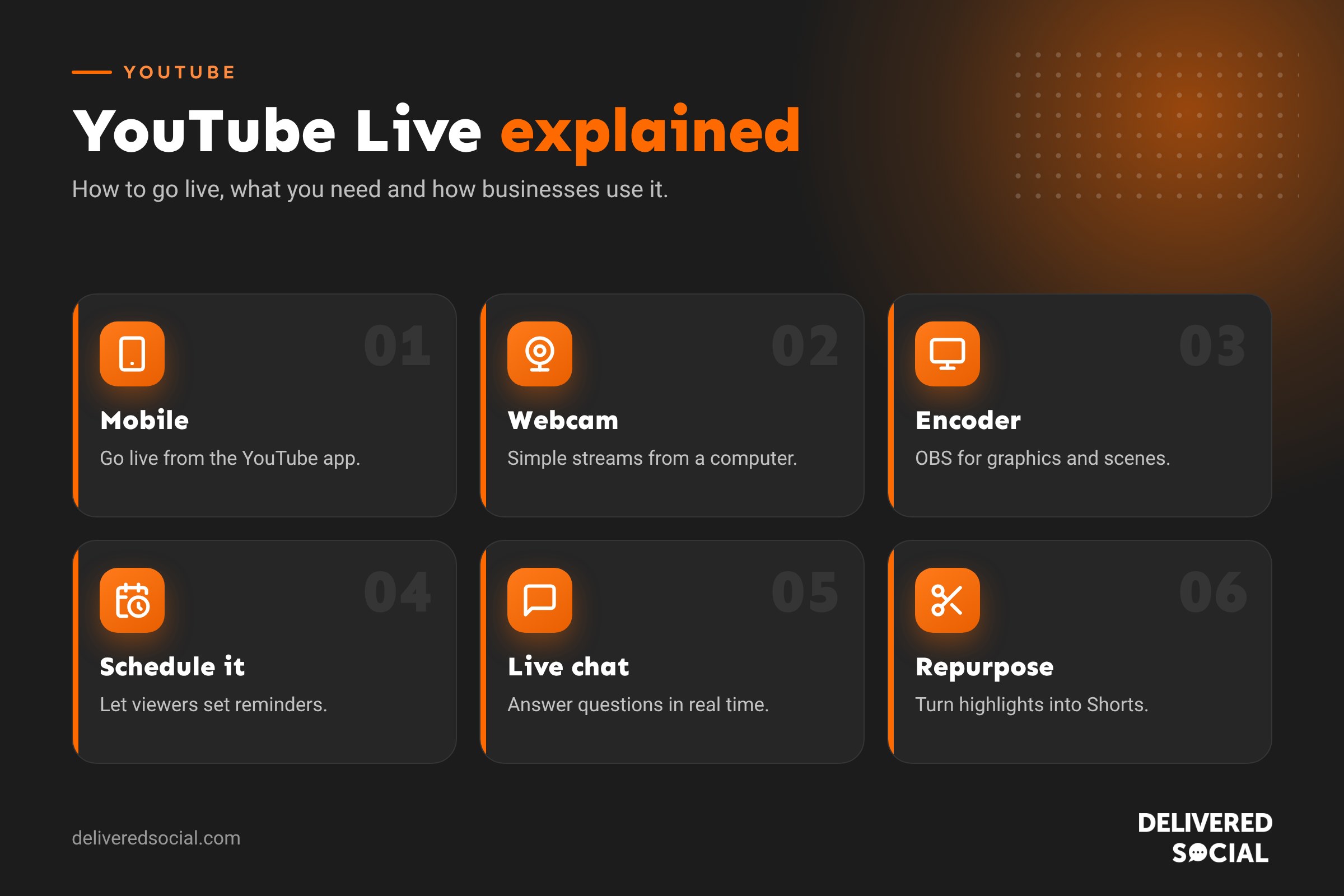
| Method | Best for | What you need |
|---|---|---|
| Mobile | Quick, casual streams, events on the go | The YouTube app on your phone |
| Webcam | Simple talks and Q&As from a computer | A computer with a webcam and microphone |
| Encoder (streaming software) | Professional streams with graphics, several cameras or screen sharing | Software such as OBS Studio or Streamlabs, or a hardware encoder |
YouTube Live requirements
- Verify your channel with a phone number.
- Enable live streaming in YouTube Studio. The first time, it can take up to 24 hours to switch on.
- No live streaming restrictions on your channel in the past 90 days.
- Mobile streaming has a minimum subscriber requirement, which YouTube has lowered over the years; check YouTube’s Help Centre for the current threshold. Webcam and encoder streaming don’t need a minimum number of subscribers.
How to go live on YouTube from your phone
- Open the YouTube app and tap Create (the + button).
- Tap Go live or Live.
- Allow access to your camera and microphone.
- Add a title, choose who can see it (public, unlisted or private) and set the audience.
- Choose whether to go live now or schedule for later.
- Take a thumbnail and tap Go live.
How to go live from a computer
- Go to youtube.com and click Create, then Go live. This opens YouTube Studio’s Live Control Room.
- Choose Webcam for a simple stream, or Stream to use streaming software.
- Add your title, description, thumbnail and audience settings.
- For streaming software, copy your stream key from YouTube Studio into OBS or similar.
- Check your camera, microphone and connection, then click Go live.
Equipment for better live streams
- A stable internet connection: wired broadband is more reliable than Wi-Fi. Run a speed test before you go live.
- A good microphone: people will tolerate average video but not bad audio. A USB or clip-on microphone is a big improvement.
- Light: face a window or use a simple ring light or LED panel.
- A camera: a modern phone or a webcam is fine to start. Many mirrorless cameras can also work as webcams.
- A tripod or stand to keep shots steady.
- Streaming software such as OBS Studio (free) if you want overlays, multiple scenes or screen sharing.
Scheduling a live stream
Scheduling a stream creates a public watch page in advance, so people can set a reminder and get notified when you go live. You can share the link on social media, in emails and on your website. Schedule streams from YouTube Studio by choosing Schedule stream and setting the date and time. Adding a trailer or eye-catching thumbnail helps build interest.
YouTube Live ideas for businesses
- Live Q&A: answer customer questions about your products or services.
- Product launches: show something new and take questions in real time.
- Demonstrations and workshops: cooking, crafts, DIY or software walkthroughs.
- Behind the scenes: a tour of your workshop, kitchen or office.
- Events: talks, open days, charity events and community gatherings.
- Interviews: chat with a customer, partner or local expert.
- Webinars: educational sessions that build trust and generate leads.
How to get more viewers
- Promote in advance on social media, email and your website.
- Use a clear title that says what people will learn or see.
- Create a strong thumbnail with a face and a few bold words.
- Go live at a consistent time so viewers know when to expect you.
- Welcome people by name and answer chat questions.
- Stream for long enough: at least 20 to 30 minutes gives people time to find and join.
- Repurpose afterwards: cut highlights into Shorts and social clips.
Managing live chat
Live chat makes streams interactive, but it needs looking after. In YouTube Studio you can add moderators, block words, hold potentially inappropriate messages for review, use slow mode to limit how often people can post, and restrict chat to subscribers. For business streams, ask a colleague to moderate so you can focus on presenting.
Making money from YouTube Live
Channels in the YouTube Partner Programme can earn from live streams through adverts, Super Chat and Super Stickers (viewers pay to highlight their messages), and channel memberships. For most small businesses, the value of live streaming is in building trust and winning customers rather than direct income.
Common YouTube Live problems
- Stream keeps buffering: lower the resolution or bitrate, or use a wired connection.
- No sound: check the correct microphone is selected in your software.
- Can’t go live: check live streaming is enabled and wait 24 hours if you’ve just turned it on.
- Copyright warnings: avoid playing music or video you don’t have rights to, as streams can be cut off.
Recommended live stream settings
If you’re using streaming software, these settings are a good starting point. YouTube’s Live Control Room also shows the stream health and warns you if anything is wrong.
| Resolution | Frame rate | Typical video bitrate | Upload speed to aim for |
|---|---|---|---|
| 720p | 30fps | Around 3 to 4 Mbps | At least 6 Mbps |
| 1080p | 30fps | Around 4.5 to 6 Mbps | At least 10 Mbps |
| 1080p | 60fps | Around 6 to 9 Mbps | At least 15 Mbps |
For most business streams, 720p or 1080p at 30fps looks great and is more reliable than pushing for the highest quality.
Planning a live stream: a simple running order
- Before you start (10 minutes): test camera, sound and connection; close other apps; put your phone on silent.
- Opening (2 to 3 minutes): welcome people, say what the stream is about and invite them to post questions.
- Main content (15 to 30 minutes): your demonstration, talk or interview, broken into clear sections.
- Q&A (10 minutes): answer questions from the chat.
- Close (2 minutes): thank viewers, share one clear next step such as visiting your website, and say when you’ll be live next.
Live stream vs pre-recorded video
| Live stream | Pre-recorded video | |
|---|---|---|
| Interaction | Real-time chat and questions | Comments afterwards |
| Polish | Raw and authentic | Edited and tight |
| Risk | Mistakes happen live | Mistakes can be cut |
| Best for | Q&As, events, launches, community | Tutorials, adverts, evergreen guides |
A good approach is to use live streams to build relationships, then turn the best moments into edited videos and Shorts.
Going live on other platforms
YouTube isn’t the only option. Facebook Live works well for local communities and groups, Instagram Live suits informal chats and collaborations, LinkedIn Live is ideal for professional talks and webinars, and TikTok LIVE reaches younger audiences. Choose the platform where your customers already spend time, or use a multistreaming tool to reach several at once.
Live streaming safely
- Don’t show personal information, addresses or screens with private details.
- Get permission from anyone who appears on camera, especially customers and children.
- Avoid playing copyrighted music in the background.
- Have a moderator ready to remove spam or abusive messages.
After the stream: making the most of it
- Edit the replay: trim the waiting time at the start and add chapters to the description.
- Add a custom thumbnail so the replay looks inviting on your channel.
- Cut highlights into Shorts, Reels and TikToks.
- Share the replay by email and on social media for people who missed it.
- Check analytics: peak viewers, average watch time and chat activity show what worked.
- Answer unanswered questions from the chat in the comments or a follow-up video.
A single live stream can provide content for weeks if you repurpose it well.
Start small with a 20-minute Q&A on your phone, learn from it, and build up from there.
Frequently asked questions
Is YouTube Live free?
Yes. Live streaming on YouTube is free.
Can I save my live stream?
Yes. Streams under 12 hours are archived automatically and appear on your channel, where you can edit or delete them.
How long can a YouTube live stream be?
Streams can run for many hours. Streams longer than 12 hours may not be fully archived.
Can I stream to YouTube and other platforms at once?
Yes, using multistreaming tools such as Restream or streaming software that supports several destinations.
Want help with video for your business?
We help small businesses across Surrey, Hampshire and the UK plan video content for YouTube and social media. Read our guide to what YouTube is and how businesses use it, see our social media services or call us on 01483 608 303.































