



Keep reading
Rather we just did it for you?
Let's get your business seen.
Social media, websites, SEO and ads from a team you can actually meet.
Started a post or Reel on Instagram but not ready to share it yet? Instagram lets you save drafts so you can come back and finish later. This guide explains how to save drafts on Instagram, where to find them, how to edit or delete them, and how to plan content ahead so you’re never scrambling for something to post.
What are Instagram drafts?
A draft is a post or Reel you’ve started creating but haven’t published. Instagram saves your photos or video, edits, caption and settings so you can return to it later. Drafts are private: nobody else can see them.
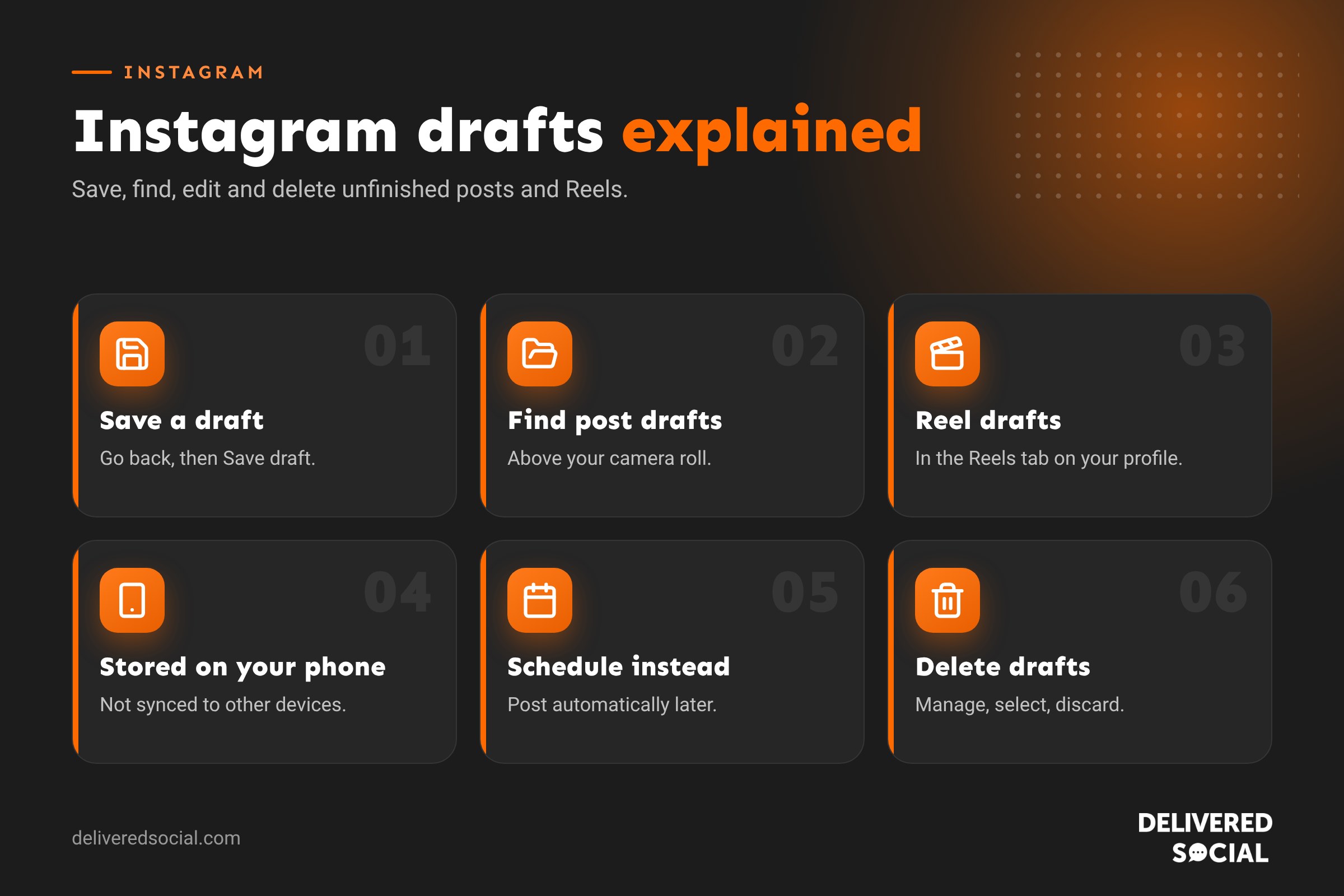
Drafts are stored on your device rather than in your account, so they won’t appear if you log in on a different phone, and they may be lost if you delete the app.
How to save a post as a draft
- Tap the + button and choose Post.
- Select your photos or videos and tap Next.
- Edit them and add your caption, tags and location if you like.
- Tap the back arrow at the top left until Instagram asks what you want to do.
- Tap Save draft.
How to save a Reel as a draft
- Tap + and choose Reel.
- Record or upload your clips and edit them.
- Tap Next to reach the sharing screen.
- Tap Save draft at the bottom of the screen.
You can also go back from the editor and choose Save draft when prompted.
Where to find your Instagram drafts
| Draft type | Where to find it |
|---|---|
| Post drafts | Tap +, choose Post, and look for Drafts above your camera roll (or tap Manage) |
| Reel drafts | Go to your profile, open the Reels tab and tap Drafts, or tap + then Reel and open Drafts |
| Story drafts | When you leave a Story you’re editing, choose Save draft; find it in the Story camera’s camera roll |
Instagram’s layout changes from time to time, so the exact location can vary slightly between app versions.
How to edit a draft
- Open your drafts using the steps above.
- Tap the draft you want to finish.
- Make your changes to the media, edits or caption.
- Tap Share to post it, or save it again as a draft.
How to delete drafts
- Open your drafts.
- Tap Manage or Select.
- Choose the drafts you want to remove.
- Tap Discard or Delete and confirm.
Deleted drafts can’t be recovered, so make sure you’ve saved any photos or videos you want to keep.
How long do Instagram drafts last?
Drafts don’t have a fixed expiry date, but they’re not a reliable long-term store. Because they live on your device, you can lose them if you:
- Delete and reinstall the app.
- Log out and back in, in some cases.
- Switch to a new phone.
- Clear the app’s data or storage.
Some Reel drafts may also be removed if the original clips are deleted from your camera roll. Keep a copy of important media elsewhere.
Drafts vs scheduling vs archive
| Feature | What it does | Visible to others? |
|---|---|---|
| Draft | Saves an unfinished post on your device | No |
| Scheduled post | Publishes automatically at a chosen time | Only once published |
| Archive | Hides a published post from your profile | No, until restored |
| Trial Reel | Shares a Reel with non-followers first | Yes, to non-followers |
How to schedule Instagram posts instead
If you’re saving drafts because you want to post at a better time, scheduling may be more useful. Professional accounts can schedule posts and Reels in the app:
- Create your post or Reel as normal.
- On the final screen, tap More options (or Advanced settings).
- Turn on Schedule this post and choose a date and time.
- Tap Schedule.
You can also schedule posts from Meta Business Suite on a computer, or with tools such as Metricool, which let you plan content across several platforms in one calendar.
Drafts on a computer
Instagram on the web doesn’t currently support drafts in the same way as the app. If you prefer to create content on a computer, use Meta Business Suite or a scheduling tool to save posts and schedule them for later. These also store your content online rather than on one device, so it won’t be lost if you change phones.
A simple content planning routine
- Plan monthly: list key dates, offers and topics.
- Create in batches: film several Reels and take photos in one session.
- Edit and write captions in one sitting.
- Schedule the month’s main posts, leaving gaps for timely content.
- Use drafts for ideas you’re still working on.
- Review results at the end of the month and plan the next.
Batching saves time and keeps your feed consistent, even in your busiest weeks.
Common draft problems
- Can’t find drafts: make sure you’re on the same device and account you created them on.
- Drafts disappeared: they may have been lost after an app update, reinstall or phone change.
- Draft won’t open: the original media may have been deleted from your phone.
- No save draft option: update the app and try going back from the edit screen.
Saving Story drafts
Stories can be saved as drafts too. If you start creating a Story and tap the back arrow or close it, Instagram asks whether you want to discard it or save a draft. Saved Story drafts can be found when you open the Story camera, often shown at the start of your camera roll. Like other drafts, they’re stored on your device and may be cleared after a period of time or if the app is reinstalled, so finish them soon.
If you want to keep a Story you’ve already posted, that’s different: turn on Save story to archive in your settings, or add it to a Highlight.
Using drafts as a content bank
Drafts work best as a short-term holding area. Some ways businesses use them well:
- Capture ideas on the spot: film a quick clip at a job or event and save it to finish later.
- Prepare seasonal posts: draft Christmas or summer content when you have time, then polish closer to the date.
- Get approval: create a Reel, save it, then show a colleague before posting.
- Prepare a reply to a trend: keep a half-finished Reel ready to adapt when the moment is right.
For anything you’ll need in more than a week or two, store the finished media somewhere safer, such as a shared folder or a scheduling tool.
Writing captions in advance
Captions often take longer than the photo or video itself. Many people write captions in a notes app or a shared document first, then paste them into Instagram. It’s easier to check spelling, reuse good phrases and get feedback. Keep a list of your best-performing hooks, calls to action and hashtags so you’re not starting from scratch each time.
Drafts for teams
Because drafts are stored on one phone, they don’t work well for teams. If several people create content for your business, use a shared tool instead:
| Tool | How it helps |
|---|---|
| Meta Business Suite | Create, save and schedule Instagram and Facebook posts from any device |
| Metricool | Shared planner, approvals and scheduling across many platforms |
| Canva | Shared designs and templates, with direct scheduling for some platforms |
| Shared drives | A central place for photos, videos and caption documents |
Checklist before you publish a draft
- Is the photo or video still relevant and up to date?
- Have you checked spelling, prices and dates in the caption?
- Are the right people and locations tagged?
- Is the cover image right for your profile grid?
- Have you added captions to any Reels?
- Is this the best time to post for your audience?
Archiving instead of deleting
If you’ve already posted something and want it off your profile without losing it, use Archive rather than delete. Open the post, tap the three dots and choose Archive. It disappears from your grid but keeps its likes and comments, and you can restore it at any time from the Archive in your profile menu. It’s a handy way to tidy your grid, hide seasonal offers once they’ve ended or temporarily remove a post while you check something, without losing the engagement it earned.
Between drafts, scheduling and the archive, you have everything you need to plan Instagram content calmly and keep your profile looking exactly how you want it.
Frequently asked questions
Can other people see my Instagram drafts?
No. Drafts are private and stored on your device.
Can I access my drafts on another phone?
No. Drafts stay on the device where you created them. Use a scheduling tool if you need content available on several devices.
How many drafts can I save?
Instagram doesn’t publish a firm limit, but keeping your drafts tidy makes them easier to manage.
Do drafts affect my reach?
No. Saving a draft has no effect on how your published content performs.
Want your Instagram planned in advance?
We plan, create and schedule Instagram content for small businesses across Surrey, Hampshire and the UK, so you’re never short of something to post. See our social media services or call us on 01483 608 303.































