



Keep reading
Rather we just did it for you?
Let's get your business seen.
Social media, websites, SEO and ads from a team you can actually meet.
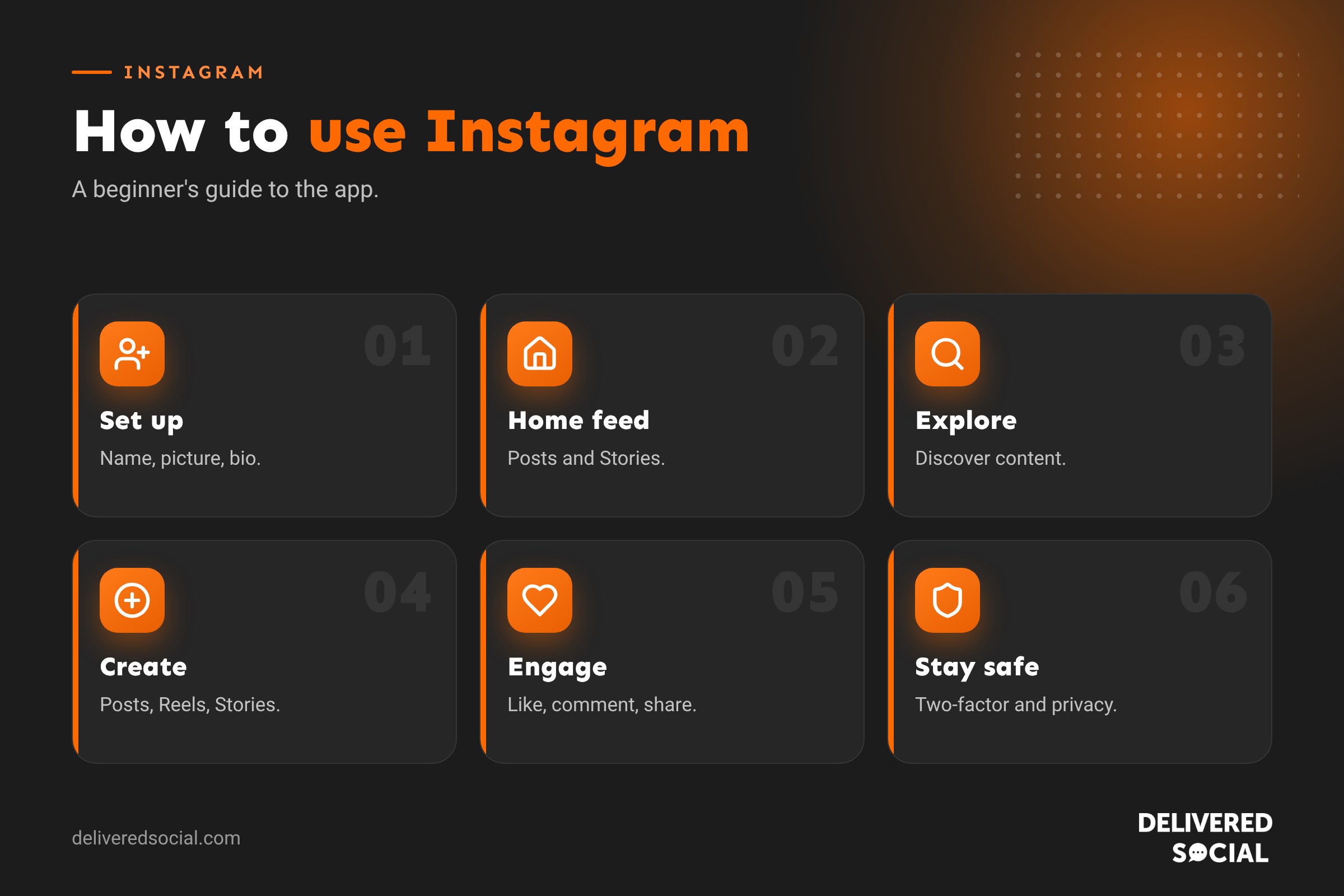
New to Instagram, or finally setting it up for your business? Instagram can feel confusing at first, with its feed, Reels, Stories, Explore page and endless buttons. This beginner’s guide explains how to use Instagram step by step: setting up your account, finding your way around the app, posting your first photos and videos, using Stories and Reels, growing your followers and staying safe, with extra tips if you’re using Instagram for business.
What is Instagram?
Instagram is a free app owned by Meta for sharing photos and videos. People follow friends, family, creators and businesses, like and comment on posts, watch short videos called Reels, post disappearing Stories and send direct messages. It’s one of the most popular social media apps in the UK and a powerful way for businesses to reach customers.
How to set up an Instagram account
- Download Instagram from the App Store or Google Play.
- Tap Create new account.
- Enter your mobile number or email address.
- Choose a username (your @handle) and a password.
- Add your name and profile picture.
- Write a short bio about yourself or your business.
- Follow a few accounts to fill your feed.
For a business, switch to a professional account in Settings. It’s free and unlocks Insights, contact buttons and ads. Our Instagram bio ideas can help you write a great bio.
Finding your way around Instagram
| Screen | What it does |
|---|---|
| Home (house icon) | Your feed of posts from people you follow and suggestions, with Stories at the top |
| Search and Explore (magnifying glass) | Search for people, places and topics, and discover new content |
| Create (+) | Post photos, videos, Reels, Stories or go live |
| Reels (play icon) | A swipeable feed of short videos |
| Profile (your picture) | Your posts, bio, followers and settings |
| Messages (paper plane or speech bubble) | Direct messages and chats |
| Notifications (heart) | Likes, comments and new followers |
Instagram changes its layout from time to time, so icons may move, but these main areas stay the same.
How to post a photo on Instagram
- Tap + and choose Post.
- Select a photo (or several, for a carousel).
- Crop, add a filter or edit brightness and colour.
- Tap Next and write a caption.
- Tag people, add a location and music if you like.
- Tap Share.
How to post Stories
Stories are photos and videos that disappear after 24 hours. Tap +, then Story, take or choose a photo or video, add text, stickers or music, and tap Your story. You can save your best Stories as Highlights on your profile so they stay visible.
How to post Reels
Reels are short vertical videos and the best way to reach people who don’t follow you yet. Tap +, then Reel, record or upload clips, add music and text, write a caption and share. Our guide on posting videos on Instagram has step-by-step details.
How to follow, like, comment and share
- Follow: tap Follow on someone’s profile to see their posts.
- Like: double-tap a post or tap the heart.
- Comment: tap the speech bubble and type your comment.
- Share: tap the paper plane to send a post to a friend or add it to your Story.
- Save: tap the bookmark to save posts privately for later.
Understanding hashtags and tags
- Hashtags (#gardening) group posts by topic so people can find them. Use a few relevant ones.
- Tags (@username) mention another account in a caption, comment or photo.
- Location tags show where a post was taken, helping local people find you.
How to grow your followers as a beginner
- Complete your profile with a clear picture, name and bio.
- Post regularly, a few times a week.
- Try Reels, which reach non-followers.
- Write helpful captions with words people search for.
- Engage with others: comment on posts from people and businesses you like.
- Reply to comments and messages.
- Share to Stories to keep followers engaged.
- Never buy followers. Fake followers hurt your reach.
Instagram privacy and safety settings
- Private account: only approved followers see your posts (not suitable for businesses).
- Two-factor authentication: protects your account from hackers.
- Hidden Words: filters offensive comments and messages.
- Restrict, mute and block: control who can interact with you.
- Close Friends: share some Stories with a smaller group.
Our guide on muting someone on Instagram explains these options.
Using Instagram for business: the basics
- Switch to a professional account for Insights and contact buttons.
- Add your website, contact details and location.
- Post a mix of Reels, carousels, photos and Stories.
- Show real people and real work rather than stock images.
- Use Highlights for services, reviews, prices and FAQs.
- Check Insights monthly to see what’s working.
- Try boosting your best posts to local audiences.
Common beginner mistakes
- Posting once and then disappearing for months.
- Using too many hashtags instead of a clear caption.
- Low-quality, dark or blurry photos.
- Ignoring comments and messages.
- Following thousands of accounts quickly, which can trigger limits.
- Clicking suspicious links in DMs, a common route to hacked accounts.
Your first two weeks on Instagram: a simple plan
- Day 1: set up your profile, picture and bio, and switch to a professional account if you’re a business.
- Day 2: follow 30 accounts you’re genuinely interested in, including local businesses and customers.
- Day 3: post your first photo introducing yourself or your business.
- Days 4 to 7: post a Story each day and comment on five posts from others.
- Day 8: make your first Reel, even a simple 10-second clip.
- Days 9 to 13: post two more photos or carousels and keep up daily Stories.
- Day 14: check your Insights and see what people responded to.
By the end of two weeks you’ll feel comfortable with the app and have a feel for what your audience enjoys.
Taking better photos for Instagram
- Use natural light from a window, and avoid harsh overhead lighting.
- Clean your lens before taking photos.
- Tap to focus on your subject.
- Use the grid lines in your camera settings to keep things straight.
- Keep backgrounds simple so your subject stands out.
- Shoot vertically for Stories and Reels, and in 4:5 for feed posts.
Instagram etiquette
Be friendly and genuine in comments, credit other people when you share their content, ask before posting photos of customers or staff, and avoid following and unfollowing people just to get attention. Good manners build a positive reputation, which matters even more when you’re representing a business.
Quick glossary
- Feed: the scrolling stream of posts.
- Grid: the posts shown on your profile.
- DM: a direct, private message.
- Explore: Instagram’s discovery page.
- Highlights: saved Stories on your profile.
- Professional account: a free business or creator account.
Understanding Instagram notifications
Notifications tell you when people like, comment, follow, mention or message you. Too many can be distracting, so customise them in Settings, then Notifications. Many business owners keep comments, messages and mentions on, but turn off likes and suggestions, so they only get alerted to things that need a reply.
How to switch between accounts
If you have a personal account and a business account, you can add both to the app and switch between them by tapping your username at the top of your profile. Always check which account you’re using before posting or commenting, so business posts don’t go out from your personal profile.
Key takeaways
- Set up your account with a clear name, picture and bio.
- Learn the five main screens: Home, Search, Create, Reels and Profile.
- Use posts, Stories and Reels for different jobs.
- Engage with others and post consistently to grow.
- Switch to a professional account if you’re a business.
Getting help with Instagram
If you get stuck, Instagram’s Help Centre (in Settings, then Help) explains most features step by step. For account problems, such as being locked out or hacked, use the official recovery options in the app rather than any website or person offering to “recover” your account for a fee, as these are often scams.
Most importantly, enjoy it. Instagram works best when you share things you are genuinely proud of, from finished work to small everyday moments.
Have fun with it.
Frequently asked questions
How do I use Instagram for the first time?
Download the app, create an account, add a profile picture and bio, follow some accounts and post your first photo.
Is Instagram free?
Yes. Instagram is free to use; ads and some subscriptions are optional extras.
What is the difference between a post, a Story and a Reel?
Posts stay on your profile, Stories disappear after 24 hours, and Reels are short videos designed to reach new people.
Should my business be on Instagram?
If your customers use it and your business is visual or local, it’s well worth it.
How often should I post on Instagram?
A few times a week is a good start, plus regular Stories.
Want help getting started on Instagram?
We set up and manage Instagram for businesses across Surrey, Hampshire and the UK. See our social media management services or call us on 01483 608 303.































