



Keep reading
Rather we just did it for you?
Let's get your business seen.
Social media, websites, SEO and ads from a team you can actually meet.
You need to update your website, but you can’t remember how to get into it. It’s one of the most common questions business owners ask about WordPress. This guide explains how to access your WordPress admin dashboard, the usual login addresses, what to do if you’ve forgotten your password or username, how to fix common login problems like redirect loops and “error establishing a database connection”, and how to keep your login secure.
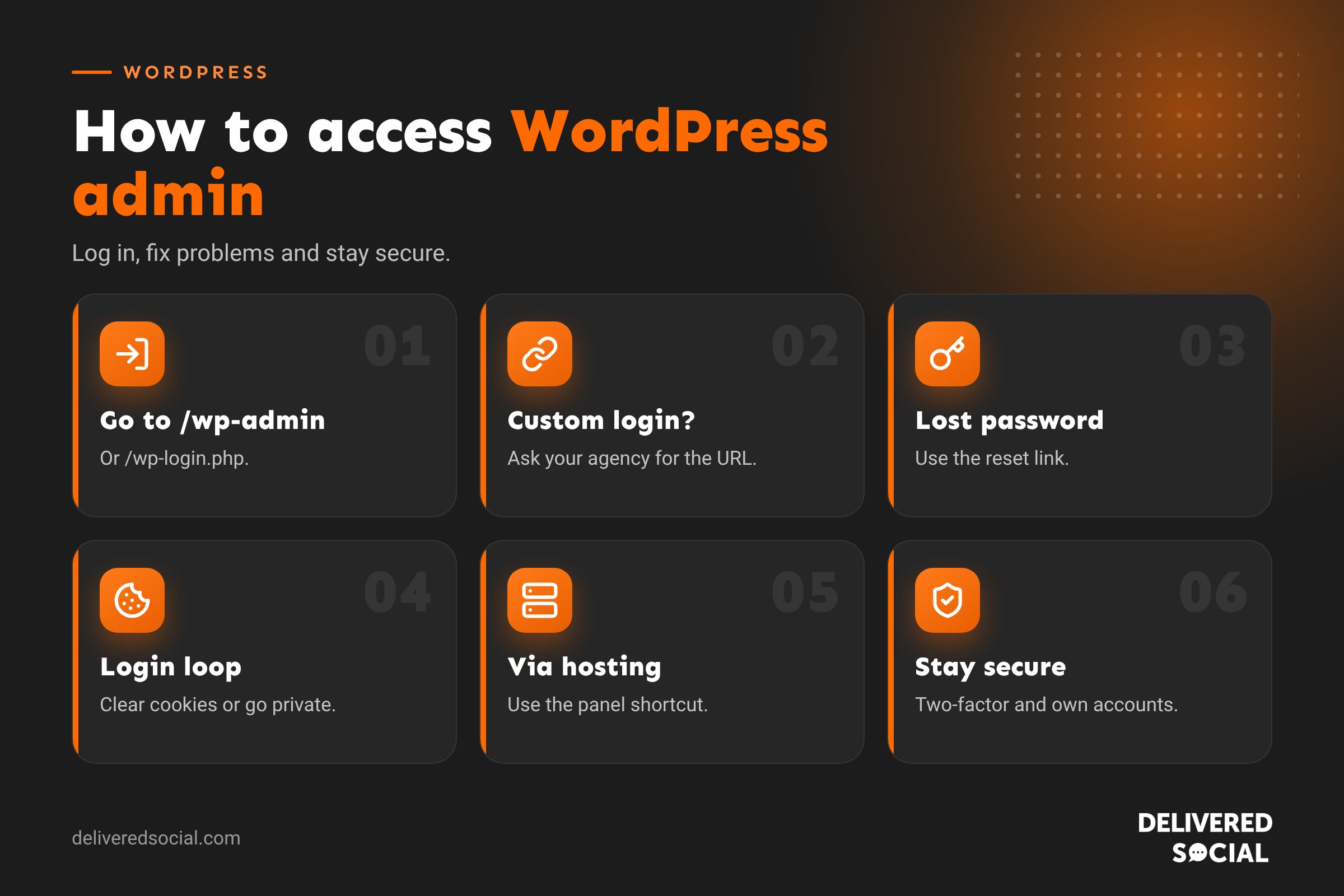
The quick way to log in
For most WordPress sites, add one of these to the end of your website address:
yourwebsite.co.uk/wp-adminyourwebsite.co.uk/wp-login.phpyourwebsite.co.uk/login(works on many sites)
Enter your username or email address and password, then click Log In. You’ll land on the WordPress dashboard, where you can edit pages, posts, products and settings.
Tip: tick Remember Me on your own computer, and bookmark the login page so it’s always one click away.
If WordPress is installed in a folder
Some sites install WordPress in a subfolder or subdomain. In that case, the login address includes it:
yourwebsite.co.uk/blog/wp-adminshop.yourwebsite.co.uk/wp-admin
If your login page has been changed
For security, many web agencies change the standard login address to something custom, such as yourwebsite.co.uk/team-login. If /wp-admin shows a 404 page, this is probably why. Check your handover emails or website documentation, or ask your web developer or agency for the correct address.
How to access WordPress admin from your hosting
Many hosting companies offer a shortcut to log straight into WordPress from your hosting control panel. Look for a “WordPress”, “Websites” or “Manage” section, then a button such as “Log in to WordPress” or “Admin”. This is handy if you’ve lost the login details but still have access to your hosting account.
Forgotten your WordPress password?
- Go to your login page.
- Click Lost your password?
- Enter your username or email address.
- Check your inbox, including spam, for the reset link.
- Click the link and choose a new, strong password.
If the email never arrives, your site may not be sending emails properly, or the account may use an old email address. Ask your web developer or host to reset it for you, or another administrator on your site can reset it from the Users screen.
Forgotten your username?
You can usually log in with your email address instead of your username. If you don’t know which email is linked, try the addresses you use for business, then ask whoever built or manages your site to check the Users list.
Common WordPress login problems and fixes
| Problem | Likely cause | What to try |
|---|---|---|
| Login page keeps refreshing | Cookies or cache issue | Clear browser cookies and cache, or try a private window |
| Redirect loop back to login | Site URL settings or a plugin conflict | Ask your developer to check settings and disable plugins |
| 404 at /wp-admin | Custom login address | Ask your agency for the custom login URL |
| “Too many failed attempts” | Security plugin lockout | Wait for the lockout to end or ask an admin to unlock |
| White screen | A plugin or theme error | Developer can enable debug mode and disable the faulty plugin |
| Error establishing a database connection | Database or hosting problem | Contact your host straight away |
| Reset email doesn’t arrive | Site email not configured | Check spam, then ask your developer to reset it |
If you’re comfortable with technical steps, our guide on enabling debug mode in WordPress helps find the cause of errors.
Find your way around the dashboard
- Dashboard: overview, updates and quick links.
- Posts: your blog articles.
- Media: images, PDFs and videos.
- Pages: main website pages like Home, About and Services.
- Comments: blog comments to approve or delete.
- Appearance: theme, menus and site design.
- Plugins: add-ons that extend your site.
- Users: people who can log in.
- Settings: site title, address, reading and other options.
If you only update content, you’ll spend most time in Pages, Posts and Media.
WordPress.com vs self-hosted WordPress logins
If your site is on WordPress.com, you log in at wordpress.com with your WordPress.com account. If your site is self-hosted, which most business sites are, you log in on your own website at /wp-admin. Using the wrong one is a common source of confusion.
Accessing WordPress admin on your phone
You can log in through your phone’s browser in the same way. The dashboard works on mobile, though bigger edits are easier on a computer. The WordPress mobile app can also connect to self-hosted sites for quick edits and new posts.
Keeping your login secure
- Use a strong, unique password stored in a password manager.
- Turn on two-factor authentication, so a code from your phone is needed too.
- Limit login attempts to block bots guessing passwords.
- Don’t share logins. Give each person their own account with the right role.
- Remove old users when staff or freelancers leave.
- Log out on shared computers.
Read more in our guide: is WordPress safe?
Giving someone else access
If a new team member or freelancer needs access, don’t send them your password. Go to Users, then Add New, enter their details and choose a role:
- Administrator: full control. Only for people who manage the whole site.
- Editor: can edit and publish all content.
- Author: can write and publish their own posts.
- Contributor: can write posts but not publish them.
What if you’ve lost all access?
If nobody can log in and password resets don’t work, don’t worry: access can almost always be recovered. Whoever has access to your hosting account, or your web agency, can create a new admin user or reset a password through the hosting control panel or database. Make sure you know who holds your hosting and domain logins; they’re as important as the website itself.
Keep a record of your website logins
Store these details securely in a password manager or a protected document:
- WordPress login address, username and password.
- Hosting account login.
- Domain registrar login.
- Email account details used for the website.
- Your web agency’s contact details.
How to log out of WordPress
Hover over your name or profile picture in the top right corner of the admin bar and click Log Out. Always log out when using a shared or public computer, and don’t let your browser save the password on devices other people use.
What to do once you’re logged in
Before making changes, it’s worth checking a few things on the dashboard. Look for update notices, as outdated plugins are a security risk. If you’re editing important pages, make sure a recent backup exists first; our guide on backing up a WordPress site explains how. Then edit your page, preview it, and click Update. If your changes don’t show on the live site, you may need to clear the WordPress cache.
Why you might be locked out after an update
Occasionally, a plugin or theme update causes an error that stops the dashboard loading. This is rarely serious. A developer can disable the faulty plugin through the hosting file manager, restore a backup or roll back the update. Taking a backup before updating, and testing big updates on a staging site, avoids most of these surprises.
Quick glossary
- wp-admin: the folder and address for the WordPress dashboard.
- wp-login.php: the standard WordPress login page.
- Dashboard: the WordPress admin area where you manage your site.
- User role: the permission level given to each person.
- Two-factor authentication: a second step to confirm it’s really you.
Handing over a website to a new agency
If you’re changing web agency, ask your old supplier to create an administrator account for you before anything else, and confirm you have hosting and domain access too. Then your new agency can be given their own accounts, and the old ones removed. Never rely on a single login held by someone outside your business.
Key takeaways
- Most WordPress sites log in at /wp-admin or /wp-login.php.
- If those show a 404, your site may use a custom login address.
- Use “Lost your password?” to reset, or ask your developer.
- Most login problems are cookies, plugins or hosting issues.
- Protect your login with strong passwords and two-factor authentication.
Frequently asked questions
How do I get to my WordPress admin page?
Add /wp-admin to the end of your website address and log in.
Why can’t I access wp-admin?
Your site may use a custom login address, or a plugin, cache or hosting issue may be blocking it.
How do I reset my WordPress password?
Click “Lost your password?” on the login page and follow the email link.
Can I log in to WordPress with my email address?
Yes, WordPress accepts either your username or email address.
What if I don’t know who has admin access?
Your hosting provider or web agency can check the Users list and set up access for you.
Is wp-admin the same on every WordPress site?
Usually, unless the site owner or agency has changed it to a custom address for security.
Can two people log in at the same time?
Yes. Each person should have their own account, and WordPress warns you if someone else is editing the same page.
Need help with your WordPress website?
We build, host and support WordPress websites for businesses across Surrey, Hampshire and the UK. Call us on 01483 608 303 and we’ll help you get back in.































