



Keep reading
Rather we just did it for you?
Let's get your business seen.
Social media, websites, SEO and ads from a team you can actually meet.
Your website is one of your most valuable business assets, yet many owners have no idea whether it’s backed up. A failed update, a hack, a hosting problem or a simple accidental deletion can take a site offline in seconds. With a good backup, you’re back up and running in minutes. Without one, you could be rebuilding from scratch. This guide explains how to back up a WordPress site step by step, the different methods, how often to back up, where to store backups and how to restore your site when something goes wrong.
What does a WordPress backup include?
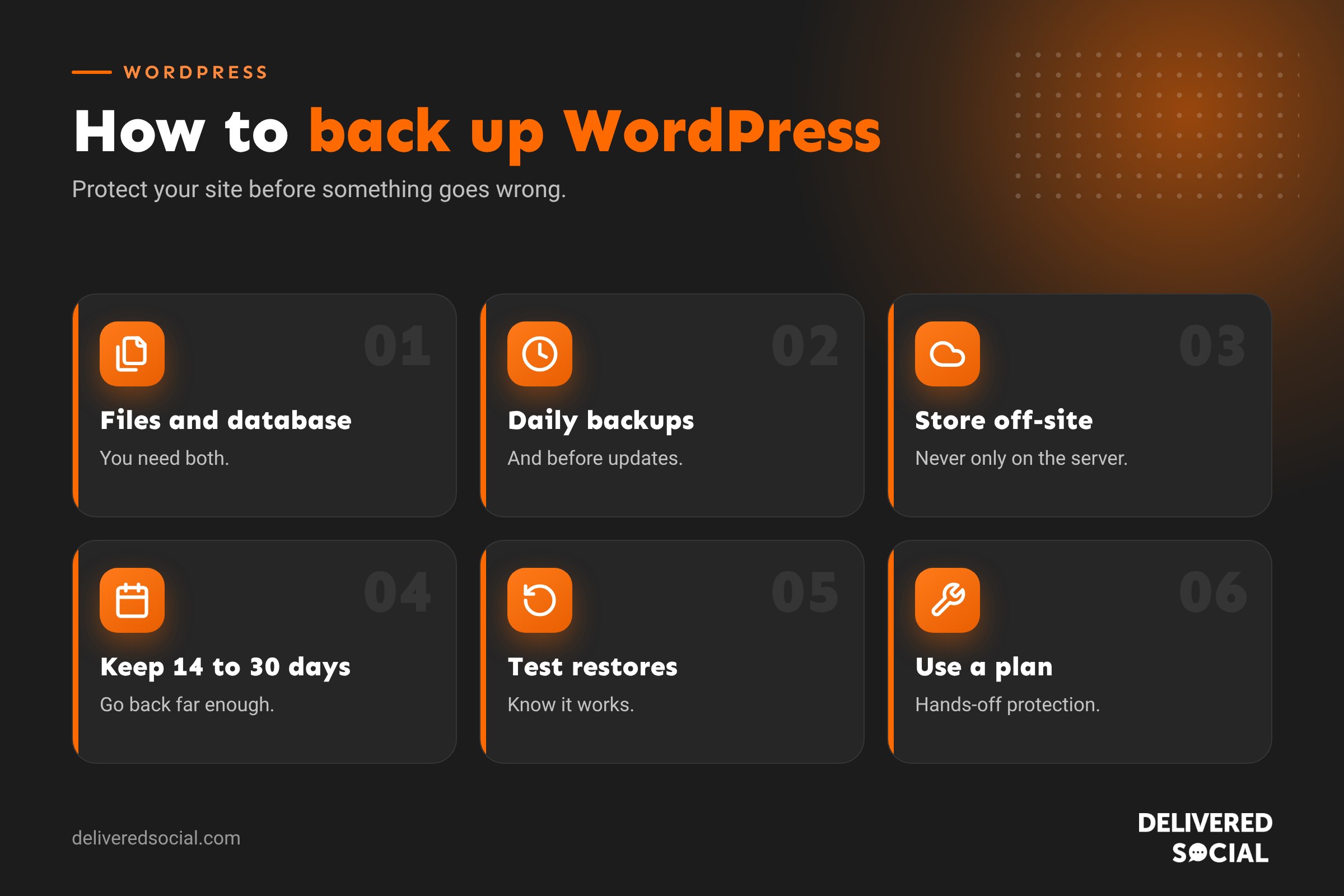
A complete WordPress backup has two parts:
- Files: WordPress core, your theme, plugins and the uploads folder with images and documents.
- Database: all your content and settings, including pages, posts, products, orders, users, comments and plugin settings.
You need both. Files without the database means no content; a database without the files means no design, plugins or images.
Why backups matter
- Hacks and malware: restore a clean version quickly.
- Failed updates: roll back if an update breaks your site.
- Human error: recover deleted pages or broken settings.
- Hosting problems: server failures or account issues.
- Moving hosts: backups make migrations simple.
- Peace of mind: you can make changes confidently.
Ways to back up WordPress
| Method | Good for | Watch out for |
|---|---|---|
| Hosting backups | Easy, automatic, often included | Stored with the same host; check how long they’re kept |
| Backup plugin | Scheduled backups to cloud storage | Can slow cheap hosting; choose a reputable plugin |
| Managed maintenance plan | Hands-off, monitored backups and restores | Ongoing cost |
| Manual backup | One-off copies before big changes | Easy to forget; more technical |
Method 1: Check your hosting backups
Many hosts take automatic daily backups. Log in to your hosting control panel and look for a “Backups” section. Check:
- How often backups are taken.
- How long they’re kept, for example 7, 14 or 30 days.
- Whether you can restore them yourself.
- Whether you can download a copy.
Hosting backups are a great first layer, but don’t rely on them alone. If there’s a problem with your hosting account, your backups could be affected too. Our guide to the best WordPress hosting in the UK explains what good hosts include.
Method 2: Use a backup plugin
- In WordPress, go to Plugins, then Add New.
- Search for a well-reviewed, regularly updated backup plugin.
- Install and activate it.
- Connect remote storage, such as Google Drive, Dropbox, Amazon S3 or the plugin’s own cloud.
- Choose a schedule for files and database.
- Set how many backups to keep.
- Run your first backup manually and check it completes.
Method 3: Manual backup
For a one-off backup, for example before a big redesign:
- Download your website files using your host’s file manager or an FTP program.
- Export your database from phpMyAdmin in your hosting control panel.
- Store both files together somewhere safe, labelled with the date.
This works, but it’s easy to forget and needs some technical confidence. Automatic backups are much safer for day-to-day protection.
How often should you back up?
| Type of site | Suggested frequency |
|---|---|
| Brochure site that rarely changes | Weekly, plus before any updates |
| Business site with a regular blog | Daily |
| Online shop or booking site | Daily, or real-time for busy shops |
| Membership or community site | Daily or more often |
Always take a fresh backup before updating plugins, themes or WordPress itself.
Where to store backups
Follow the 3-2-1 rule where you can:
- 3 copies of your data.
- 2 different storage types, such as hosting and cloud storage.
- 1 copy off-site, away from your web server.
Never keep your only backups on the same server as your website.
How long to keep backups
Keep at least 14 to 30 days of backups. Some hacks go unnoticed for days or weeks, so you need to be able to go back before the problem started. For shops, consider keeping monthly backups for longer too.
How to restore a WordPress backup
- Find a backup from before the problem started.
- Use your host’s or plugin’s restore option, choosing files, database or both.
- Clear caches on your site, hosting and any CDN.
- Check the site thoroughly: pages, forms, checkout and logins.
- Update everything and change passwords if the problem was a hack.
For online shops, be careful: restoring an older database can remove recent orders. Export recent orders first or ask your developer to restore only what’s needed.
Test your backups
A backup you’ve never tested is a hope, not a plan. Every few months, restore a backup to a staging site or test environment and check it works. This confirms backups are complete and you know the restore process before an emergency.
Backups and website migrations
Backups are also how most websites are moved between hosts. A full backup can be restored on the new server, then the domain pointed to it. If you’re changing hosting or agency, make sure you have a complete, recent backup before anything else happens.
Common backup mistakes
- Assuming your host backs up the site without checking.
- Only backing up files or only the database.
- Storing backups on the same server as the website.
- Keeping only one or two days of backups.
- Never testing a restore.
- Forgetting to back up before updates.
- Letting backup storage fill up so new backups silently fail.
Backups as part of website maintenance
Backups work best alongside regular updates, security monitoring and uptime checks. A website maintenance plan covers all of these, so someone is checking backups run successfully and can restore your site quickly if needed. You can read more about keeping your site protected in our guide: is WordPress safe?
Quick checklist
- Automatic daily backups switched on.
- Files and database both included.
- Copies stored off the server.
- At least 14 to 30 days kept.
- Backup taken before every update.
- Restore tested in the last few months.
- You know who to call if something goes wrong.
What a good backup plugin should offer
- Scheduled automatic backups for files and database.
- Remote storage options outside your web server.
- Easy one-click restores.
- Incremental backups for large sites, so only changes are copied.
- Email alerts if a backup fails.
- Regular updates and good support.
Backing up large websites
Sites with thousands of images or big shops can produce very large backups. To keep things manageable, compress images before uploading, remove unused media and old plugins, exclude cache folders from backups, and use incremental backups. Check your storage allowance regularly, because full storage is one of the most common reasons backups quietly stop working.
Who is responsible for your backups?
Many business owners assume their web designer or host has backups covered, only to discover otherwise when something goes wrong. Ask directly: who takes backups, how often, where they’re stored, how long they’re kept and how quickly the site can be restored. Get the answer in writing and keep it with your website logins.
Quick glossary
- Database: where WordPress stores content and settings.
- FTP: a way to transfer files to and from your web server.
- phpMyAdmin: a tool for managing databases in hosting control panels.
- Staging site: a private copy of your site for testing.
- Restore: putting a backup back in place.
Before you update: a quick routine
- Run a fresh backup and confirm it finished.
- Update plugins one at a time, or in small groups.
- Check your home page, a key service page, your forms and checkout.
- If something breaks, restore the backup or roll back that update.
Ten minutes of care before updates saves hours of stress afterwards, and keeps your customers from ever noticing there was a problem.
Key takeaways
- A full backup includes both files and the database.
- Use automatic backups, stored off your web server.
- Back up daily for active sites and always before updates.
- Keep several weeks of backups and test restoring them.
- A maintenance plan takes care of backups for you.
Frequently asked questions
Does my host back up my WordPress site?
Many do, but check how often, how long backups are kept and whether you can restore them.
What’s the best way to back up WordPress?
Automatic daily backups from your host plus a backup plugin sending copies to cloud storage.
How long does a WordPress backup take?
From seconds to several minutes, depending on the size of your site.
Can I back up WordPress for free?
Yes. Many hosts include backups, and several backup plugins have free versions.
How do I restore WordPress from a backup?
Use your host’s or plugin’s restore feature, then clear caches and check the site.
Should I back up before updating plugins?
Yes. Always take a fresh backup before updates so you can roll back if something breaks.
Where should I store WordPress backups?
Somewhere other than your web server, such as cloud storage, plus your host’s own backups.
Do backups slow down my website?
Good backup tools run efficiently, but on cheap hosting large backups can briefly slow things down, so schedule them for quiet times.
Want your website backed up and looked after?
We host, back up and maintain WordPress websites for businesses across Surrey, Hampshire and the UK. Call us on 01483 608 303 to find out more.































