



Keep reading
Rather we just did it for you?
Let's get your business seen.
Social media, websites, SEO and ads from a team you can actually meet.
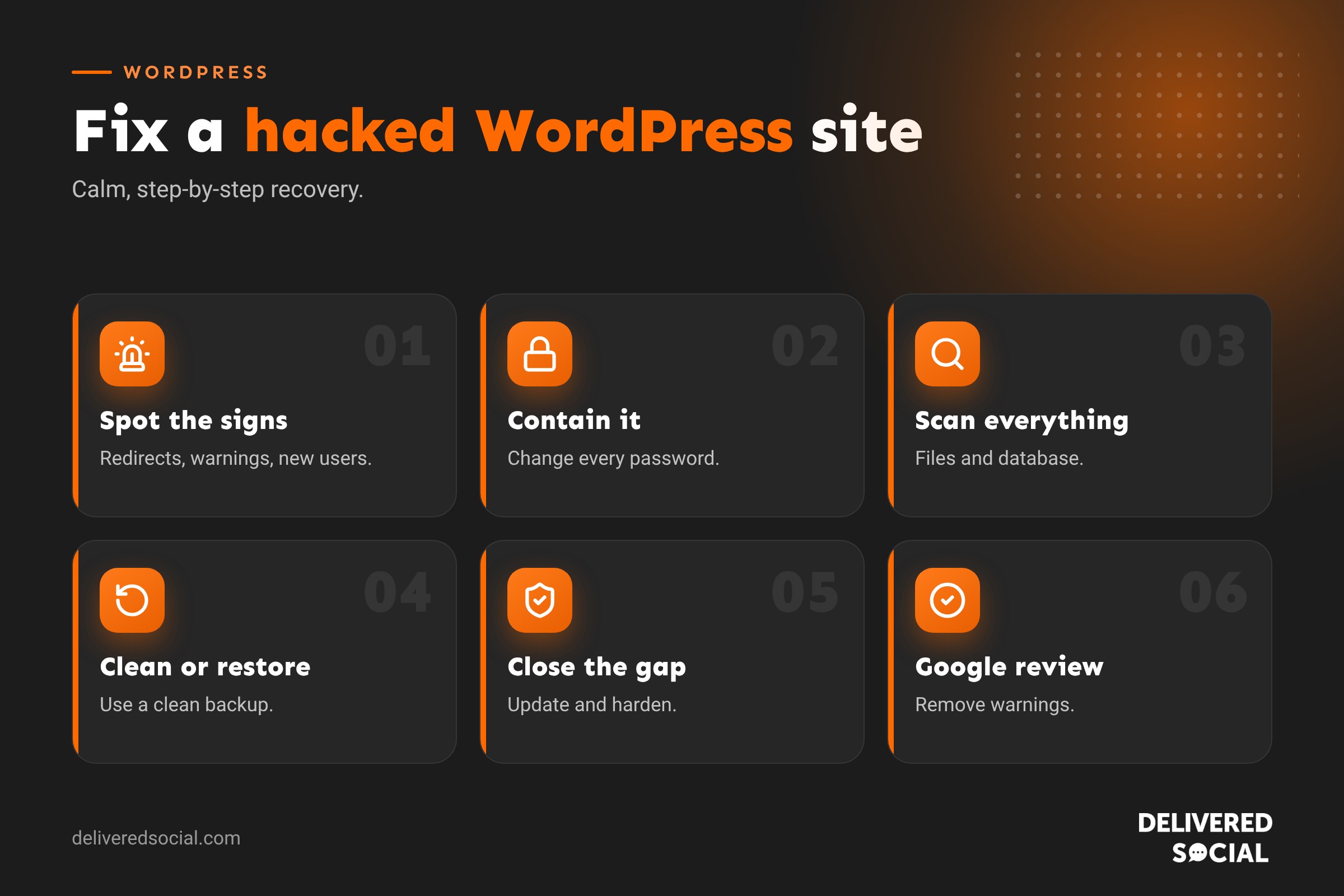
Discovering your website has been hacked is stressful. Maybe visitors are being redirected to spam sites, Google is showing a warning, or your host has suspended the account. The most important thing is to act calmly and in the right order, so you clean the site properly and stop it happening again. This guide explains how to fix a hacked WordPress website step by step: spotting the signs, containing the damage, removing malware, recovering your Google listing and hardening your site for the future.
Signs your WordPress site has been hacked
- Visitors are redirected to spam, gambling or adult sites, often only on mobile or from Google.
- Google search results show strange titles, foreign characters or “This site may be hacked”.
- Browsers display a red warning screen before your site loads.
- New admin users, pages or posts appear that you didn’t create.
- Your host suspends the site or emails about malware.
- You can’t log in, or your password no longer works.
- The site suddenly becomes very slow or uses excessive server resources.
- Your website starts sending spam emails.
- Pop-ups or adverts appear that you never added.
Step 1: Don’t panic, and don’t delete everything
It’s tempting to wipe the site and start again, but deleting files can destroy evidence of how attackers got in, and you might lose content you need. Work through the steps methodically instead. If you have a web agency or maintenance provider, contact them straight away.
Step 2: Contain the problem
- Tell your host. They may already know and can help with scanning, server logs and clean backups.
- Put the site into maintenance mode if visitors are being redirected or shown harmful content.
- Change every password: WordPress admin accounts, hosting, database, FTP or SFTP, and email accounts linked to the site.
- Log everyone out by changing the security keys in the site’s configuration file, or ask your developer to do it.
- Check user accounts and remove any administrators you don’t recognise.
Step 3: Find out what’s affected
- Run a malware scan using your host’s tools or a reputable WordPress security plugin.
- Check recently modified files in your hosting file manager.
- Look for unfamiliar files in the uploads folder, especially PHP files, which shouldn’t normally be there.
- Review your site’s main configuration and .htaccess files for strange code or redirects.
- Check the database for injected scripts in posts, pages and options.
- Look at server access logs, if available, to identify how attackers got in.
Step 4: Clean the site
There are two main approaches.
Option A: Restore a clean backup
If you have a backup from before the hack, restoring it is often quickest. The challenge is knowing when the hack started, because some infections sit unnoticed for weeks. Restore a backup from well before the first signs, then apply all updates immediately. For shops, be careful not to lose recent orders. Our guide on backing up a WordPress site explains restores.
Option B: Clean the infection manually
- Replace WordPress core files with fresh copies from WordPress.org.
- Delete and reinstall every plugin and theme from official sources.
- Remove any plugins or themes you don’t use.
- Remove suspicious files from the uploads folder.
- Clean malicious code from configuration files and the database.
- Rescan to confirm the site is clean.
Manual cleaning needs technical confidence. Infections often leave hidden backdoors that let attackers straight back in, so professional help is wise if you’re unsure.
Step 5: Close the door attackers used
Cleaning without fixing the cause means you’ll likely be hacked again. Common entry points:
| Entry point | Fix |
|---|---|
| Outdated plugin or theme with a known vulnerability | Update or replace it, and keep everything updated |
| Weak or reused passwords | Strong unique passwords and two-factor authentication |
| Pirated “nulled” themes or plugins | Replace with licensed versions from official sources |
| Compromised hosting account or FTP | Change credentials and use secure SFTP |
| Poor hosting security | Move to reputable WordPress hosting |
| Abandoned plugins | Replace with actively maintained alternatives |
Step 6: Recover your Google listing
- Open Google Search Console and check the Security Issues report.
- Once the site is clean, request a review explaining what you fixed.
- Check for spam pages Google has indexed and make sure they now return a 404 or 410 status.
- Submit an updated sitemap.
- Monitor search results for your brand name over the following weeks.
Reviews are often processed within days, but recovery of rankings can take longer.
Step 7: Check your email and reputation
If your site sent spam, your domain or server IP may be on email blocklists, so legitimate emails go to junk. Check blocklist status, ask your host for help with delisting, and set up proper email authentication records (SPF, DKIM and DMARC).
Step 8: Tell people if needed
If customer data may have been accessed, such as contact details, accounts or orders, UK data protection law may require you to assess the risk and, in some cases, report it to the Information Commissioner’s Office within 72 hours and inform affected people. Take advice if you’re unsure.
Hardening your site after a hack
- Turn on automatic security updates and update plugins regularly.
- Use two-factor authentication on all admin accounts.
- Limit login attempts.
- Install a reputable security plugin or use host-level firewalls.
- Disable file editing from the WordPress dashboard.
- Use daily off-site backups.
- Give users the lowest role they need.
- Remove unused plugins, themes and accounts.
- Monitor uptime and file changes.
Read our full guide: is WordPress safe?
How long does it take to fix a hacked WordPress site?
Simple infections can be cleaned in a few hours. Complex hacks with hidden backdoors, database injections or Google blacklisting can take longer, including time for Google’s review. Acting quickly limits the damage to your reputation and search rankings.
Should you clean it yourself?
If you’re comfortable with file managers, databases and WordPress internals, you can handle a basic clean-up. For business-critical sites, shops, or repeat infections, professional help is usually faster and more thorough. The real cost of a hack is lost enquiries, sales and trust, not just the fix.
Preventing future hacks: a monthly routine
- Check for and apply updates.
- Confirm backups are running and stored off-site.
- Review admin users.
- Run a security scan.
- Check Search Console for security warnings.
A website maintenance plan covers all of this for you.
Real-world example
A small business noticed customers mentioning a strange redirect when they clicked the website from Google on their phones. Desktop visitors saw nothing wrong, which is common, because many hacks only target mobile or search visitors to avoid detection. The cause was an abandoned slider plugin with a known vulnerability. The fix involved restoring clean core files, removing the plugin, cleaning injected code from the database, changing every password and requesting a Google review. Within a week, the warning was gone and enquiries recovered. The lesson: remove plugins that are no longer maintained, even if they still seem to work.
What not to do
- Don’t pay ransom demands or contact the attackers.
- Don’t just delete suspicious files without finding the cause.
- Don’t reinstall the same outdated plugin that let attackers in.
- Don’t ignore it and hope it goes away; Google warnings and lost trust get worse over time.
Quick glossary
- Malware: malicious code placed on your website.
- Backdoor: hidden code that lets attackers regain access.
- Nulled plugin: a pirated premium plugin, often containing malware.
- Blocklist: a list of domains or servers flagged for spam or malware.
- SFTP: a secure way to transfer files to your server.
Most hacks are opportunistic, not personal. Keeping software updated and access tight removes the easy targets bots look for.
If you’re ever unsure whether your site is fully clean, ask for a professional scan. A second opinion costs far less than a repeat infection.
Key takeaways
- Act calmly: contain, investigate, clean, then harden.
- Change every password and remove unknown users first.
- Restore a clean backup or replace files from official sources.
- Find and fix how attackers got in, or it will happen again.
- Request a Google review and monitor your site afterwards.
Frequently asked questions
How do I know if my WordPress site is hacked?
Look for spam redirects, Google warnings, unknown users, strange pages, host alerts or sudden slowdowns.
Can a hacked WordPress site be fixed?
Yes. Most hacked sites can be fully cleaned and secured.
Will restoring a backup remove the hack?
Only if the backup is from before the infection, and you then fix the original weakness.
How do I remove the “This site may be hacked” warning?
Clean the site, then request a review in Google Search Console.
Why does my site keep getting hacked?
Usually because a backdoor remains or the original vulnerability hasn’t been fixed.
Will my host fix a hacked website?
Some hosts help with scans and backups, but most expect you or your developer to clean the site.
Can a hacked site infect visitors?
It can, through malicious redirects or downloads, which is why acting quickly matters.
Need help with a hacked website?
We clean, secure and maintain WordPress websites for businesses across Surrey, Hampshire and the UK. Call us on 01483 608 303 and we’ll help you get back online safely.































