

Keep reading
Rather we just did it for you?
Let's get your business seen.
Social media, websites, SEO and ads from a team you can actually meet.
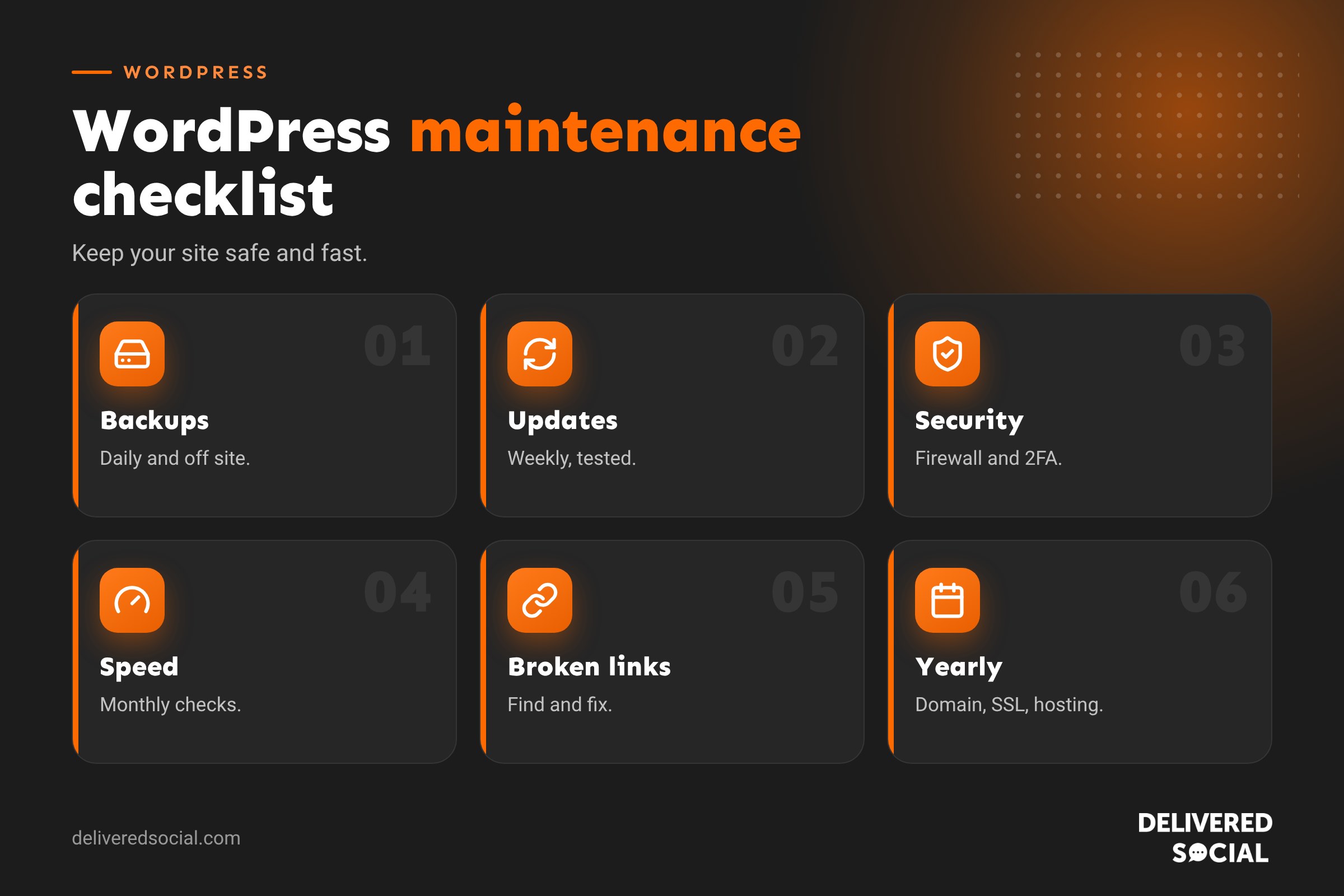
A WordPress website is not something you build once and forget. Like a car, it needs regular servicing to stay safe, fast and reliable. Plugins need updating, backups need checking, forms need testing and security needs watching. Skip it, and small problems turn into hacked sites, broken pages and lost enquiries. This WordPress maintenance checklist sets out what to do weekly, monthly, quarterly and yearly, so you can keep your site in good shape or know exactly what to ask your web team for.
Why WordPress maintenance matters
WordPress is secure and reliable when it is looked after. Most problems come from neglect rather than from WordPress itself:
- Security: outdated plugins and themes are one of the most common ways sites get hacked.
- Reliability: broken forms, expired SSL certificates and full storage can stop a site working without anyone noticing.
- Speed: sites slow down over time as content, plugins and databases grow.
- SEO: broken links, slow pages and errors can affect rankings.
- Recovery: without tested backups, a problem can mean rebuilding from scratch.
Before you start: set up the essentials
Make sure these are in place before following the checklist:
- Automated daily backups stored away from your web server.
- A staging site for testing updates on larger or business critical sites.
- Uptime monitoring that alerts you if the site goes down.
- A security plugin or firewall.
- Admin access details stored safely in a password manager.
- A record of which plugins and themes are installed and why.
Weekly maintenance checklist
- Check backups ran successfully. Confirm the latest backup completed and is stored off site.
- Update plugins and themes. Review available updates, read changelogs for major ones, update on staging first where possible, then update live.
- Update WordPress core. Minor security releases usually apply automatically. Plan major releases with a test first.
- Check the site works. Visit the home page, key service pages, contact page and, for shops, the basket and checkout.
- Test your main contact form. Send a test enquiry and confirm it arrives.
- Review security alerts. Check your security plugin for warnings, failed logins or malware findings.
- Moderate comments. Approve genuine comments and remove spam, or turn comments off if you do not use them.
Monthly maintenance checklist
- Test a backup restore. Every few months at least, restore a backup to a staging site to prove it works.
- Check site speed. Test key pages in Google PageSpeed Insights and note any drops.
- Look for broken links. Use a link checker or crawler to find and fix broken internal and external links.
- Review Google Search Console. Check for indexing problems, mobile usability issues, security issues and manual actions.
- Review analytics. Look for unusual drops in traffic or enquiries that might signal a problem.
- Check all forms. Test every form on the site, not just the main one, including newsletter signups and booking forms.
- Review user accounts. Remove old users and make sure everyone has the lowest role they need. Our WordPress user roles guide explains each role.
- Clear spam and junk. Empty spam comments, old form entries you no longer need and trashed posts.
Quarterly maintenance checklist
- Audit plugins. Remove plugins you no longer use, replace abandoned plugins that have not been updated for a long time, and check you are not running several plugins that do the same job.
- Remove unused themes. Keep your active theme and one default theme as a fallback. Delete the rest.
- Optimise the database. Clean out post revisions, transients and other clutter using a trusted optimisation tool, after taking a backup.
- Check PHP version. Make sure your hosting runs a currently supported PHP version, testing on staging before upgrading.
- Review security settings. Confirm two factor authentication for admins, strong passwords, limited login attempts and an active firewall. Our WordPress security checklist goes into more detail.
- Optimise images. Check large images are compressed and served in modern formats such as WebP.
- Review content. Update outdated prices, team members, opening hours and service information.
- Check accessibility basics. Image alt text, heading structure, colour contrast and keyboard navigation.
Yearly maintenance checklist
- Renew your domain. Check the renewal date and turn on auto renew.
- Check your SSL certificate. Most renew automatically, but confirm it is valid and set to renew.
- Review hosting. Is your hosting fast enough, secure, well supported and suitably sized for your traffic?
- Review premium licences. Make sure paid plugins and themes have active licences so they keep receiving updates.
- Update legal pages. Review your privacy policy, cookie policy and terms to make sure they reflect what your site does.
- Full SEO review. Check titles, descriptions, internal links, redirects and structured data across key pages.
- Design and content review. Does the site still reflect your brand and services? Plan refreshes where needed.
- Disaster recovery plan. Confirm who to contact and what to do if the site goes down or is hacked.
WooCommerce extra checks
If you run an online shop, add these to your routine:
- Place a test order regularly, including payment, to check checkout works end to end.
- Check payment gateway and shipping plugin updates carefully, ideally on staging.
- Review failed and pending orders for patterns.
- Check product stock, prices and tax settings.
- Back up more frequently, as orders change data constantly.
Signs your site needs attention now
- Pages suddenly load slowly or show errors.
- You stop receiving form enquiries.
- Visitors report strange redirects or pop-ups.
- Google Search Console reports security issues.
- Your host warns about high resource use or malware.
- You see admin users you do not recognise.
If you notice any of these, take a backup, change admin passwords and get help quickly.
Doing it yourself vs a maintenance plan
You can follow this checklist yourself if you are comfortable with WordPress and have time each week. Many businesses prefer a maintenance plan so updates, backups, monitoring and fixes are handled by people who do it every day. A good plan should include:
- Regular updates with testing.
- Daily off site backups and restores when needed.
- Uptime and security monitoring.
- Speed checks and optimisation.
- Monthly reporting.
- Time for small content changes and support.
Our WordPress maintenance plans cover all of this for businesses across the UK.
How long does WordPress maintenance take?
For a typical small business site, routine weekly checks and updates take thirty minutes to an hour if nothing goes wrong. Monthly and quarterly tasks add a few more hours spread across the year. The real time cost comes when something breaks: a plugin conflict after an update, a hacked site or a failed migration can take many hours to put right. That is why prevention, testing and good backups are so valuable. Spending a little time each week is far cheaper than an emergency repair.
Keeping a maintenance log
A simple log makes maintenance easier and more reliable. Record the date, what was updated, any issues found and how they were fixed. If something goes wrong later, the log helps you work out which change caused it. A shared spreadsheet or document is enough for most businesses, and it is invaluable if a new developer or agency takes over the site.
Updating safely: a simple routine
Updates cause most maintenance headaches, so follow the same routine every time. Take a fresh backup, update on a staging copy first if you have one, then update plugins one at a time on the live site rather than all at once. After each update, check the home page, a key service page and your main form. If something breaks, you will know which update caused it and can roll back quickly from your backup.
Printable summary
- Weekly: backups, updates, site check, form test, security alerts.
- Monthly: restore test, speed, broken links, Search Console, analytics, users.
- Quarterly: plugin audit, database, PHP, security settings, images, content.
- Yearly: domain, SSL, hosting, licences, legal pages, SEO and design review.
Key takeaways
- Regular maintenance keeps WordPress secure, fast and reliable.
- Backups and updates are the most important weekly tasks.
- Monthly checks catch problems before customers notice.
- Quarterly and yearly reviews keep the site healthy long term.
- A maintenance plan is the easiest way to make sure nothing is missed.
Frequently asked questions
How often should I update WordPress plugins?
Check weekly. Apply security updates quickly and test major updates on a staging site first.
How often should I back up my WordPress site?
At least daily for most business sites, and more often for busy online shops. Store backups off site.
What does WordPress maintenance include?
Updates, backups, security monitoring, speed checks, broken link fixes, form testing and general health checks.
Can I automate WordPress maintenance?
Partly. Backups, uptime monitoring and some updates can be automated, but testing and reviews still need a person.
What happens if I do not maintain my WordPress site?
The risk of hacking, errors and slow performance increases, and problems can be costly to fix.
How much does WordPress maintenance cost?
It varies by site size and support level, from modest monthly plans for small sites to larger plans for busy shops.
Want your WordPress site looked after?
We maintain WordPress websites for businesses across Surrey, Hampshire and the UK, so you can focus on running your business. Call us on 01483 608 303.