

Keep reading
Rather we just did it for you?
Let's get your business seen.
Social media, websites, SEO and ads from a team you can actually meet.
When more than one person works on a WordPress website, deciding who can do what becomes important. Should your marketing assistant be able to install plugins? Should a guest blogger see every page on the site? WordPress handles this with user roles. Getting them right keeps your site secure, avoids accidental changes and makes life easier for everyone. This guide explains the default WordPress user roles, what each one can do, which to give to whom, and how to manage users safely.
What are WordPress user roles?
A user role is a set of permissions, which WordPress calls capabilities. Each capability allows a user to do a specific thing, such as publish posts, edit other people’s pages, upload files or install plugins. Roles bundle these capabilities together so you can give someone the right level of access in one click.
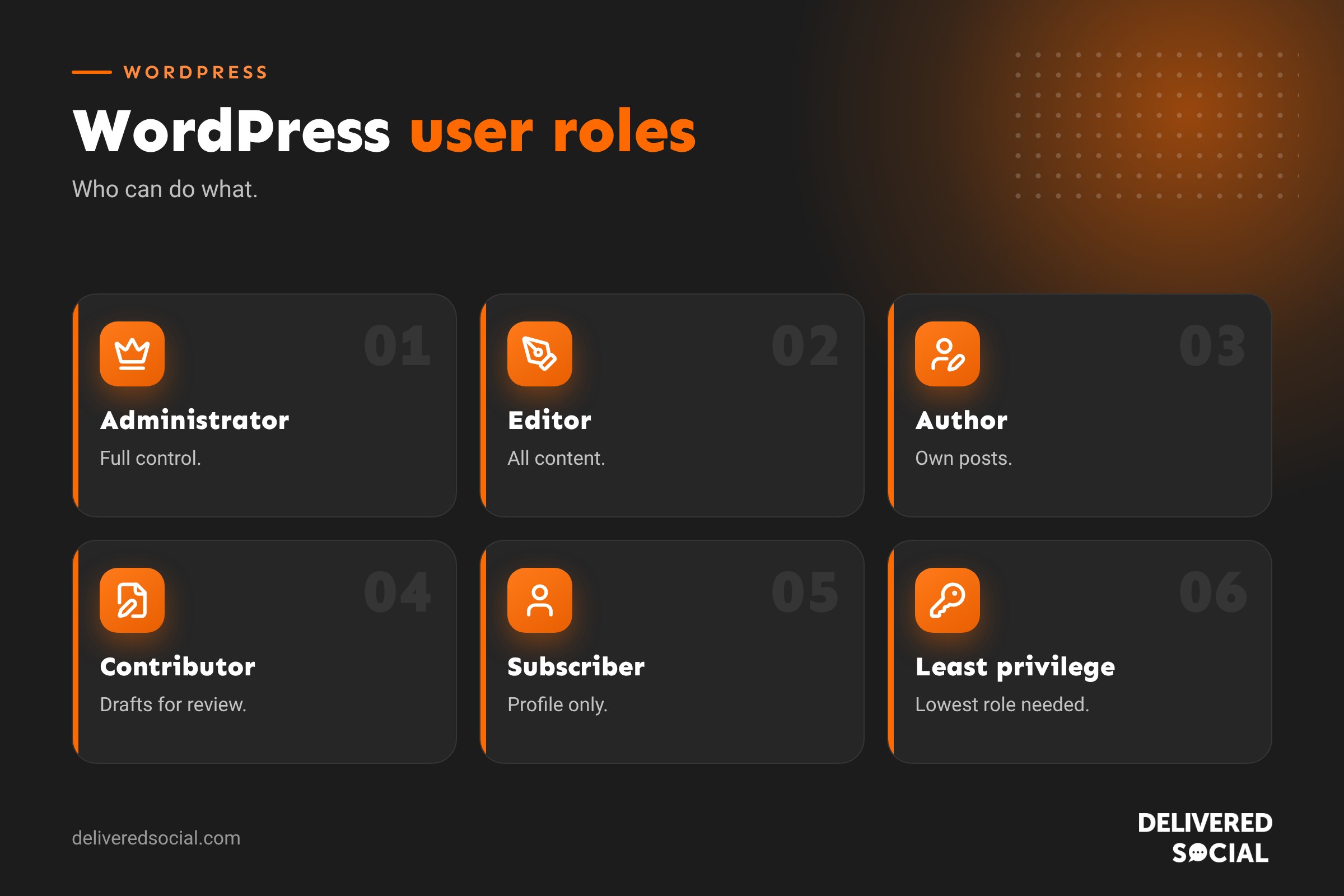
WordPress comes with five main roles on a standard site: Administrator, Editor, Author, Contributor and Subscriber. Multisite networks add a sixth, Super Admin. Plugins such as WooCommerce and SEO tools can add their own roles too.
Administrator
Administrators have full control of a single site. They can:
- Install, update and delete plugins and themes.
- Change all site settings.
- Add, edit and delete users, including other administrators.
- Create, edit, publish and delete any content.
- Edit theme and plugin files, unless file editing is disabled.
Who should have it: as few people as possible. Usually the business owner and the web developer or agency who maintains the site. Every administrator account is a potential way into your site, so treat this role with care.
Editor
Editors manage all content, but not the technical side of the site. They can:
- Create, edit, publish and delete any posts and pages, including those written by others.
- Manage categories, tags and links.
- Moderate comments.
- Upload files to the media library.
Editors cannot install plugins, change themes, change most settings or manage users.
Who should have it: marketing managers, content leads or anyone responsible for keeping the whole website’s content up to date.
Author
Authors can write and publish their own posts. They can:
- Create, edit, publish and delete their own posts.
- Upload images and files.
Authors cannot edit other people’s posts or any pages, and cannot manage categories (although they can choose existing ones and add tags).
Who should have it: trusted, regular bloggers who do not need their work approved before it goes live.
Contributor
Contributors can write posts but cannot publish them. They can:
- Create and edit their own posts while they are drafts.
- Submit posts for review.
Contributors cannot publish, cannot upload images by default and cannot edit posts once they are published.
Who should have it: guest writers, new team members and anyone whose posts should be checked by an editor before going live. The lack of upload permission is often inconvenient, so editors usually add images, or a plugin adjusts this capability.
Subscriber
Subscribers can log in, manage their own profile and read content, but cannot create or edit any content in the dashboard.
Who should have it: members on sites with restricted content, or users who need to log in to comment. Many business sites do not need subscribers at all, and if you are not using them, it is worth turning off open registration under Settings, then General.
Super Admin (Multisite only)
On a WordPress Multisite network, the Super Admin controls the whole network: adding and removing sites, installing plugins and themes network wide and managing all users. On a multisite network, ordinary site Administrators have fewer powers than on a standard site, for example they cannot install plugins.
Roles added by plugins
Common plugins add their own roles:
- WooCommerce: Shop Manager (manages products, orders and shop settings without full admin access) and Customer (for shoppers with accounts).
- SEO plugins: some add SEO Manager or SEO Editor roles for people who handle titles and descriptions.
- Membership and course plugins: often add roles for members, students or instructors.
The Shop Manager role is particularly useful. Give it to staff who process orders so they do not need full administrator access.
How to choose the right role
Follow the principle of least privilege: give each person the lowest role that lets them do their job. A quick guide:
- Writes blog posts that need checking: Contributor.
- Writes and publishes their own blog posts: Author.
- Manages all content across the site: Editor.
- Processes orders in an online shop: Shop Manager.
- Maintains the site technically: Administrator.
- Logs in to view member content: Subscriber.
If someone needs to do one extra task, it is usually better to adjust a lower role than to make them an administrator.
How to add a user and set a role
- Go to Users, then Add New User in the WordPress dashboard.
- Enter a username and the person’s email address.
- Choose to send them an email so they can set their own password.
- Select the role from the dropdown.
- Click Add New User.
To change an existing user’s role, go to Users, tick the user, choose a new role from the “Change role to” dropdown and click Change.
Customising roles
If the default roles do not quite fit, plugins such as Members or User Role Editor let you create new roles or adjust capabilities. For example, you could let Contributors upload images, or create a Website Editor role that can edit pages but not posts. Make changes carefully and document them, as custom capabilities can create security gaps if set too broadly.
User management best practice
- Give everyone their own account. Never share logins. Individual accounts show who changed what and can be removed when someone leaves.
- Keep administrators to a minimum. Review admin accounts regularly.
- Use strong passwords and two factor authentication, especially for administrators and editors.
- Avoid obvious usernames such as “admin” for administrator accounts.
- Remove users promptly when staff, freelancers or agencies stop working on the site. When deleting a user, WordPress lets you attribute their content to someone else.
- Review users regularly as part of your WordPress maintenance checklist.
- Use temporary access for developers or support where possible, with accounts removed afterwards.
- Turn off open registration if you do not need it, to avoid spam accounts.
Our WordPress security checklist covers other ways to protect logins.
Common mistakes
- Giving everyone Administrator because it is easier.
- Sharing one login between several people.
- Leaving former staff, freelancers or agencies with active accounts.
- Allowing anyone to register as a user without needing to.
- Forgetting that plugin roles such as Shop Manager exist.
Spotting suspicious users
An unexpected administrator account is one of the clearest signs a site has been compromised. If you see users you do not recognise, especially with admin access, act quickly: change passwords, remove the unknown accounts, check for malware and review recent changes. Getting help from your web team or a maintenance provider is wise, as hackers often leave hidden backdoors.
A practical example
Imagine a small business with an owner, a marketing assistant, a freelance blogger, an online shop and an outside web agency. A sensible setup might be:
- Owner: Administrator, with two factor authentication.
- Web agency: one named Administrator account for the person who maintains the site.
- Marketing assistant: Editor, so they can update pages, publish posts and moderate comments.
- Freelance blogger: Contributor, so their drafts are reviewed before publishing.
- Warehouse staff: Shop Manager, so they can process orders without touching site settings.
When the freelance blogger’s contract ends, their account is removed and their posts reassigned to the marketing assistant. Everyone has what they need, and nothing more.
If you are new to running a WordPress blog with several writers, our guide to WordPress for blogging covers the other settings worth checking.
Checking who has access today
Go to Users in the dashboard and use the role filters at the top of the list to see how many Administrators, Editors and other users you have. Click each administrator to check you recognise the name and email address. It takes a couple of minutes and is one of the most useful security checks you can do.
Key takeaways
- WordPress has five main roles: Administrator, Editor, Author, Contributor and Subscriber.
- Give each person the lowest role they need.
- Keep administrator accounts to a minimum and protect them well.
- Plugin roles such as Shop Manager are useful for specific jobs.
- Review and remove users regularly.
Frequently asked questions
What is the difference between an Editor and an Author in WordPress?
Editors can manage all posts and pages, including other people’s. Authors can only publish and manage their own posts.
Can a Contributor upload images?
Not by default. An Editor can add images, or a role editor plugin can give Contributors upload permission.
How many administrators should a WordPress site have?
As few as possible, usually one or two named people plus your web maintainer.
What role should I give my web developer?
Usually Administrator, through their own named account, removed when the work ends.
Can I create custom user roles?
Yes, with plugins such as Members or User Role Editor.
What is the Shop Manager role?
A WooCommerce role that can manage products, orders and shop settings without full administrator access.
Need help managing your WordPress site?
We build, secure and maintain WordPress websites for businesses across Surrey, Hampshire and the UK. Call us on 01483 608 303.