

Keep reading
Rather we just did it for you?
Let's get your business seen.
Social media, websites, SEO and ads from a team you can actually meet.
Instagram is not just a place to post. A growing share of activity happens in private messages, and group chats are a big part of that. Friends plan nights out, creators chat with their inner circle and businesses use groups to coordinate with teams, collaborators and loyal customers. If you have searched for “Instagram group” and found it confusing, that is because Instagram has several group style features. This guide explains Instagram group chats: how to create one, the features available, how they differ from broadcast channels and how businesses can use them well.
What is an Instagram group chat?
An Instagram group chat is a private conversation in your direct messages with several people at once. Everyone in the group can send messages, photos, videos, voice notes, posts and Reels, and react to each other’s messages. Groups can hold a large number of members, making them suitable for anything from three close friends to a sizeable community.
Group chats vs broadcast channels vs Close Friends
- Group chats: everyone can talk. Best for collaboration and small communities.
- Broadcast channels: one account sends updates to many followers, who can react and vote in polls but not reply freely. Best for announcements.
- Close Friends: a list you choose to share certain Stories with. Not a chat, but a way to share with a select group.
Our guide to Instagram DMs explains the messaging features in more detail.
How to create an Instagram group chat
- Open Instagram and tap the messages icon in the top right.
- Tap the new message icon (a pencil and paper).
- Select two or more people you want in the group.
- Tap Chat (or Create group chat) and send your first message.
- Tap the group name at the top to give it a name, add a photo and change settings.
You can usually only add people who follow you or whom you follow, depending on their privacy settings. Others may receive the invitation as a message request.
How to add or remove people
Open the group, tap its name, then choose Add people. To remove someone, tap their name in the members list and choose Remove from group. Group admins control who can be added, depending on the settings you choose.
Group chat features
- Group name and photo: make it easy to recognise.
- Admins: the creator is an admin and can make others admins too.
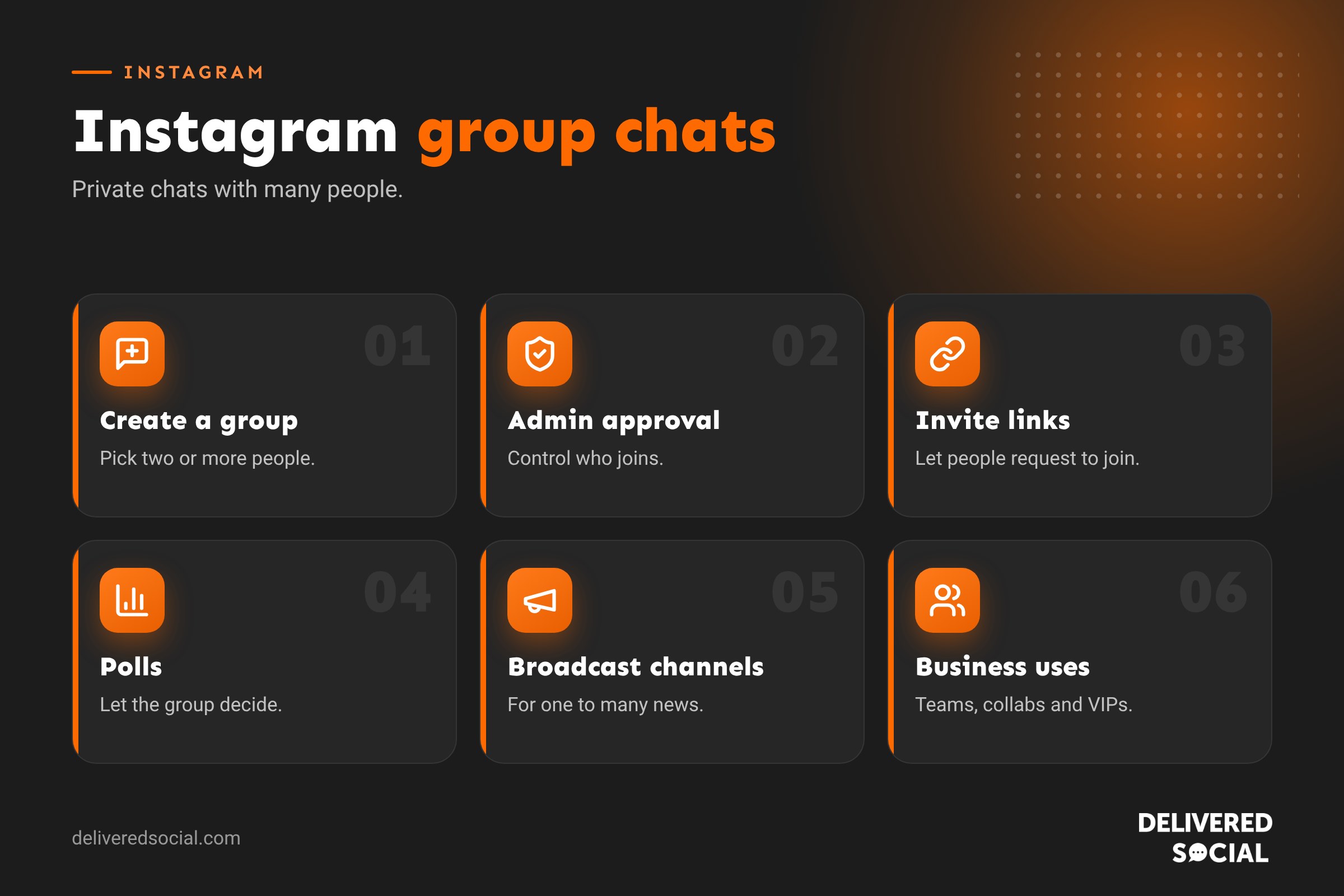
- Approval for new members: admins can require approval before people join.
- Invite links: share a link so people can request to join.
- Polls: ask the group to vote on a decision.
- Replies and reactions: reply to specific messages and react with emoji.
- Voice and video calls: start a call with the whole group.
- Shared media: photos, videos, posts and Reels.
- Nicknames and themes: personalise the chat.
- Pinned messages: keep important information at the top.
- Mute and notification settings: control how often you hear from the group.
Features are added and changed regularly, so check the group settings in your app for the latest options.
Privacy and safety settings
- Control who can add you to groups in your messaging settings.
- Leave a group at any time from its settings.
- Report or block anyone who sends unwanted or harmful messages.
- Remember that anyone in the group can screenshot what is shared, so keep business sensitive information out of chats.
Instagram broadcast channels for businesses
If you want to update lots of followers at once, a broadcast channel is often a better fit than a group chat. Channels let creators and businesses share text, photos, voice notes and polls with followers who join. Members can react and vote, but cannot fill the chat with messages, so it stays focused. Channels are ideal for exclusive offers, behind the scenes and launch news. TikTok has a similar feature; our guide to the TikTok bulletin board explains it.
How businesses can use Instagram group chats
Team coordination
A private group with your social media team, photographer or agency keeps content ideas, approvals and quick questions in one place.
Collaborations
Planning a collab post or event with other businesses or creators? A group chat keeps everyone aligned on dates, content and tags. Our guide to Instagram collab posts covers the posting side.
VIP customer groups
Some businesses run small groups for loyal customers, members or class attendees. Share early access, gather feedback and build a sense of belonging. Keep groups small enough to stay friendly, and make the purpose clear.
Event and class groups
Fitness instructors, tutors and event organisers use groups to share timings, changes and reminders with attendees.
Ambassador and influencer groups
Brands working with several ambassadors use groups to share briefs, product news and content ideas.
Best practice for business group chats
- Set a clear purpose: tell people why the group exists and what to expect.
- Agree simple rules: be kind, stay on topic, no spam.
- Use admin approvals: keep control of who joins.
- Do not over message: respect people’s notifications.
- Get consent: only add customers who have agreed to be included.
- Keep personal data safe: do not share customer details in group chats.
- Move sensitive conversations to private messages or email.
Common problems
- Cannot add someone: their settings may only allow people they follow to add them.
- Group too noisy: mute it, or switch to a broadcast channel for announcements.
- Messages going to requests: people who do not follow you may see the invite as a request.
- Features missing: update the app; some features roll out gradually.
Group chats and your wider Instagram strategy
Private messaging, sometimes called dark social, now accounts for a large share of how people share content. When followers send your Reels and posts to their group chats, that sharing is a strong signal that your content is valuable, and it reaches new people through trusted recommendations. Create content worth sending to a friend, such as useful tips, relatable moments and offers, and add simple prompts like “Send this to someone who needs it”. Track shares in your Insights to see which posts travel furthest in private chats.
Using channels and groups together
Some businesses use both features side by side. A broadcast channel shares news and offers with everyone who is interested, while small group chats handle specific projects, events or VIP customers who want more interaction. For example, a fitness studio might run a broadcast channel for timetable changes and offers, plus a small group chat for each six week challenge. Keeping each space focused stops people feeling overwhelmed.
Group chat etiquette
Treat a business group chat as you would a meeting. Use names, keep messages short, avoid sending lots of messages in a row and reply to direct questions promptly. Avoid late night messages unless something is urgent, and remember that people can leave at any time, so keep the group valuable.
Groups for teams and agencies
If you work with an agency or freelancer on your Instagram, a group chat with the key people speeds up approvals. Share draft posts, agree captions and flag urgent comments that need a reply. Keep a separate, private channel such as email for anything confidential, and remember to remove people from the group when they leave your business.
Used well, group chats turn followers into a genuine community that feels looked after.
Review your groups every few months and archive any that have served their purpose, so your inbox stays manageable.
Key takeaways
- Instagram group chats are private conversations with several people in your DMs.
- Create one from the new message icon by selecting two or more people.
- Admins can approve members, share invite links, create polls and pin messages.
- Broadcast channels suit one to many announcements better than group chats.
- Businesses use groups for teams, collaborations, VIP customers and events.
Frequently asked questions
How do I make a group chat on Instagram?
Open your messages, tap the new message icon, choose two or more people and tap Chat.
How many people can be in an Instagram group chat?
Groups can hold a large number of members; check the app for the current limit.
Can I leave an Instagram group chat?
Yes. Open the group settings and choose Leave chat.
Can I stop people adding me to groups?
Yes. Change who can add you to groups in your messaging privacy settings.
What is the difference between a group chat and a broadcast channel?
In a group everyone can talk; in a channel one account broadcasts and members react.
Can businesses use Instagram group chats?
Yes, for teams, collaborators, events and small VIP customer communities.
Can I make someone else an admin?
Yes, admins can make other members admins in the group settings.
Can I mute a group without leaving?
Yes, open the group settings and mute messages.
Can I see who has read a group message?
Read receipts may show depending on settings.
Want help growing your Instagram community?
We manage Instagram for businesses across Surrey, Hampshire and the UK, including content and DMs. Find out more about our Instagram marketing services. Call us on 01483 608 303.