

Keep reading
Rather we just did it for you?
Let's get your business seen.
Social media, websites, SEO and ads from a team you can actually meet.
LinkedIn posts are quick to read and quick to forget. LinkedIn articles are different: longer, structured pieces that live on your profile, can be found in search engines and show real expertise. For business owners, consultants and professionals, a good article can bring enquiries for months. This guide explains how to write a LinkedIn article, from opening the editor and choosing a topic to structuring, formatting, publishing and promoting it, plus how articles differ from posts and newsletters.
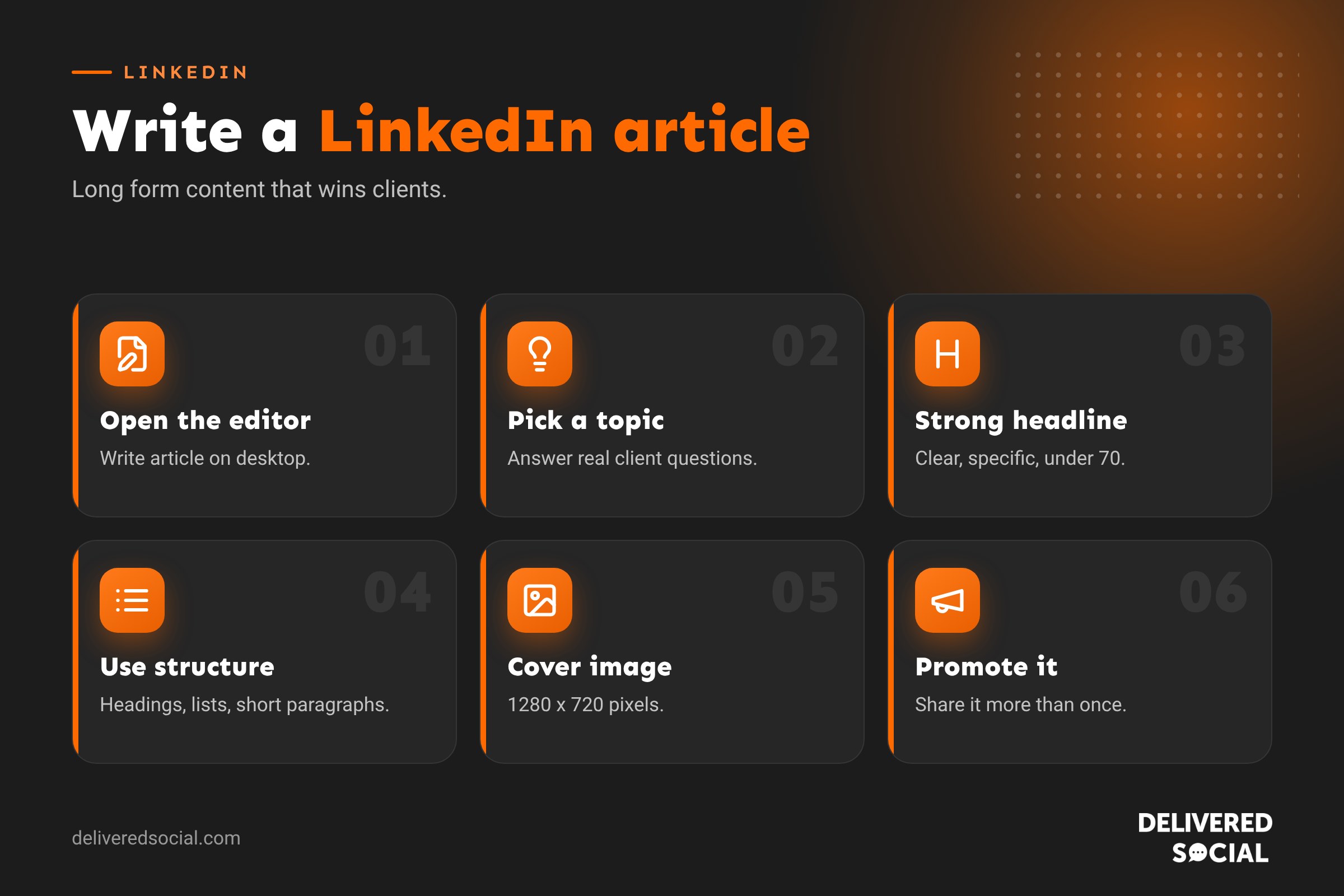
LinkedIn articles vs posts vs newsletters
- Posts: short updates of up to 3,000 characters, shown in the feed. Best for quick thoughts, news and conversations.
- Articles: long form pieces with a headline, cover image, headings, images and links. They sit in the Articles section of your profile and can appear in Google results.
- Newsletters: a series of articles published on a regular schedule. People subscribe, and LinkedIn notifies them when a new edition goes live.
Use posts to stay visible every week, and articles when you have something worth explaining properly. Our guide to LinkedIn post formats covers the shorter options.
How to open the LinkedIn article editor
On a computer
- Go to your LinkedIn home feed.
- Click Start a post, then look for the Write article option, or click Write article directly below the post box.
- Choose whether to publish as yourself or as a company page you manage.
- The article editor opens in a new page.
On a phone
The LinkedIn app offers article writing in some regions, but the desktop editor is easier and more reliable for formatting, images and links. Most people write on a computer and share from their phone.
If you do not see the option, update your browser, check you are logged in to a full profile and try again later, as LinkedIn changes where the button appears from time to time.
Choosing a topic people want to read
The best articles answer a question your ideal clients are already asking. Ask yourself:
- What do customers ask me in every first meeting?
- What mistakes do I see people make again and again?
- What has changed in my industry that people need to understand?
- What story from my business taught me something useful?
- What do I disagree with that most people in my industry say?
For example, an accountant might write “Five things to sort before your first VAT return”, a recruiter “What candidates really notice in a job advert” and a builder “How to compare three quotes for a kitchen extension”. Specific topics beat broad ones like “Why marketing matters”.
How to structure a LinkedIn article
1. A headline that promises something
Your headline appears in feeds, notifications and search results. Keep it clear and specific, ideally under about 70 characters so it is not cut off. Numbers, questions and “how to” phrasing work well. “How we cut our client onboarding time in half” beats “Thoughts on onboarding”.
2. A cover image
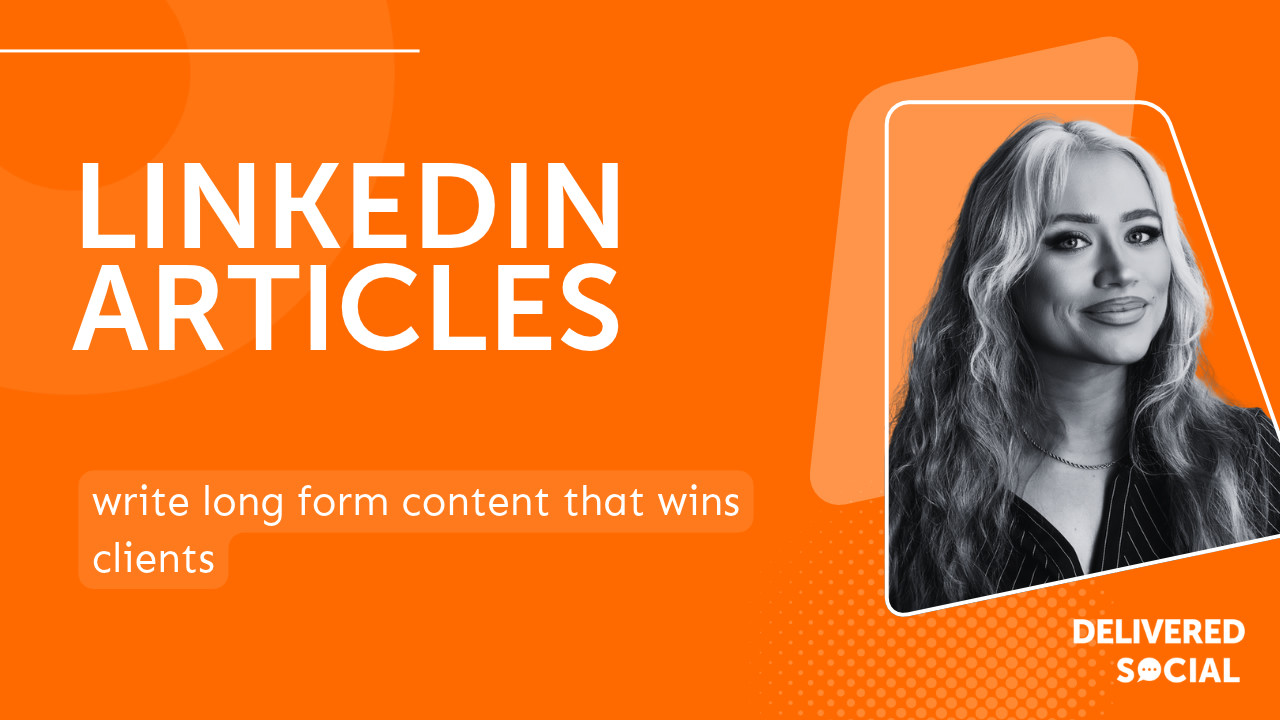
Add a cover image of 1280 by 720 pixels, or a similar landscape image. Use a clean branded graphic, a relevant photo of your work or a simple title card. Avoid generic stock photos where you can, as they make articles look like every other piece in the feed.
3. An opening that hooks
The first two or three sentences decide whether people keep reading. Start with a problem, a surprising fact, a short story or a bold statement, then tell readers what they will get from the article.
4. Clear sections with headings
Break the article into sections using the heading styles in the editor. Each section should cover one point. Headings help readers skim and help search engines understand the content.
5. Practical detail
Give real examples, steps, numbers and lessons. Generic advice is easy to find; specific experience is what makes your article worth reading and shows you know your field.
6. A conclusion and call to action
Sum up the key points and tell readers what to do next: comment with their experience, follow you for more, download a guide, book a call or visit your website.
How long should a LinkedIn article be?
There is no fixed rule, but most effective articles are between 800 and 2,000 words. Long enough to be useful, short enough to finish. LinkedIn allows much longer articles, up to around 110,000 characters, but long does not mean better. Cut anything that does not help the reader.
Formatting tips
- Short paragraphs: two to four sentences each. Most people read on their phones.
- Headings: use the heading options rather than bold text, so the structure is clear.
- Lists: bullet or numbered lists make steps easy to follow.
- Images: add screenshots, charts or photos to break up text and explain ideas.
- Quotes: use the quote style to highlight a key line.
- Links: link to useful sources and one or two relevant pages on your website.
- Bold sparingly: highlight only the most important phrases.
Writing style that works on LinkedIn
Write as you speak to a client: clear, warm and confident. Avoid jargon and buzzwords, and explain any technical terms. Use “you” to talk to the reader directly. Share opinions and experience rather than repeating what everyone else says. Personal stories, lessons from mistakes and behind the scenes detail tend to perform better than polished corporate language. Read your article aloud before publishing; if a sentence is hard to say, it is hard to read.
SEO for LinkedIn articles
Public LinkedIn articles can rank in Google, which gives them a long life. To help them be found:
- Use the main phrase people would search in your headline and opening paragraph.
- Use descriptive headings that include related phrases naturally.
- Add alt text to images where the editor allows.
- Edit the SEO title and description in the publishing settings, if offered.
- Link to the article from your website, other posts and email signature.
Do not copy an article word for word from your website blog. Rewrite it or publish a summary with a link back, so your website keeps the original. Our guide to LinkedIn SEO explains more.
How to publish your article
- Click Next or Publish in the top corner of the editor.
- Write a short post to go with the article. This text appears in the feed, so treat it as your hook: one or two lines on why people should read it.
- Add two or three relevant hashtags and tag people or companies mentioned in the article where it makes sense.
- Click Publish.
You can edit an article after publishing. Small corrections are fine; avoid changing the headline entirely once people have shared it.
How to promote your LinkedIn article
- Share it more than once: post a key quote, a statistic or a lesson from the article over the next few weeks, each with the link.
- Reply to every comment: early conversation helps LinkedIn show the article to more people.
- Ask colleagues to engage: a thoughtful comment from your team helps, but avoid asking for empty likes.
- Feature it: add the article to the Featured section of your profile.
- Use it in sales: send the link to prospects who ask the question the article answers.
- Repurpose it: turn sections into carousel slides, short videos or email newsletters.
Should you start a LinkedIn newsletter?
If you can commit to publishing regularly, such as every fortnight or month, a newsletter is a powerful option. When you launch one, LinkedIn invites your connections and followers to subscribe, and subscribers get notified of each new edition by email and in the app. That gives each article a far bigger starting audience than a standalone piece. The catch is consistency: a newsletter that stops after two editions looks worse than none. Start with a few standalone articles, then launch a newsletter once you know you can keep it going.
Personal profile or company page?
Articles from personal profiles usually reach more people, because LinkedIn’s feed favours individuals and people trust people more than logos. Company pages can also publish articles and newsletters, which works well for official news and brand content. Many businesses do both: the founder or team members write personal, opinion led articles, and the company page shares them and publishes more formal updates. Our guide to LinkedIn marketing for small business explains how the two work together.
Common mistakes
- Writing a sales pitch instead of something useful.
- Vague headlines that do not say what the reader gets.
- Huge blocks of text with no headings or images.
- Publishing and never sharing the article again.
- Ignoring comments.
- Copying the same article from your website without changes.
Measuring success
LinkedIn shows views, reactions, comments and reposts for each article, and newsletter analytics show subscriber growth. More important than any of these is what happens next: profile views, connection requests from the right people, website visits and enquiries. Note which topics lead to conversations and write more like them.
A simple article plan for the next three months
If you are not sure where to begin, plan one article a month. In month one, answer the question clients ask most often. In month two, share a short case study or story showing how you solved a problem. In month three, give your view on a change or trend in your industry. Each month, break the article into four or five shorter posts and share one a week with the link. By the end of the quarter you will have three solid pieces on your profile and a steady flow of posts, without writing something new every day.
Keep a running list of article ideas in your phone, adding questions from calls, emails and meetings as they come up, so you never start from a blank page.
Key takeaways
- Open the article editor from Write article on the LinkedIn home feed on a computer.
- Pick specific topics that answer your clients’ real questions.
- Use a clear headline, cover image, strong opening, headings and a call to action.
- Aim for 800 to 2,000 useful words in short paragraphs.
- Promote the article repeatedly and reply to every comment.
Frequently asked questions
Where is the write article button on LinkedIn?
On the home feed, under or inside the Start a post box on desktop.
Can anyone write a LinkedIn article?
Most members can publish articles from their personal profile, and admins can publish from company pages.
Do LinkedIn articles show up on Google?
Public articles can be indexed by search engines.
What size is a LinkedIn article cover image?
1280 by 720 pixels is a good size.
Are articles better than posts?
They do different jobs. Posts keep you visible; articles show depth and last longer.
Can I edit a LinkedIn article after publishing?
Yes, open it from your profile and click Edit.
How often should I publish articles?
Once or twice a month is plenty for most professionals.
Want LinkedIn content that wins clients?
We write and manage LinkedIn content for business owners and teams across Surrey, Hampshire and the UK. Find out more about our LinkedIn marketing services. Call us on 01483 608 303.