


Keep reading
Rather we just did it for you?
Let's get your business seen.
Social media, websites, SEO and ads from a team you can actually meet.
Instagram Stories are one of the best ways to stay in front of your followers every day, but posting them live can eat into your time. Scheduling Stories in advance means you can plan a week of content in one sitting, post at the best times even when you are busy, and keep your account active over weekends and holidays. This guide explains how to schedule Instagram Stories with Meta Business Suite and third party tools, what you can and cannot schedule, and how to plan Stories that people watch to the end.
Can you schedule Instagram Stories?
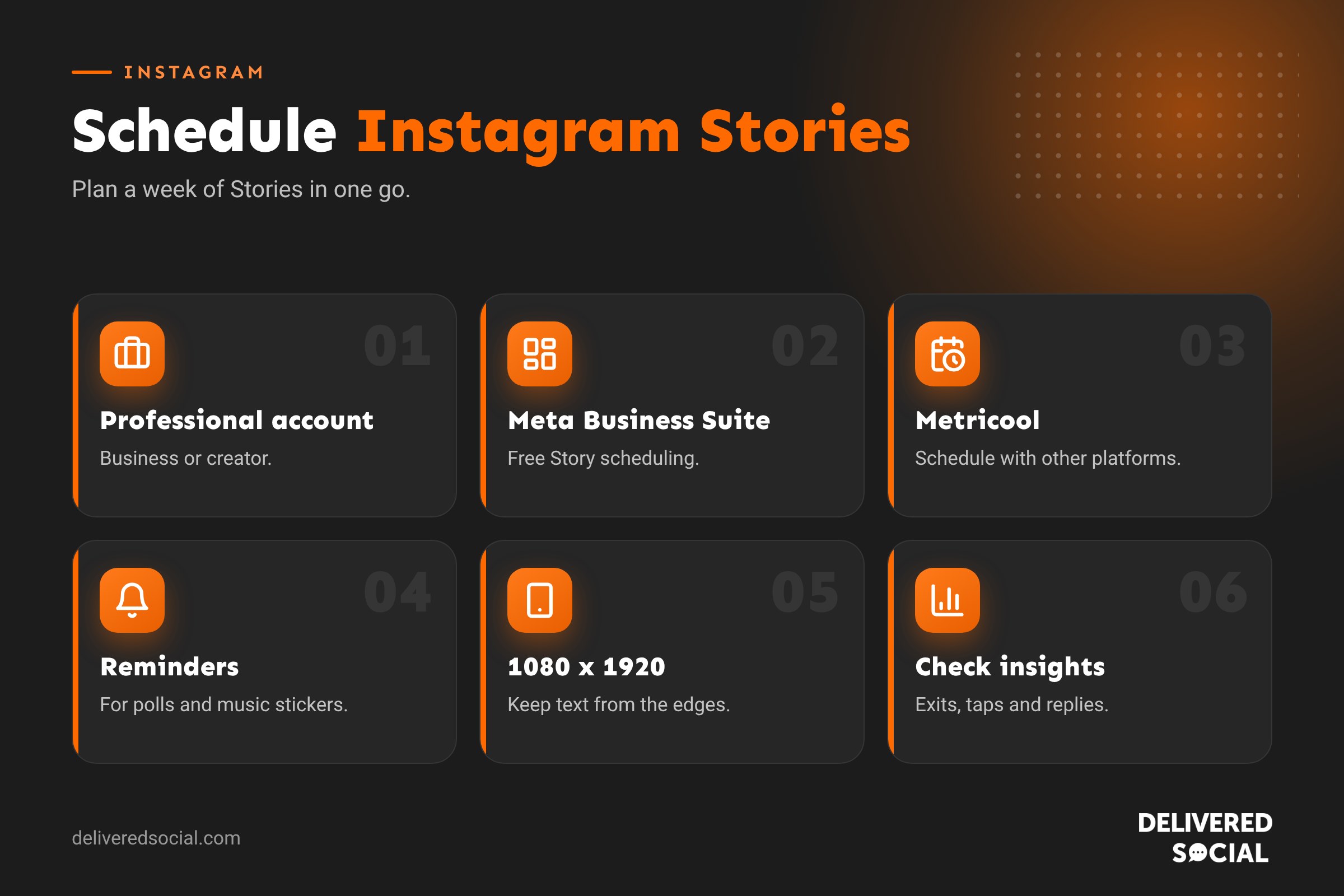
Yes. Business and creator accounts can schedule Stories to publish automatically. The Instagram app itself lets you schedule feed posts and Reels, but for Stories you usually need Meta Business Suite or an approved third party scheduling tool such as Metricool, Later, Buffer, Hootsuite or Sprout Social. Personal accounts can switch to a professional account for free in settings to unlock scheduling.
Before you start
- Switch to a business or creator account if you have not already.
- Connect your Instagram account to a Facebook Page, which Meta Business Suite needs.
- Prepare your Story images or videos at 1080 by 1920 pixels in a 9:16 vertical format.
- Write any captions or text you want on screen.
How to schedule Instagram Stories with Meta Business Suite
Meta Business Suite is Meta’s free tool for managing Facebook and Instagram. It works on desktop at business.facebook.com and in the Meta Business Suite app.
- Open Meta Business Suite and choose your business.
- Click Create story, or go to Planner or Content and choose Create story.
- Select Instagram as the destination. You can also post to Facebook at the same time.
- Upload your photos or videos. You can add several to create a sequence.
- Add text, crop or adjust as needed. Some tools, such as a link, may be available here.
- Click the arrow beside Share story and choose Schedule.
- Pick the date and time and click Schedule.
Your scheduled Stories appear in the Planner, where you can move, edit or delete them before they go live.
How to schedule Stories with Metricool
Metricool is a popular social media tool that supports Instagram Story scheduling alongside posts for other platforms.
- Connect your Instagram professional account to Metricool.
- Open the Planner and click Create post.
- Select Instagram and choose Story as the post type.
- Upload your image or video.
- Choose the date and time, or use Metricool’s best time suggestions.
- Choose auto publish, so it posts automatically.
Our Metricool tutorial walks through the set up in more detail.
Auto publish vs reminders
Most tools now offer automatic publishing for Instagram Stories. Some features, such as certain interactive stickers, music and some effects, may not be supported by scheduling tools because of Instagram’s API limits. In those cases, tools send a reminder notification to your phone at the scheduled time, and you finish and post the Story in the Instagram app. Use auto publish for simple image and video Stories, and reminders for Stories that need stickers only available in the app.
What you can and cannot schedule
Usually works when scheduled
- Photos and videos.
- Text and graphics built into your image.
- Link stickers, in some tools.
- Sequences of several Story frames.
Usually needs the Instagram app
- Polls, quizzes, question boxes and emoji sliders.
- Music stickers.
- Countdown stickers.
- Mentions and location stickers, depending on the tool.
- Instagram’s own filters and effects.
- Close Friends Stories.
Features change as Instagram updates its tools, so check what your scheduler currently supports.
Design Stories that work
- Use the full vertical frame: 1080 by 1920 pixels, with key text away from the top and bottom 250 pixels, where Instagram’s interface sits.
- Grab attention fast: people tap through Stories quickly, so make the first frame interesting.
- Keep text short: a few words per frame is easier to read.
- Add movement: short videos and animated graphics stand out.
- Brand consistently: use your colours and fonts so people recognise you.
- End with an action: visit the link, reply, check out the latest post or book now.
Our guide on how to post an Instagram Story covers stickers, Highlights and more.
When to post Instagram Stories
The best time depends on your audience. Check Instagram insights to see when your followers are online. Many businesses find that early morning, lunchtime and early evening work well, as people check their phones around work and travel. Because Stories last 24 hours, timing matters less than for feed posts, but posting when followers are active puts you at the front of their Stories tray. Scheduling tools such as Metricool suggest best times based on your own data.
How many Stories should you post?
There is no magic number, but posting regularly matters. Many businesses aim for three to seven Story frames a day, spread out or in a small sequence. Too many frames in one go leads to people tapping away. Watch the forward taps and exits in your insights; if lots of people leave after the third frame, keep sequences shorter.
Plan a week of Stories
A simple weekly plan keeps Stories varied:
- Monday: what is happening this week, such as new stock, events or offers.
- Tuesday: a quick tip or how to.
- Wednesday: behind the scenes of your work.
- Thursday: a customer review or case study.
- Friday: a poll or question, posted live in the app.
- Saturday: a product or service spotlight with a link.
- Sunday: a share of your latest feed post or Reel.
Schedule the planned Stories in advance and leave space for live, in the moment Stories during the week. The mix of planned and spontaneous content keeps your Stories feeling real.
Mix scheduled and live Stories
Scheduling saves time, but Stories work best when they feel personal. Schedule your planned content, such as tips, offers and reviews, then add quick live Stories from your phone when something happens: a delivery arrives, a customer visits or you are at an event. Polls and question boxes are best posted live too, so you can reply quickly to responses.
Measure your Story performance
In Instagram insights, check reach, impressions, forward taps, back taps, exits, replies, link clicks and sticker taps for each Story. Back taps show something worth seeing again; exits show where people lost interest. Compare scheduled Stories with live ones and adjust your plan based on what keeps people watching.
Troubleshooting scheduling problems
- Story did not publish: check your account is still connected and that the file meets size and format requirements.
- Cannot select Instagram in Meta Business Suite: make sure your Instagram account is a professional account and linked to your Facebook Page.
- Video rejected: keep videos under 60 seconds per frame and use MP4 or MOV.
- Wrong time zone: check your scheduler’s time zone settings.
- Stickers missing: use reminder mode and add them in the Instagram app.
Scheduling Stories for a team
If several people help with your Instagram, scheduling tools make collaboration easier. One person can design Stories, another can approve them and a third can schedule them, all without sharing the Instagram password. Meta Business Suite lets you give team members access with different roles, and most third party tools offer approval workflows. Keep a shared content calendar so everyone can see what is planned and avoid posting the same thing twice. Our guide to scheduling Instagram posts covers feed posts and Reels.
Batch creating Stories to save time
Scheduling works best when you create Stories in batches. Set aside an hour a week to design every planned Story in Canva or your editing app, using templates with your colours, fonts and logo already in place. Film a handful of short clips in one go, such as product close ups, team moments and quick tips, then cut them into Story frames. Name files clearly by date and topic, upload them to your scheduler and set the times. Once a routine is in place, a full week of Stories can be ready before Monday morning.
Key takeaways
- Business and creator accounts can schedule Instagram Stories.
- Use Meta Business Suite for free, or tools such as Metricool for multi platform scheduling.
- Simple photo and video Stories auto publish; some stickers need posting in the app.
- Design for 1080 by 1920 pixels and keep text away from the edges.
- Mix scheduled Stories with live ones and check insights to improve.
Frequently asked questions
Can I schedule Instagram Stories in the Instagram app?
The app schedules feed posts and Reels. For Stories, use Meta Business Suite or a scheduling tool.
Is scheduling Stories free?
Yes, with Meta Business Suite. Third party tools have free and paid plans.
Can I schedule Stories with polls or music?
Usually not automatically. Use a reminder and add them in the Instagram app.
Can I schedule Stories from a personal account?
Switch to a free professional account first.
How far ahead can I schedule Stories?
Meta Business Suite and most tools let you schedule weeks or months ahead.
Do scheduled Stories get less reach?
There is no evidence that scheduling reduces reach.
Can I edit a scheduled Story?
Yes, in your scheduler’s planner before it goes live.
Want your Stories handled for you?
We plan, design and schedule Instagram content for businesses across Surrey, Hampshire and the UK. Find out more about our Instagram marketing services. Call us on 01483 608 303.