

Keep reading
Rather we just did it for you?
Let's get your business seen.
Social media, websites, SEO and ads from a team you can actually meet.
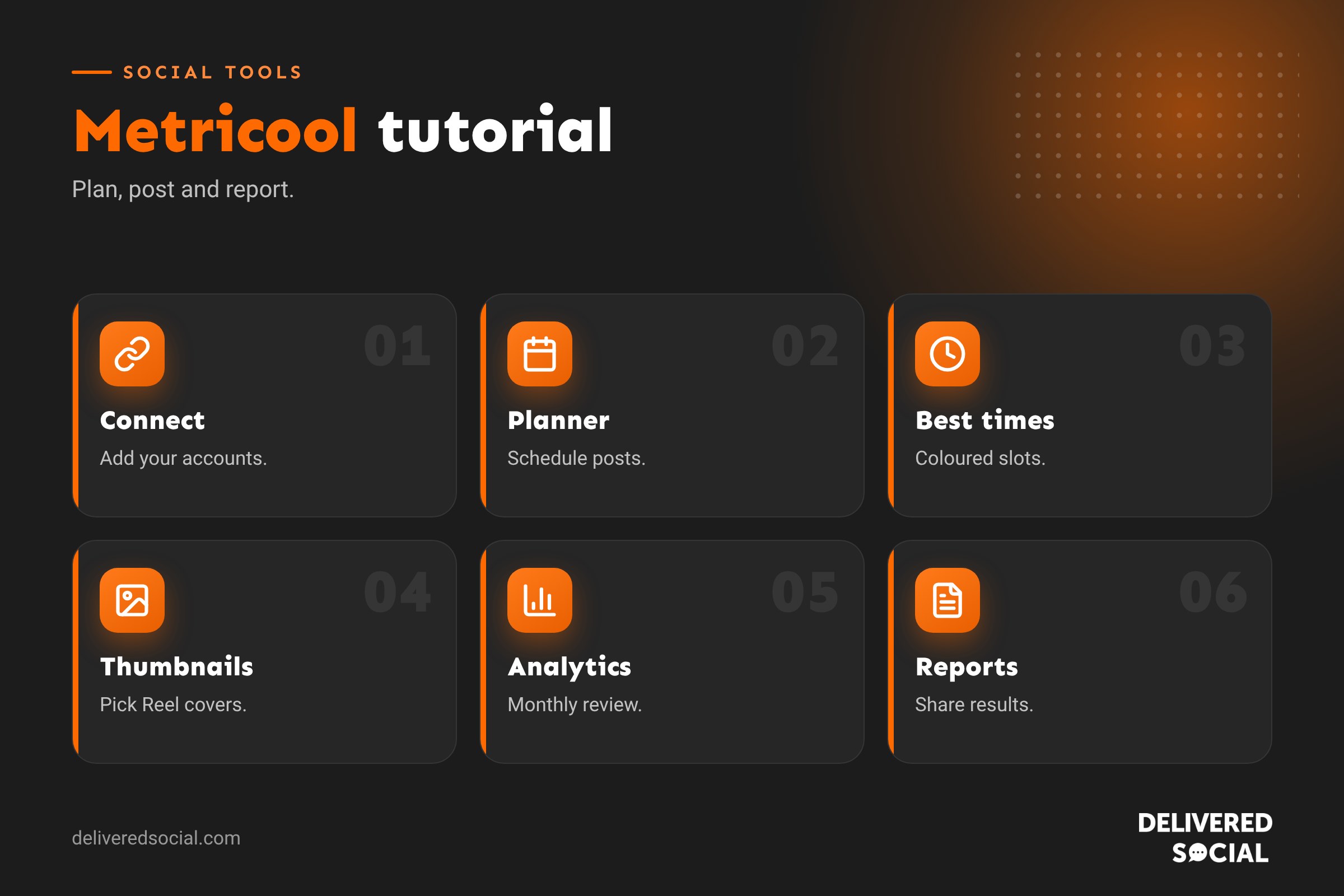
Metricool is one of the most popular social media tools for small businesses and agencies, and it is the one we use every day at Delivered Social to plan, schedule and report on our clients’ social media. It brings Instagram, Facebook, TikTok, LinkedIn, YouTube, Pinterest, Google Business Profile and more into one place. This Metricool tutorial walks you through setting it up, scheduling your first posts, finding your best times to post, adding Reel thumbnails, reading your analytics and building reports, step by step.
What is Metricool?
Metricool is a social media management tool that lets you schedule posts, track analytics, manage ads and create reports from one dashboard. It has a free plan for one brand and paid plans for more brands, features and users. Our Metricool review and Metricool pricing guide cover the plans in detail.
Step 1: create your account and brand
- Sign up on the Metricool website with your email or Google account.
- Metricool organises everything by brand. Each brand is one business, with its own social accounts. Name your first brand after your business.
- Set your time zone in settings so posts publish at the right time. For UK businesses, choose London.
Step 2: connect your social accounts
From your brand’s settings or the connection panel, click each network and log in to authorise Metricool:
- Instagram: needs to be a business or creator account. Connecting through Facebook usually allows direct publishing.
- Facebook: connect the Page, not your personal profile. You need admin rights on the Page.
- TikTok: connect your business or creator account.
- LinkedIn: you can connect a personal profile and company pages you manage.
- Google Business Profile: connect with the Google account that manages the profile.
- YouTube, Pinterest, X, Threads and Bluesky are also available.
Use an account that will always have access. If a staff member who connected an account leaves and their access is removed, the connection can break.
Step 3: get to know the planner
The Planner is where you schedule content. It shows a calendar view by day, week or month, with all your scheduled posts across networks. Click any time slot or the “Create post” button to start a new post.
Step 4: create and schedule a post
- Click Create post.
- Tick the networks you want to post to. You can post the same content to several at once.
- Upload your image or video, or pick one from Canva, Google Drive or your library.
- Write your caption. You can customise the text for each network, for example shorter for X and more professional for LinkedIn.
- Tag people or businesses by typing their @handle in the caption text.
- Choose the post type for each network, such as Instagram feed post, Reel, Story or carousel.
- Pick a date and time, or use the best time suggestions.
- Check the preview, then click Schedule.
Step 5: find your best times to post
Metricool analyses when your audience is most active and highlights the best times in the planner, usually shaded in different colour intensities. Darker slots mean more of your audience is likely to be online. When you create a post, you can choose one of these suggested slots. Treat them as a starting point and test, as our guides to the best times to post explain.
Step 6: add a thumbnail to Reels and videos
For Instagram Reels and other videos, you can choose a cover:
- Upload your video in the post editor.
- Look for the thumbnail or cover option next to the media.
- Either choose a frame from the video or upload a separate image.
- For Reels, decide whether the Reel should also appear in your profile grid.
A clear, consistent cover image makes your grid look tidy and helps people choose to watch. See our Instagram Reels size guide for cover dimensions.
Step 7: auto publish or notification
Most networks support automatic publishing, so Metricool posts for you at the scheduled time. In some cases, such as certain post types or account setups, Metricool may send you a notification to publish manually instead. Check how each post will be published in the post editor before scheduling.
Step 8: use the inbox
Metricool’s inbox brings comments and messages from several networks together, so you can reply without switching apps. Availability depends on the network and your plan.
Step 9: check your analytics
The Analytics section shows performance for each network: followers, reach, impressions, engagement, top posts and more. A few useful habits:
- Look at your top posts each month and note what they have in common.
- Compare reach and engagement month on month.
- Check Reels and video retention where available.
- Track clicks to your website.
Step 10: create reports
On paid plans, Metricool can build reports in a few clicks, combining several networks into one PDF or presentation. You can choose which metrics to include, add your logo and schedule reports to be sent automatically each month. Agencies use this to report to clients; business owners use it to share results with their team.
Step 11: competitors and hashtags
Metricool lets you add competitors on some networks to compare followers and engagement. It also offers hashtag tracking tools on some plans. Use these for ideas, not to copy.
Step 12: ads
If you run Meta, Google or TikTok ads, you can connect your ad accounts to see campaign results alongside your organic performance.
Tips from daily use
- Plan a week at a time. Batch create and schedule every Monday.
- Customise per network rather than copy and paste everything.
- Use the content library to save hashtags, templates and evergreen posts.
- Check connections weekly. Expired connections are the main reason posts fail. If something does not publish, our guide to Metricool not posting explains the fixes.
- Review analytics monthly and adjust your plan.
Using Metricool for Google Business Profile
One of Metricool’s most useful features for local businesses is scheduling Google Business Profile posts alongside social media. Once your profile is connected, you can create update, offer and event posts from the planner, add a photo and a button such as Learn more or Call now, and schedule them weekly. Because Google Business Profile posts appear right where local customers are searching, adding them to your Metricool routine is an easy win. Our guide to Google Business Profile posts has ideas for what to share.
Metricool for teams and agencies
If several people manage your social media, Metricool lets you invite team members with different permissions, so a junior team member can draft posts while a manager approves them. Agencies can manage many brands from one account and send posts to clients for review before they go live. Clients can approve or comment on scheduled posts without needing full access, which keeps everyone on the same page and avoids mistakes. Labels and filters help you keep track of which posts belong to which campaign or client.
Common beginner mistakes
- Connecting a personal Instagram account. Switch to a business or creator account first, or posts may not publish automatically.
- Using the wrong time zone, so posts go out at odd hours.
- Posting identical captions everywhere. What works on Instagram often looks out of place on LinkedIn.
- Forgetting to check the preview. Crops and line breaks can look different on each network.
- Never looking at the analytics. The data is there to help you post smarter.
A simple weekly Metricool routine
- Monday: check last week’s analytics and note your best post.
- Monday: plan and schedule this week’s posts in the planner.
- Daily: five minutes in the inbox replying to comments and messages.
- Friday: check next week’s schedule and that all accounts are still connected.
- Monthly: run a report and decide what to change.
Key takeaways
- Set up a brand, set your time zone and connect each account.
- Use the planner to create, customise and schedule posts.
- Use best time suggestions, then test.
- Add custom covers to Reels for a tidy grid.
- Check analytics and reports monthly and keep connections healthy.
Frequently asked questions
How do I use Metricool?
Create a brand, connect your social accounts, then schedule posts in the planner and review analytics.
Is Metricool free?
There is a free plan for one brand, with paid plans for more features and brands.
Can Metricool post Reels automatically?
Yes, for connected Instagram business or creator accounts, in most cases.
How do I see the best times to post in Metricool?
They are highlighted in the planner calendar, based on your audience activity.
Can I add a thumbnail to a Reel in Metricool?
Yes. Choose a frame or upload a cover image in the post editor.
Does Metricool work with Google Business Profile?
Yes. You can schedule Google Business Profile posts alongside your social media.
Can I edit a post after scheduling it?
Yes. Open the post in the planner, make your changes and save before it publishes.
Can I manage several businesses?
Yes, by creating multiple brands, depending on your plan.
Want your social media managed for you?
We plan, create and schedule social media for businesses across Surrey, Hampshire and the UK. Call us on 01483 608 303.