



Keep reading
Rather we just did it for you?
Let's get your business seen.
Social media, websites, SEO and ads from a team you can actually meet.
Posting a photo on Instagram is simple, but a few small choices, such as the size, the caption and the tags, make a big difference to how many people see it and how good it looks. This guide explains how to post photos on Instagram from your phone or computer, how to post several photos in one carousel, the best sizes, how to edit and schedule posts, and tips to help your photos perform.
How to post a photo on Instagram (app)
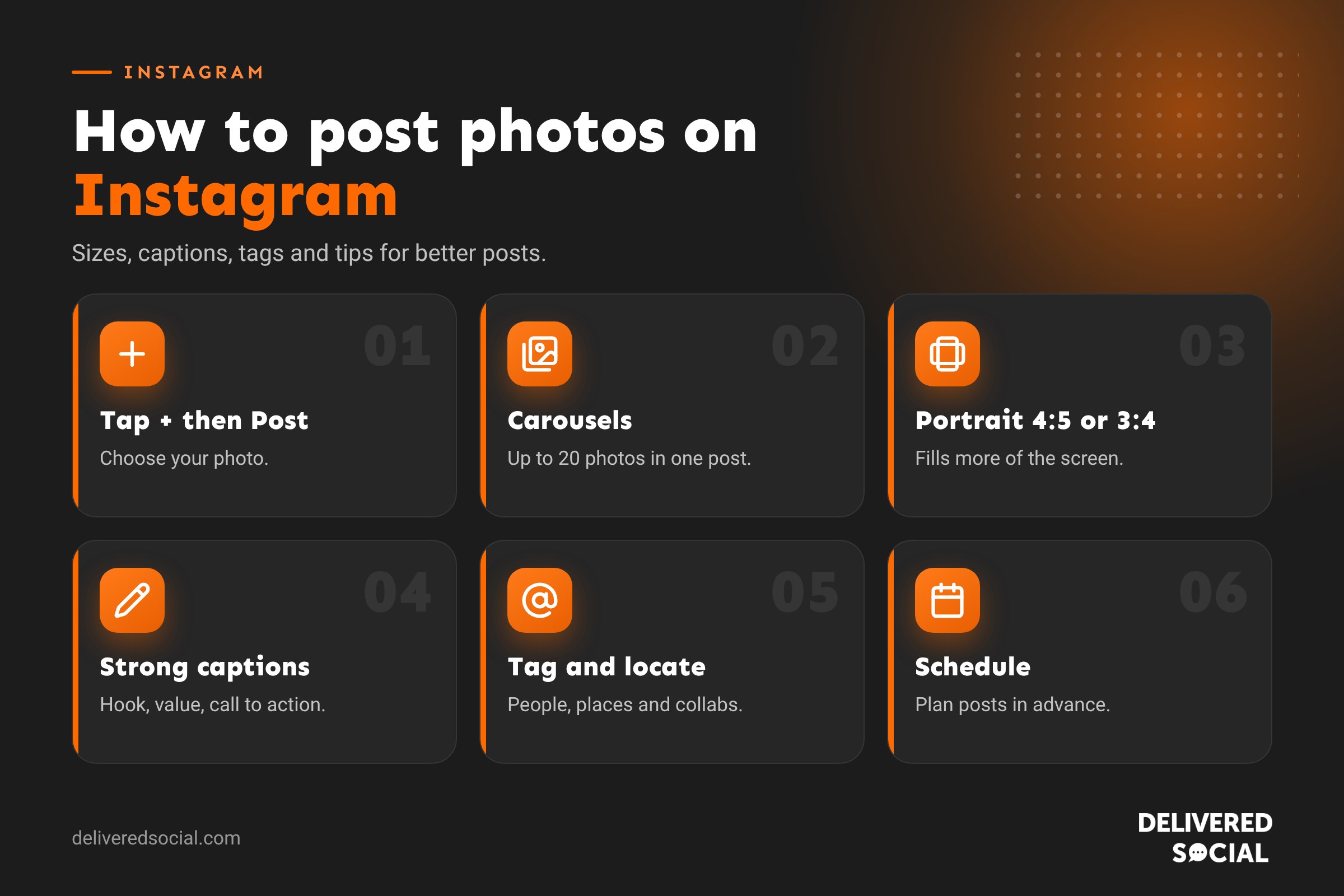
- Open Instagram and tap the + button.
- Choose Post.
- Select a photo from your camera roll, or tap the camera icon to take a new one.
- Adjust the crop by pinching or tapping the expand icon, then tap Next.
- Choose a filter or tap Edit to adjust brightness, contrast, warmth and more. Tap Next.
- Write a caption, tag people, add a location and music if you like.
- Tap Share.
How to post several photos at once (carousel)
- Tap +, then Post.
- Tap Select multiple (the icon with stacked squares).
- Choose up to 20 photos and videos in the order you want them to appear.
- Tap Next, edit each image or apply one filter to all, then continue.
- Add your caption and share.
Carousels are great for step-by-step guides, before and afters, product ranges and event highlights. People swipe through them, and they’re often saved, which helps them reach more people.
How to post photos on Instagram from a computer
- Go to instagram.com and log in.
- Click Create (the + icon) in the left menu, then Post.
- Drag your photos in or click Select from computer.
- Crop, edit and add a caption, then click Share.
Our guide to using Instagram on a desktop covers what else you can do on a computer.
Best photo sizes for Instagram
| Format | Aspect ratio | Size |
|---|---|---|
| Portrait (recommended) | 4:5 or 3:4 | 1080 x 1350 or 1080 x 1440 pixels |
| Square | 1:1 | 1080 x 1080 pixels |
| Landscape | 1.91:1 | 1080 x 566 pixels |
| Stories and Reels | 9:16 | 1080 x 1920 pixels |
Portrait images take up more of the screen, which helps them get noticed. The profile grid now shows posts in a taller 3:4 shape, so keep important details away from the very top and bottom. Our Instagram post size guide explains the crop in more detail.
Writing a good caption
- Start strong. Only the first line or two show before “more”, so make them count.
- Add value or story: a tip, the story behind the photo or a question.
- Use keywords naturally, such as your service and town, so you can be found in Instagram search.
- Finish with a call to action, such as “Save this for later” or “Message us to book”.
- Add a few relevant hashtags at the end. Three to five targeted hashtags are plenty.
Tagging people, products and places
- Tag people who appear in the photo or helped create it. Tap Tag people, then tap the photo where you want the tag.
- Add a location so people browsing that place can find your post.
- Tag products if you have an Instagram Shop.
- Invite a collaborator to share the post on both accounts as a collab post.
How to schedule a photo post
Professional accounts can schedule posts in the app. After writing your caption, tap More options or Advanced settings, turn on Schedule this post, choose a date and time, and tap Schedule. You can also schedule from Meta Business Suite or tools such as Metricool, which make it easy to plan a whole month at once.
How to edit a post after sharing
Open the post, tap the three dots and choose Edit. You can change the caption, tags, location and alt text, and remove individual photos from a carousel. You can’t swap the photo itself or change the filter once it’s posted.
Adding alt text
Alt text describes your photo for people using screen readers. Instagram adds automatic alt text, but writing your own is better. Before sharing, tap Advanced settings, then Write alt text. For existing posts, use Edit, then Edit alt text. A clear description such as “Freshly baked sourdough loaves on a wooden board in our Guildford bakery” helps accessibility and can help Instagram understand your content.
Tips for better Instagram photos
- Use natural light. Shoot near a window or outdoors in soft light.
- Clean your lens before every shot.
- Keep backgrounds simple so the subject stands out.
- Shoot in portrait to fill more of the screen.
- Edit lightly and consistently, so your feed has a recognisable look.
- Show people. Photos with faces often get more engagement than products alone.
- Use real photos of your business rather than stock images where you can.
When is the best time to post?
It depends on your audience. Check your Instagram Insights under Total followers to see when your followers are most active. Many UK audiences are active early morning, at lunchtime and in the evening, but test different times for your own account.
Common problems
- Photo looks blurry: upload a larger original and avoid screenshots.
- Photo is cropped badly: resize to 4:5 or 3:4 before uploading.
- Upload fails: check your connection, update the app and try again.
- Can’t post multiple photos: make sure you’re tapping the select multiple icon.
Photo post ideas for small businesses
- Your best work: finished projects, signature dishes, bestsellers.
- Before and after carousels: start with the after to grab attention.
- Meet the team: a friendly photo and a few lines about each person.
- Customer stories: a photo of the customer (with permission) and their review.
- Tips carousels: a title slide followed by one tip per slide.
- Behind the scenes: your workspace, tools, ingredients or process.
- Local moments: your street, events you attend, partners nearby.
Building a consistent look
A consistent style helps people recognise your posts as they scroll. Choose a few rules and stick to them: similar lighting, the same editing style or preset, a small set of brand colours and fonts for any text graphics, and a mix of close-ups and wider shots. Preview your grid before posting, especially now the profile grid uses a taller shape, to make sure everything fits together.
Editing photos before you post
| Tool | Good for |
|---|---|
| Instagram’s editor | Brightness, contrast, warmth, cropping and filters |
| Your phone’s photo app | Quick fixes and straightening |
| Lightroom Mobile | Consistent edits with presets |
| Snapseed | Free detailed editing |
| Canva | Adding text, branding and carousel layouts |
Edit lightly. Natural-looking photos usually perform better than heavily filtered ones, and customers want to see what your products and work really look like.
Photos vs Reels: do photos still work?
Instagram pushes Reels heavily, but photos and carousels still matter. Carousels in particular are often saved and shared, and Instagram can show them again to people who didn’t swipe the first time. A healthy mix for most businesses is Reels to reach new people, carousels to teach and inspire, and single photos to show your best work. Instagram has also added the option to add music to photo posts, which can help them stand out.
A weekly photo posting routine
- Monday: take photos during your normal work, such as products, projects and the team.
- Tuesday: choose the best and edit them consistently.
- Wednesday: write captions and plan carousels.
- Thursday: schedule posts for the next week.
- Every day: reply to comments and messages within a few hours.
Spending an hour or two a week in this way keeps your feed active without it taking over your days, and gives you a steady supply of content for Stories too.
Getting permission to post photos of customers
If a photo includes customers or members of the public, ask before posting, especially if they’re clearly identifiable. A quick “Do you mind if we share this on our Instagram?” is usually all it takes. For photos of children, always get a parent’s permission. Keep a record of consent for anything you might use in adverts or on your website. It’s good manners, it builds trust and it protects your business.
Whatever you decide, take a few minutes to review the settings mentioned in this guide every few months. Social platforms change their menus and features regularly, and a quick check keeps your account working the way you want it to.
Frequently asked questions
How many photos can I post at once on Instagram?
Up to 20 photos and videos in a single carousel post.
Can I post a photo without cropping it?
Instagram allows sizes between landscape 1.91:1 and portrait 4:5 or 3:4. Photos outside that range will be cropped, so resize them first or add borders.
Can I post on Instagram from my computer?
Yes, at instagram.com, using the Create button.
Can I change the photo after posting?
No. You can edit the caption and tags, but to change the photo you’d need to delete and repost.
Want Instagram posts that bring in customers?
We help small businesses across Surrey, Hampshire and the UK plan, photograph and schedule Instagram content. See our social media services or call us on 01483 608 303.































