



Keep reading
Rather we just did it for you?
Let's get your business seen.
Social media, websites, SEO and ads from a team you can actually meet.
Instagram was built for phones, but you don’t have to use it on one. Instagram’s website lets you scroll, post, reply to messages and check your account from any computer, which is a big help if you manage a business account from your desk. This guide explains how to use Instagram on the web, what you can and can’t do on a desktop, and the best tools for posting from a computer.
How to use Instagram on a computer
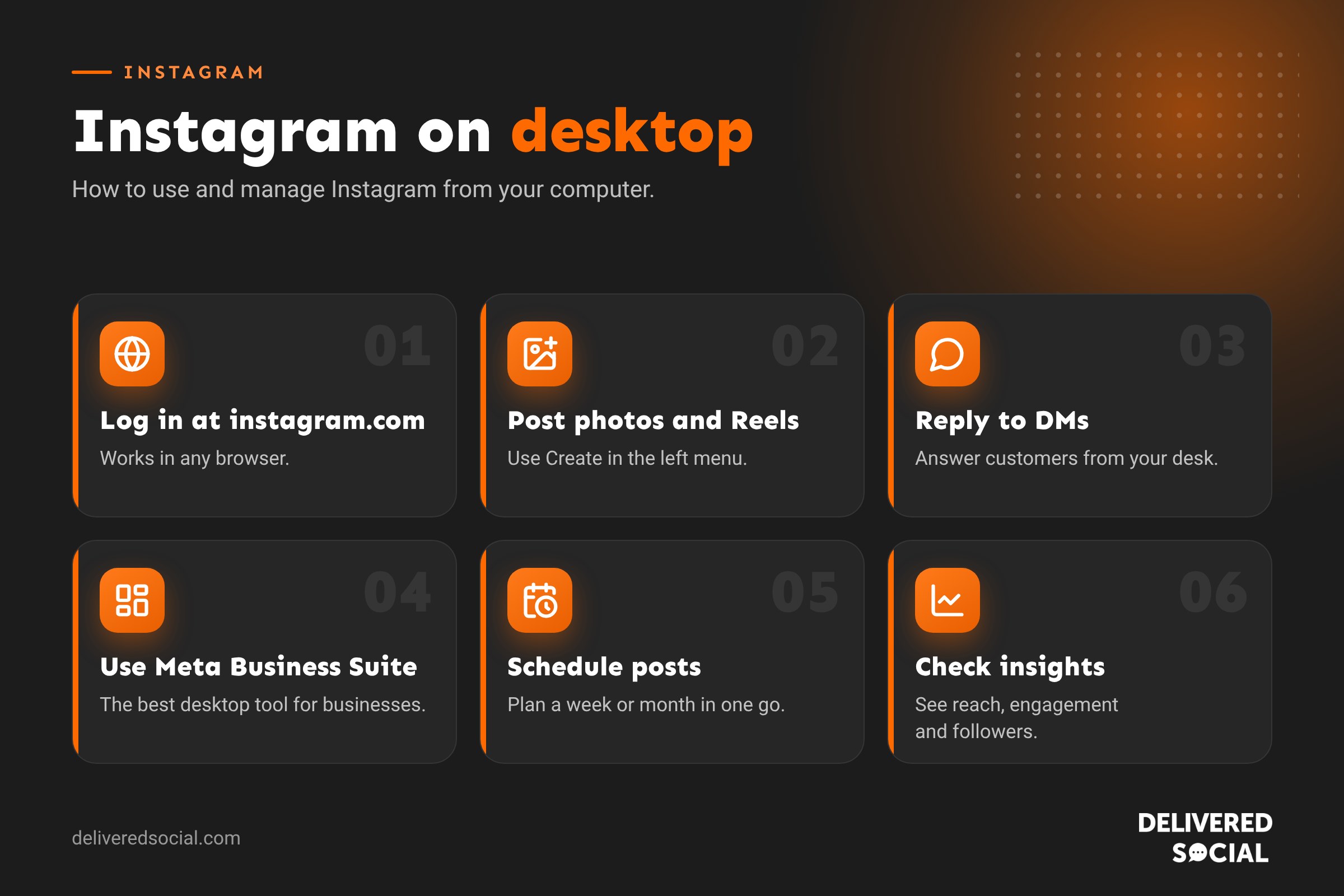
- Open any browser (Chrome, Safari, Edge or Firefox) and go to instagram.com.
- Log in with your username, phone number or email and password, or with Facebook.
- Use the menu on the left for Home, Search, Explore, Reels, Messages, Notifications, Create and your Profile.
On a Mac, you can use the website in Safari or install it as an app from the browser. On Windows, you can also use the Instagram web app from the Microsoft Store or install it from Chrome or Edge.
What you can do on Instagram web
| Feature | On the web? |
|---|---|
| Scroll your feed and Explore | Yes |
| Watch Reels and Stories | Yes |
| Post photos, videos, carousels and Reels | Yes, with Create (+) |
| Send and reply to direct messages | Yes |
| Like, comment and save posts | Yes |
| Edit your profile and bio | Yes |
| Post Stories | Limited: use Meta Business Suite for full control |
| Go live | Through Instagram Live Producer with streaming software |
| Detailed insights | Best in Meta Business Suite |
| Apply in-app filters, stickers and music | Limited compared with the app |
How to post on Instagram from a computer
- Log in at instagram.com and click Create (the + icon) in the left menu.
- Choose Post, then drag your photos or videos in, or click to select them. Add up to 20 for a carousel.
- Pick the crop: original, square, 4:5 portrait or 16:9. See our Instagram post size guide.
- Apply edits, then write your caption, tag people, add a location and alt text under Accessibility.
- Click Share.
The best way for businesses: Meta Business Suite
If you run a business account, Meta Business Suite (business.facebook.com) is the best way to manage Instagram from a desktop. It lets you:
- Plan and schedule posts, Reels and Stories in advance.
- Post to Instagram and Facebook at the same time.
- Reply to Instagram and Facebook messages and comments from one inbox.
- See insights on reach, engagement and followers.
- Set up automated replies to common questions.
Scheduling tools such as Metricool, Later and Buffer offer similar features plus planning calendars and reports, which is useful for agencies and teams.
How to view Instagram without the app
Public profiles and posts can be viewed in a browser by visiting instagram.com/username. Instagram will usually ask you to log in after a few scrolls. Private accounts can only be seen by approved followers. Be careful of websites that claim to let you view private accounts: they don’t work and are often scams. Read more in our guide to private Instagram account viewers.
Instagram on desktop not working?
- Clear your browser cache and cookies, then log in again.
- Turn off browser extensions such as ad blockers, one at a time.
- Update your browser to the latest version.
- Try a different browser or a private window.
- Check Instagram’s status: if the app isn’t working either, the problem is on Instagram’s side.
Tips for managing Instagram from your desk
- Batch your content: write captions and schedule a week or month of posts in one go.
- Edit photos and Reels in Canva or CapCut on your computer before uploading.
- Keep the DMs tab open during working hours so customer messages get a quick reply.
- Still check posts on a phone, because that’s how most of your followers will see them.
Frequently asked questions
Can I use Instagram on a laptop?
Yes. Go to instagram.com in any browser and log in. You can post, message and browse just like on a phone.
Can I schedule Instagram posts on a computer?
Yes, with Meta Business Suite or a scheduling tool. Instagram’s own website lets you post straight away rather than schedule.
Can I post Instagram Stories from a computer?
The easiest way is through Meta Business Suite, which lets you create and schedule Stories from a desktop.
Is there an Instagram app for Windows or Mac?
You can install Instagram’s web app from your browser or the Microsoft Store, which works much like the website.
Want someone to manage your Instagram?
We plan, create and schedule Instagram content for small businesses across Surrey, Hampshire and the UK. See our social media services or call us on 01483 608 303 for a friendly chat.































