



Keep reading
Rather we just did it for you?
Let's get your business seen.
Social media, websites, SEO and ads from a team you can actually meet.
Most people think of TikTok as a phone app, but you do not have to download anything to use it. TikTok works in any web browser on a computer, and there are desktop apps for Windows and Mac too. For businesses, the desktop version is handy for watching competitors, replying to comments, checking analytics and uploading polished videos edited on a computer. This guide explains how to use TikTok on desktop and online without downloading the app, what you can and cannot do, and tips for businesses.
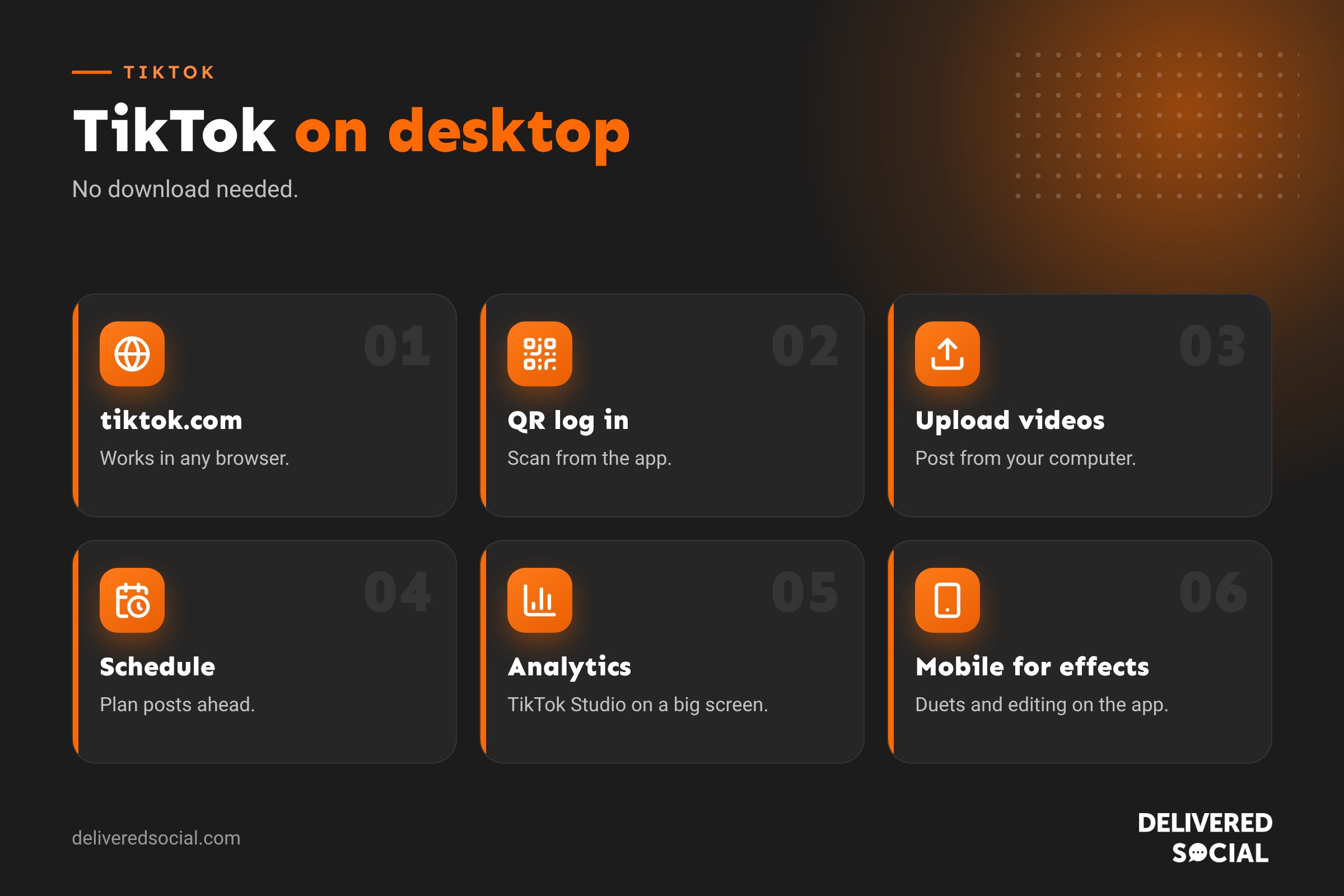
Can you use TikTok without downloading the app?
Yes. Go to tiktok.com in any modern browser, such as Chrome, Safari, Edge or Firefox, and you can watch videos straight away. You can browse the For You and Following feeds, search, and watch profiles without an account, although TikTok will prompt you to log in after a while and some features require an account.
How to use TikTok in a web browser
- Open your browser and go to tiktok.com.
- Click Log in and choose your method: QR code from the app, email or phone number, or a connected account such as Google or Apple.
- Use the left menu to switch between For You, Following, Explore, Live and your profile.
- Scroll with your mouse or use the arrow keys to move between videos.
Logging in with the QR code is quick: open TikTok on your phone, go to your profile, tap the menu, open the QR scanner and point it at the code on screen.
The TikTok desktop app
TikTok also offers a desktop app for Windows, available from the Microsoft Store, and has offered versions for Mac. The desktop app works much like the website but runs in its own window. Most people find the browser version does everything they need.
What you can do on TikTok desktop
- Watch videos in the For You and Following feeds.
- Search for accounts, sounds, hashtags and topics.
- Like, comment and share videos.
- Follow and unfollow accounts.
- Upload videos from your computer, with captions, cover images and privacy settings.
- Schedule posts for later from the web upload page, where available.
- Read and send messages in your inbox.
- Watch LIVE streams.
- View analytics for business and creator accounts.
- Edit your profile details.
What is limited on desktop
- Editing tools: the full in app editor, many effects and filters are only on mobile.
- Some sounds: adding trending sounds is easier in the app.
- Duets and Stitches: these creative tools are designed for the mobile app.
- Going LIVE: desktop streaming usually requires TikTok LIVE Studio or third party streaming software and eligible accounts.
- Stories and some new features: new features often launch on mobile first.
How to upload a TikTok from your computer
- Log in at tiktok.com and click Upload.
- Select your video file or drag it into the window.
- Write your caption, add hashtags and mention accounts.
- Choose a cover image.
- Set who can view, comment, Duet and Stitch.
- Post now or schedule it if the option is available.
Uploading from a computer is ideal when you edit videos in software such as Premiere Pro, Final Cut or CapCut desktop. Export at 1080 by 1920 pixels in a 9:16 vertical format. Our TikTok video size guide covers the details, and our guide to scheduling TikTok posts explains your options.
TikTok Studio and analytics on desktop
Business and creator accounts can open TikTok Studio from the profile menu on desktop. It brings together your posts, analytics, comments and creator tools in one dashboard, which is far easier to review on a big screen. Check views, watch time, follower growth and audience details, then use what you learn to plan your next videos. Our guide to TikTok analytics explains the key numbers.
Messages and comments on desktop
The inbox on tiktok.com lets you read and reply to direct messages, which is useful for customer service. Managing comments from a computer is faster too, especially when replying to lots of people after a video takes off. Our guide to DM strategies for growth explains how to turn conversations into customers.
Why businesses should use TikTok on desktop
- Research: watch competitors and trends while you plan content at your desk.
- Professional uploads: post videos edited in desktop software without transferring files to a phone.
- Faster replies: respond to comments and messages using a proper keyboard.
- Better analytics: review performance on a large screen.
- Team access: colleagues can help manage the account from shared computers, ideally using TikTok’s business tools rather than sharing passwords.
Keyboard shortcuts and handy tips
- Use the up and down arrow keys to move between videos.
- Press the space bar to pause and play.
- Use M to mute and unmute in many browsers.
- Right click a video to copy its link quickly for sharing with your team.
- Bookmark the upload page if you post from your computer regularly.
Is TikTok on desktop safe?
Use the official website at tiktok.com or the official desktop app from a trusted store. Avoid third party “TikTok viewer” sites that ask for your login, as these can steal accounts. Turn on two step verification in your security settings.
TikTok on desktop vs mobile
For creating content, the mobile app is still the most powerful, with the full editor, effects and sounds. For watching, managing and analysing, desktop is often faster and more comfortable. Most businesses get the best results by filming and adding effects on mobile, editing longer or more polished videos on a computer, and using desktop for research, replies and reporting.
Troubleshooting
- Videos will not play: refresh, clear your browser cache or try another browser.
- Cannot log in: try the QR code method or reset your password.
- Upload stuck: check file size and format (MP4 or MOV), and your internet connection.
- Feature missing: some tools are mobile only or still rolling out.
A desktop workflow for busy businesses
A simple routine makes desktop TikTok genuinely useful. Spend ten minutes on Monday morning scrolling the For You feed and your favourite competitors to spot trends and ideas. Film clips on your phone during the week, then edit and upload them from your computer with proper captions. Check TikTok Studio on Friday to see which videos held attention and which fell flat, and reply to any comments you missed. This keeps TikTok manageable alongside the rest of your work without living in the app all day.
Using TikTok desktop for competitor research
A computer makes it much easier to study what works in your industry. Open several competitor profiles in separate tabs, sort their videos by popularity where possible and note common hooks, topics, video lengths and posting frequency. Search keywords related to your business and see which videos rank. Keep a simple spreadsheet of ideas with links to the videos that inspired them. Spending half an hour a month on this kind of research can transform your content plan.
Managing TikTok as a team
If several people help with your TikTok, desktop makes collaboration easier. One person can upload and schedule from a computer, another can handle comments, and the owner can review analytics. Use TikTok’s business tools and strong passwords with two factor authentication rather than sharing logins casually, and remove access when people leave.
A computer also makes it easier to keep captions, hashtags and video files organised in shared folders.
Key takeaways
- You can use TikTok at tiktok.com without downloading the app.
- Desktop lets you watch, search, comment, message, upload and view analytics.
- Editing effects, Duets and Stitches are mainly mobile features.
- Uploading from a computer suits videos edited in desktop software.
- Use only the official website or app and avoid third party viewer sites.
Frequently asked questions
Can I watch TikTok without an account?
Yes, you can watch videos on tiktok.com without logging in, although you will be prompted to sign in.
Is there a TikTok app for PC?
Yes, TikTok offers a desktop app for Windows, but the website does almost everything too.
Can I post on TikTok from my computer?
Yes. Click Upload on tiktok.com and select your video.
Can I edit TikToks on desktop?
Basic options are available, but the full editor and effects are in the mobile app.
Can I go live on TikTok from a computer?
Eligible accounts can use TikTok LIVE Studio or streaming software.
Can I message people on TikTok desktop?
Yes, the inbox works on tiktok.com.
Why can I not see some features on desktop?
Many features launch on mobile first or are mobile only.
Can I use TikTok on a Mac?
Yes, through tiktok.com in Safari or Chrome.
Can I download my TikTok videos on desktop?
Yes, you can download your own videos where downloads are allowed.
Can I use TikTok on a work computer?
Yes, but check your organisation’s IT policies.
Is TikTok desktop free?
Yes.
Want help with TikTok?
We plan, film and post TikTok content for businesses across Surrey, Hampshire and the UK. Find out more about our TikTok marketing services. Call us on 01483 608 303.