




Keep reading
Rather we just did it for you?
Let's get your business seen.
Social media, websites, SEO and ads from a team you can actually meet.
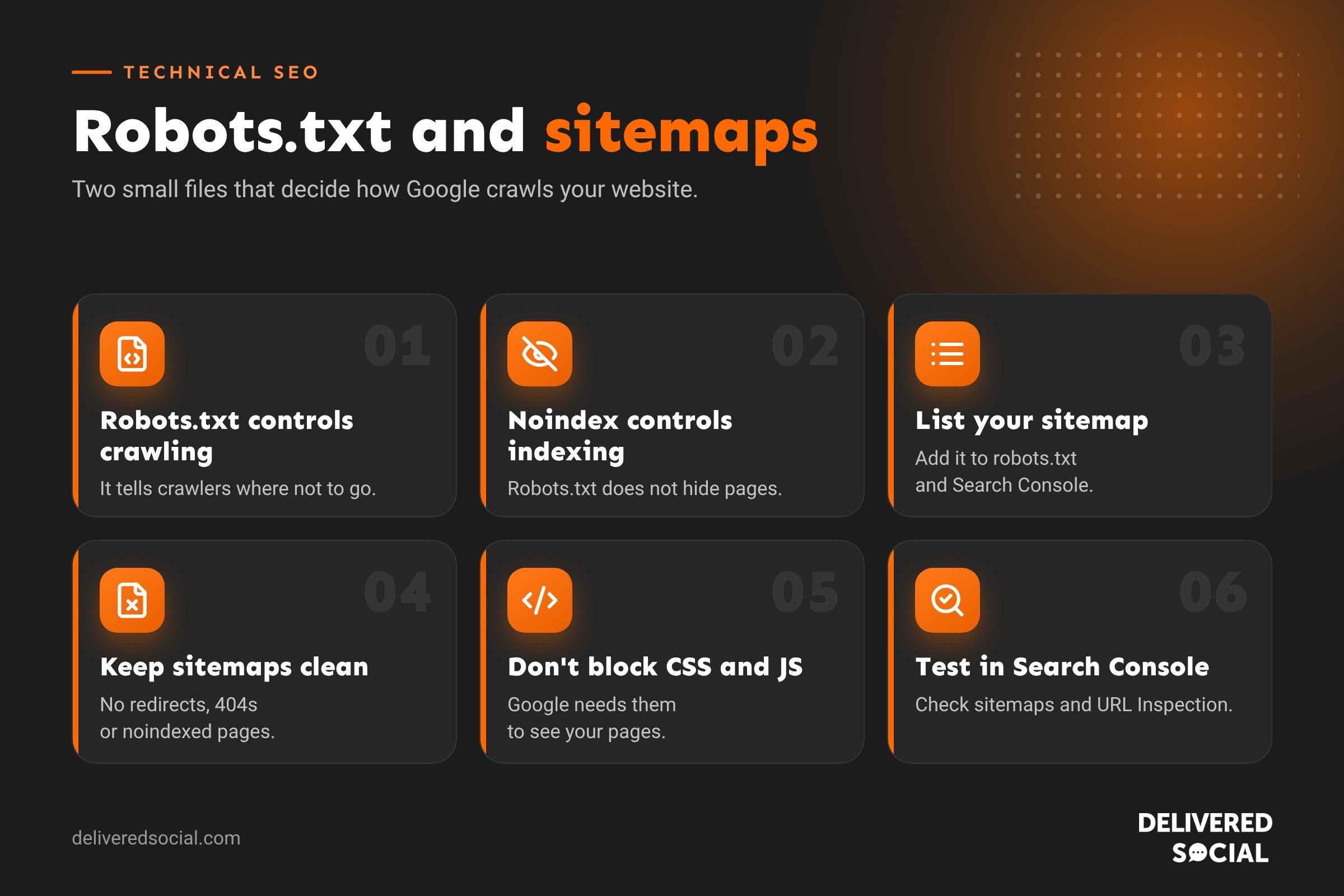
Two small files have a big influence on how search engines see your website. Your robots.txt file tells crawlers where they can and can’t go. Your XML sitemap lists the pages you want them to find. Get them right and Google crawls your site efficiently. Get them wrong and you can hide your whole website from search by accident.
This guide explains how robots.txt and sitemaps work together, with examples, WordPress tips, the most common mistakes and how to check yours.
What is robots.txt?
Robots.txt is a plain text file at the root of your website (for example, yourwebsite.co.uk/robots.txt). Search engine crawlers check it before crawling your site. It tells them which areas they’re allowed to visit.
A simple robots.txt for a WordPress site looks like this:
User-agent: *
Disallow: /wp-admin/
Allow: /wp-admin/admin-ajax.php

Sitemap: https://www.yourwebsite.co.uk/sitemap_index.xml- User-agent says which crawler the rules apply to (* means all).
- Disallow blocks a folder or page from being crawled.
- Allow makes an exception inside a blocked folder.
- Sitemap tells crawlers where your sitemap is.
What is an XML sitemap?
An XML sitemap is a list of the pages on your website you’d like search engines to find, often with the date each was last updated. It helps Google discover new and updated pages, especially on larger sites or pages with few internal links. A sitemap can hold up to 50,000 URLs; larger sites use a sitemap index that links to several sitemaps.
WordPress creates a basic sitemap automatically at /wp-sitemap.xml. SEO plugins usually replace it with their own, often at /sitemap_index.xml or /sitemap.xml.
How robots.txt and sitemaps work together
| Robots.txt | XML sitemap | |
|---|---|---|
| Purpose | Says where crawlers can’t go | Lists the pages you want found |
| Controls indexing? | No, only crawling | No, it’s a suggestion |
| Where it lives | /robots.txt at the root | Any URL, listed in robots.txt and Search Console |
| Should include | Admin areas, internal search results, endless filter URLs | Important, indexable pages only |
The key rule: never list a page in your sitemap that you’ve blocked in robots.txt, or that has a noindex tag. That sends Google mixed signals.
Robots.txt doesn’t hide pages from Google
This is the most common misunderstanding. Blocking a page in robots.txt stops Google crawling it, but the page can still appear in search results if other sites link to it. To keep a page out of search, use a noindex tag instead, and make sure the page is not blocked in robots.txt, otherwise Google can’t see the noindex.
Common robots.txt and sitemap mistakes
- Blocking the whole site with
Disallow: /, often left over from a development site going live. - Leaving “Discourage search engines” ticked in WordPress Settings > Reading after launch.
- Blocking CSS and JavaScript, so Google can’t see your pages properly.
- Sitemaps full of junk: redirects, 404s, noindexed pages, tag archives and thin pages.
- Using robots.txt to fix duplicate content. Use canonical tags or noindex instead.
- Forgetting to submit the sitemap in Google Search Console and Bing Webmaster Tools.
What about crawl rate?
Google used to offer a crawl rate limiter tool in Search Console, but it was retired in January 2024. Googlebot now adjusts automatically based on how your server responds. If your server is genuinely struggling, it can temporarily return a 503 or 429 status code to slow crawling down. For most small business websites, crawl rate isn’t something you need to manage.
Robots.txt and AI crawlers
You can also use robots.txt to control AI crawlers, such as GPTBot (OpenAI) and Google-Extended (used for Google’s AI models). Think carefully before blocking them: being visible to AI tools can help people discover your business. See our guide to AI SEO.
How to check your robots.txt and sitemap
- Visit
yourwebsite.co.uk/robots.txtand check nothing important is blocked. - Open your sitemap and check it lists your key pages.
- In Google Search Console, submit your sitemap under Sitemaps and check for errors.
- Check the robots.txt report in Search Console settings for fetch problems.
- Use the URL Inspection tool on important pages to confirm they can be crawled and indexed. Our guide to what indexed means explains the results.
Frequently asked questions
Do I need a robots.txt file?
It’s not essential, but it’s good practice, and it’s the standard place to list your sitemap.
Does a sitemap guarantee my pages get indexed?
No. It helps Google find pages, but Google still decides what to index based on quality and other signals.
How often should I update my sitemap?
Most WordPress SEO plugins update it automatically whenever you publish or update a page.
Can robots.txt improve my rankings?
Not directly. It helps Google spend its time on your important pages, which supports good SEO.
Want a technical SEO check?
We build and look after WordPress websites for small businesses across Surrey, Hampshire and the UK, with technical SEO set up properly from day one. See our SEO services or call us on 01483 608 303 for a friendly chat.































