




Keep reading
Rather we just did it for you?
Let's get your business seen.
Social media, websites, SEO and ads from a team you can actually meet.
Spotted a great post from a customer, partner or creator and want to share it with your followers? Instagram now has a built-in repost button, but there are several ways to reshare posts, Reels and Stories. This guide explains how to repost on Instagram step by step, how to share to your Story, how to repost a Story you’re tagged in, and the etiquette to follow so you stay on the right side of the original creator.
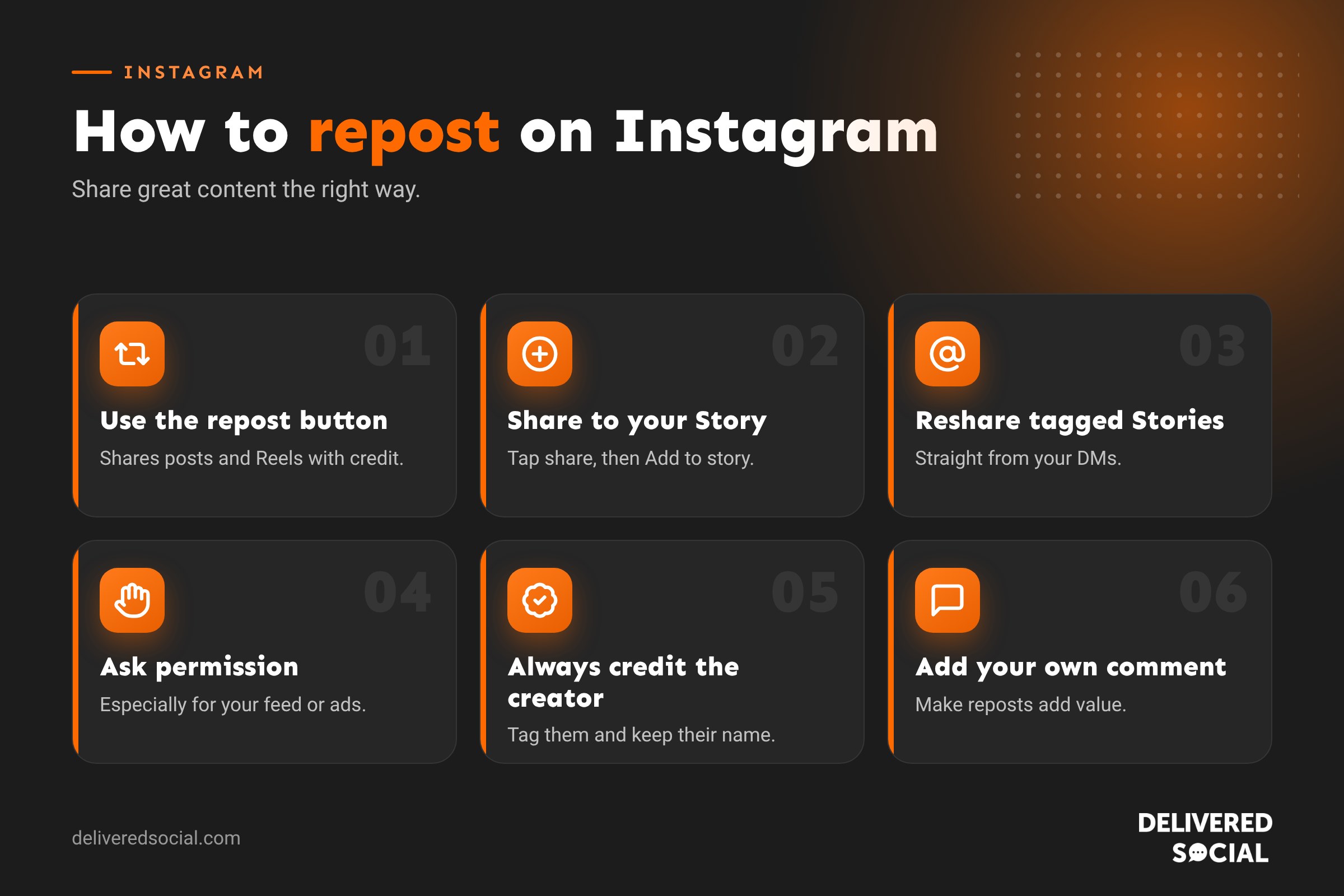
How to repost a post or Reel on Instagram
Instagram added a native repost feature in 2025, so you no longer need a third-party app for most reposts.
- Open the post or Reel you want to share.
- Tap the repost icon (two arrows in a loop) below the post.
- Add an optional thought, which appears as a short note on the repost.
- Your repost appears in your followers’ feeds and in a Reposts tab on your profile, with full credit to the original account.
To undo a repost, tap the repost icon again or remove it from your Reposts tab.
How to repost to your Instagram Story
- Tap the share icon (paper aeroplane) under the post or Reel.
- Tap Add to story.
- Resize the post, add text, stickers or a mention, and change the background if you like.
- Tap Your story to share it. Followers can tap the post to view the original.
If you don’t see “Add to story”, the account owner has turned off resharing, or the account is private.
How to repost a Story you’re tagged in
- When someone mentions you in their Story, you’ll get a direct message.
- Open the message and tap Add to story.
- Edit if you like, then share it to your own Story.
This is one of the easiest ways for a business to share customer reviews, unboxings and tagged photos.
How to repost someone else’s Story (not tagged)
You can’t directly reshare a Story you’re not tagged in. Instead, ask the person to tag you, or ask permission to screenshot or save the content and post it yourself with credit.
Other ways to reshare
- Collab posts: invite another account as a collaborator so one post appears on both profiles and shares likes and comments. Ideal for partnerships.
- Remix: create a Reel alongside someone else’s, if they allow remixing.
- Screenshot and repost: only with permission, and always credit the creator in the caption and by tagging them.
- Send in a DM: share a post privately with one person or a group.
Repost etiquette for businesses
- Ask first when you’re reposting a customer’s or creator’s content to your feed, especially for adverts.
- Always credit the original account clearly.
- Don’t crop out watermarks or usernames.
- Add your own comment so the repost adds value rather than just copying.
- Never use reposted content in paid ads without written permission.
Copyright belongs to the person who created the photo or video. Instagram’s built-in tools keep credit attached, but saving and reuploading someone’s work without permission can lead to removal or a copyright complaint.
Why reposting is good for your business
- Customer content is social proof: real people showing they love what you do.
- It saves time on creating content from scratch.
- It builds relationships with customers, partners and local businesses.
- It encourages more people to tag you, hoping to be featured.
Mix reposts with your own original content, though. A feed made only of reposts doesn’t give people a reason to follow you. For more ideas, read our guide to Instagram hashtags.
Why can’t I repost on Instagram?
- The account is private.
- The owner has turned off resharing for their posts.
- Your app needs updating to show the repost button.
- The feature is still rolling out to your account.
Frequently asked questions
Does the original creator know when I repost?
Yes. They’ll usually get a notification when you repost their content using Instagram’s tools.
Can I repost a Reel with the original audio?
Yes. Using the repost button or sharing to your Story keeps the original Reel and audio intact.
Do reposts show on my profile grid?
No. Reposts appear in a separate Reposts tab on your profile and in followers’ feeds, not in your main grid.
Can I repost on Instagram from a computer?
Most reposting features work best in the mobile app. See our guide to using Instagram on desktop.
Want help growing your Instagram?
We help small businesses across Surrey, Hampshire and the UK create Instagram content their customers want to share. See our social media services or call us on 01483 608 303 for a friendly chat.































